
Create a New Product
The system allows effective management of products in the system. Products can be created, deleted, and edited.
How-to: Create New Products
To do this, follow these steps:
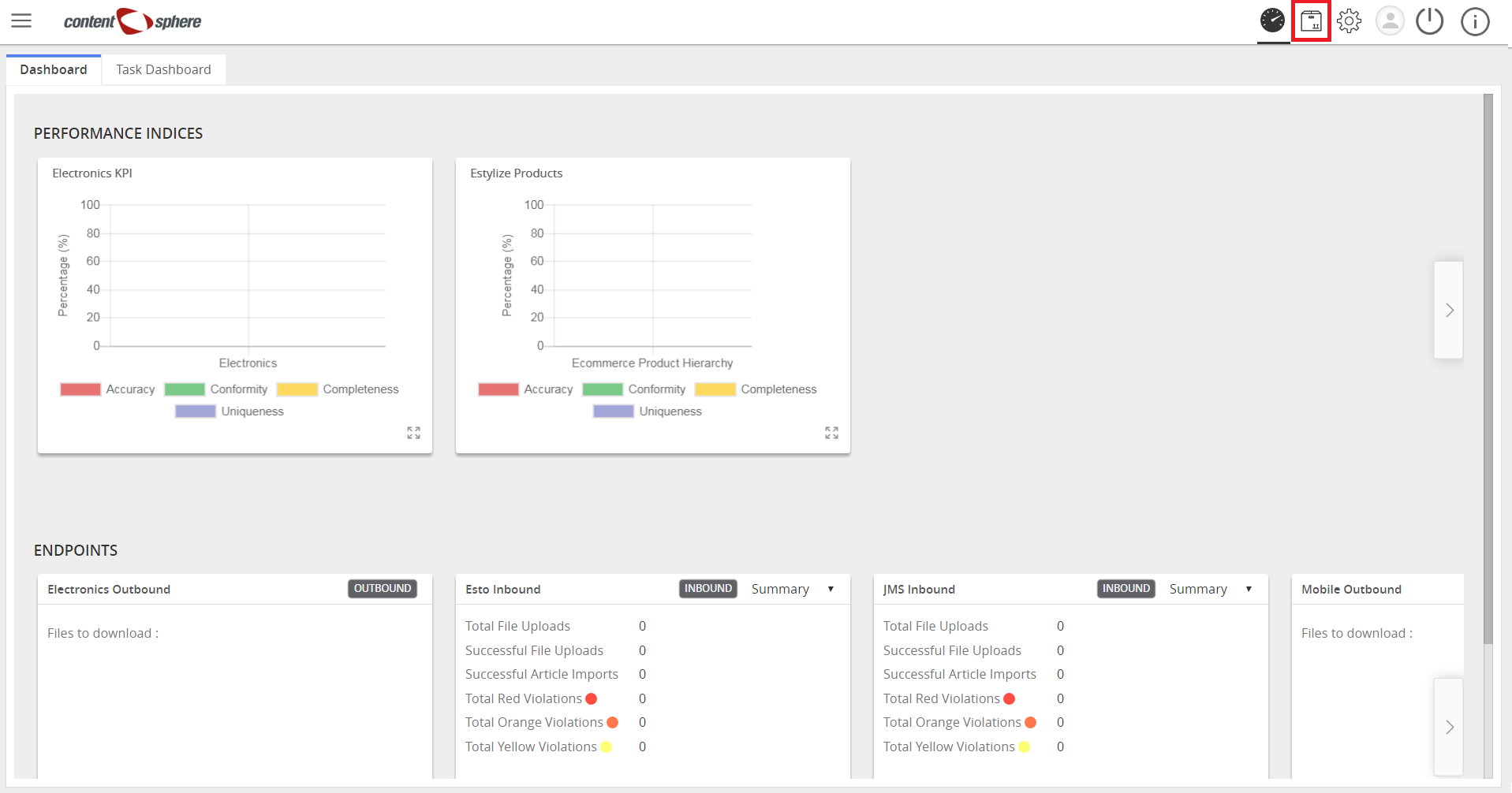
- Click All from the top right.
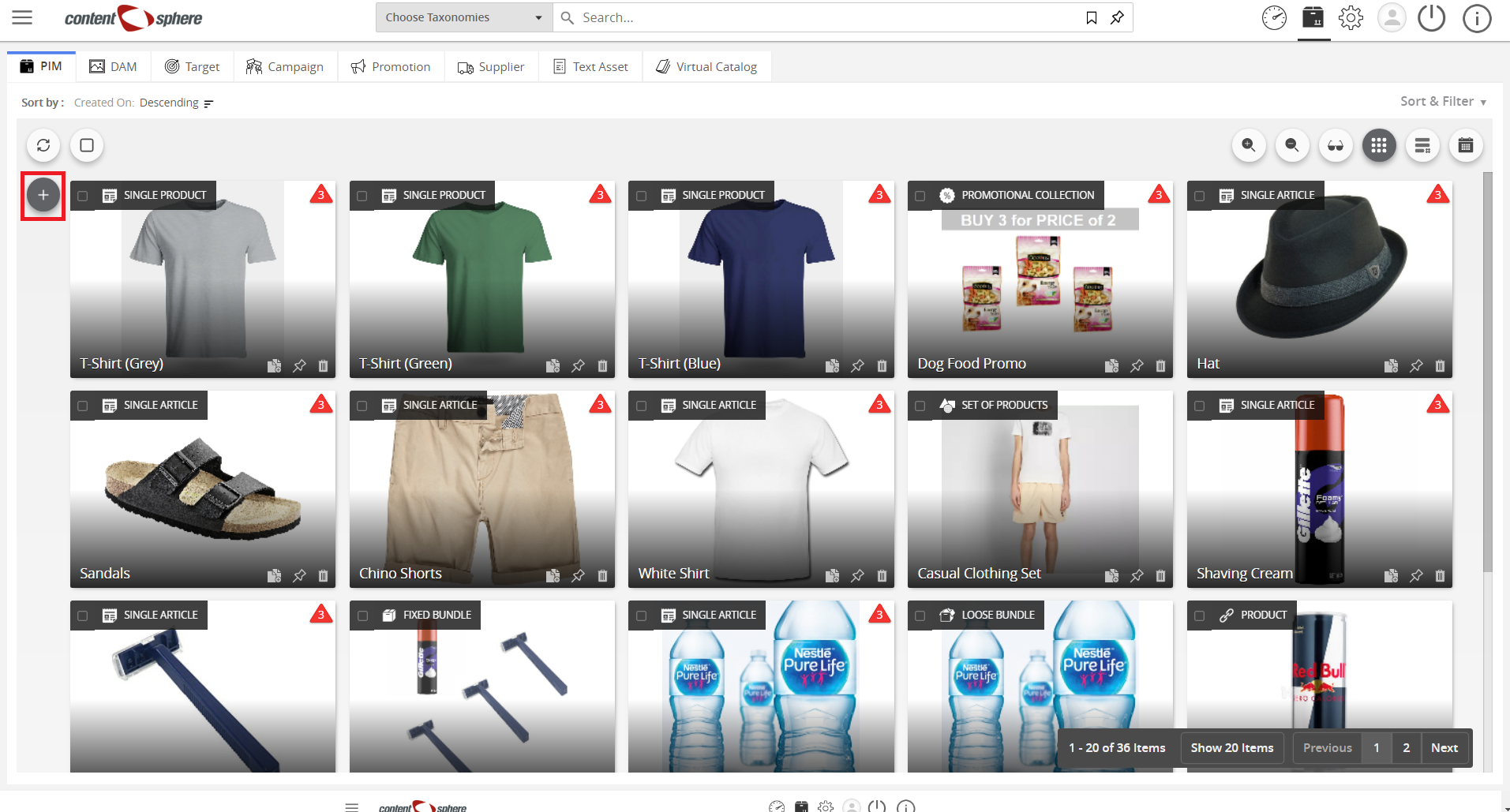
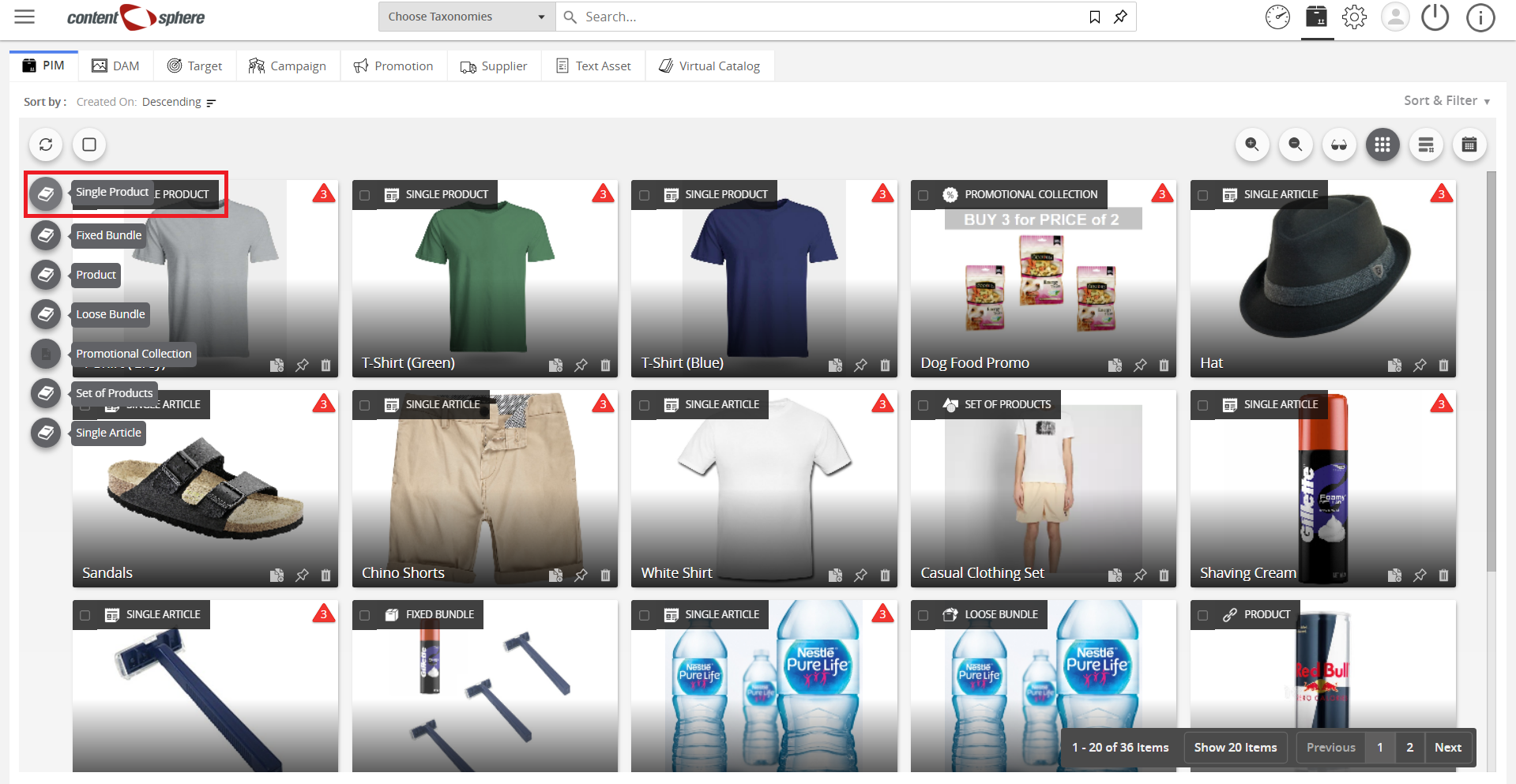
- Hover over the “+” icon and select the desired product (in this demo, we select Single Product).
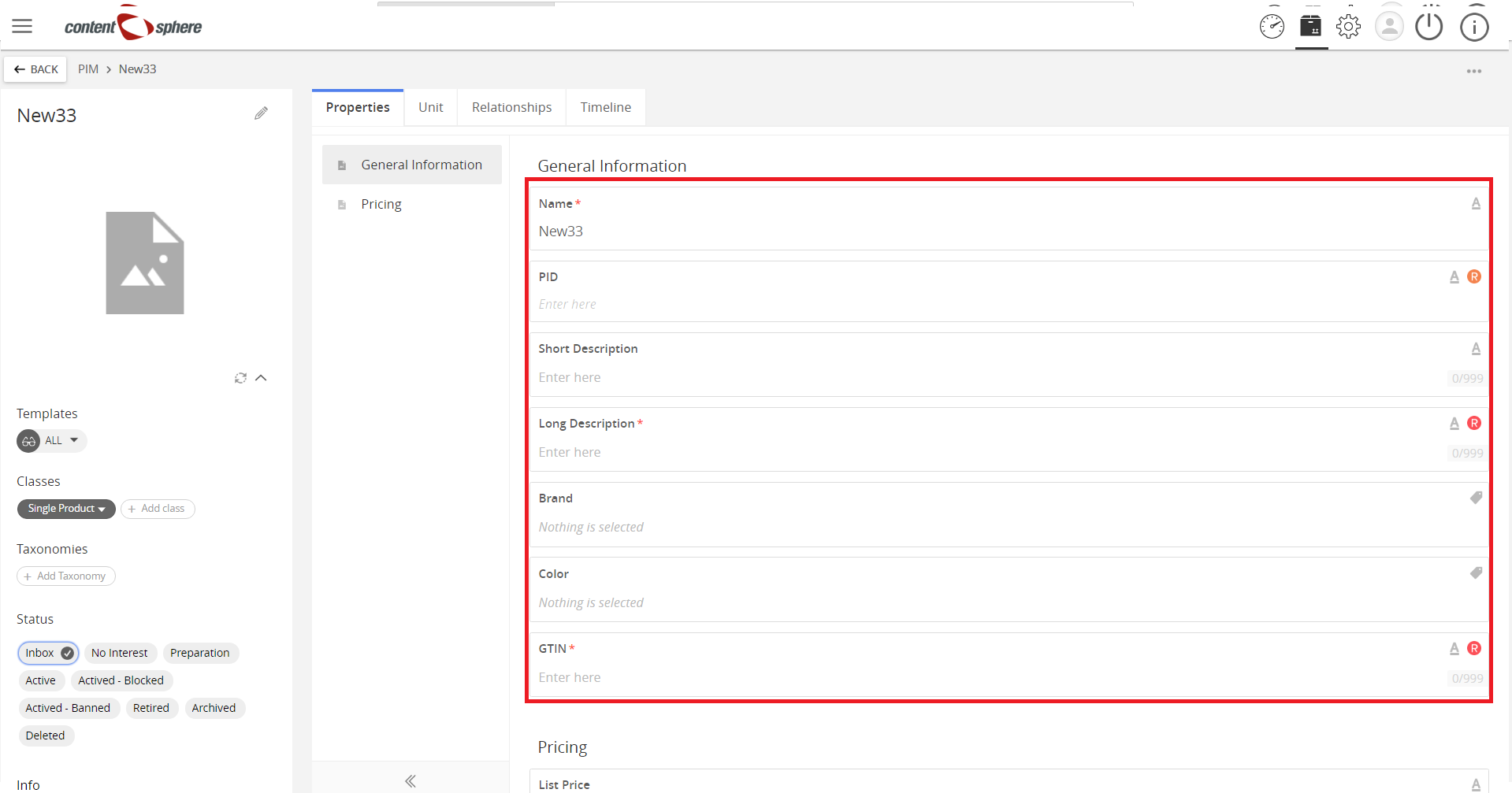
- Enter the necessary information. Items with red marks are required to be filled out.
- Click Add Taxonomy to add taxonomy to the product.
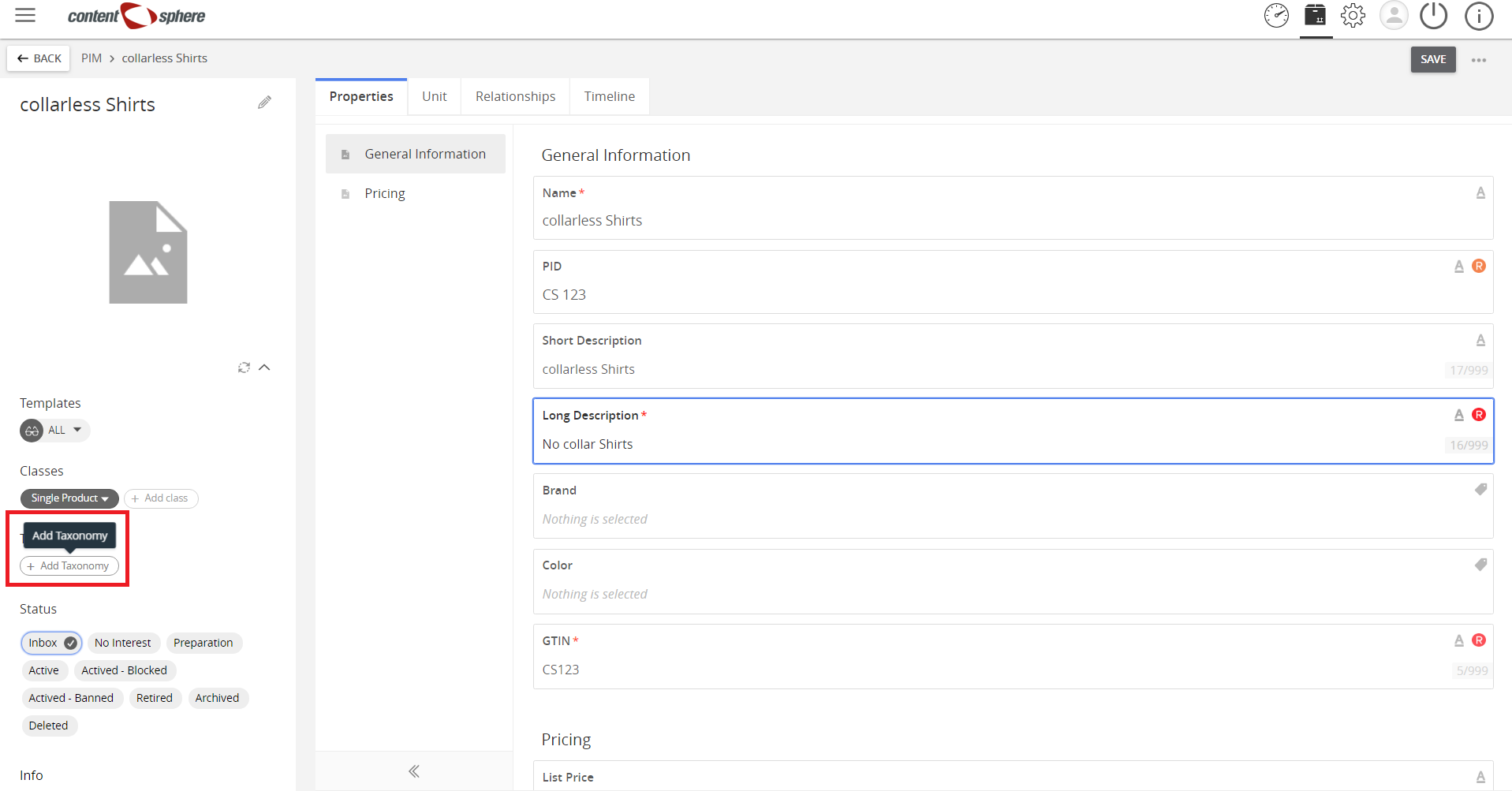
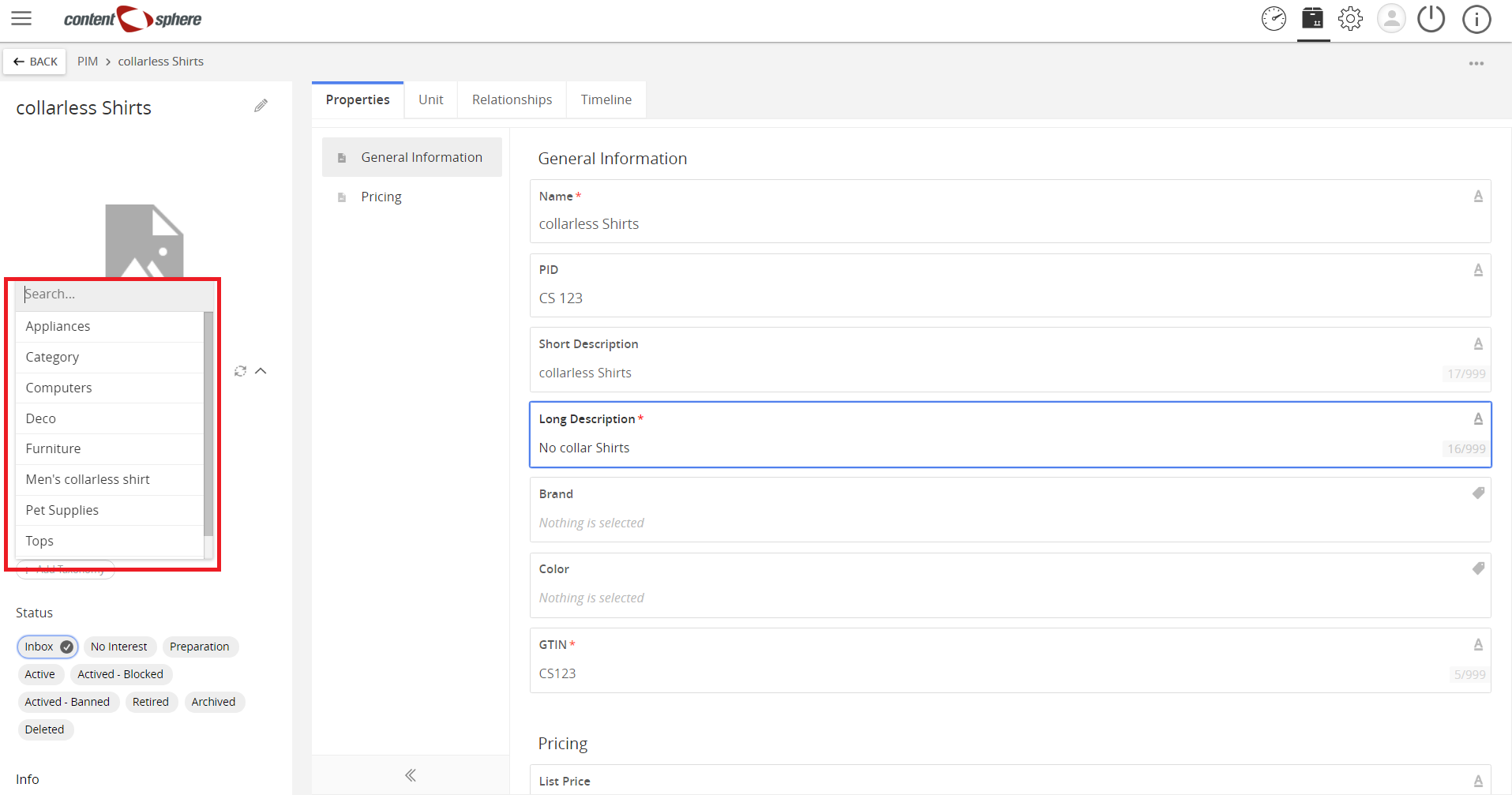
- Taxonomy menu appears. Select the desired taxonomy (in this demo, we select Tops).
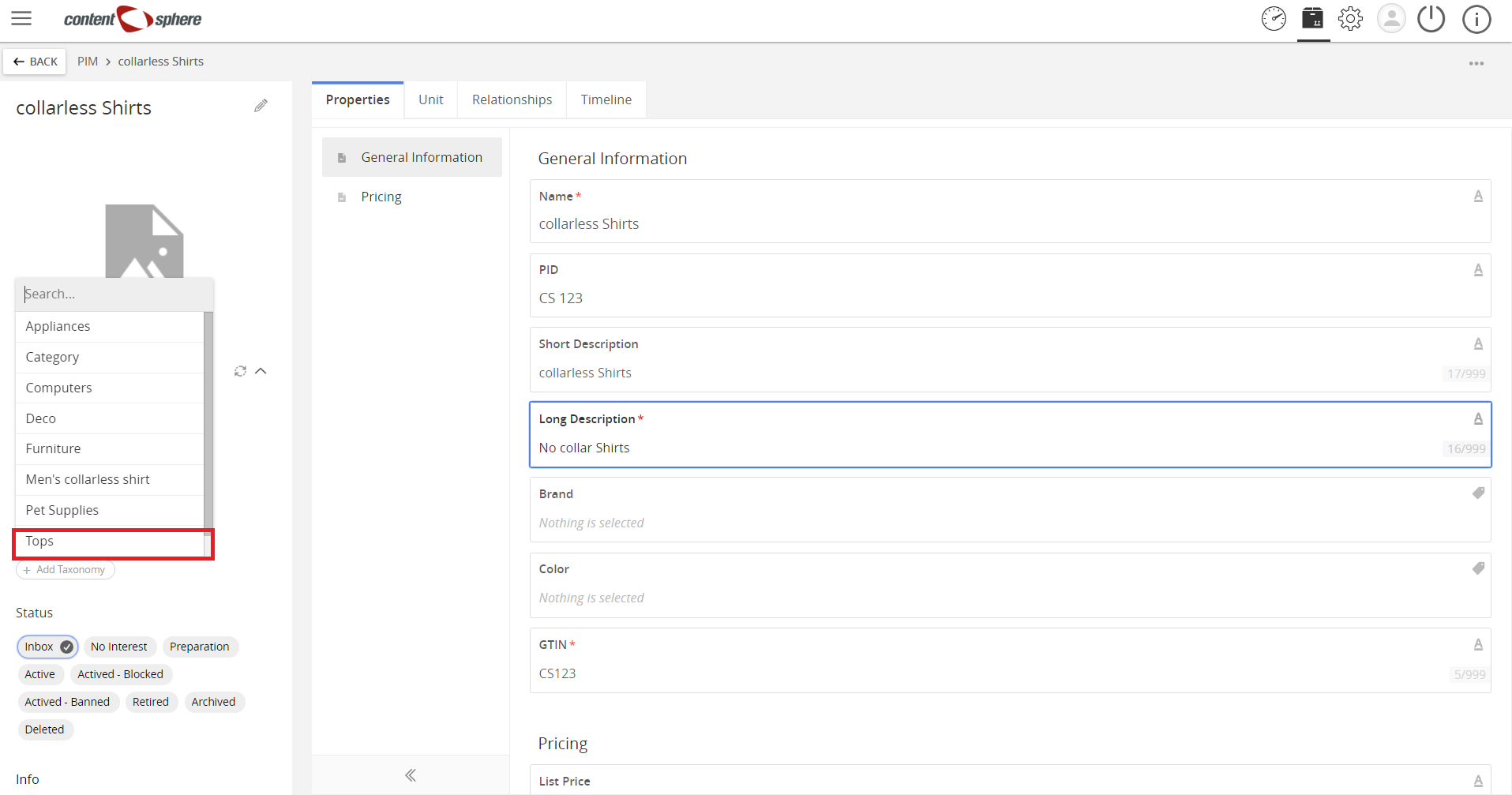
- View the selected taxonomy.

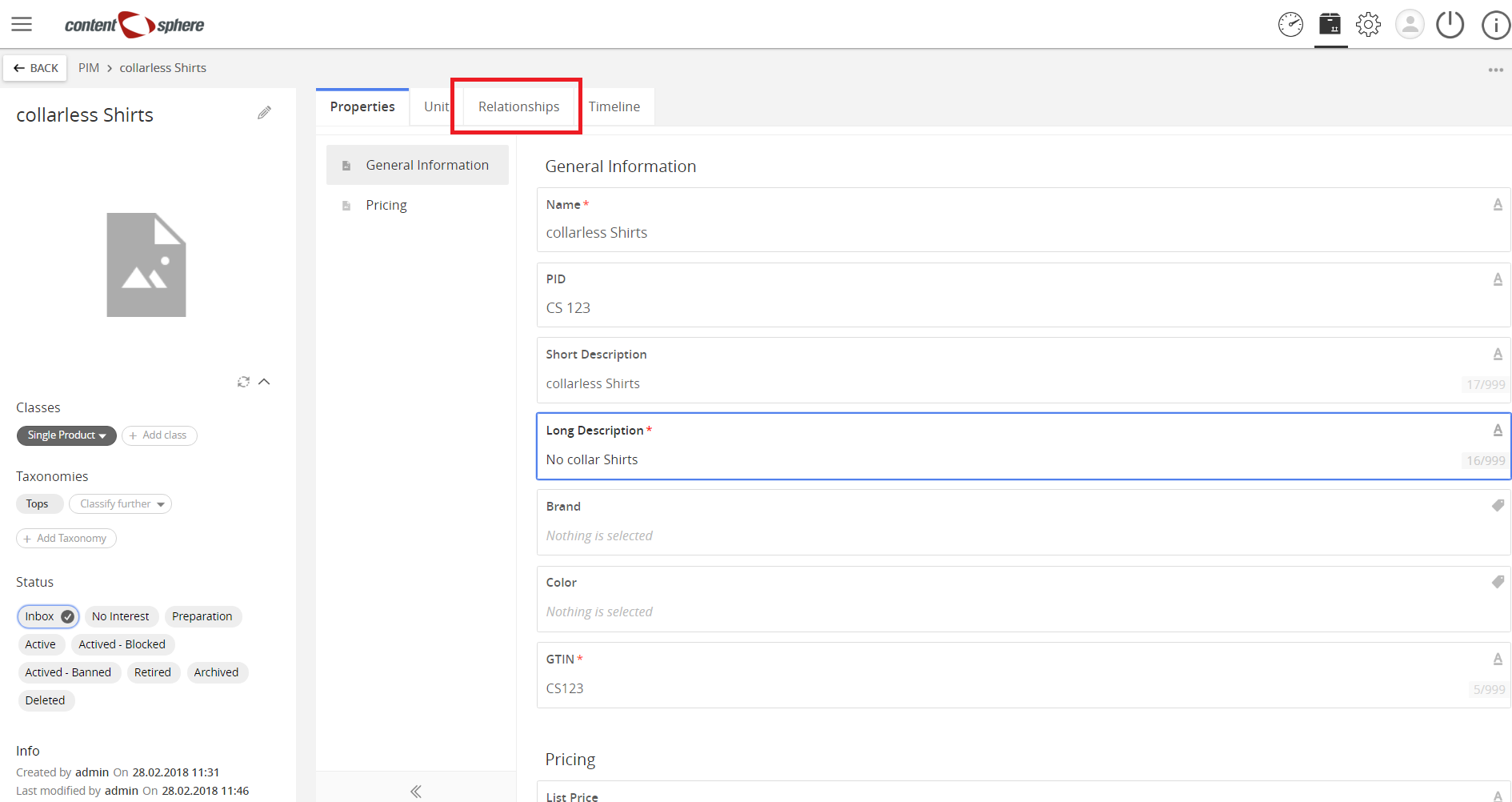
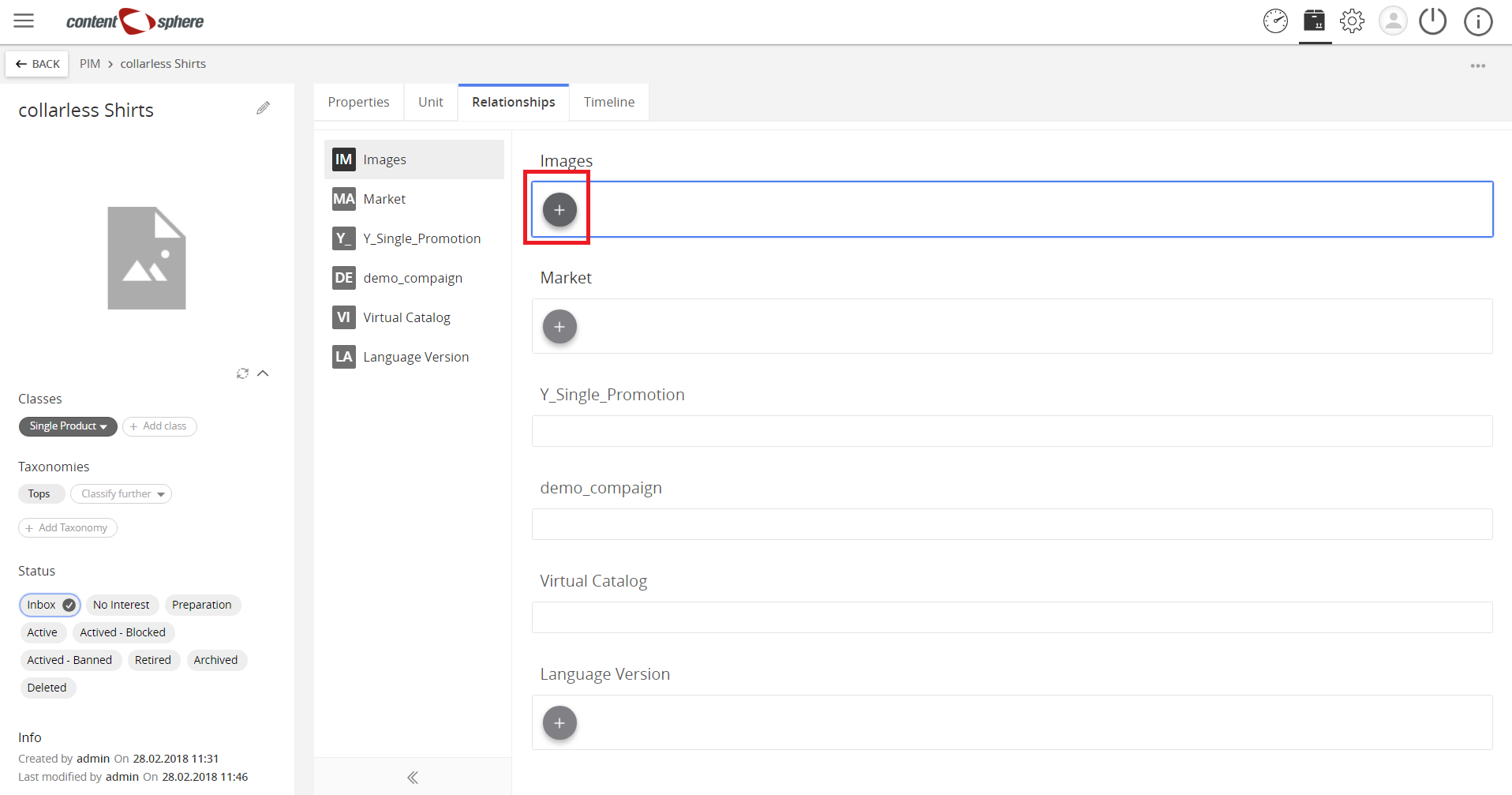
- Click Relationships tab to add an image to the product.
- Click on “+” to add an entity.
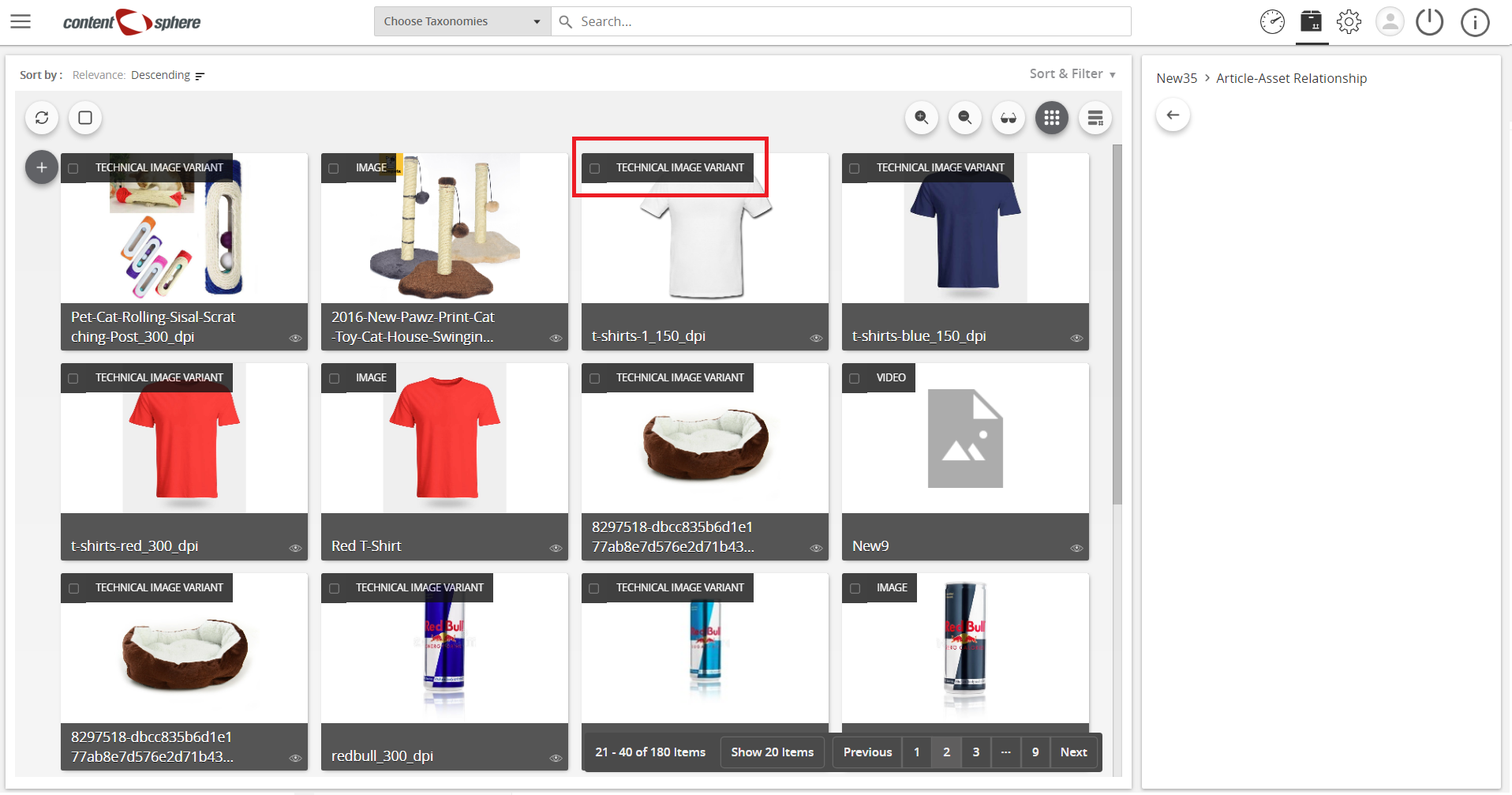
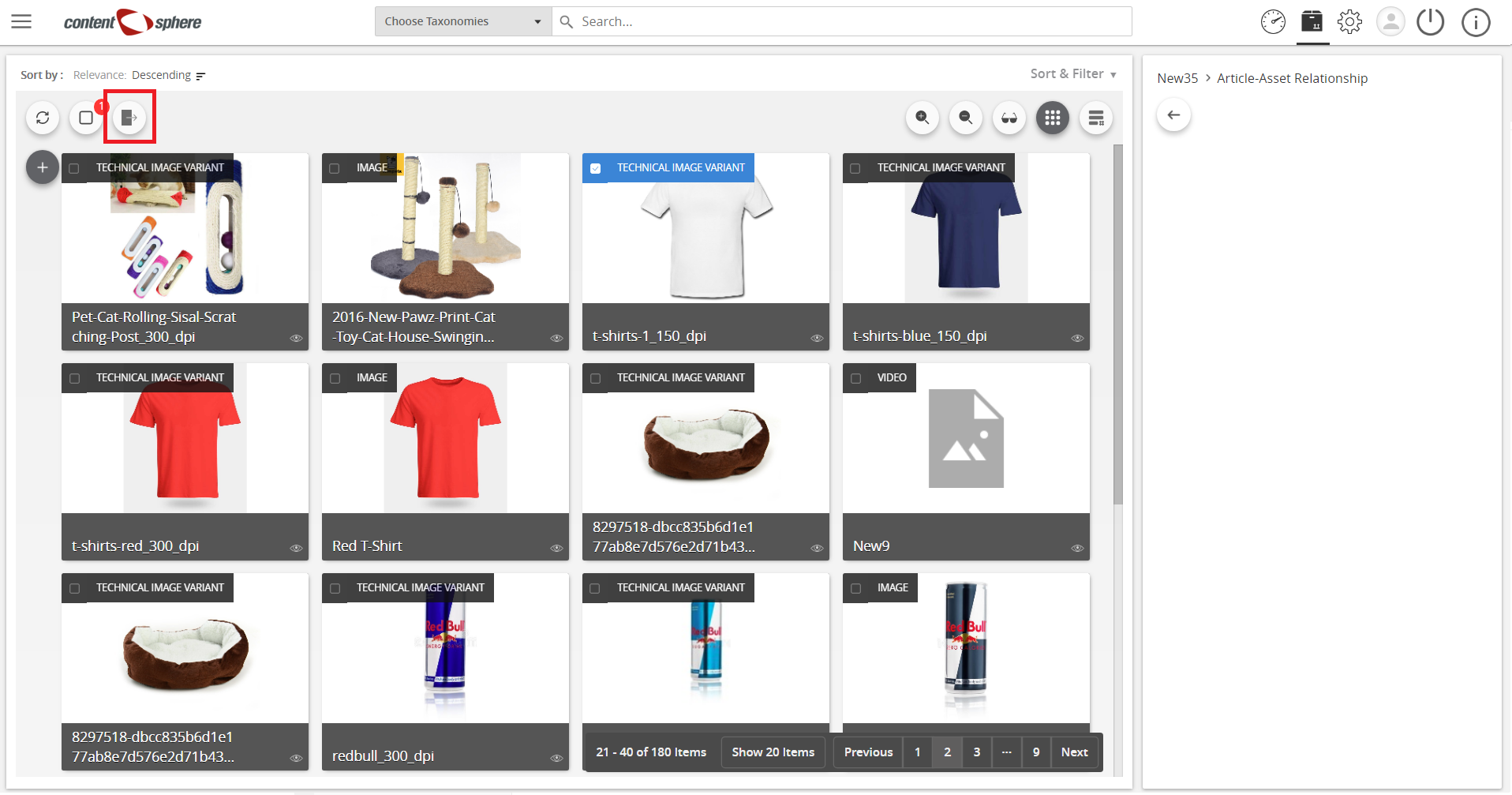
- Click the select button to add the desired image (button turns to blue when selected), then click Add.
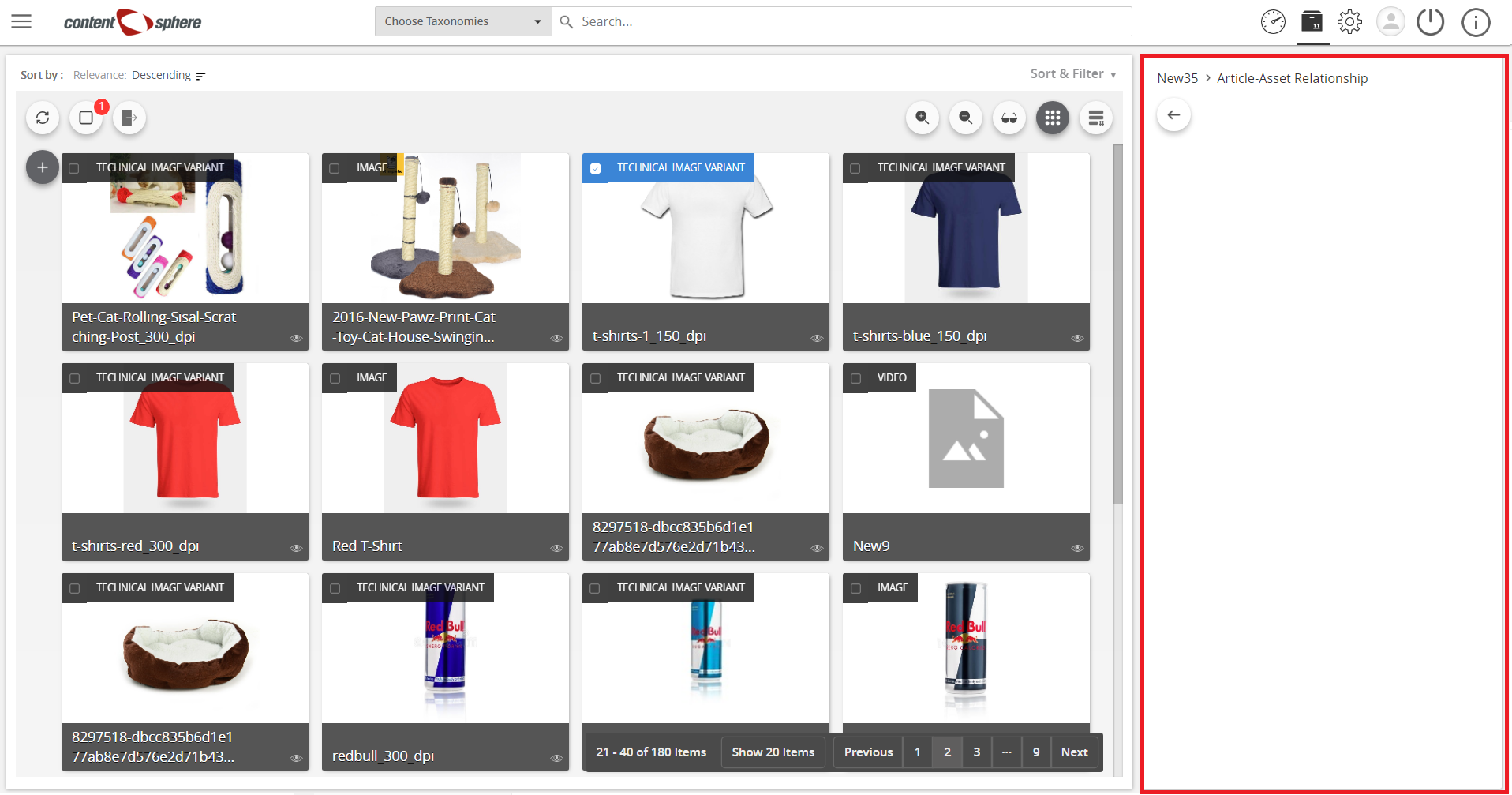
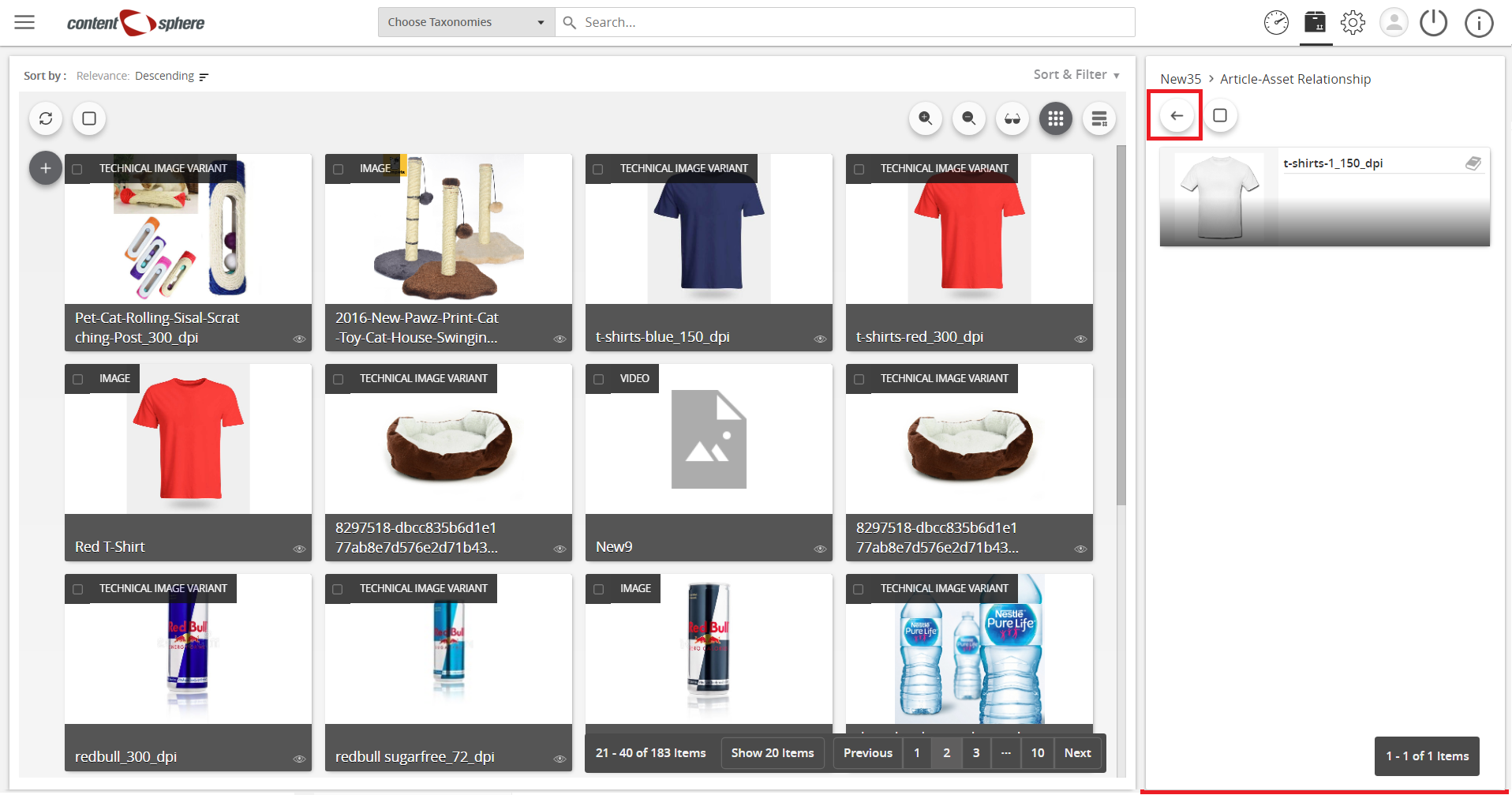
- Drag the selected image to the right pane can also be performed to add the image.
- To add more image, click Return, and repeat the previous steps.

Last updated: Jul 27, 2018