
Add an Image to the DAM
Products with displayed images are more appealing for the users to the system, which can be stored in DAM (Data Asset Management).
How-to: Add an Image
To do this, follow these steps:
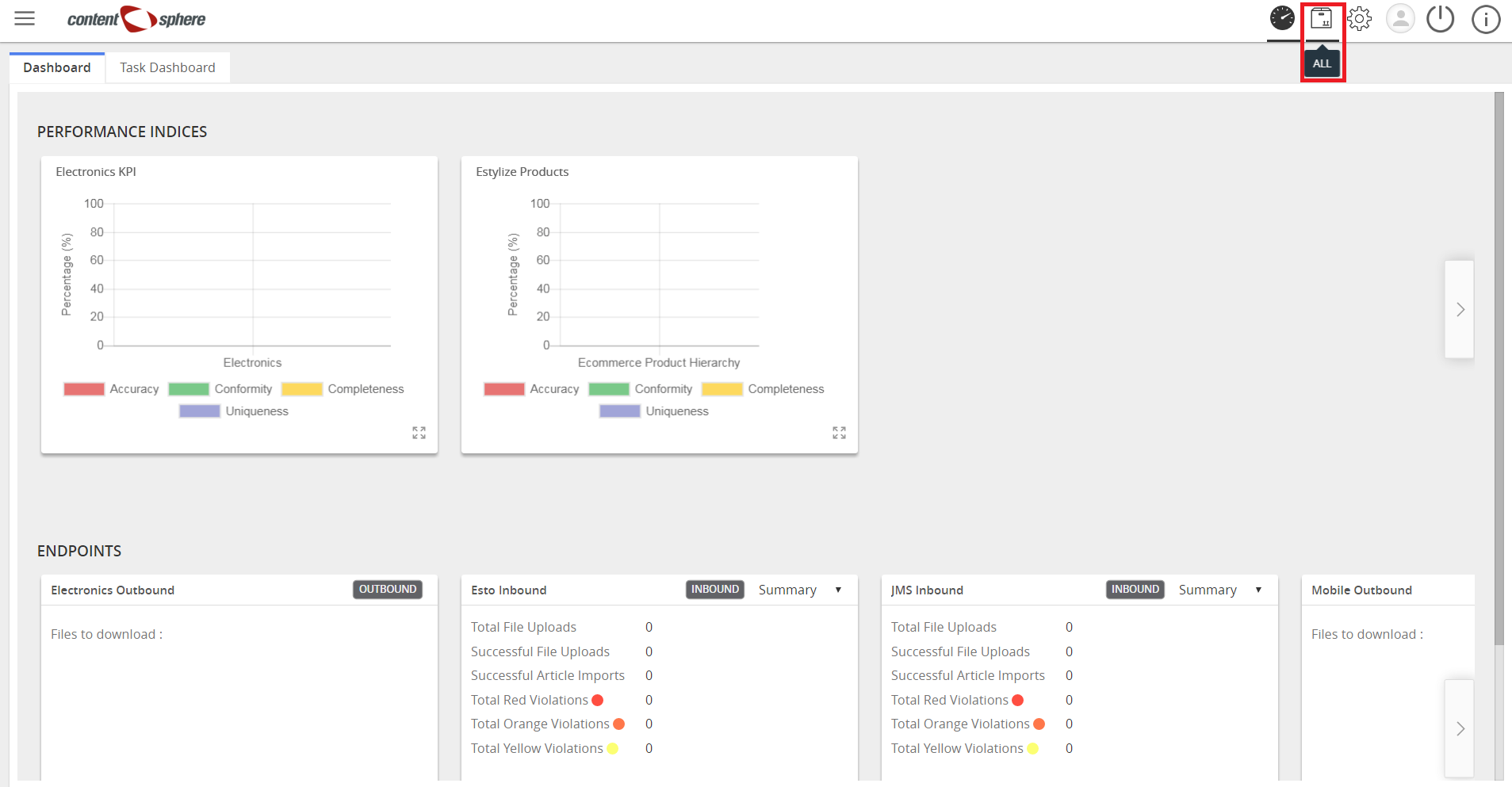
- Click All.
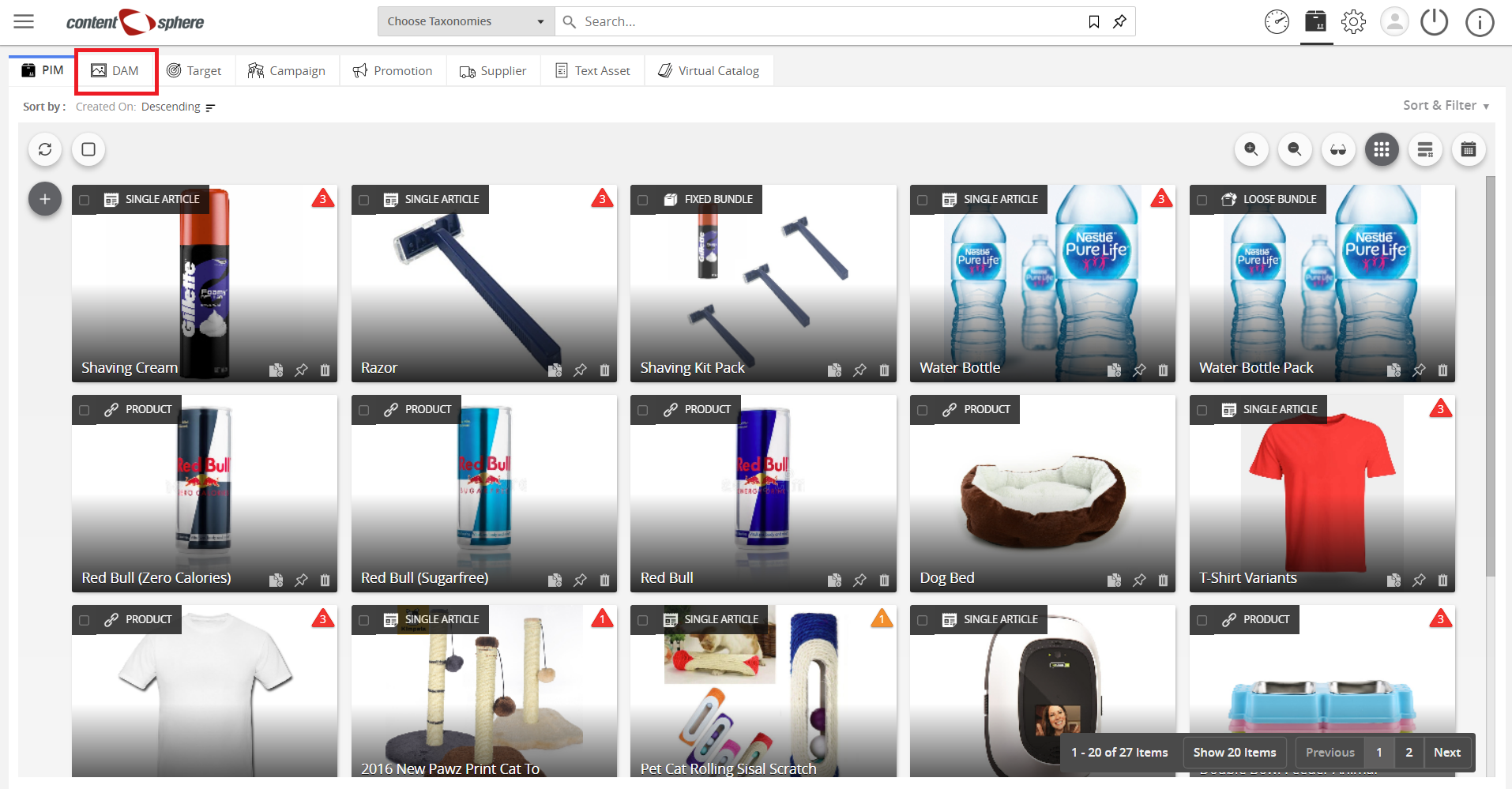
- Click DAM.
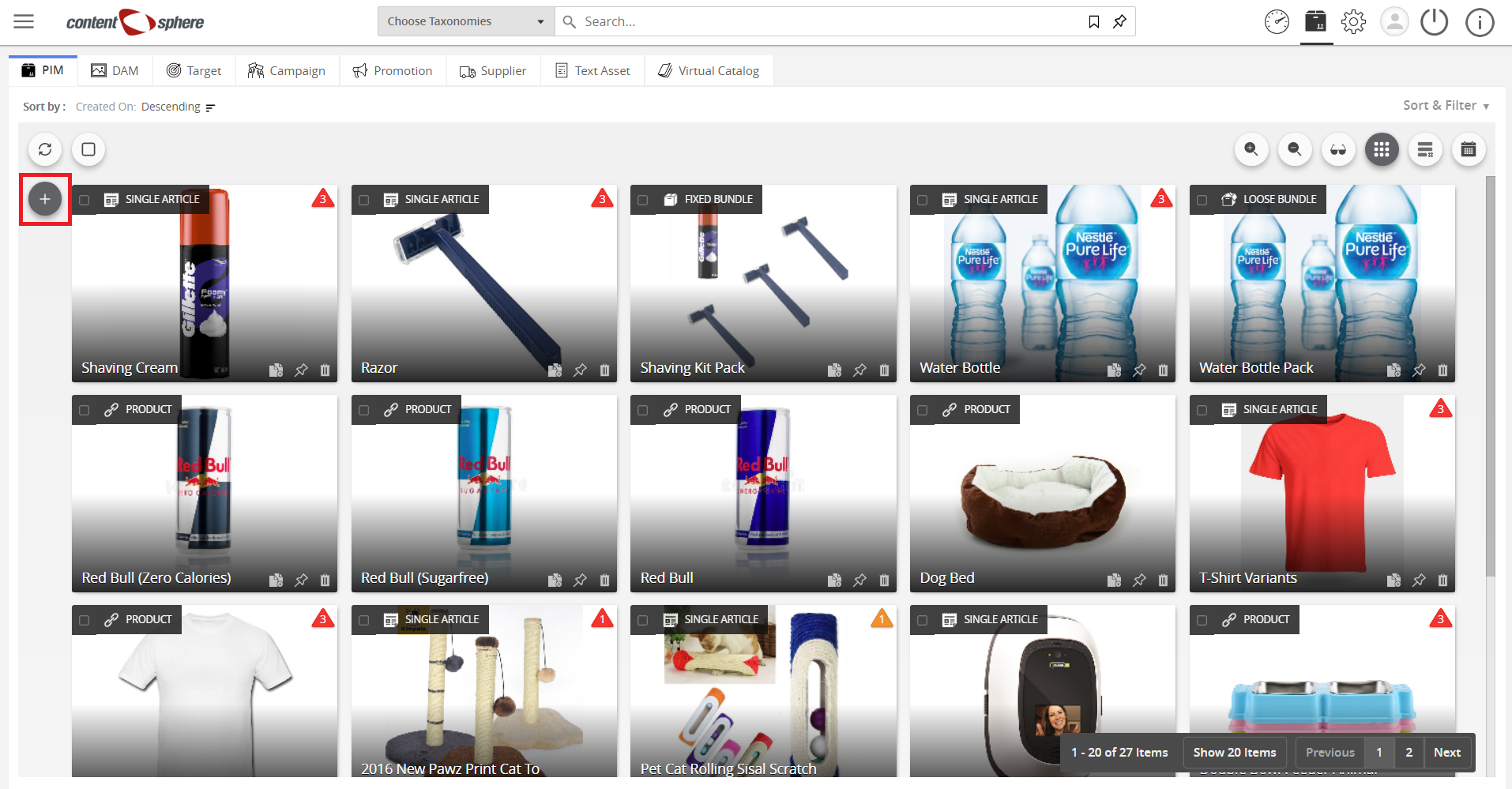
- Hover on the “+”.
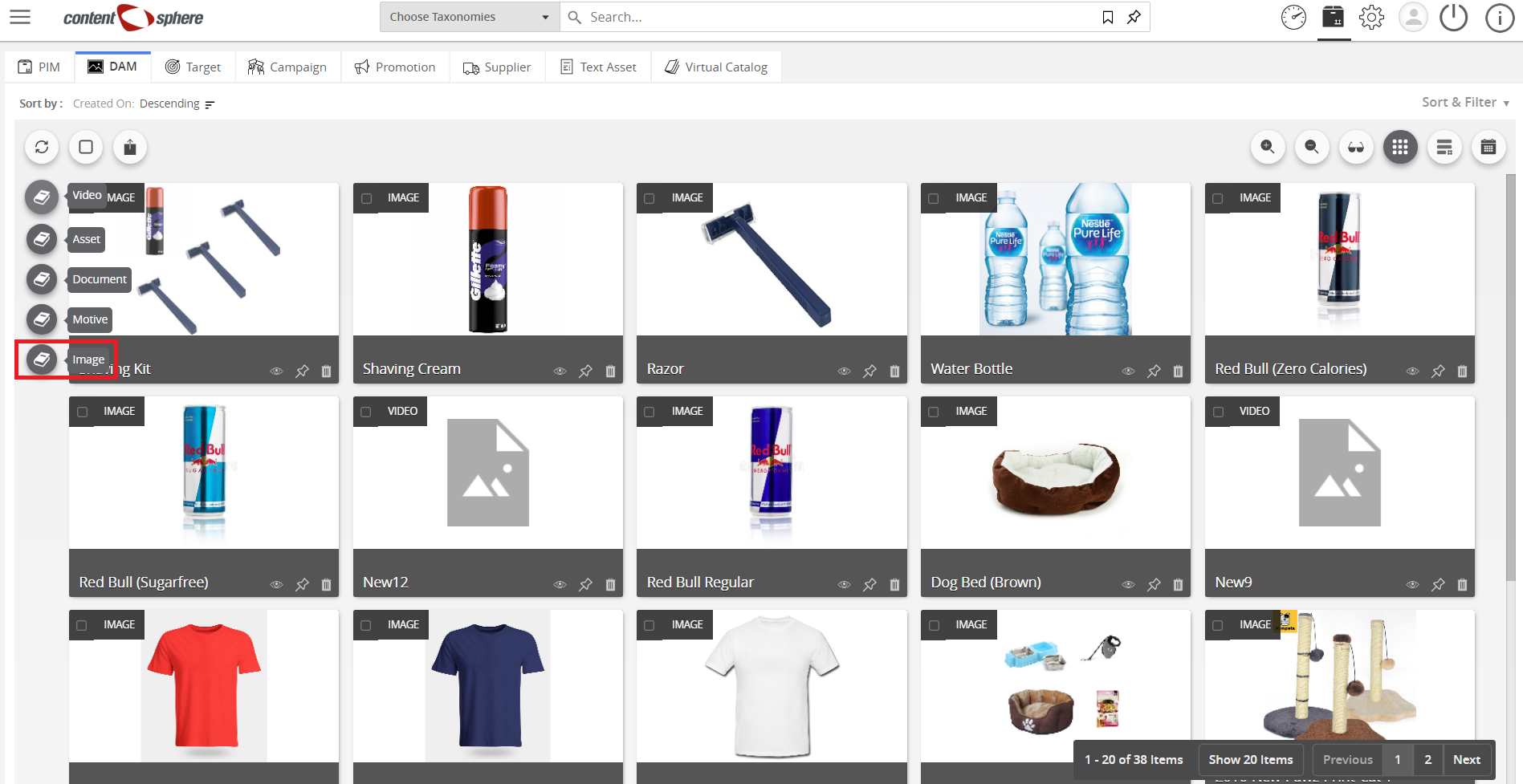
- Then, click Image.
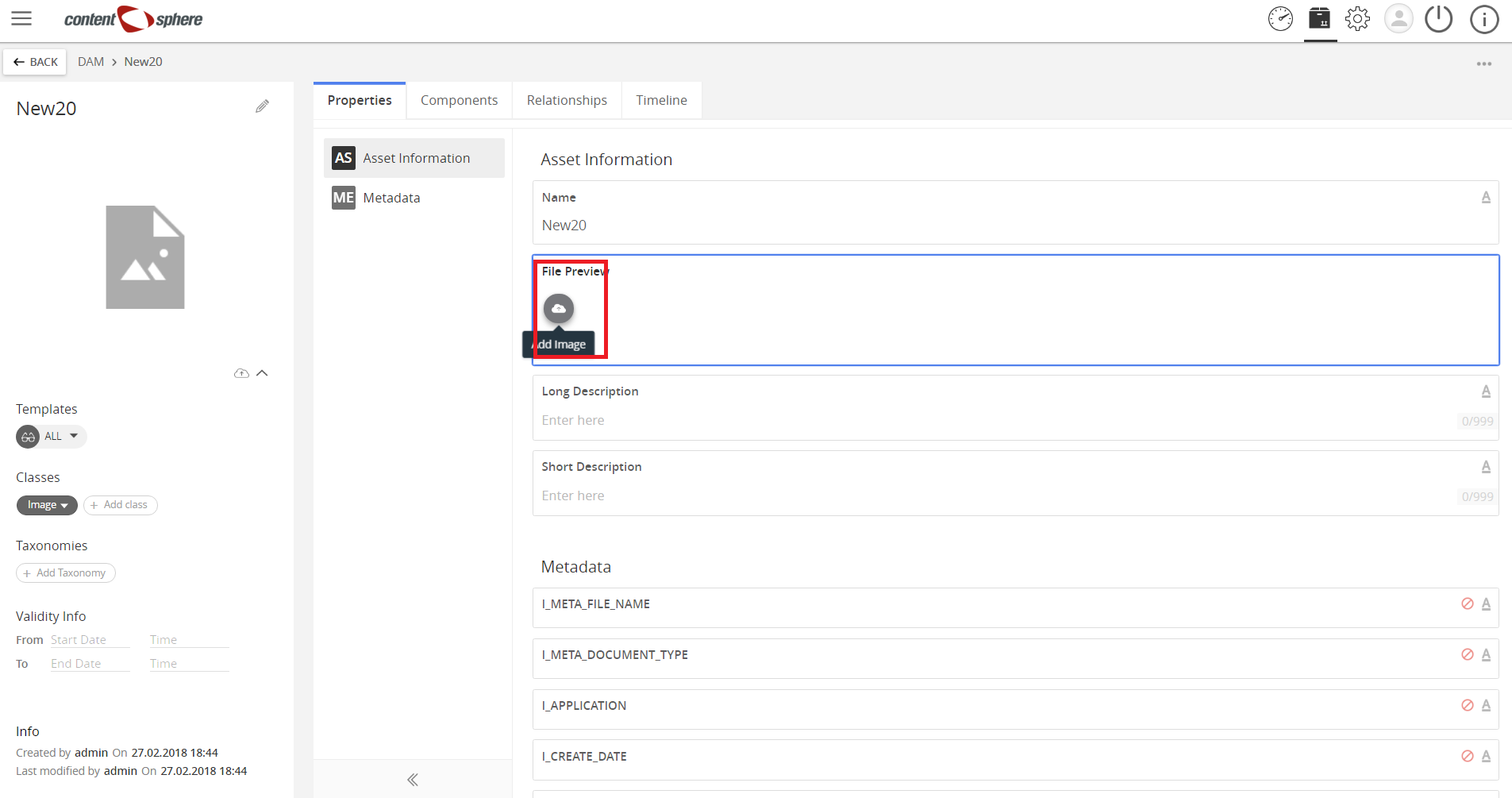
- Click the Add Image icon on the File Preview section, and select your desired image from your computer.
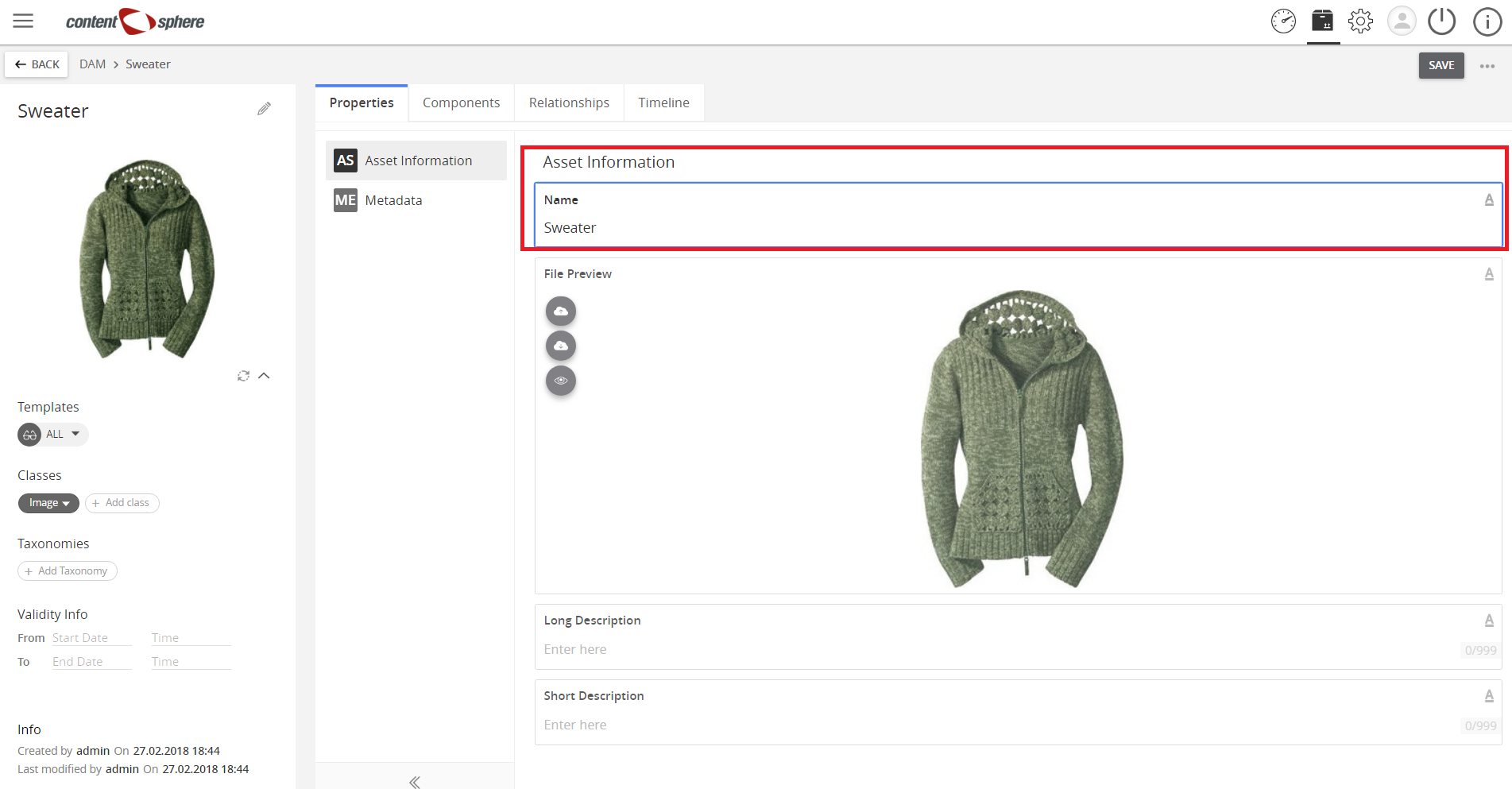
- The image appears on the File Preview section, and enter a name for the image.
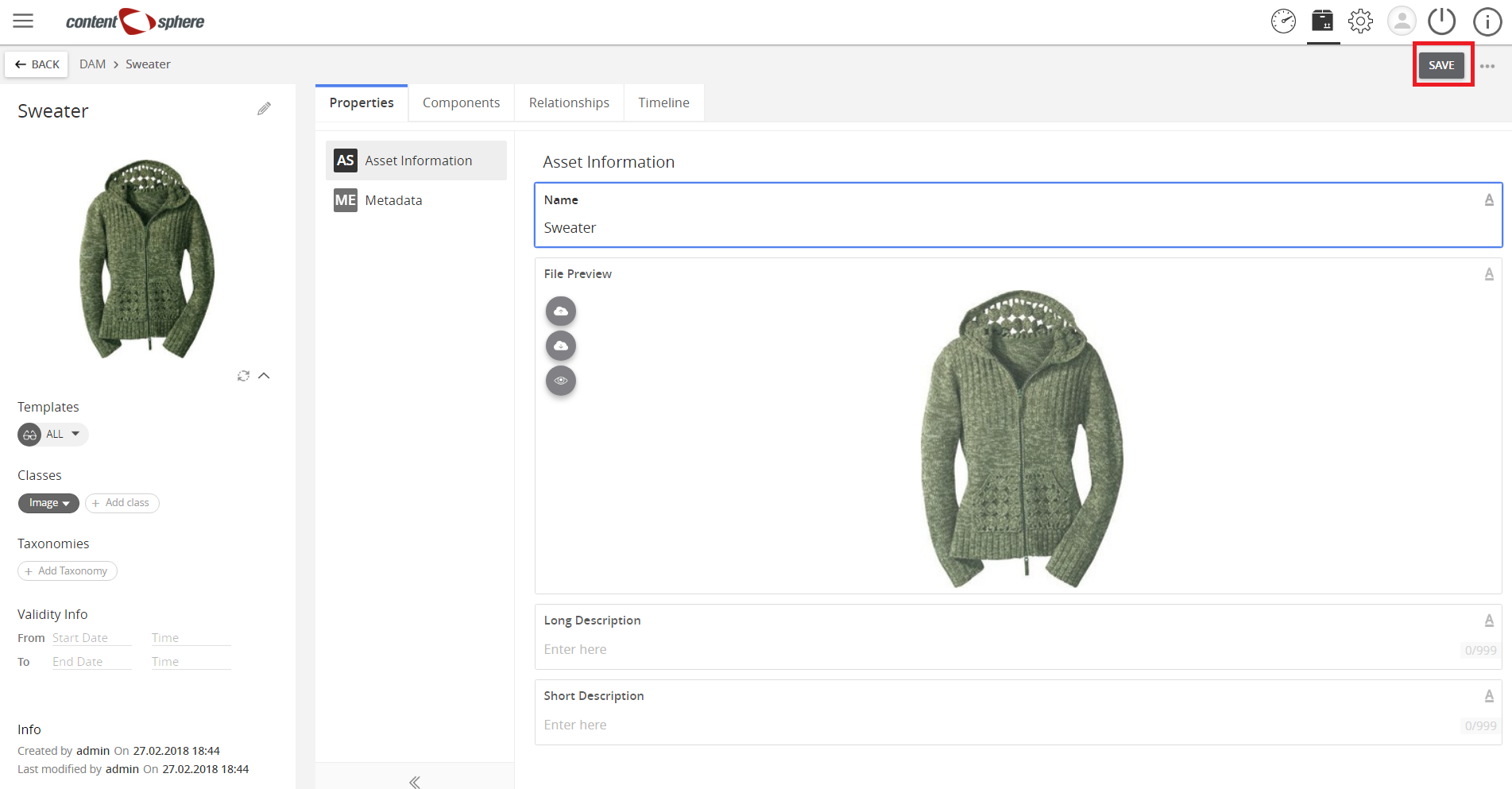
- Then, click Save.
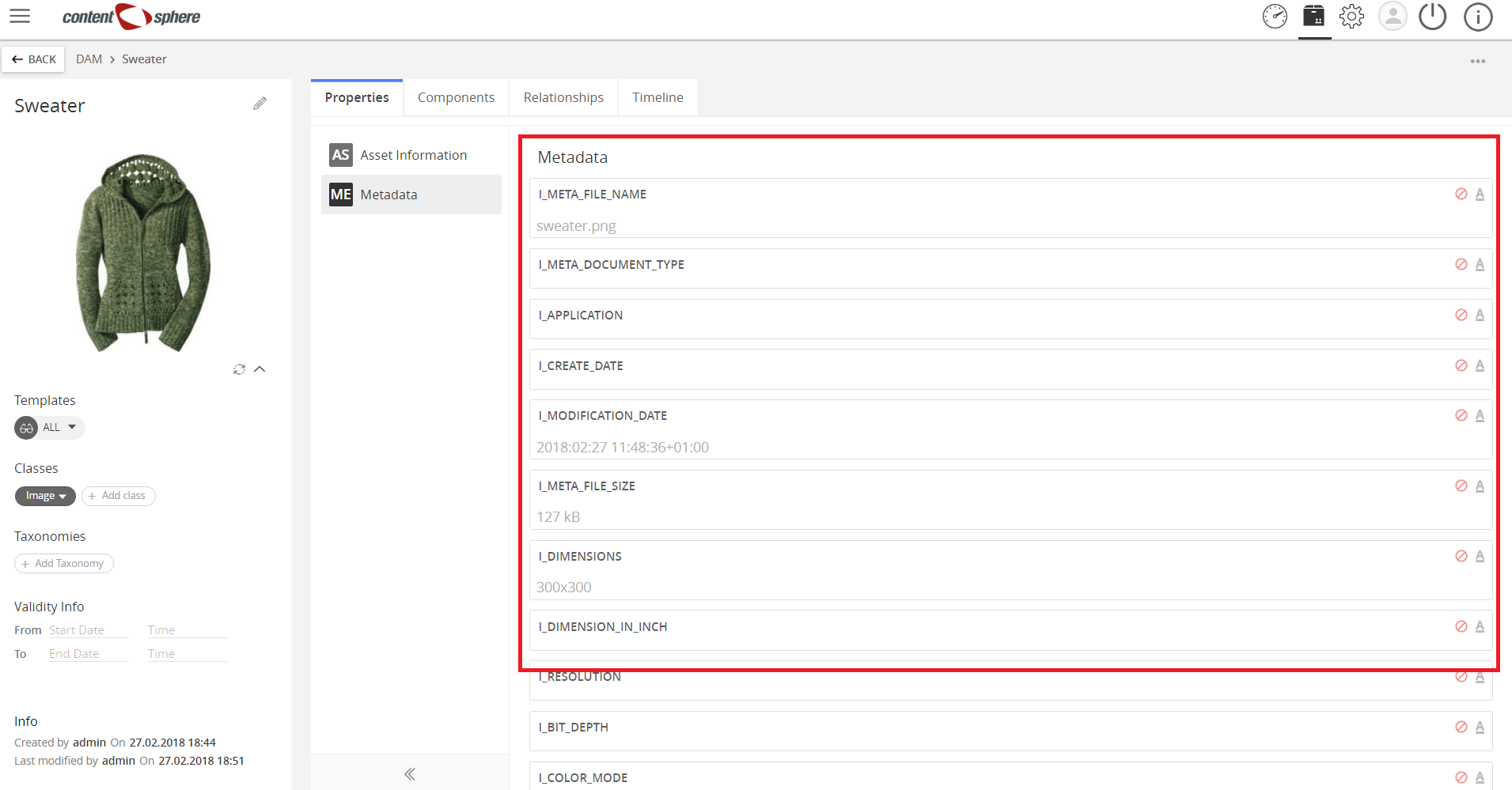
- Click Metadata.
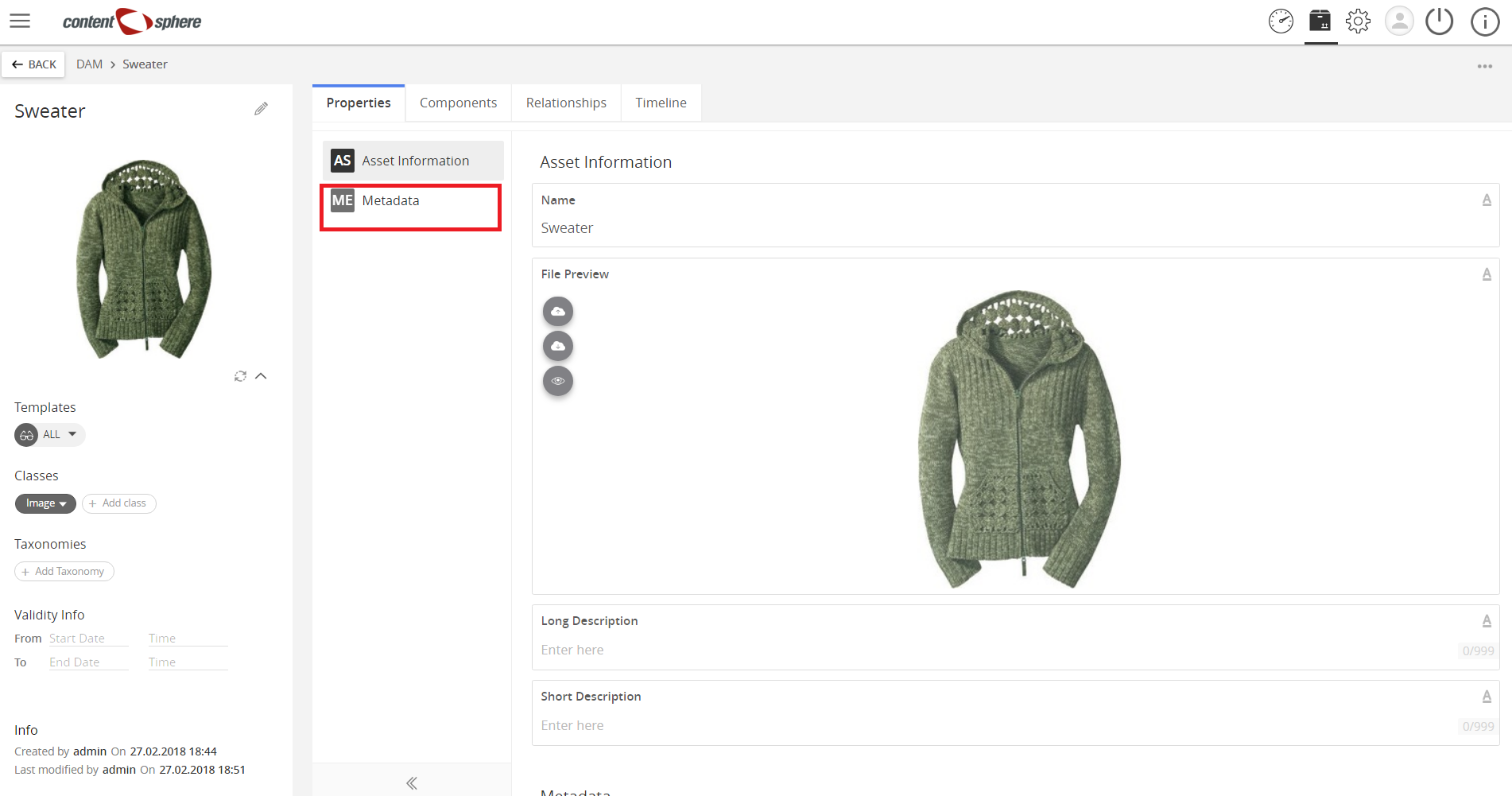
- The available metadata on the Meta Data section will auto-complete but fields can be manually filled out as desired.

Last updated: Jul 27, 2018