Help Center

Manage Product Keys

Manage Product Keys is a feature that sets up certain attributes as Product Keys so that they can be checked for uniqueness and can be used as an identifier.

Key Term:
  • Property: a data field which describes a product, can also use ‘attribute’.
Description:
  • Products are created with unique values, which are called Product Keys.
  • Product Keys define attributes to be a unique value. If non-unique values will be used, a violation will appear for the Product or Article.
Related topics:
Application:
  • A user can define certain attributes to be unique so that the products created by that class are also unique based on that attribute.

  • Example:

    Supplier A wants the GTIN value of his products to be unique. This can be done by setting the attribute, GTIN, as a Product Key or Identifier Attribute.

How-to: Manage Product Keys

To manage product keys, follow these steps:


  1. Log in and click on the Administration button to enter the configuration page.
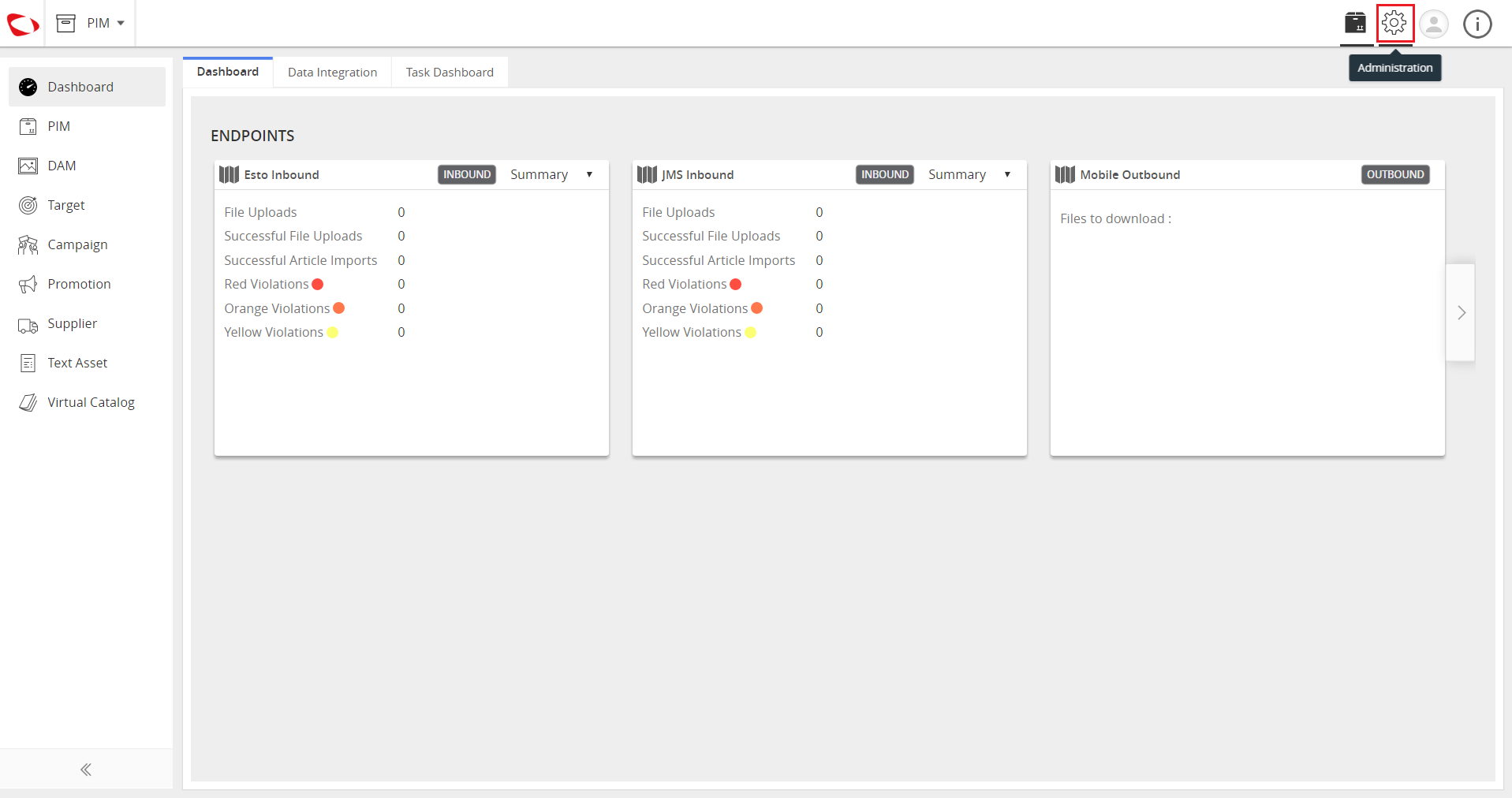
../../../../../_images/cs_productidenfitieridentifierattributes_clickadministration.PNG


  1. Go to the Data Model tab and under Classes, click on Article.
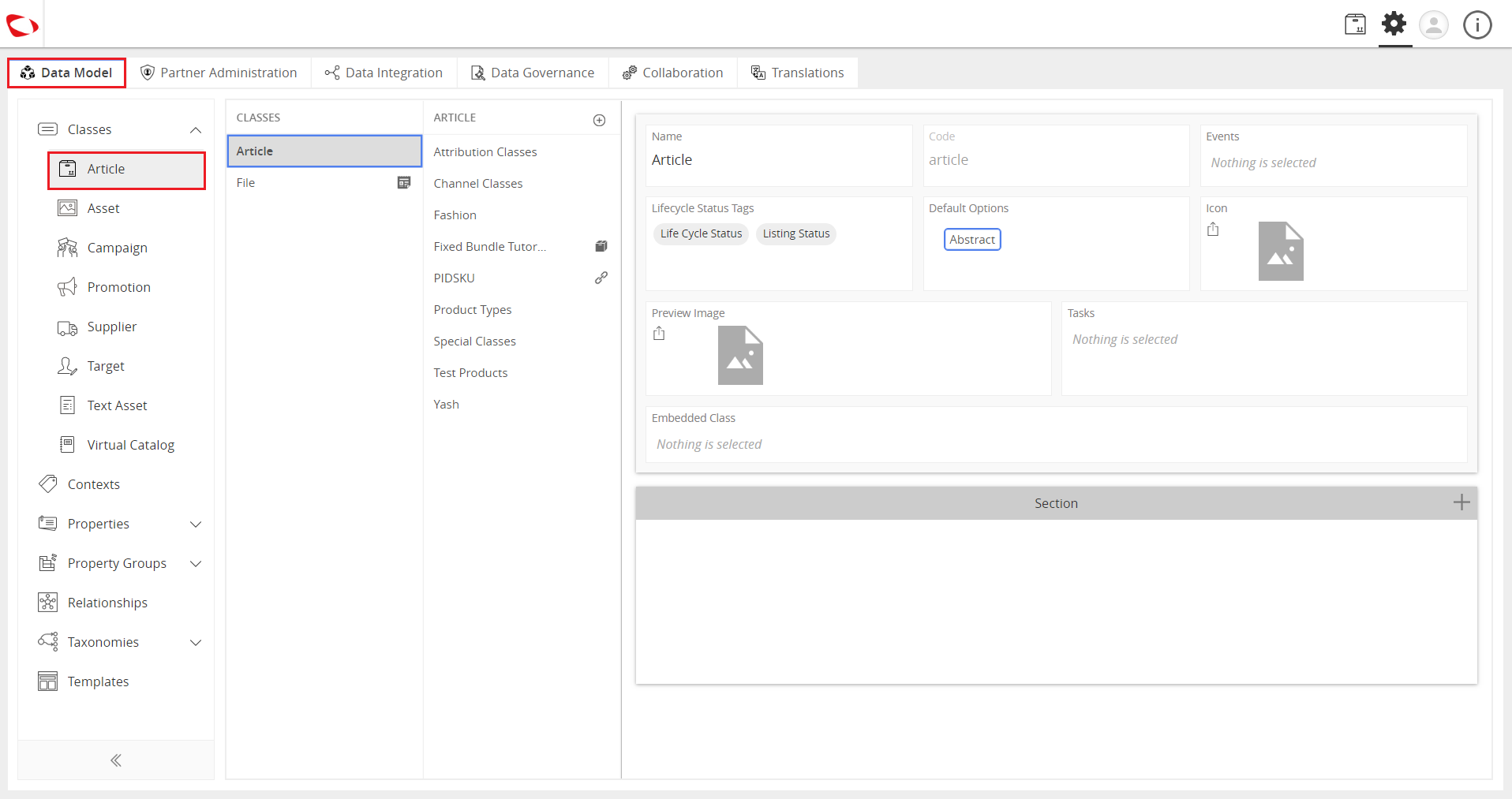
../../../../../_images/cs_productidenfitieridentifierattributes_gotodatamodel.PNG


  1. Click on Product Types then click on Single Article.
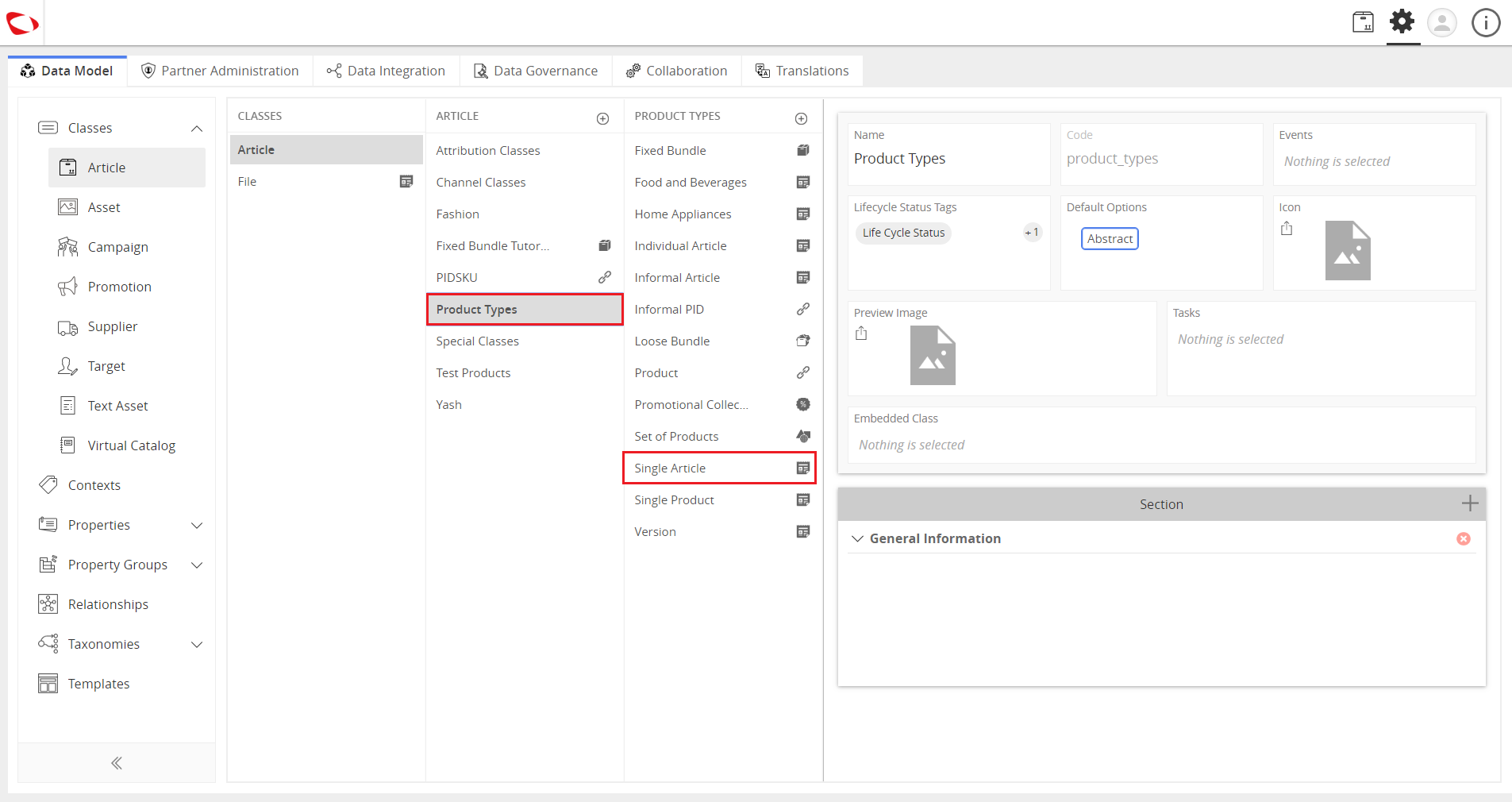
../../../../../_images/cs_productidenfitieridentifierattributes_clickproducttypes.PNG


  1. In the Section bar, click on the “+” icon to add property collection.
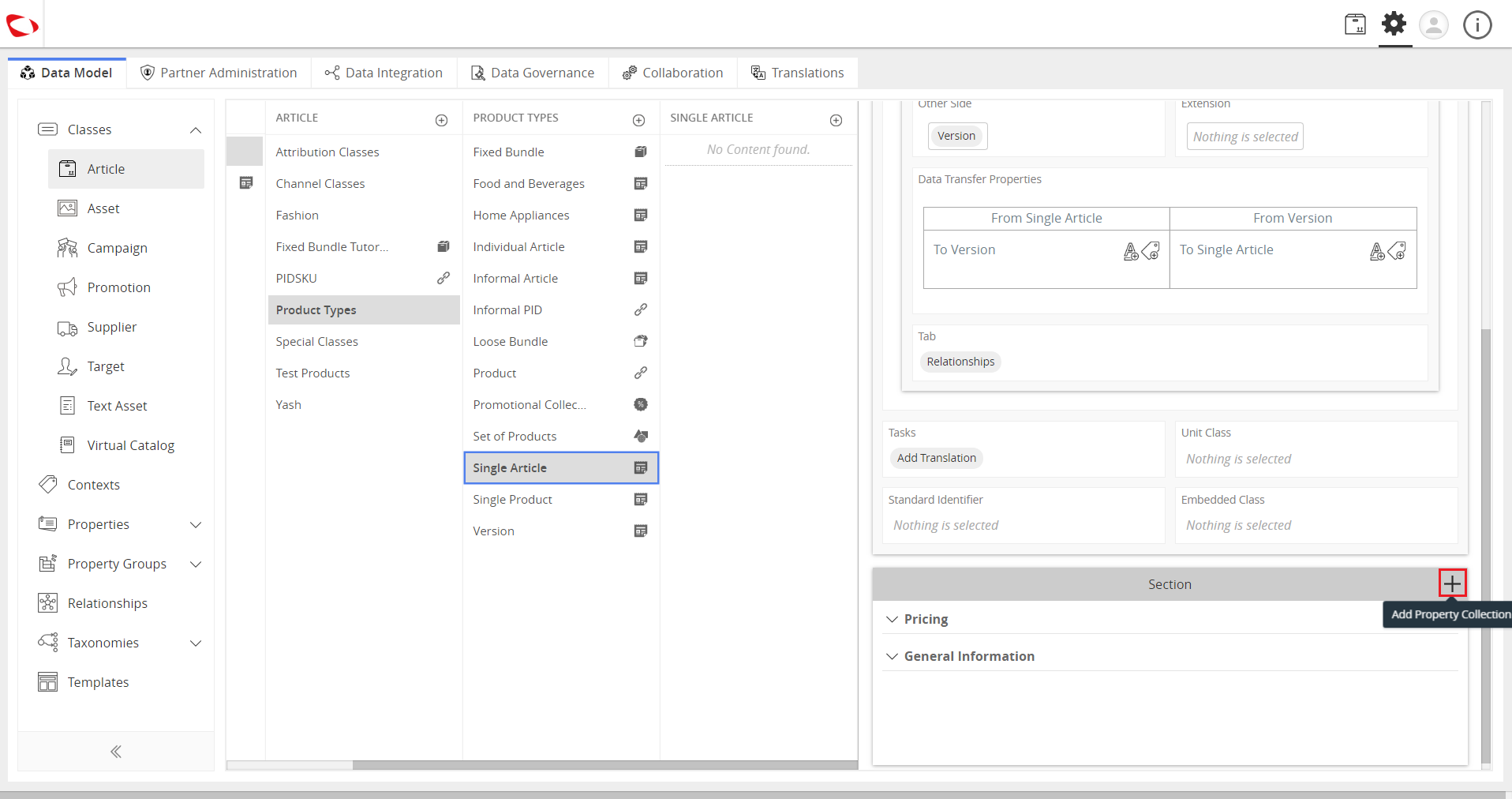
../../../../../_images/cs_productidenfitieridentifierattributes_clickplusicon.PNG


  1. Select the property collection and click on the Apply button.
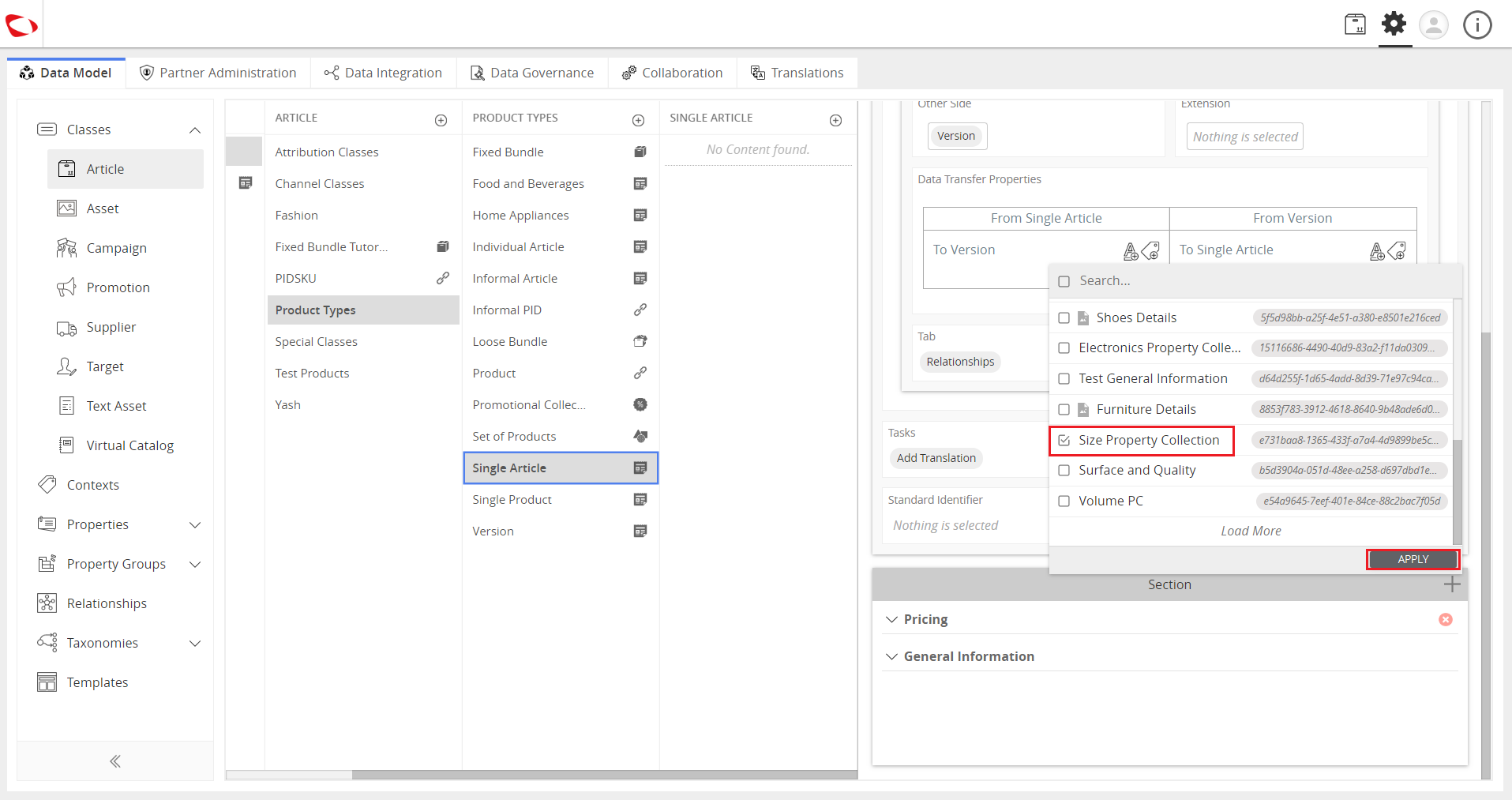
../../../../../_images/cs_productidenfitieridentifierattributes_selectpropertycollection.PNG


  1. Click the Down icon beside the property collection and select the attribute to be used as product key.
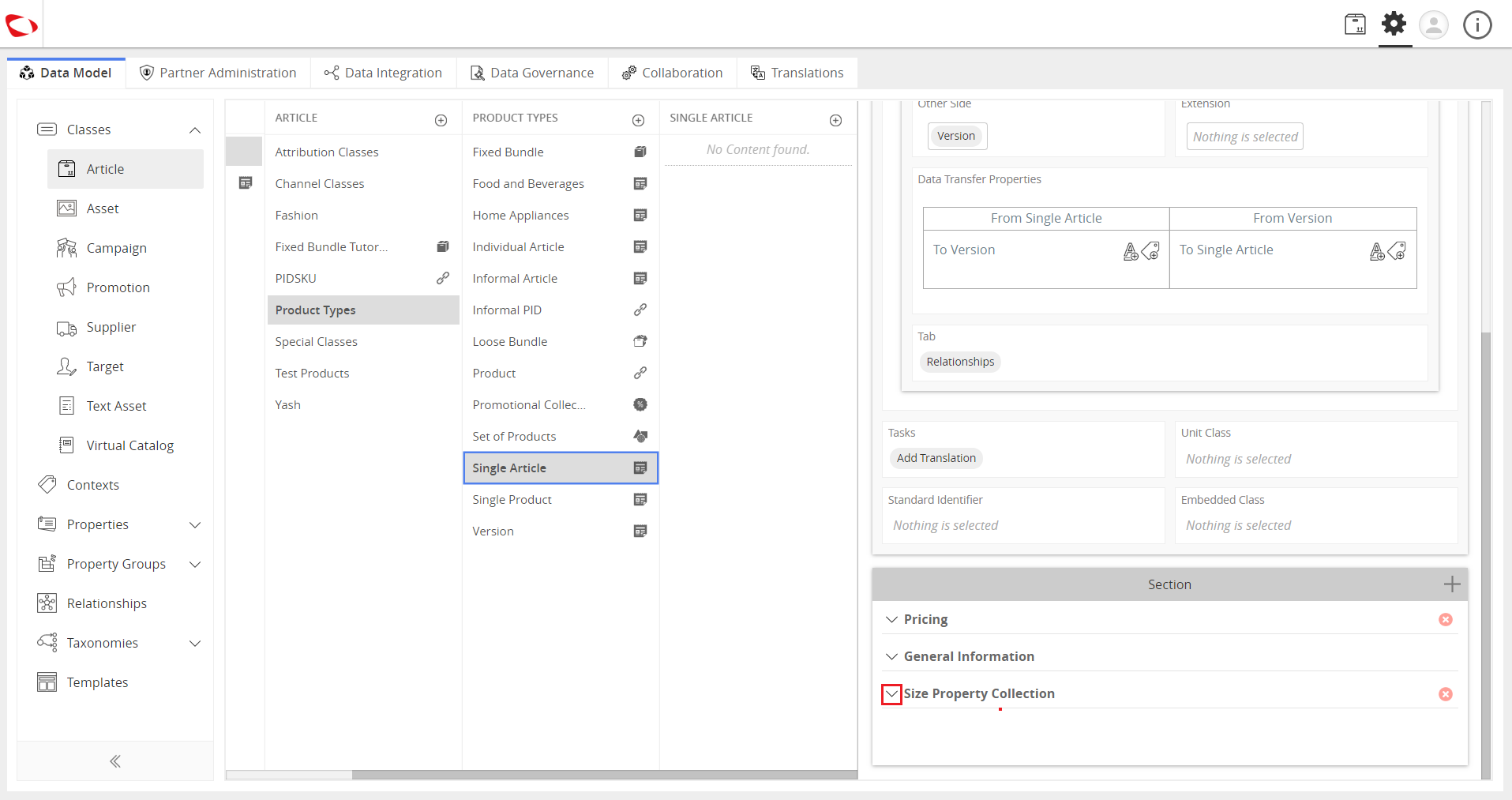
../../../../../_images/cs_productidenfitieridentifierattributes_clickdownicon.PNG


  1. Click on the Explore button and go to PIM, then create a product from the class “Single Article”.
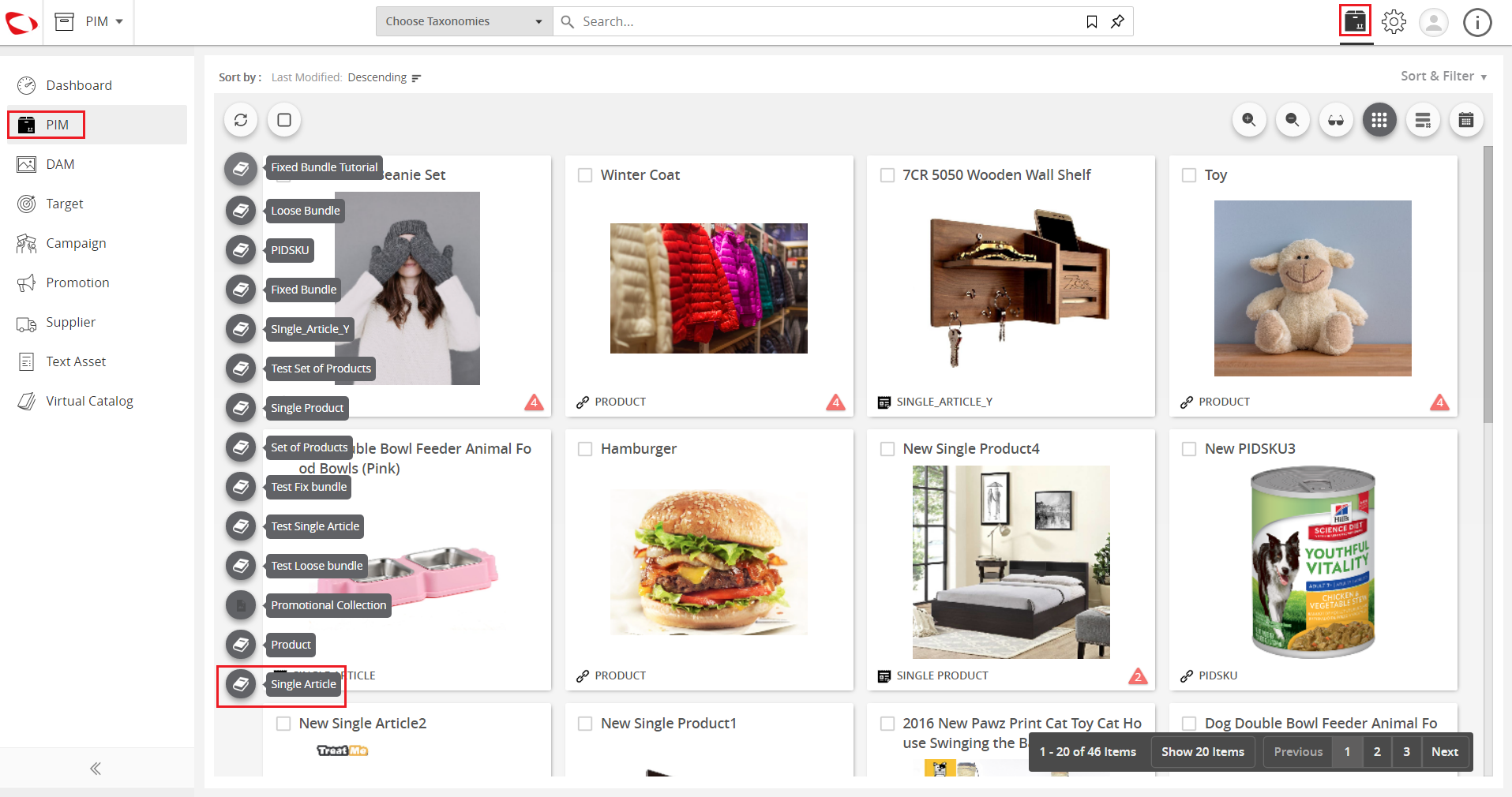
../../../../../_images/cs_productidenfitieridentifierattributes_clickexplore.PNG


  1. Edit the product and enter value in the attribute that was selected as product key.
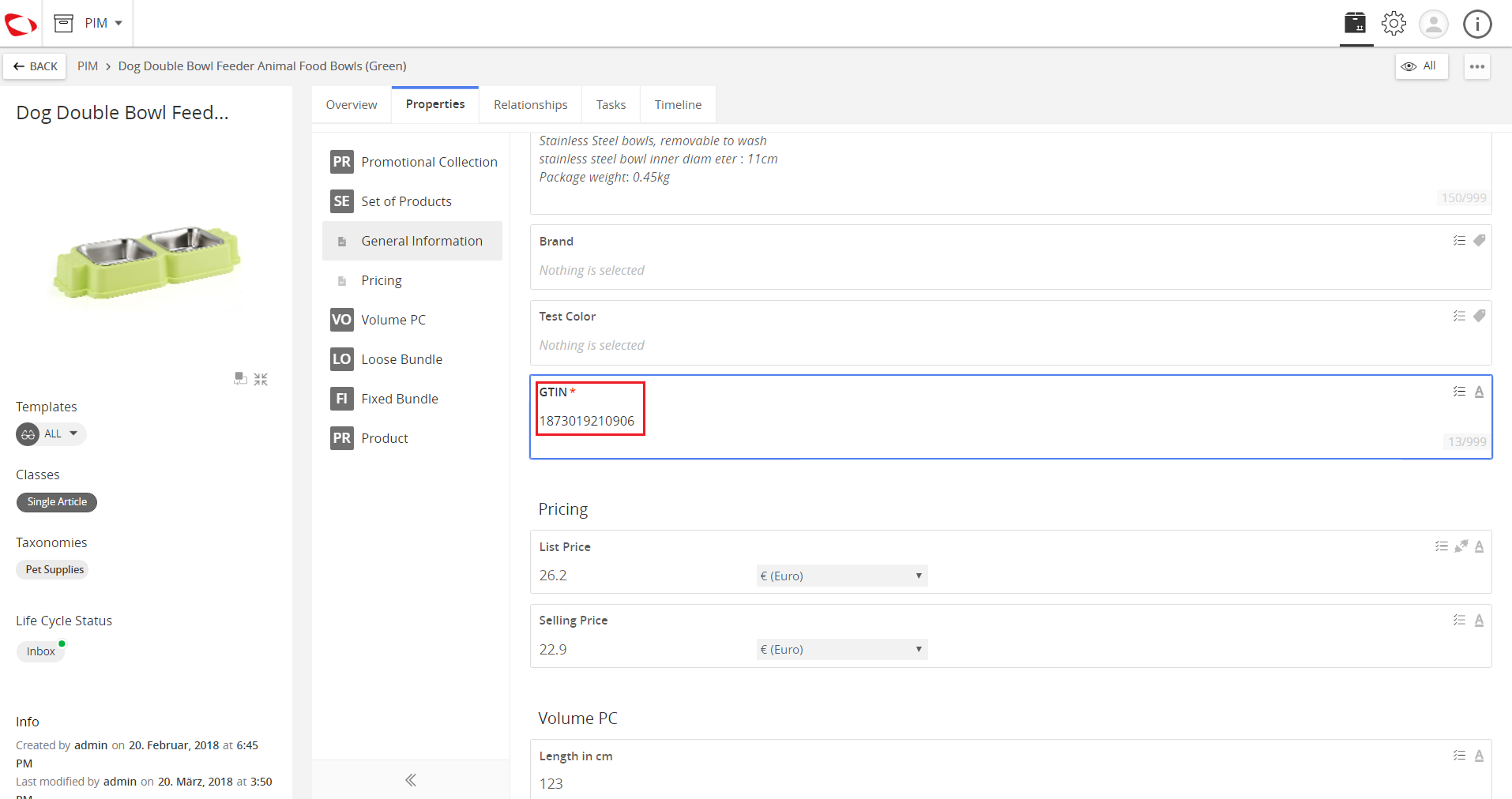
../../../../../_images/cs_productidenfitieridentifierattributes_editproduct.PNG


  1. Click on any blank area then click on the Save button.
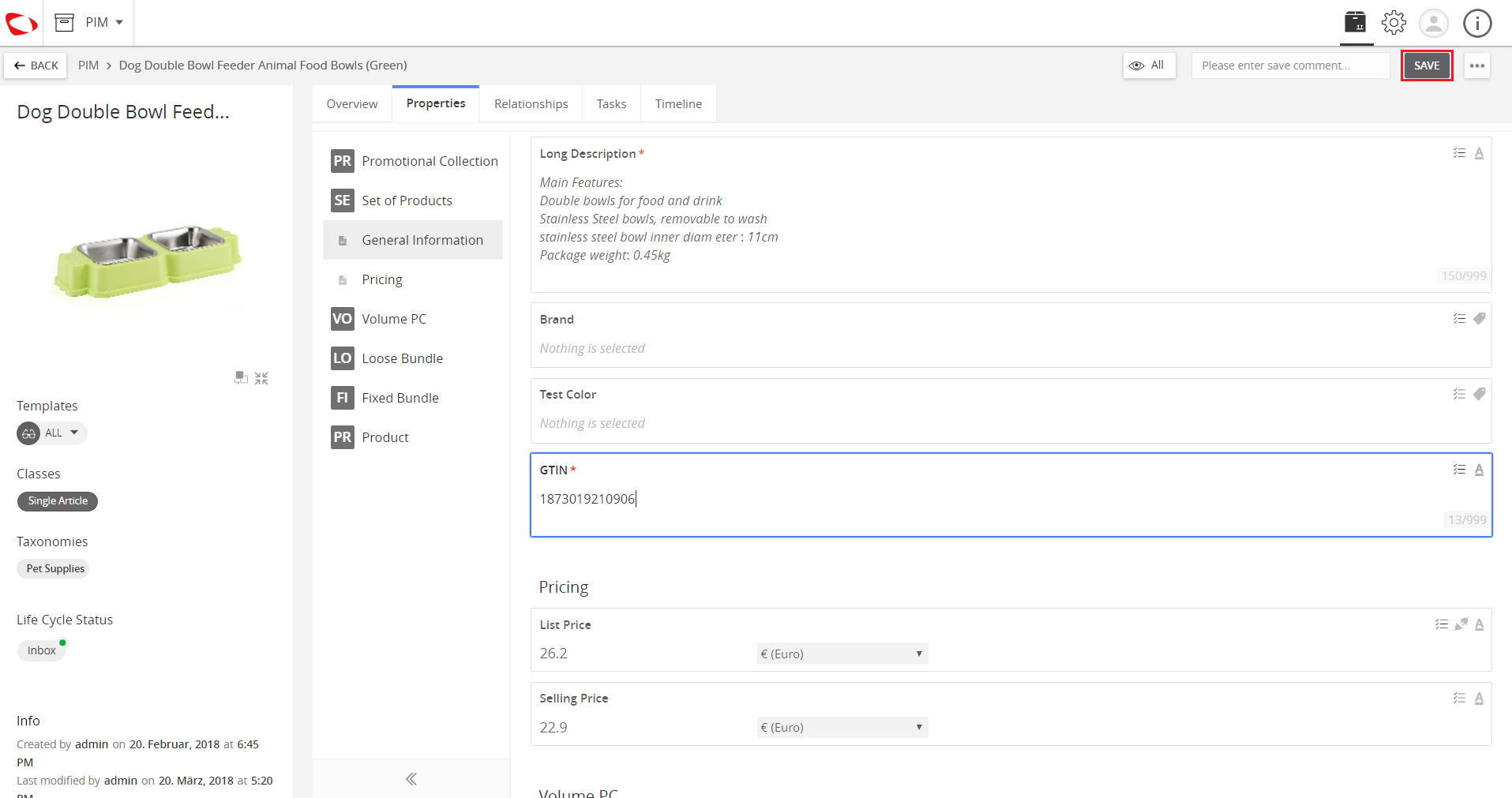
../../../../../_images/cs_productidenfitieridentifierattributes_clickblankarea.PNG


  1. Go back to PIM and create another product of the same class.
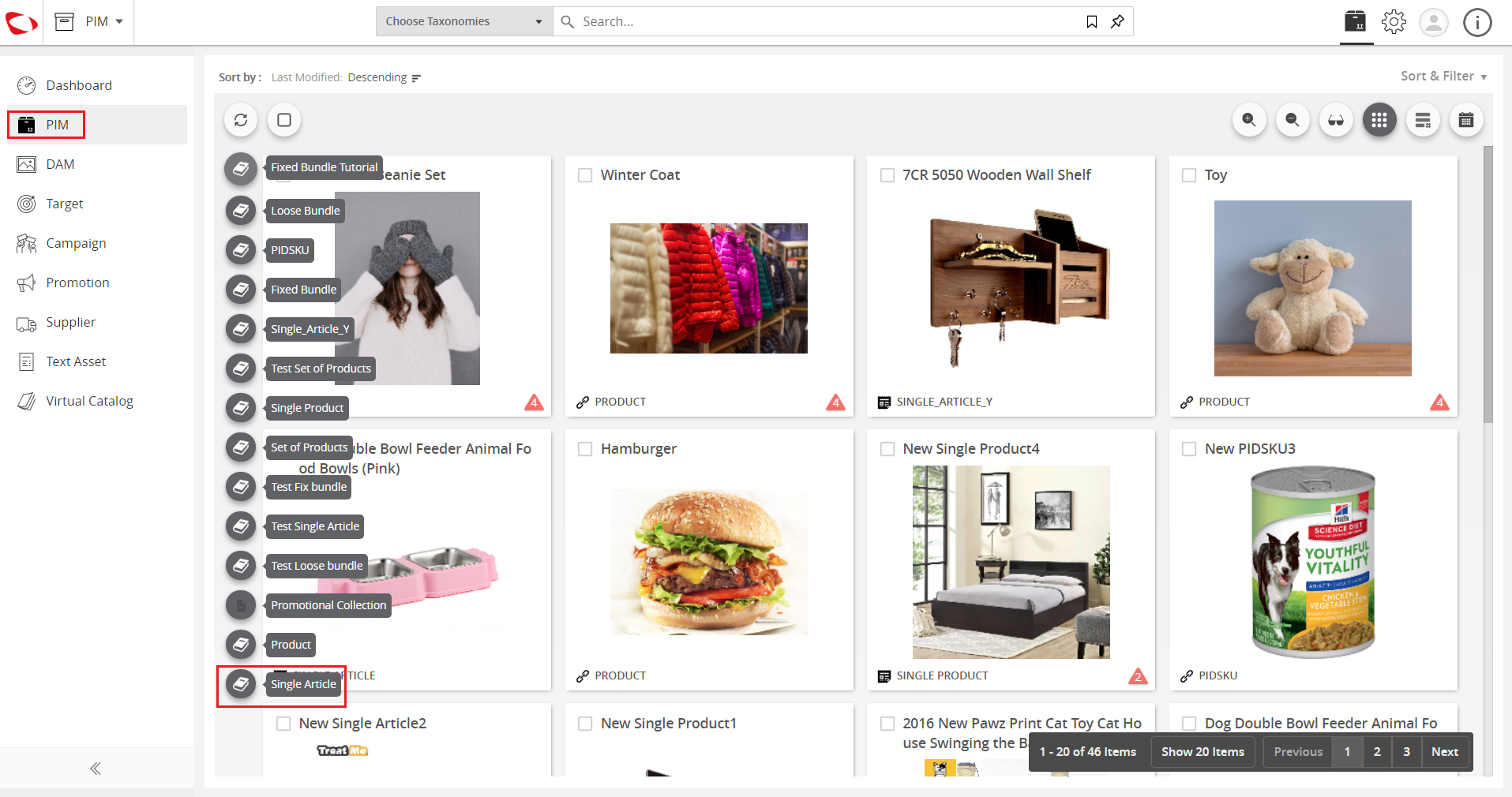
../../../../../_images/cs_productidenfitieridentifierattributes_gobacktopim.PNG


  1. Edit the same attribute with the same value as with the previous product.
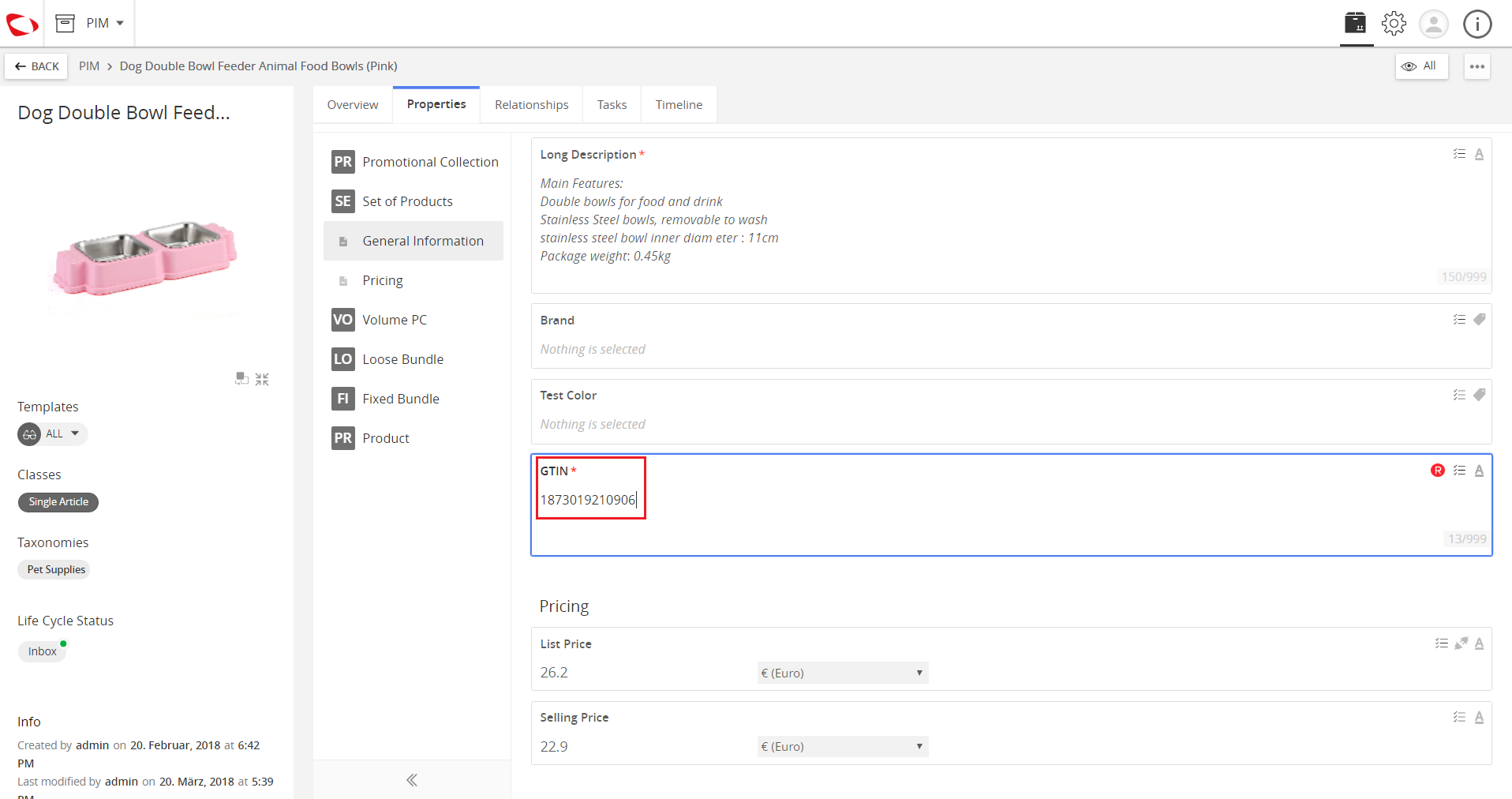
../../../../../_images/cs_productidenfitieridentifierattributes_editsameattribute1.PNG


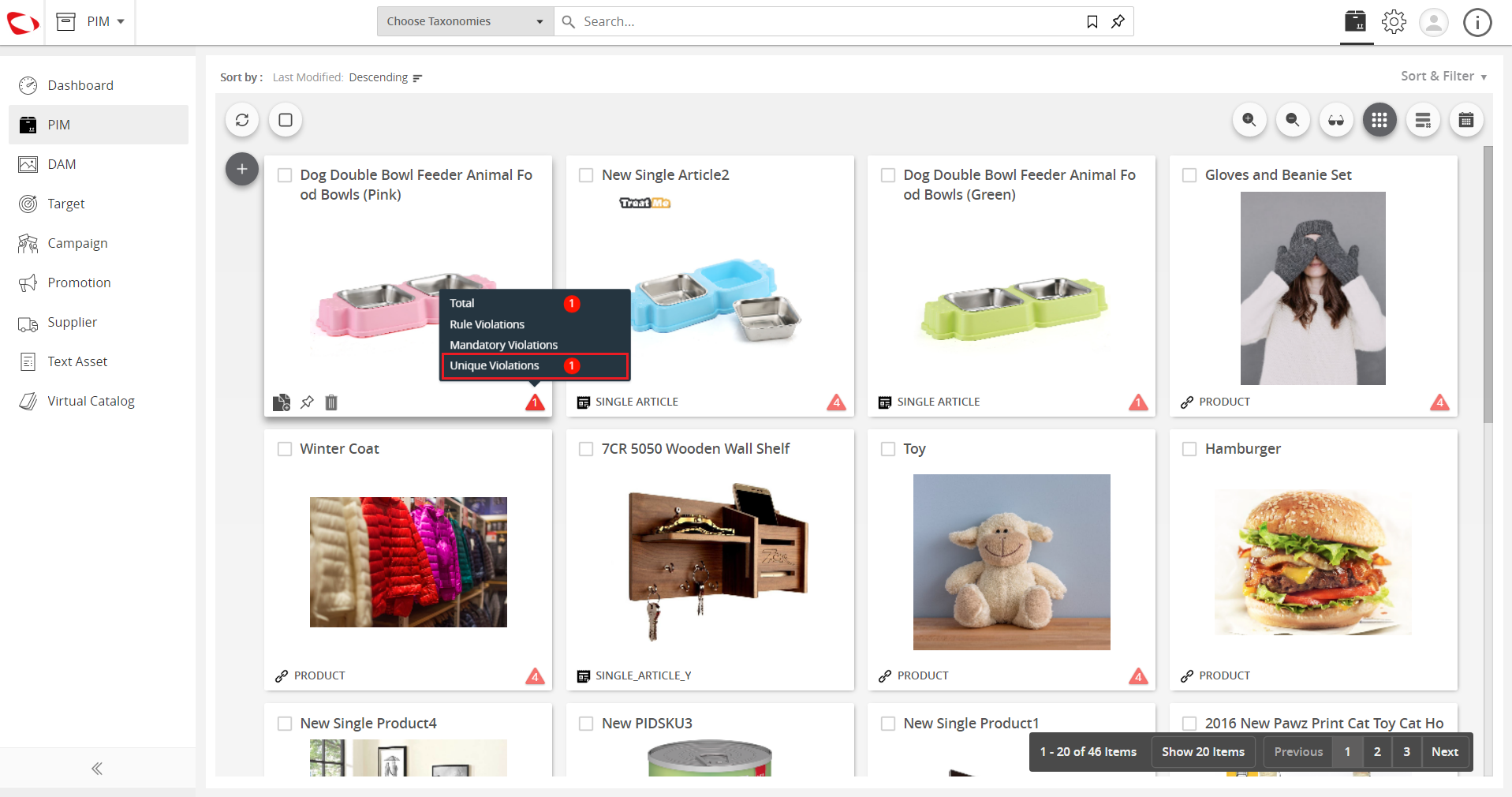
  1. Click on the Save button and the violation for uniqueness will appear.
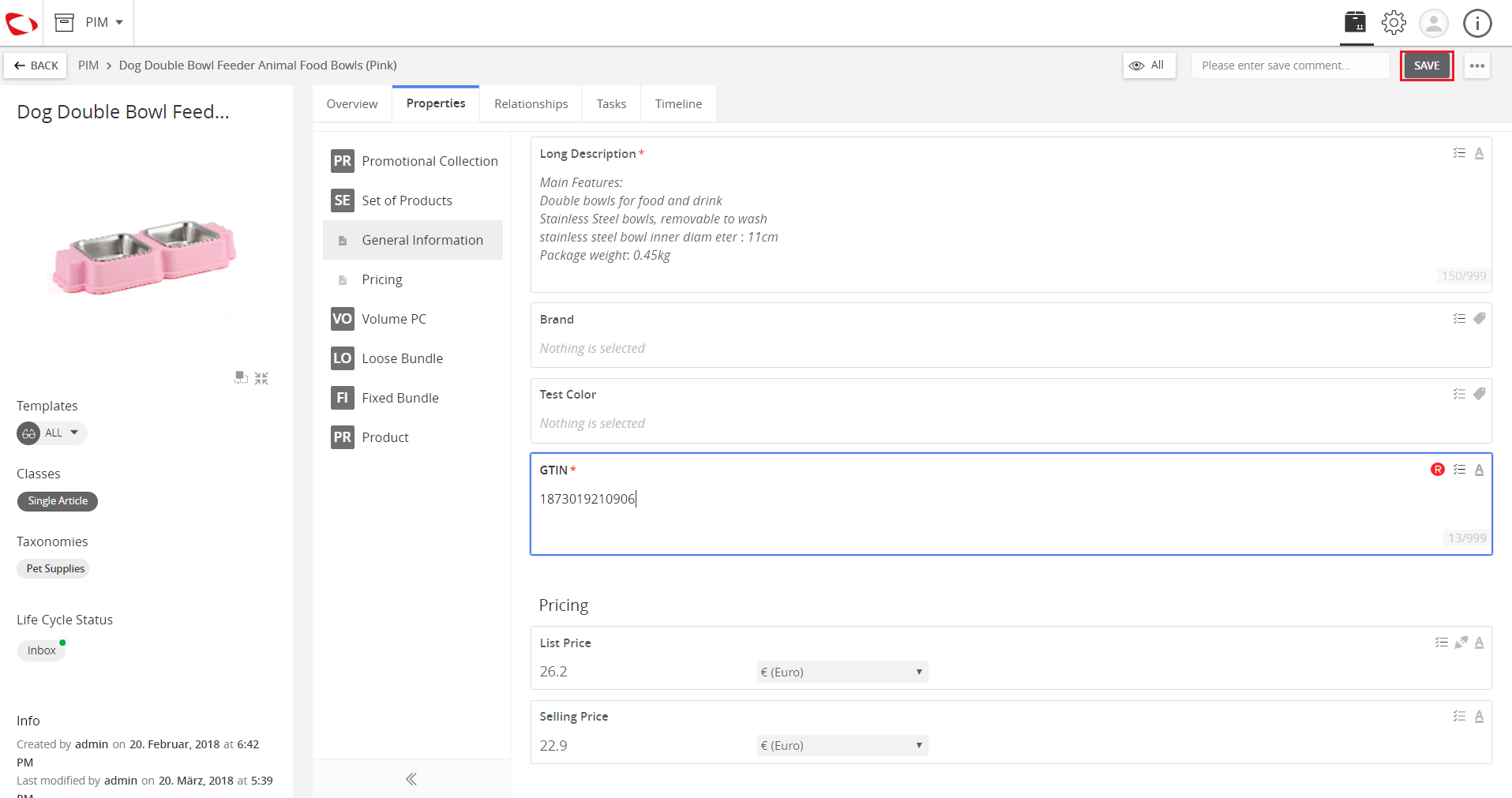
../../../../../_images/cs_productidenfitieridentifierattributes_clicksave.PNG

../../../../../_images/cs_productidenfitieridentifierattributes_clicksave2.PNG


  1. Enter a unique value in the attribute for that product to resolve the violation then click on the Save button.
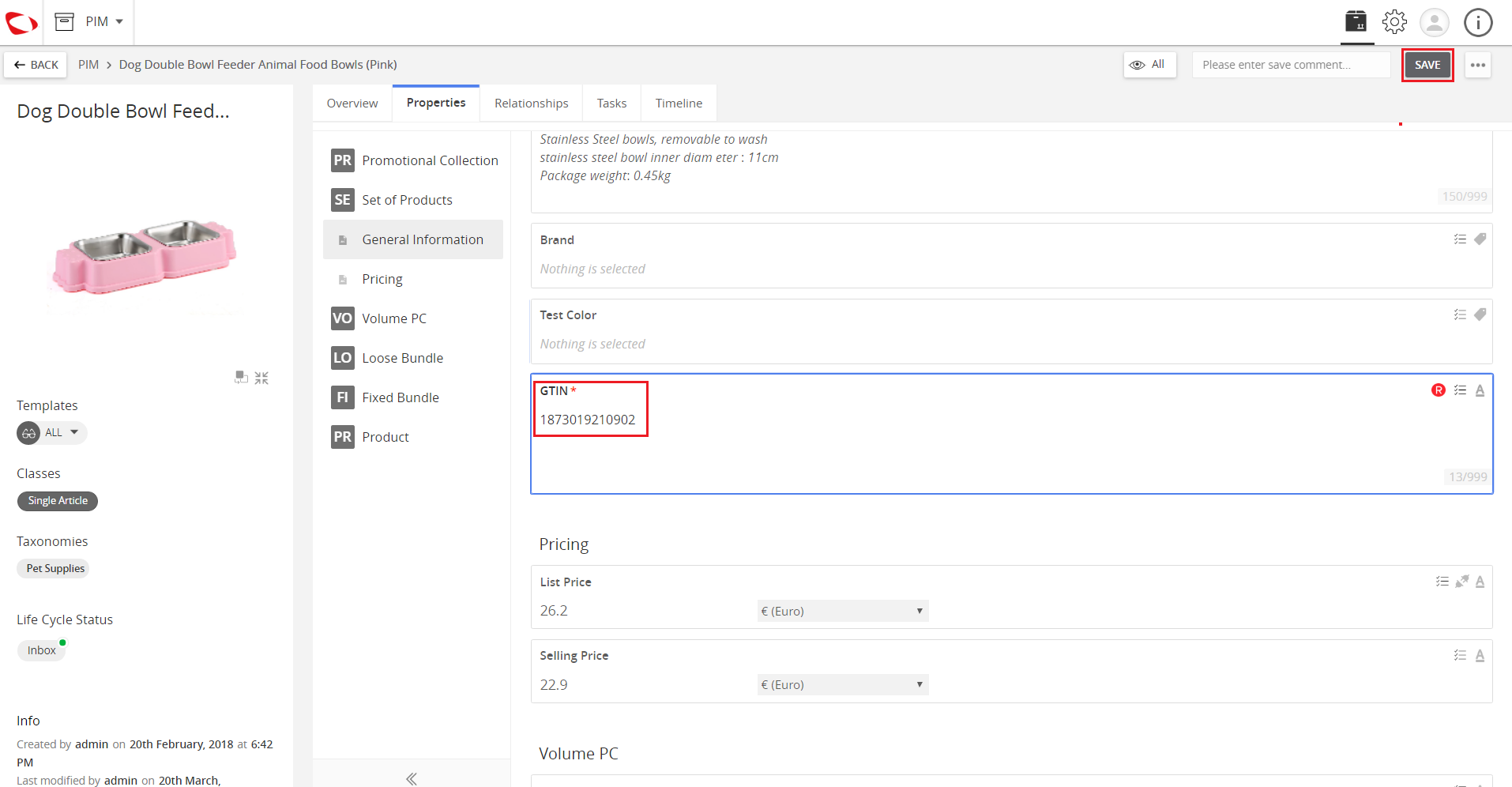
../../../../../_images/cs_productidenfitieridentifierattributes_enteruniquevalue.PNG


Contentserv line

Last updated: Jul 27, 2018