Help Center

Manage Virtual Catalogs

The Manage Virtual Catalogs feature creates multiple collections and bookmarks to effectively manage different selections of products in the catalog.

Key Term:
  • Class: a class defines the base configuration for products.
Description:
  • A Virtual Catalog is a collection of various items put together by a user (usually a retailer) to be used at a specific time or for a certain occasion.
  • The catalogs vary according to users and access to these catalogs can be restricted in terms of who can view and edit them.
Related topics:
Application:
  • A retailer uses a Virtual Catalog to create his own collection of products for special occasions.

  • Catalogs can be made user-specific.

  • Example:

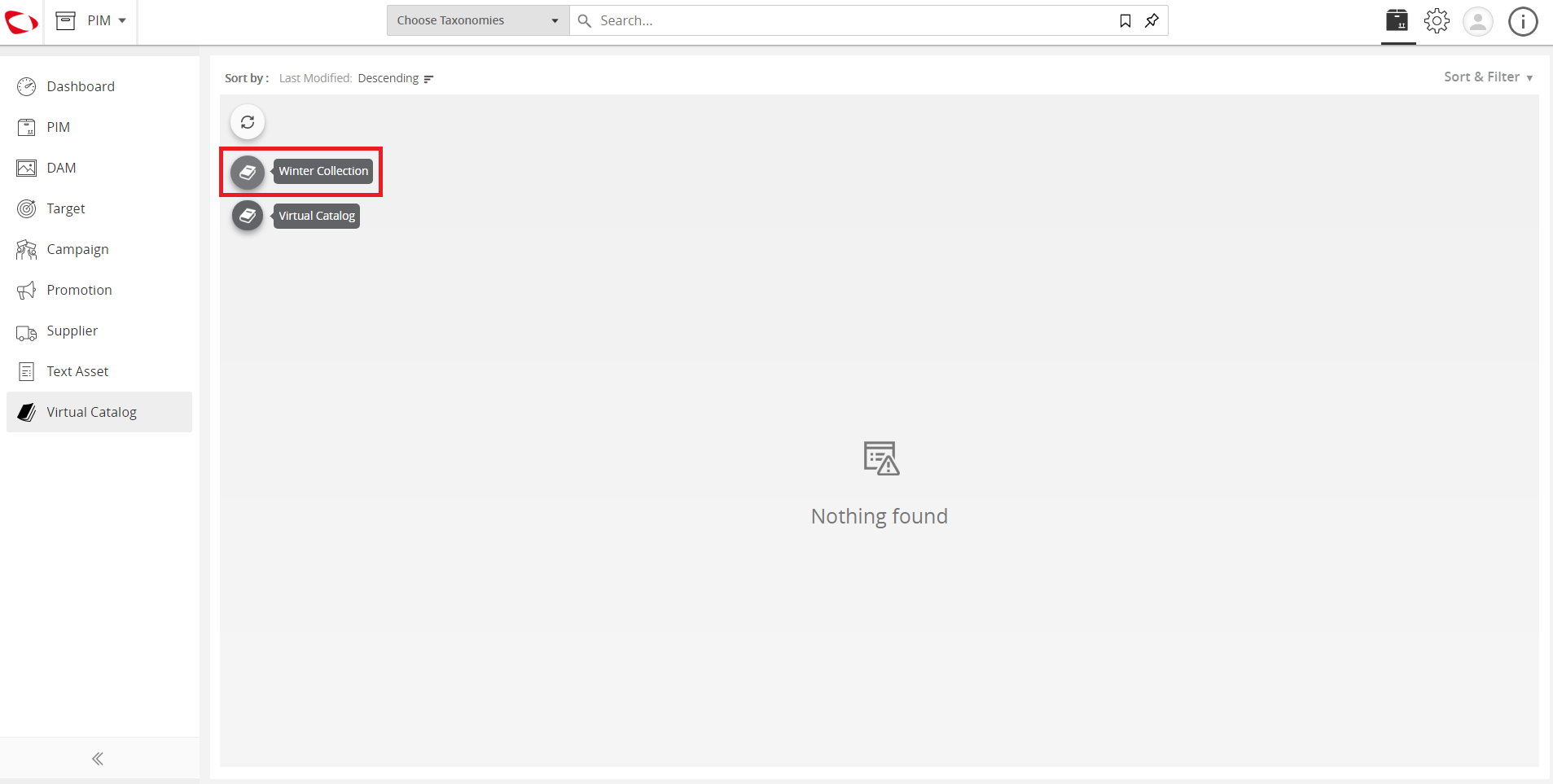
    Retailer A with a clothing franchise creates a winter collection and uses this virtual catalog when the winter season arrives.

  • Note: The collection created is not in PIM but in the entity, Virtual Catalog.

How-to: Manage Virtual Catalogs

To do this feature, follow these steps:


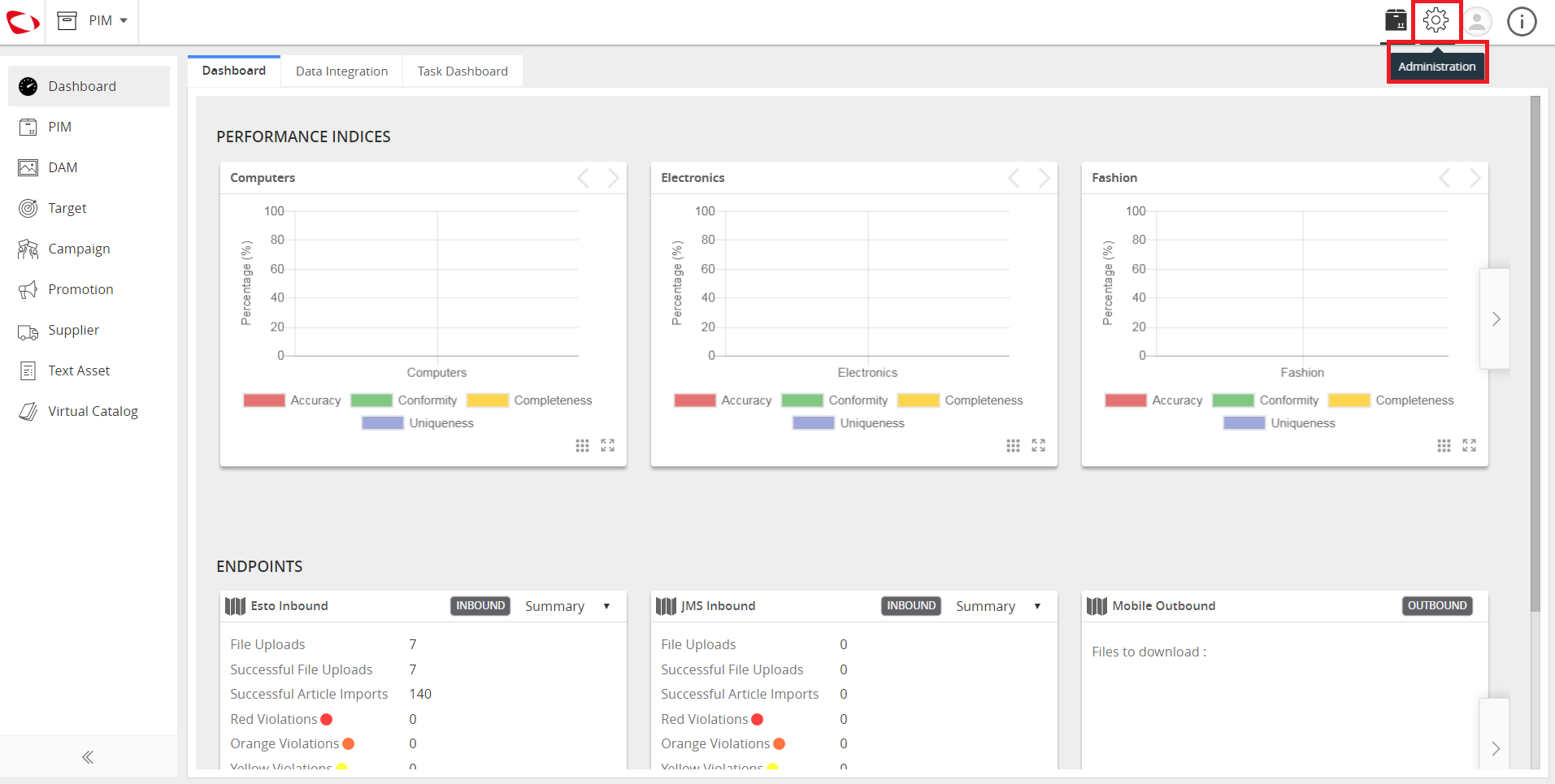
  1. Log in and go to Administration.
../../../../../_images/cs_managevirtualcatalog_login.PNG


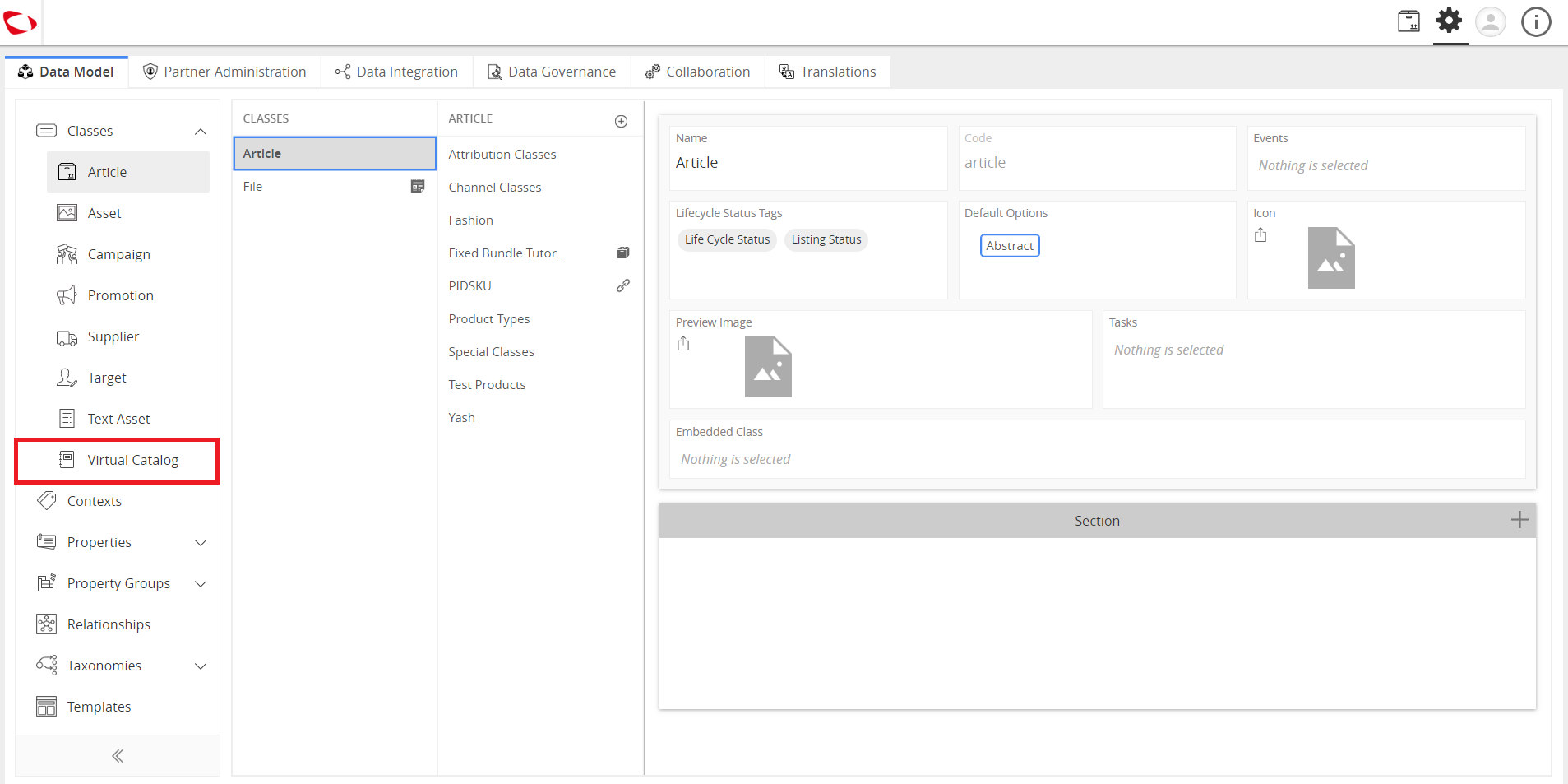
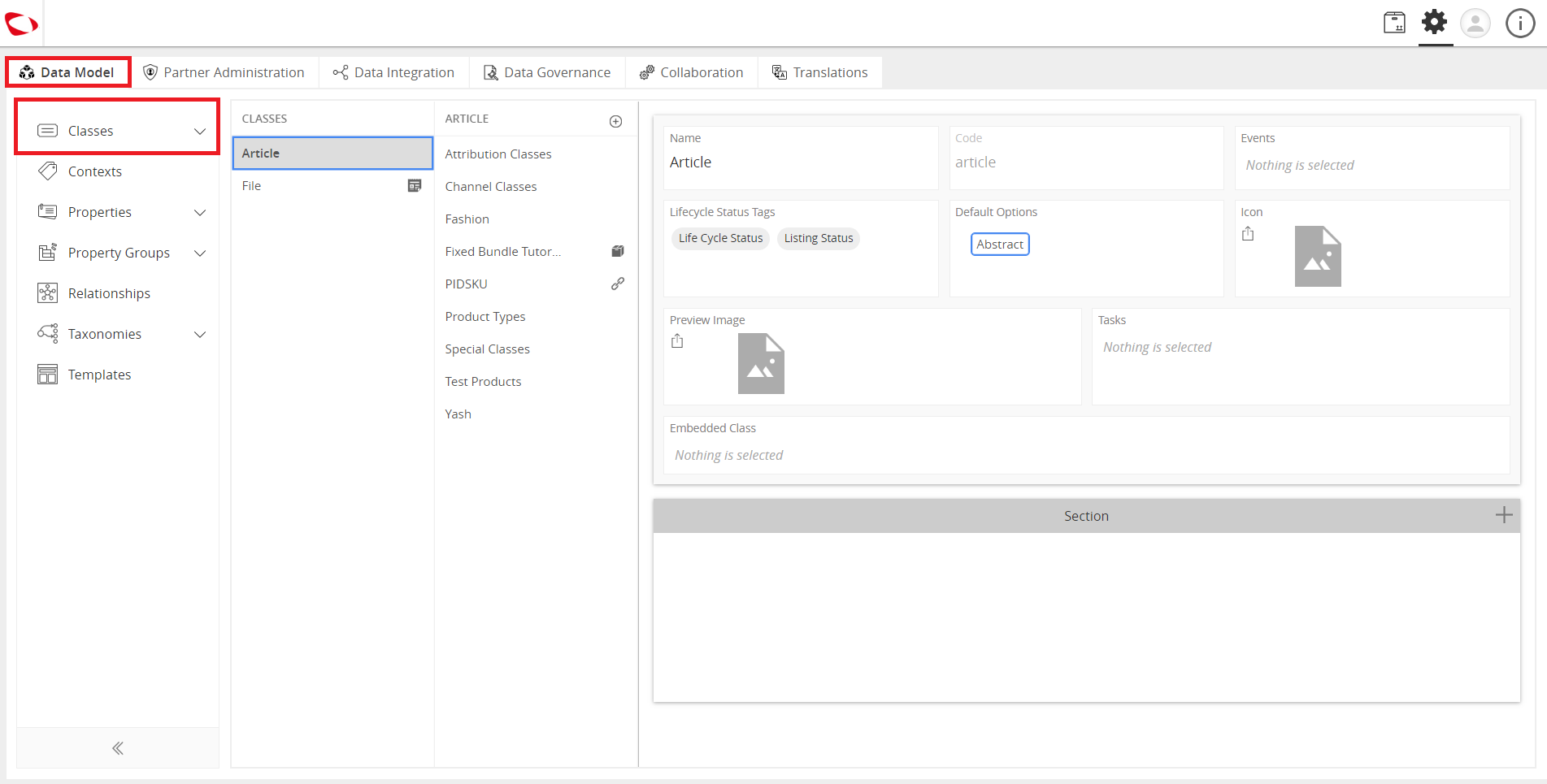
  1. Click the Data Model tab and go to Classes.
../../../../../_images/cs_managevirtualcatalog_gotodatamodel.PNG


  1. Under Classes, go to Virtual Catalog.
../../../../../_images/cs_managevirtualcatalog_underclassesgotovirtualcatalog.PNG


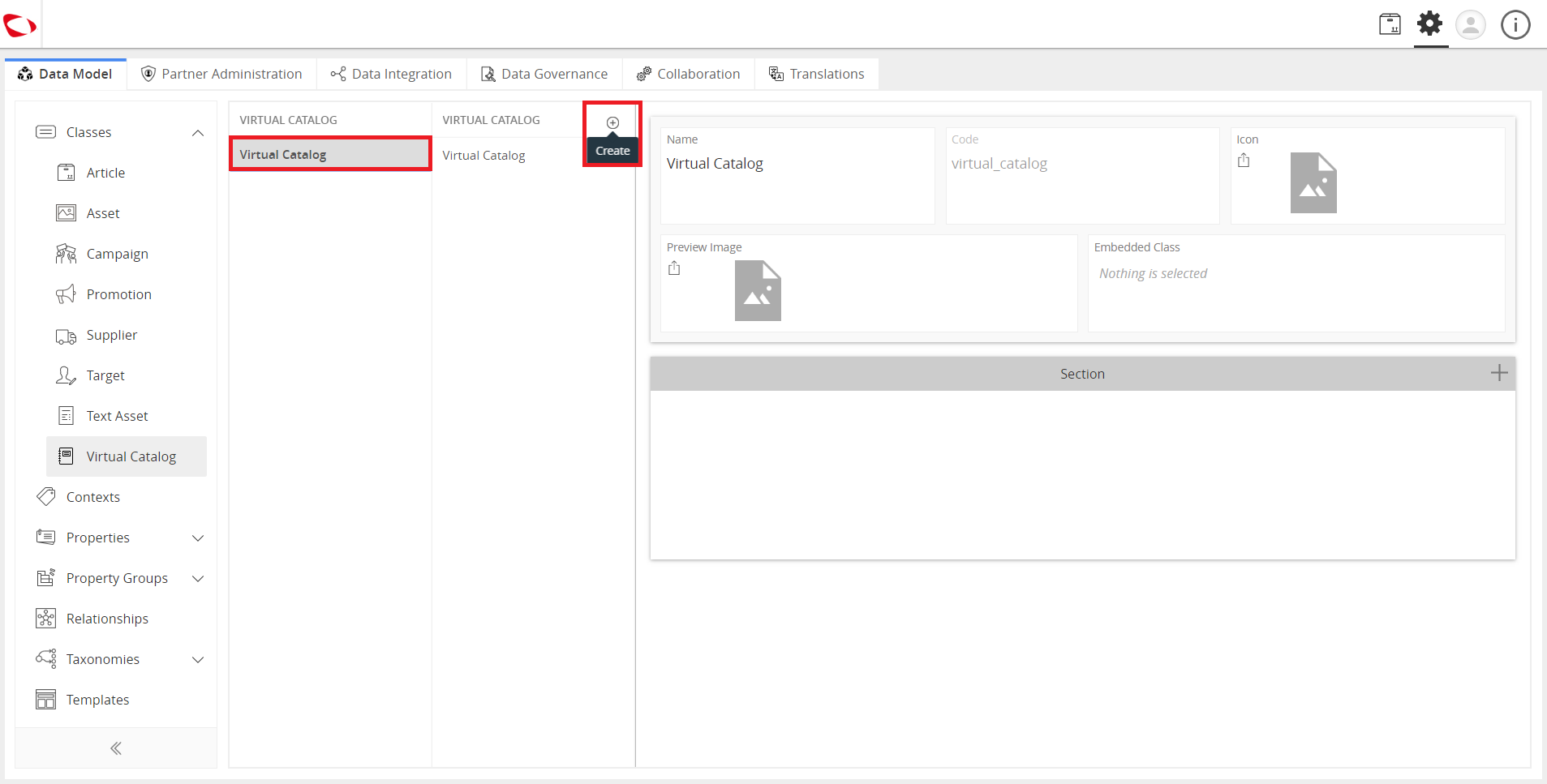
  1. Click on the Virtual Catalog in the first column and click on the “+” icon in the second column to create a new catalog.
../../../../../_images/cs_managevirtualcatalog_clickonthevirtualcatalog.PNG


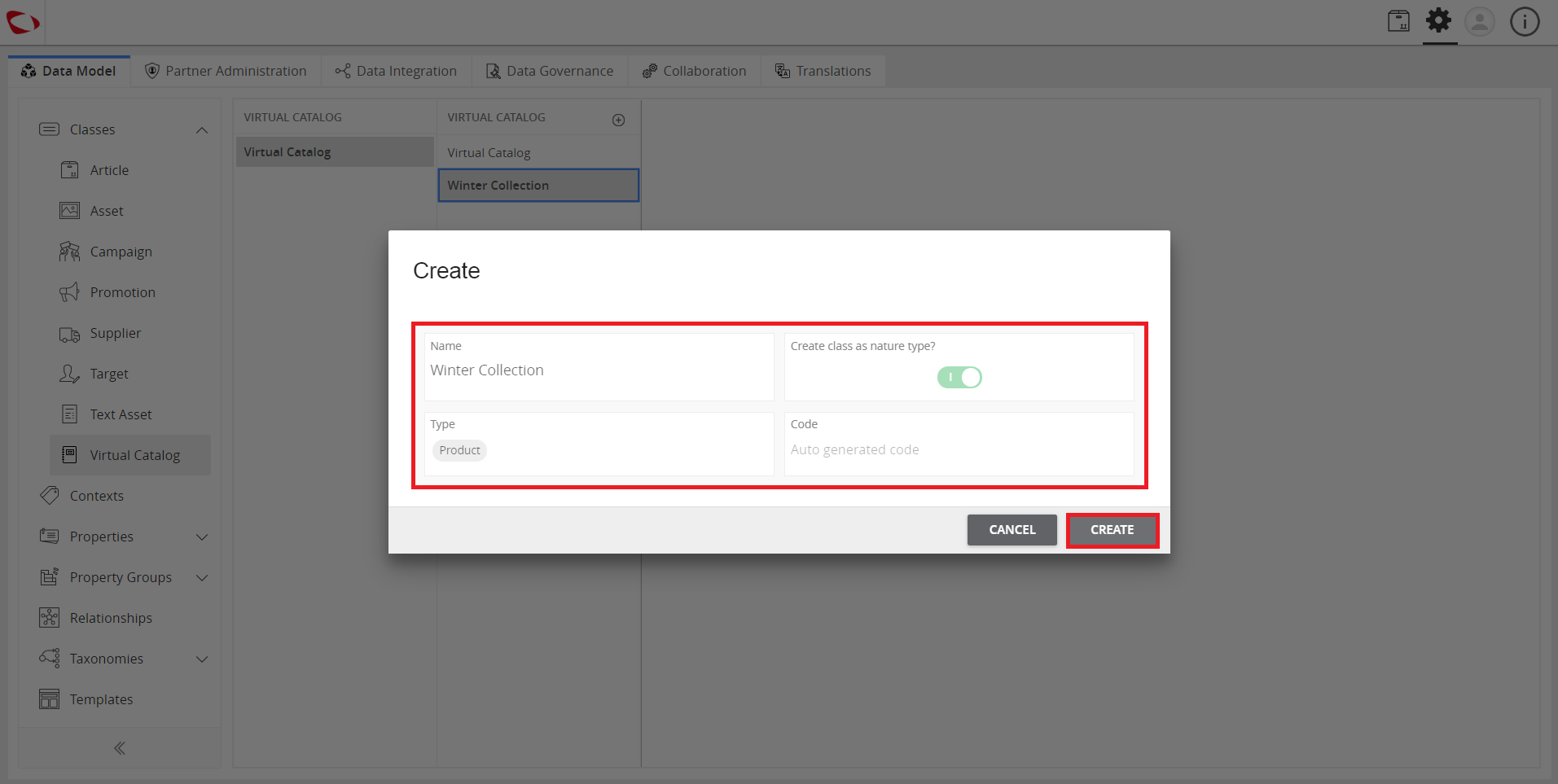
  1. Fill out all the details like Name, Nature Type, and Type. It is optional to provide a detail for the Code field. Click on the Create button once done.
../../../../../_images/cs_managevirtualcatalog_fillouthedetails.PNG


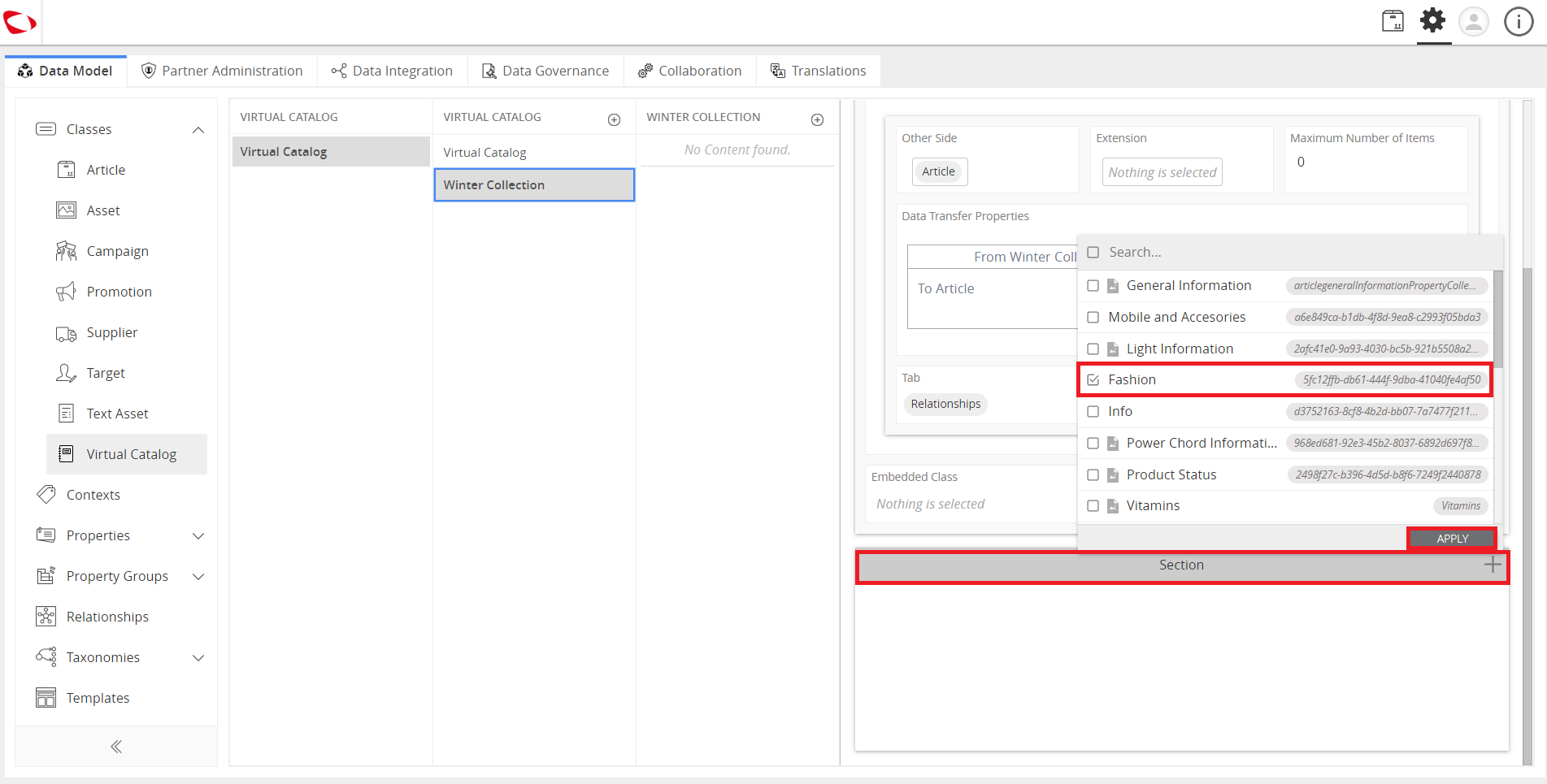
  1. Add a Property Collection by clicking the “+” icon in Section. Select a Property Collection and then click the Apply button.
../../../../../_images/cs_managevirtualcatalog_addapropertycollection.PNG


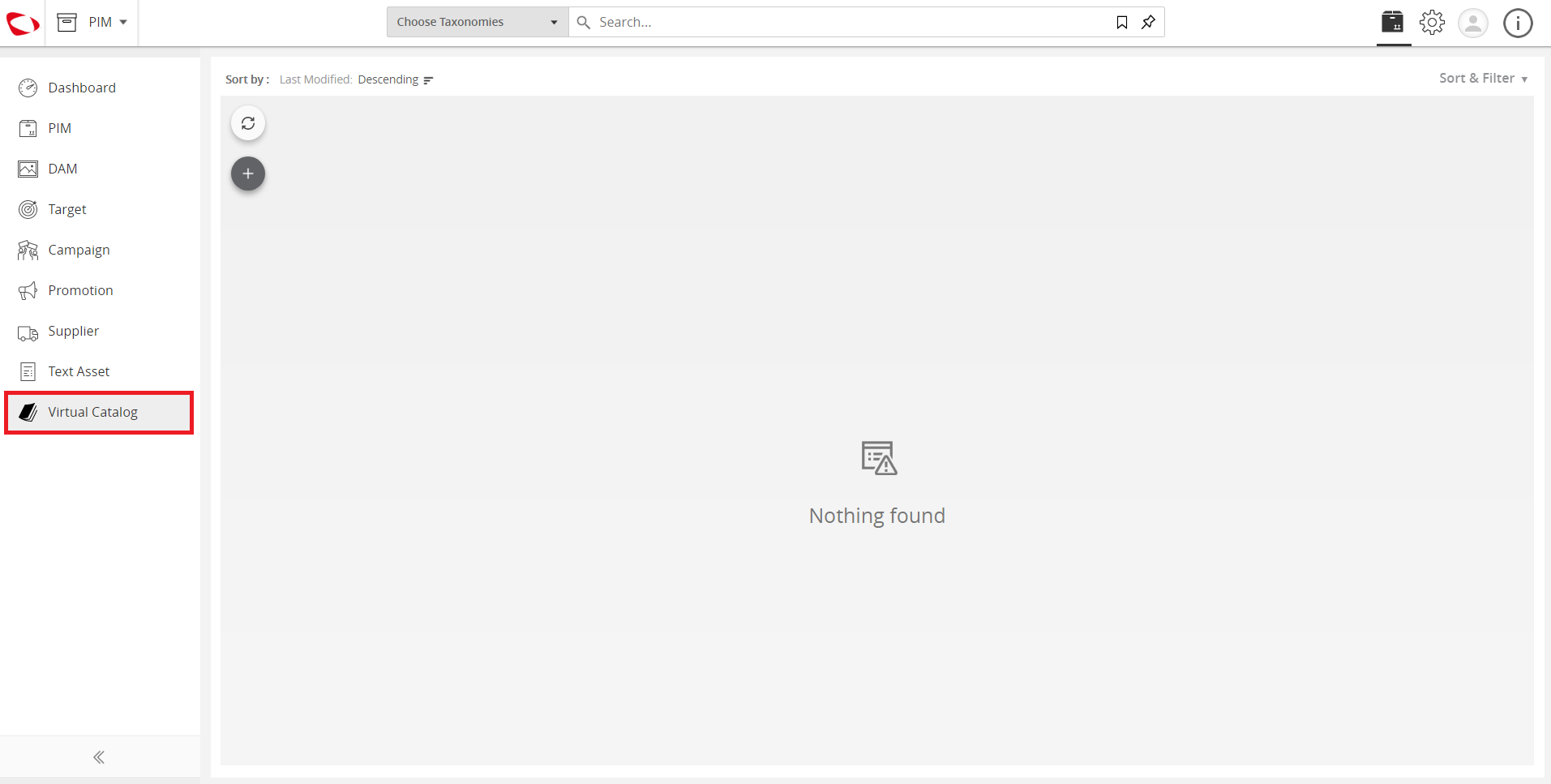
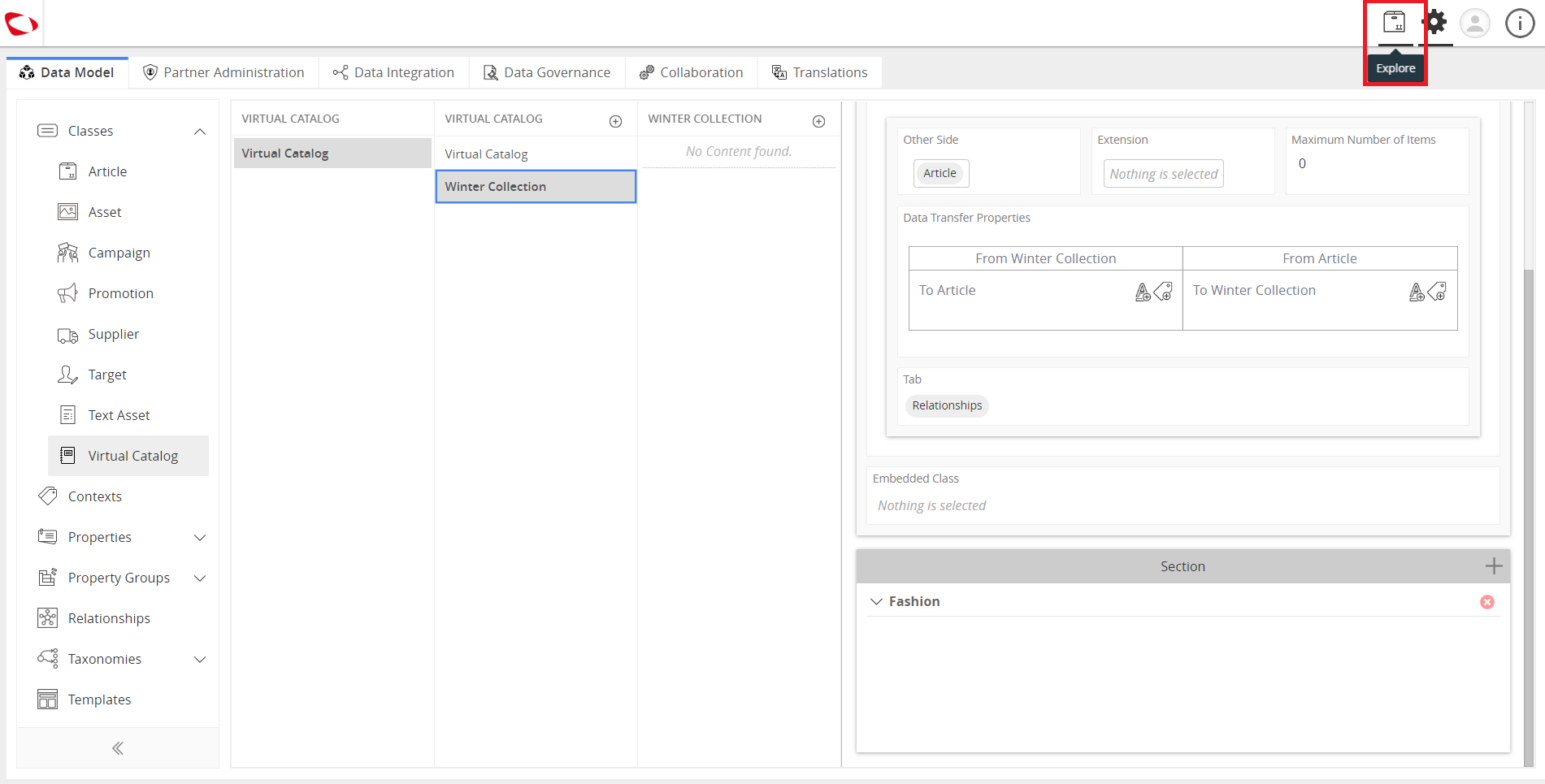
  1. Click the Explore button and then go to the Virtual Catalog.
../../../../../_images/cs_managevirtualcatalog_clicktheexplorebutton.PNG

../../../../../_images/cs_managevirtualcatalog_clicktheexplorebutton2.PNG


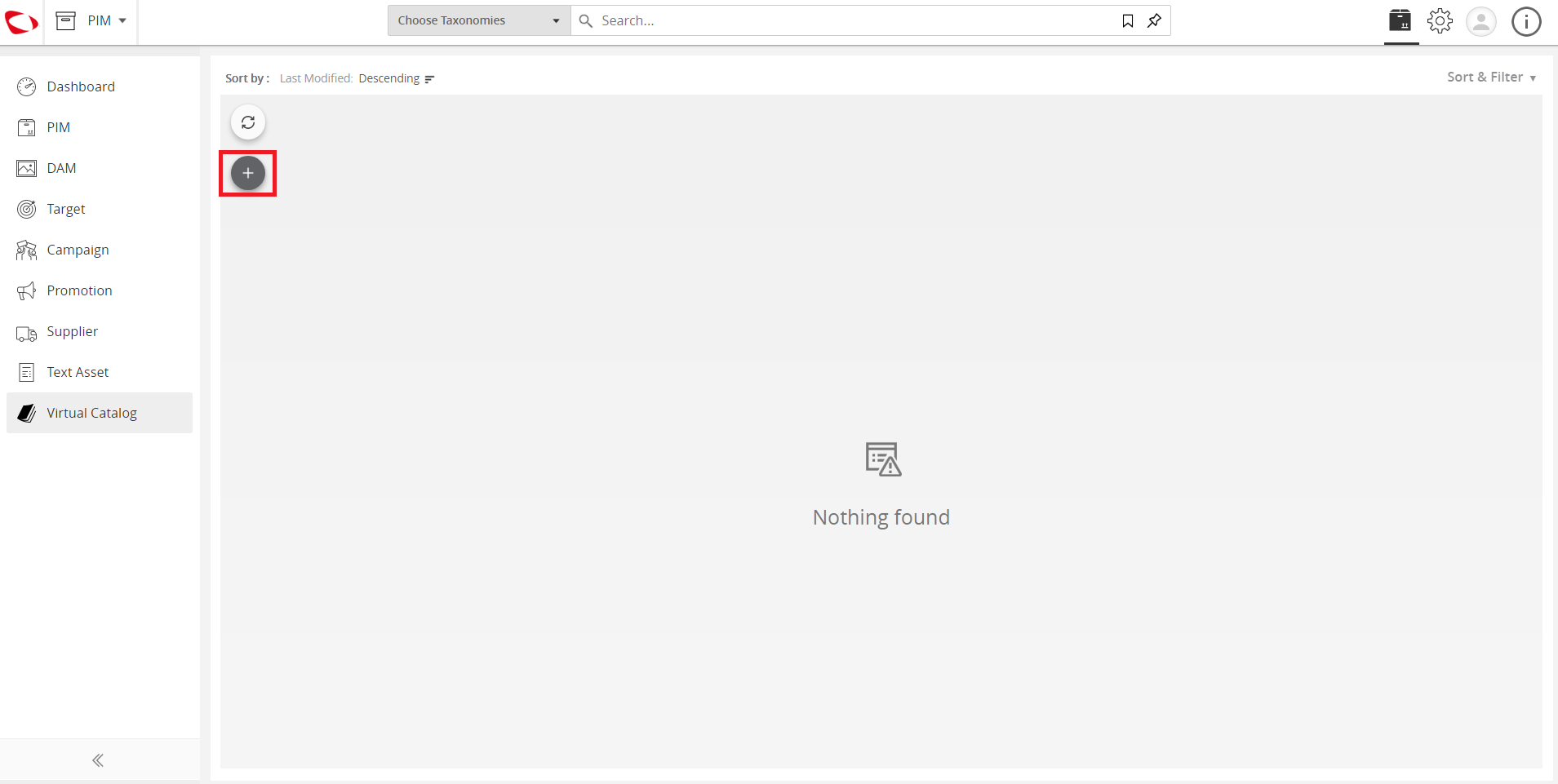
  1. Hover over the “+” icon to see the Collection class that was created. Click on the class.
../../../../../_images/cs_managevirtualcatalog_hoverovertheicon.PNG

../../../../../_images/cs_managevirtualcatalog_hoverovertheicon2.PNG


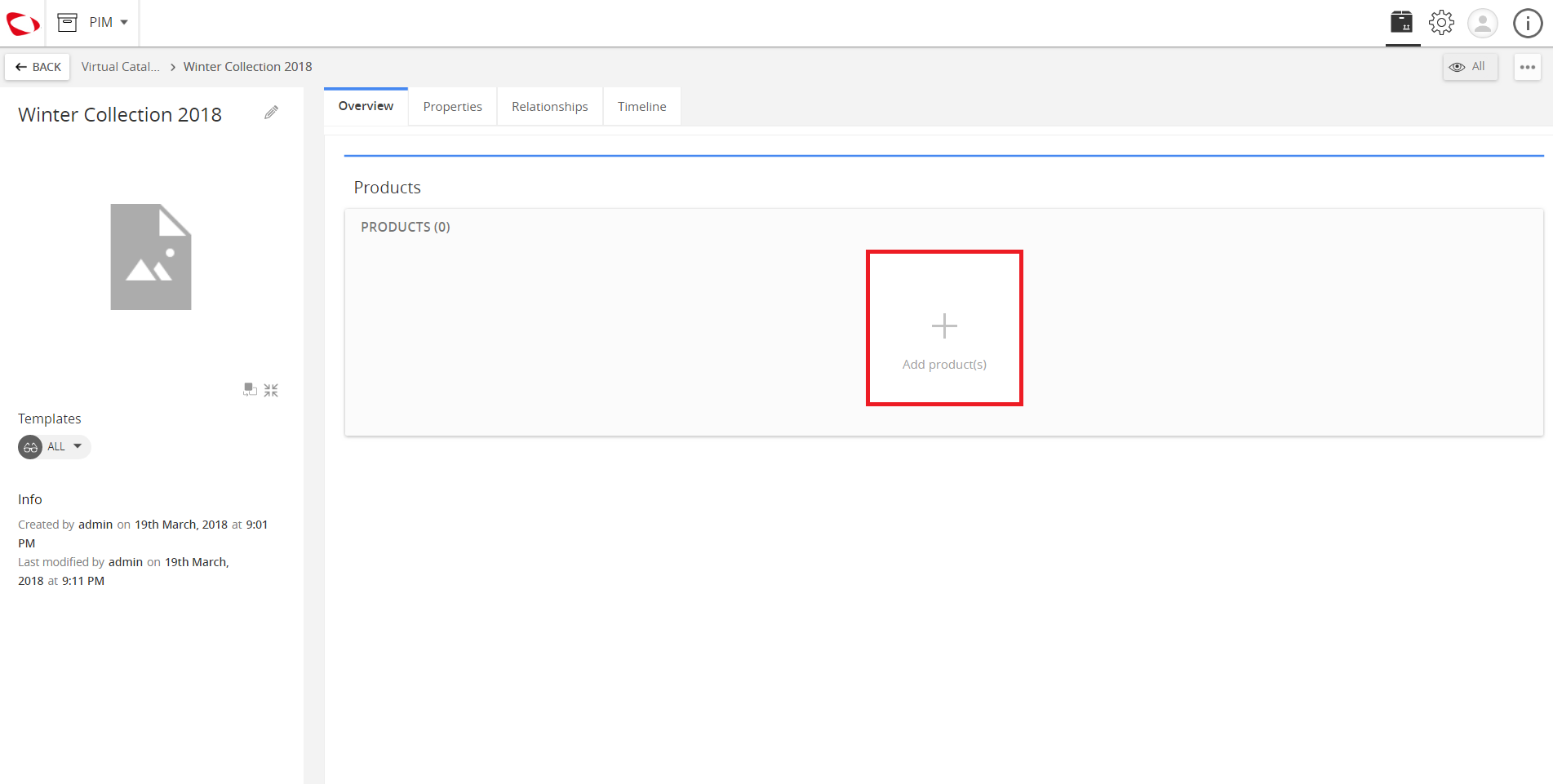
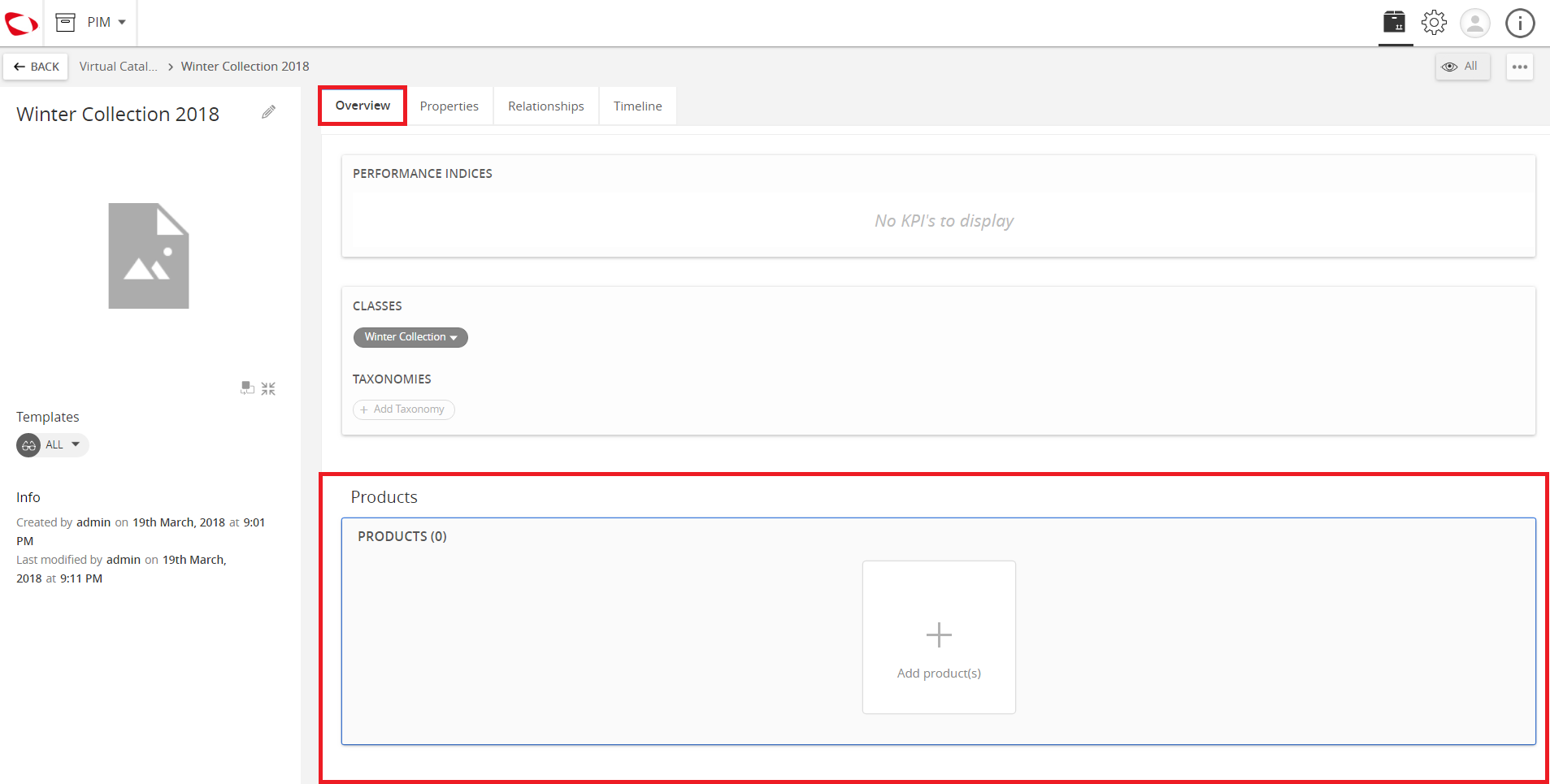
  1. Go to the Overview tab and then click the + Add Product(s) button under the Products section.
../../../../../_images/cs_managevirtualcatalog_gotooverview.PNG

../../../../../_images/cs_managevirtualcatalog_gotooverview2.PNG


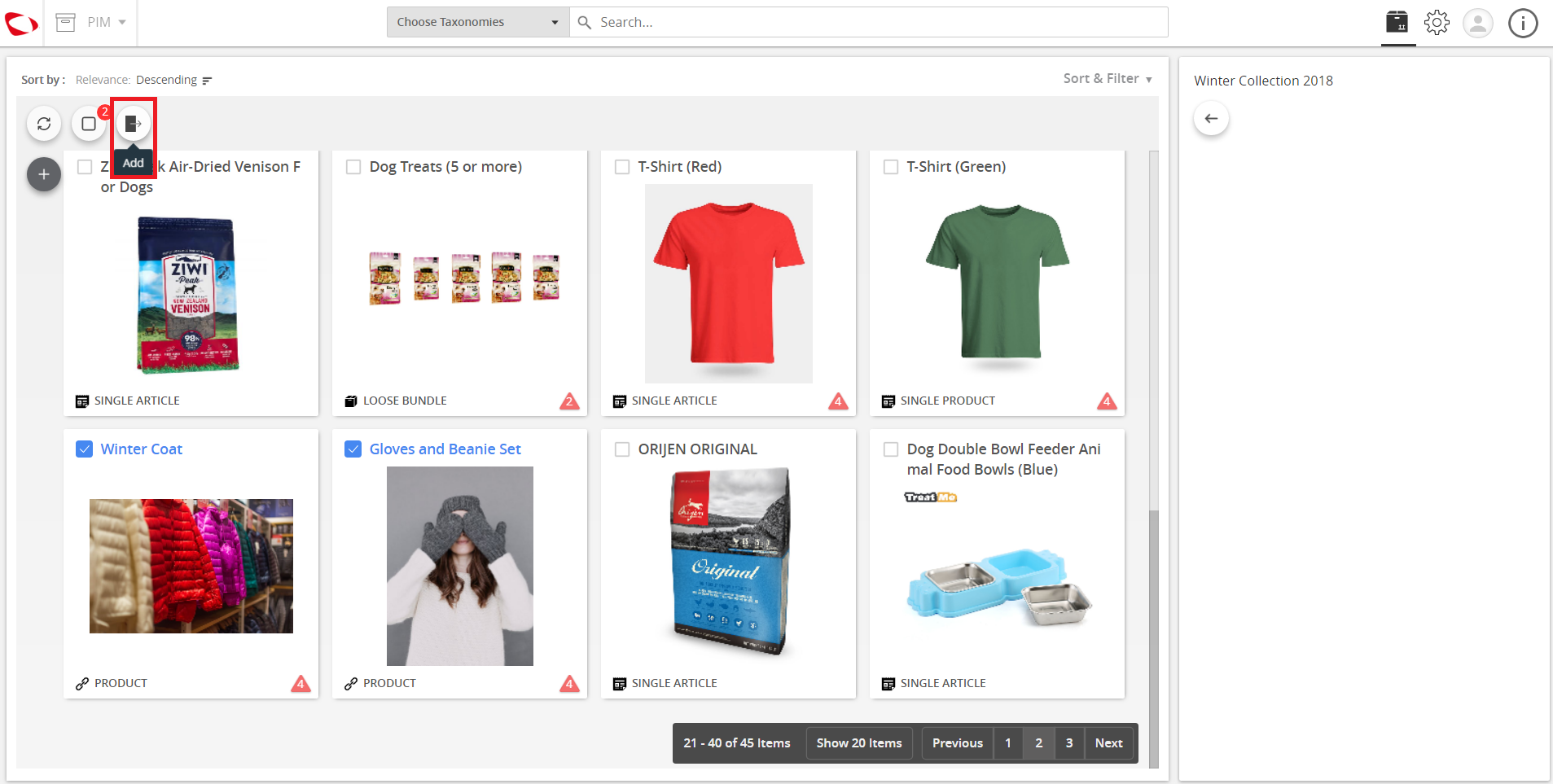
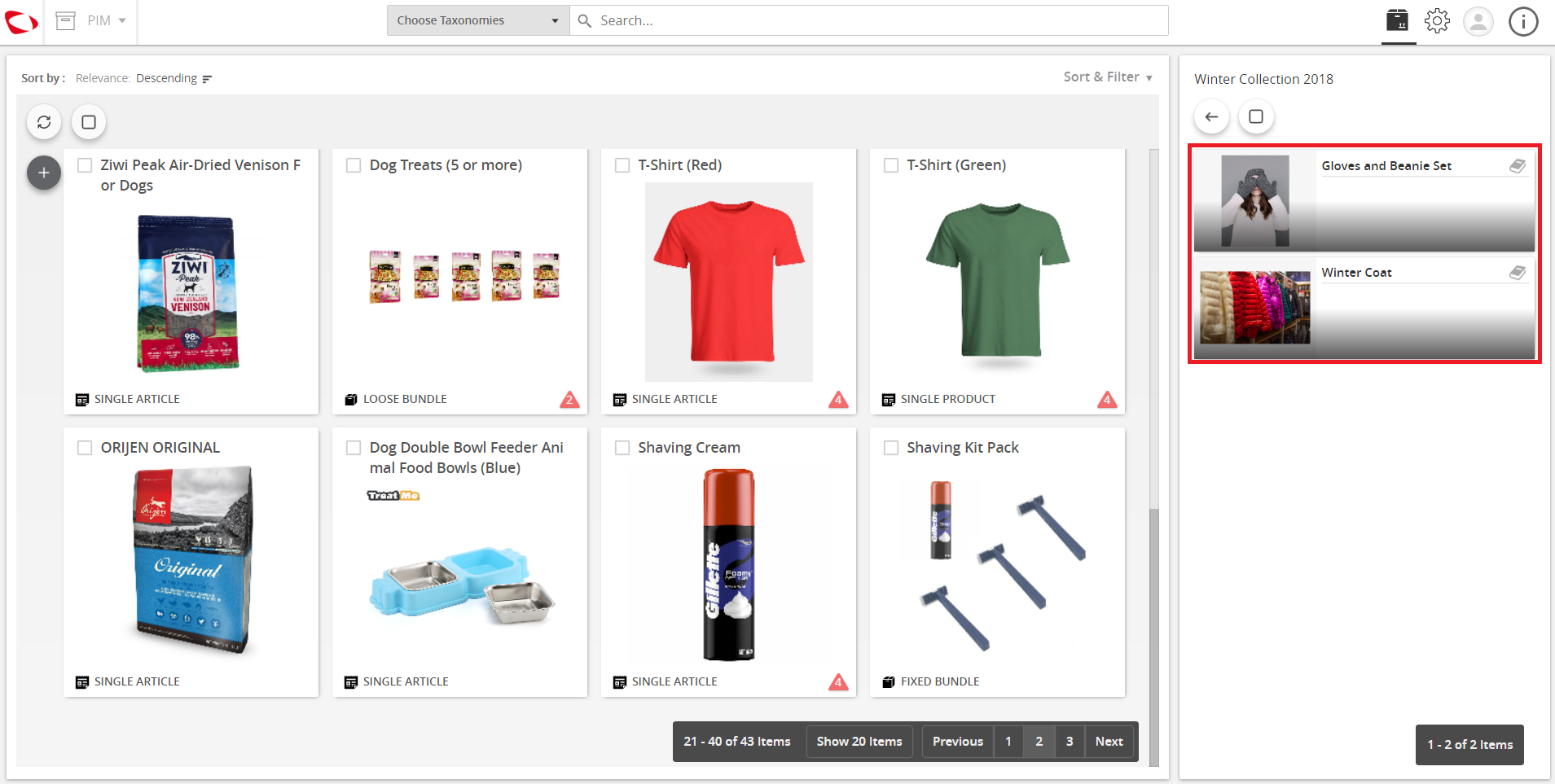
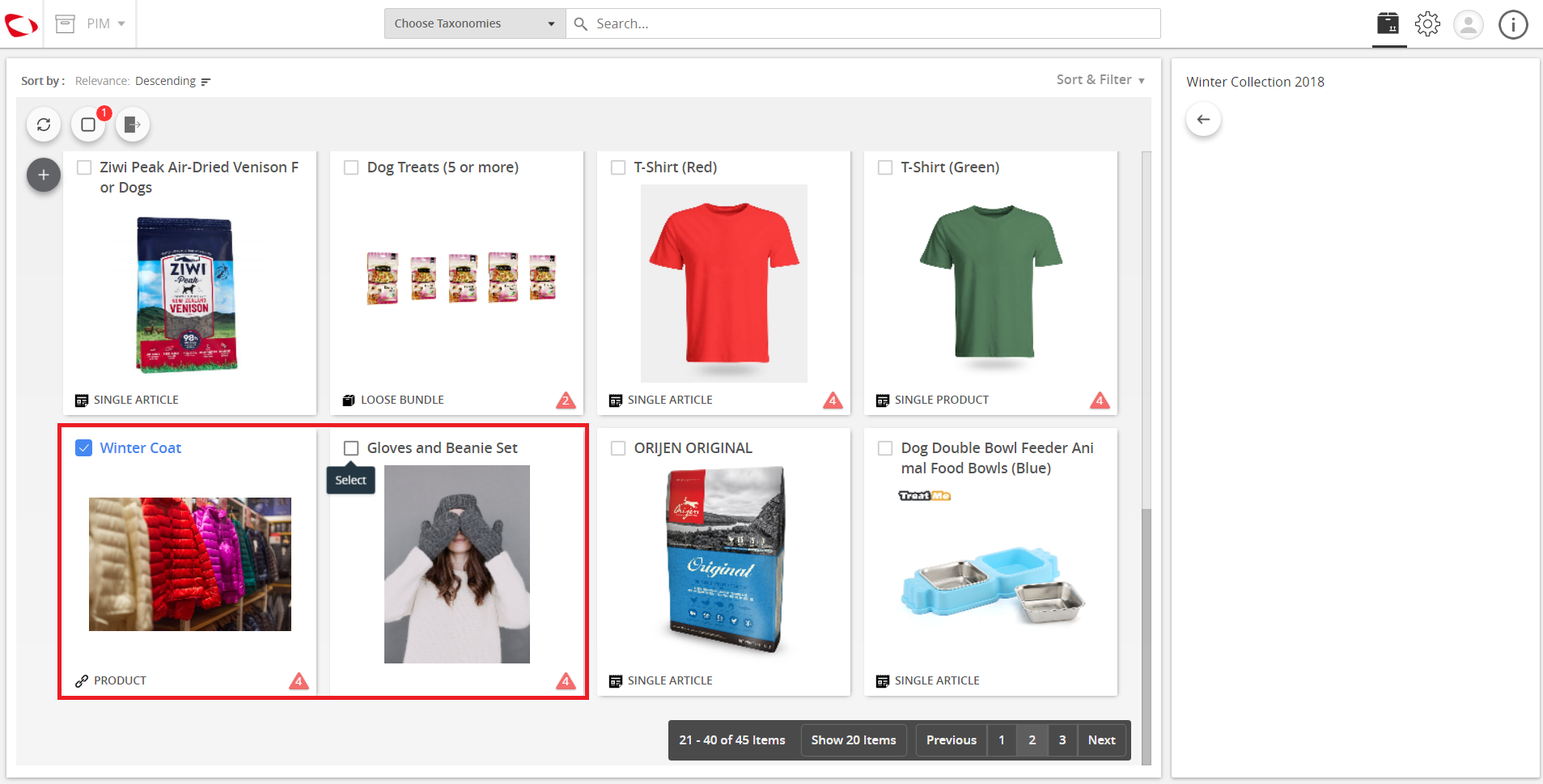
  1. Create a collection by adding products (or selecting them from existing products). Choose the products to be added in the collection and click the Add button.
../../../../../_images/cs_managevirtualcatalog_createacollection.PNG

../../../../../_images/cs_managevirtualcatalog_createacollection2.PNG

../../../../../_images/cs_managevirtualcatalog_createacollection3.PNG


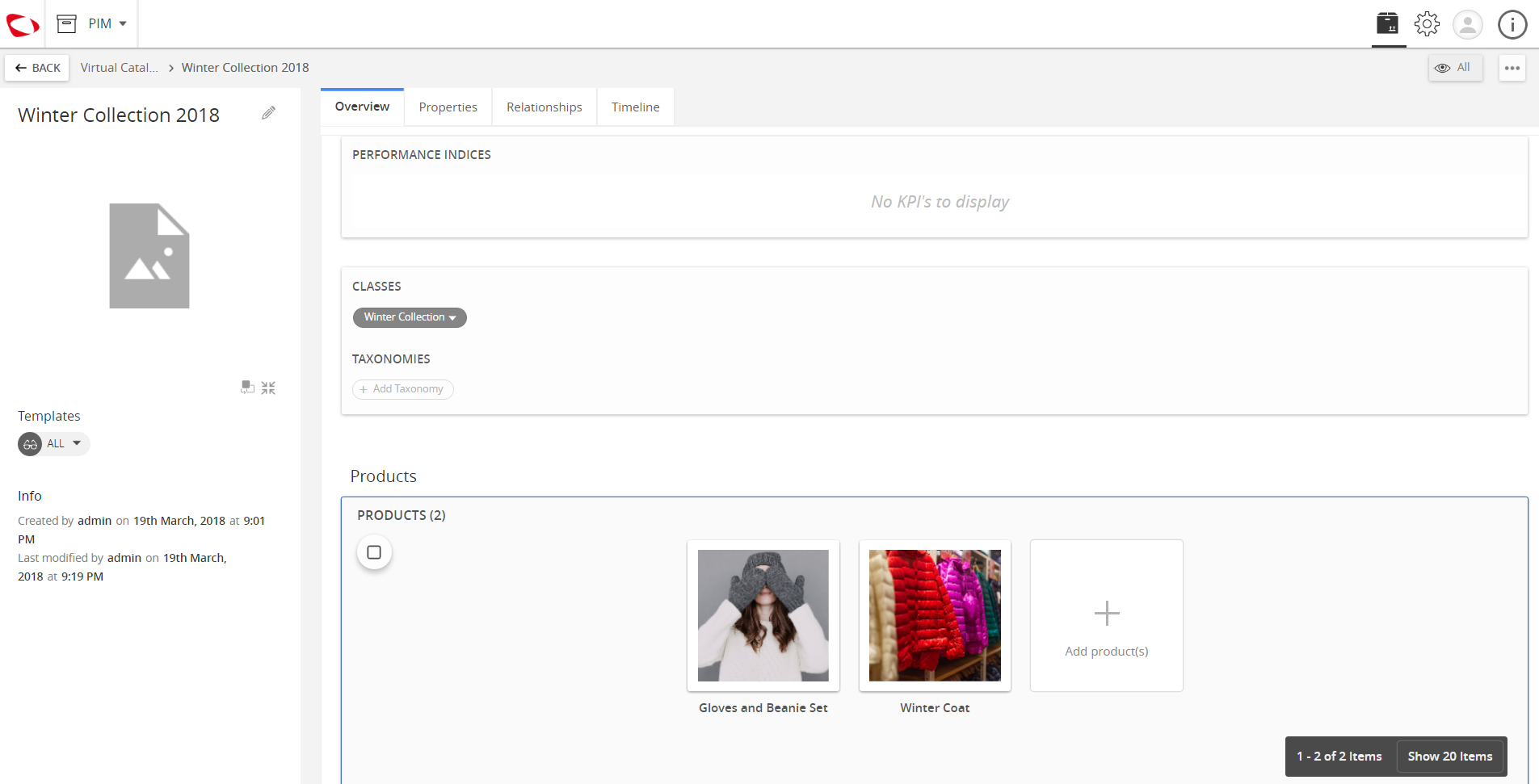
  1. View and check the virtual product catalog.
../../../../../_images/cs_managevirtualcatalog_viewandcheck.PNG


Contentserv line

Last updated: Jul 27, 2018