Help Center

KPI-based DQ Reports

The KPI-based DQ Reports is a data governance feature that allows an administrator set up a KPI-based Data Quality reports and link it to specific roles, which enables the designated users to take proper corrective actions.

Key Term:
  • Administrator: a technical specialist who configures a software system.
Description:
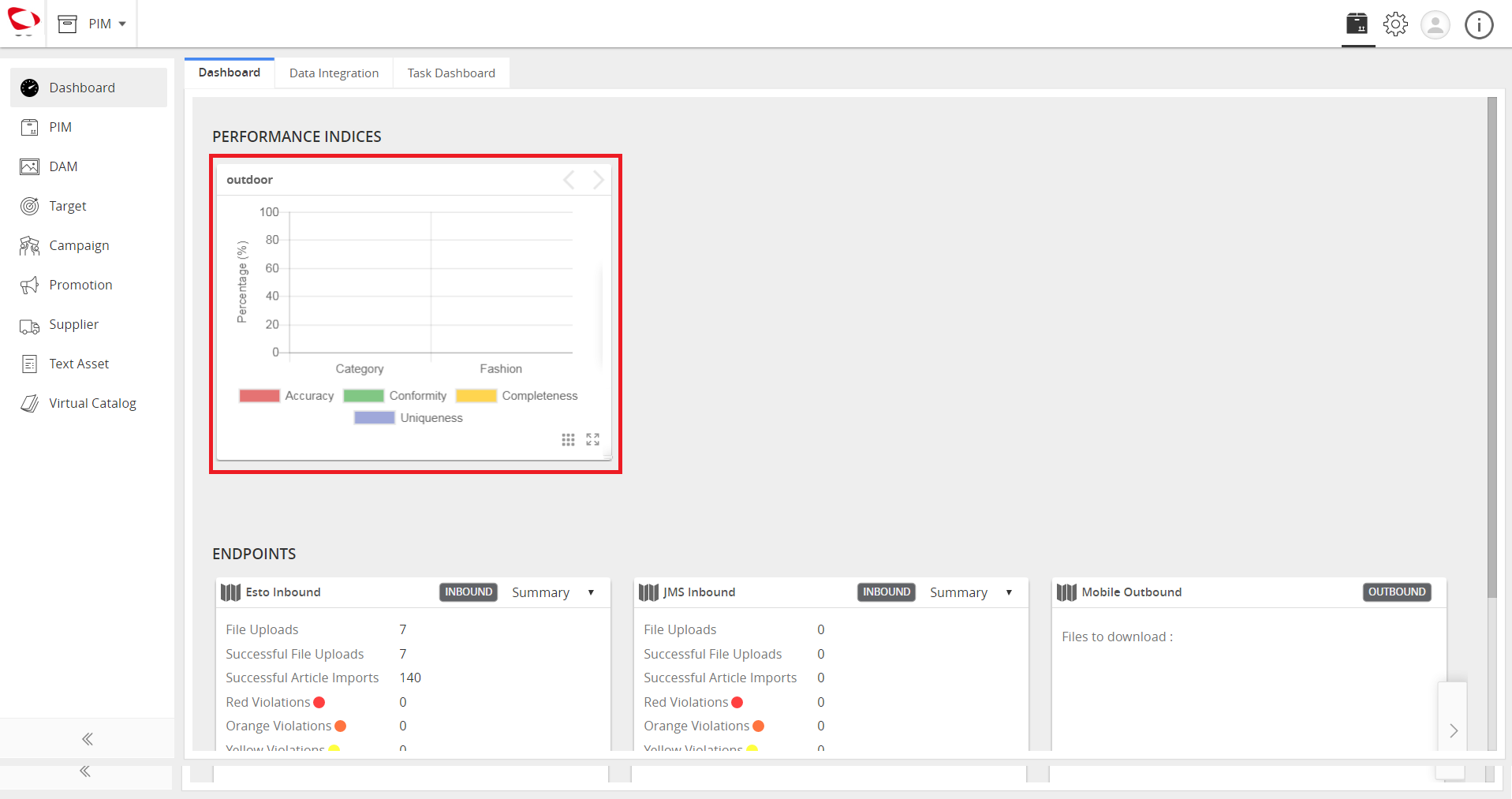
  • Data Quality Reports or Dashboards can be generated for each user/role in the system that shows a brief overview of all the products.
  • These reports help a user understand the products in the system and show errors in the system (if there are any).
  • The Data Quality Report gives a role a summary of all the products in the system that enables a user to take proper corrective actions based on the rules applied to the products and the KPI dashboard.
Related topics:
Application:
  • The KPI Dashboard helps a user better understand the products and take actions on it if they do not meet the set standard, which have been predefined by the rules set for those products.

  • Example:

    For a supplier of fashion products, a Fashion KPI Report would give an overview of all the fashion products based on a certain rule like the completeness of GTIN. Corrective actions can be taken for products violating the rule.

How-to: KPI Based DQ Reports

To do this, follow these steps:


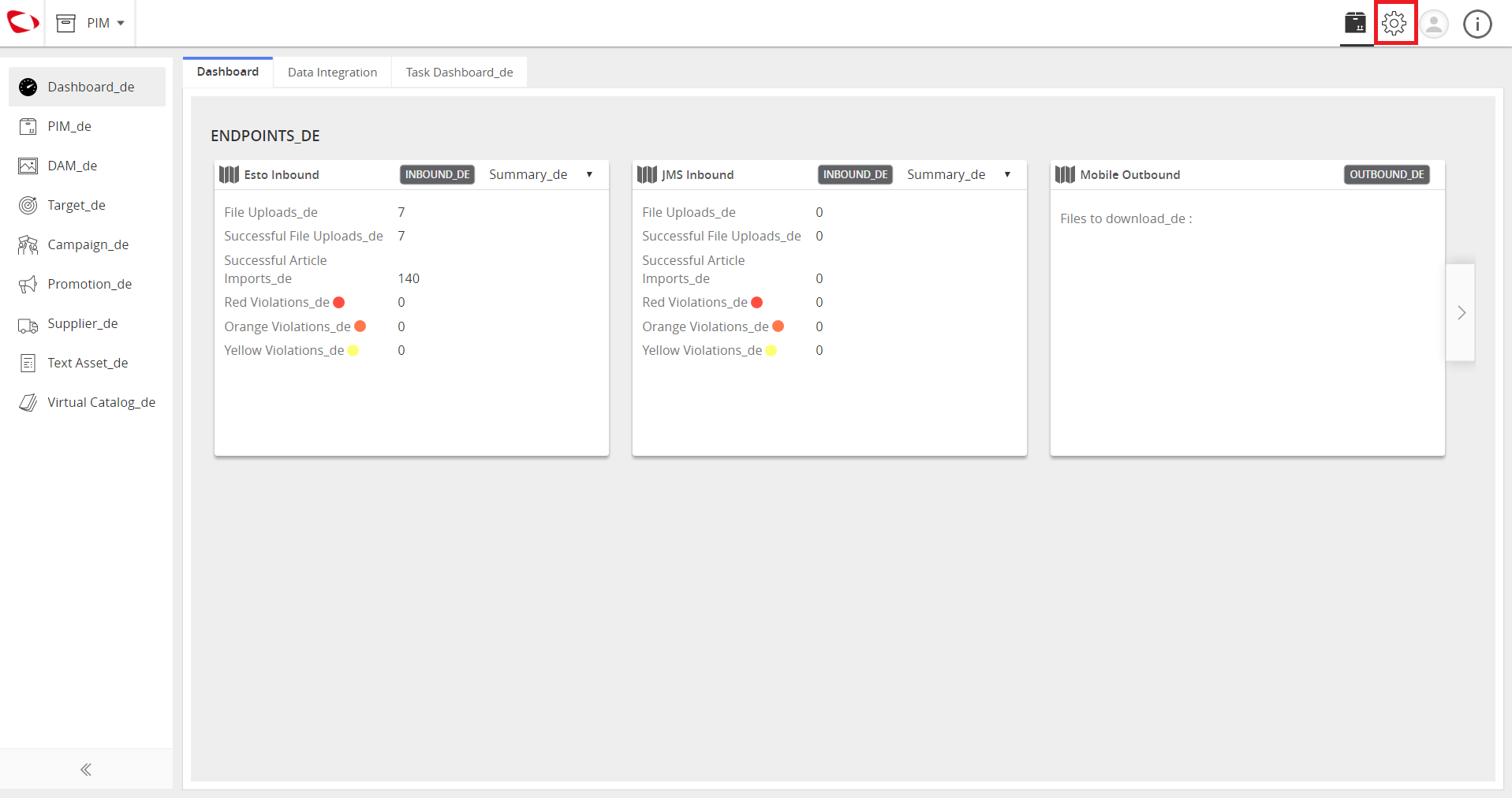
  1. Click Administration icon.
../../../../../_images/cs_kpibaseddqreports_gotoadmin.PNG


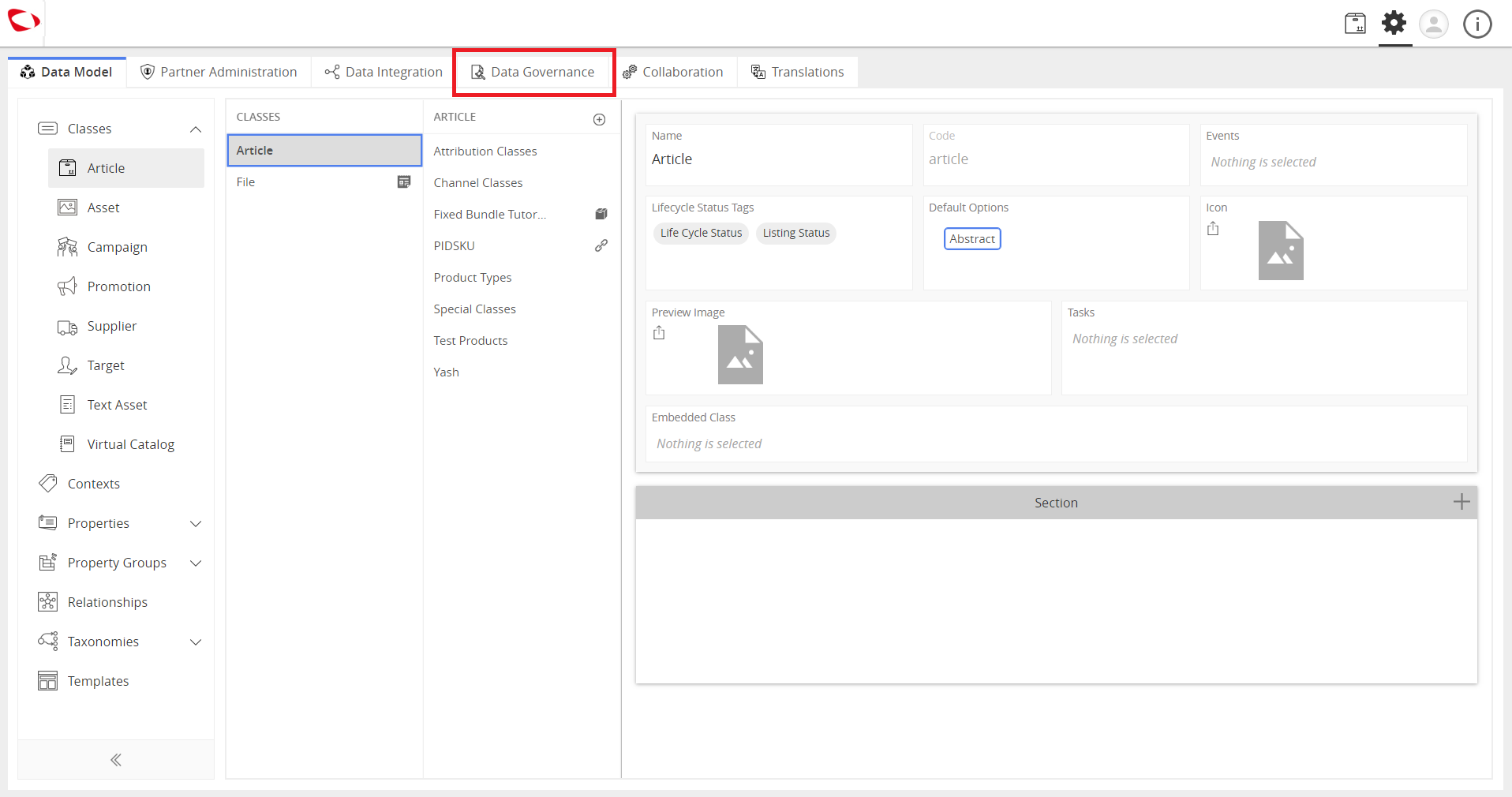
  1. Click on the Data Governance tab from the tab at the top.
../../../../../_images/cs_kpibaseddqreports_clickgov.PNG


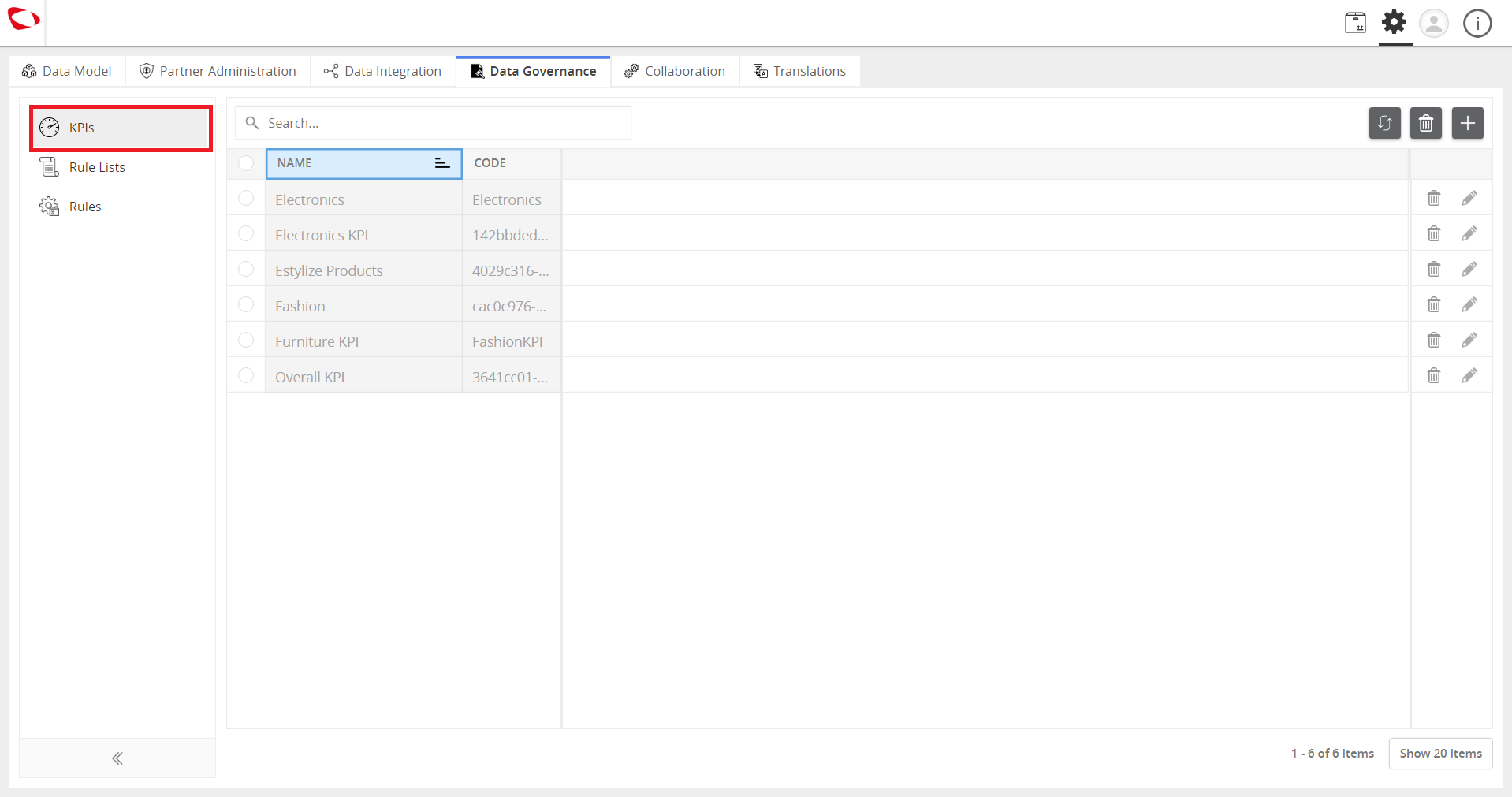
  1. Click KPIs on the leftside in the Data Governance tab.
../../../../../_images/cs_kpibaseddqreports_clickkpi.PNG


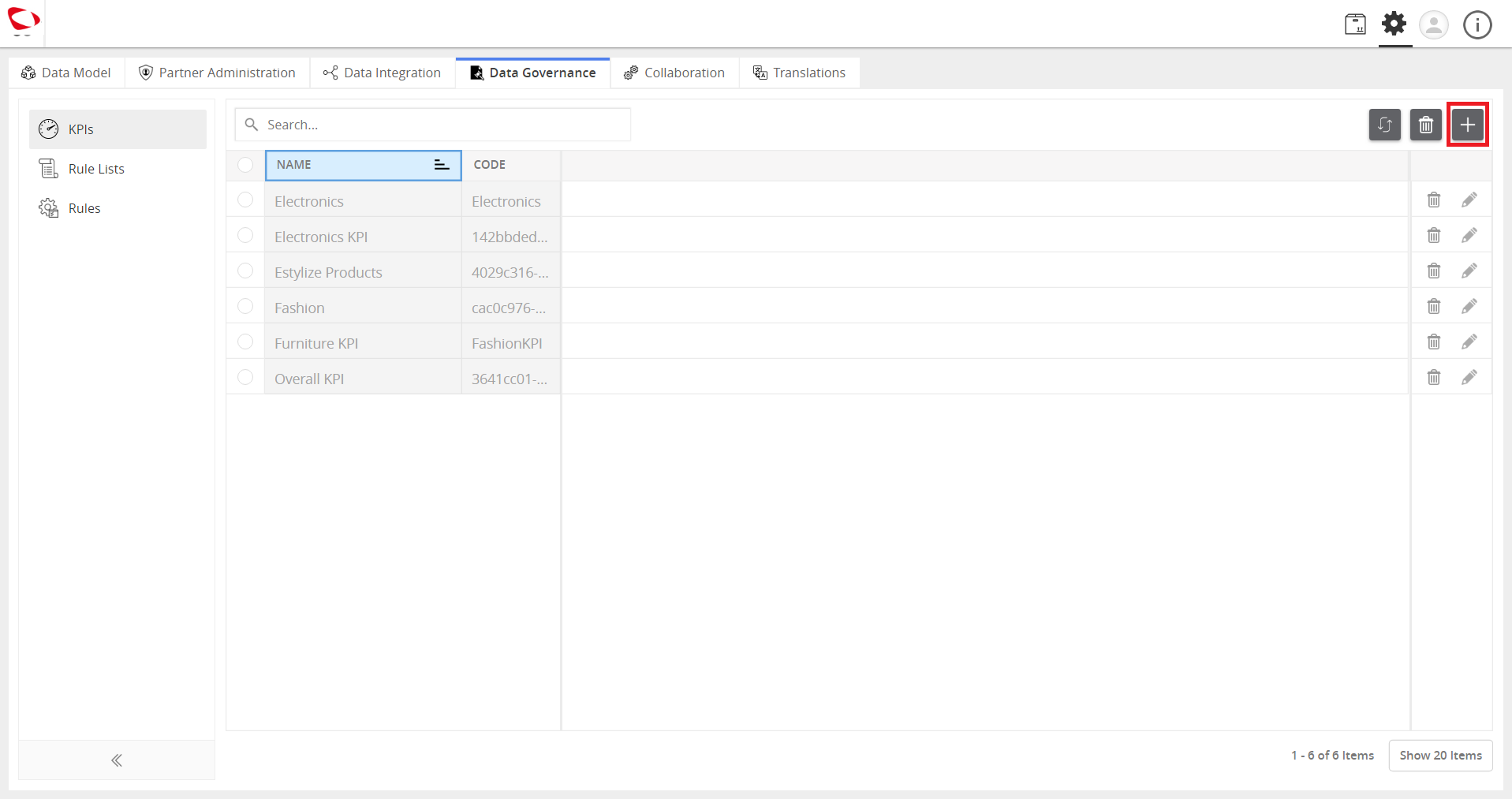
  1. Click the ‘+’ icon at the top right to create a new KPI.
../../../../../_images/cs_kpibaseddqreports_clickplus.PNG


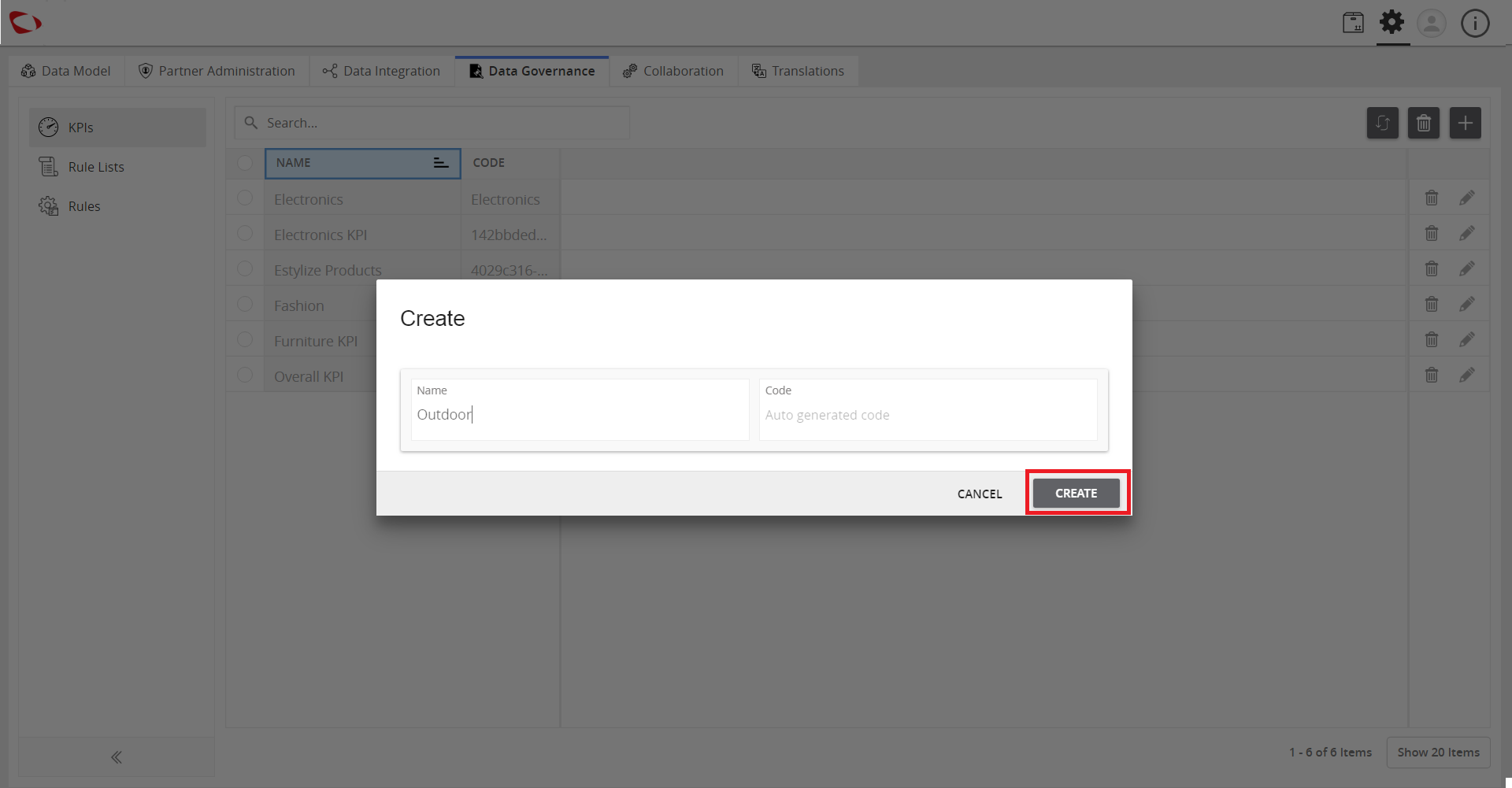
  1. Fill the name and code(optional) and click on ‘Create’ to create the KPI.
../../../../../_images/cs_kpibaseddqreports_enterdetails.PNG


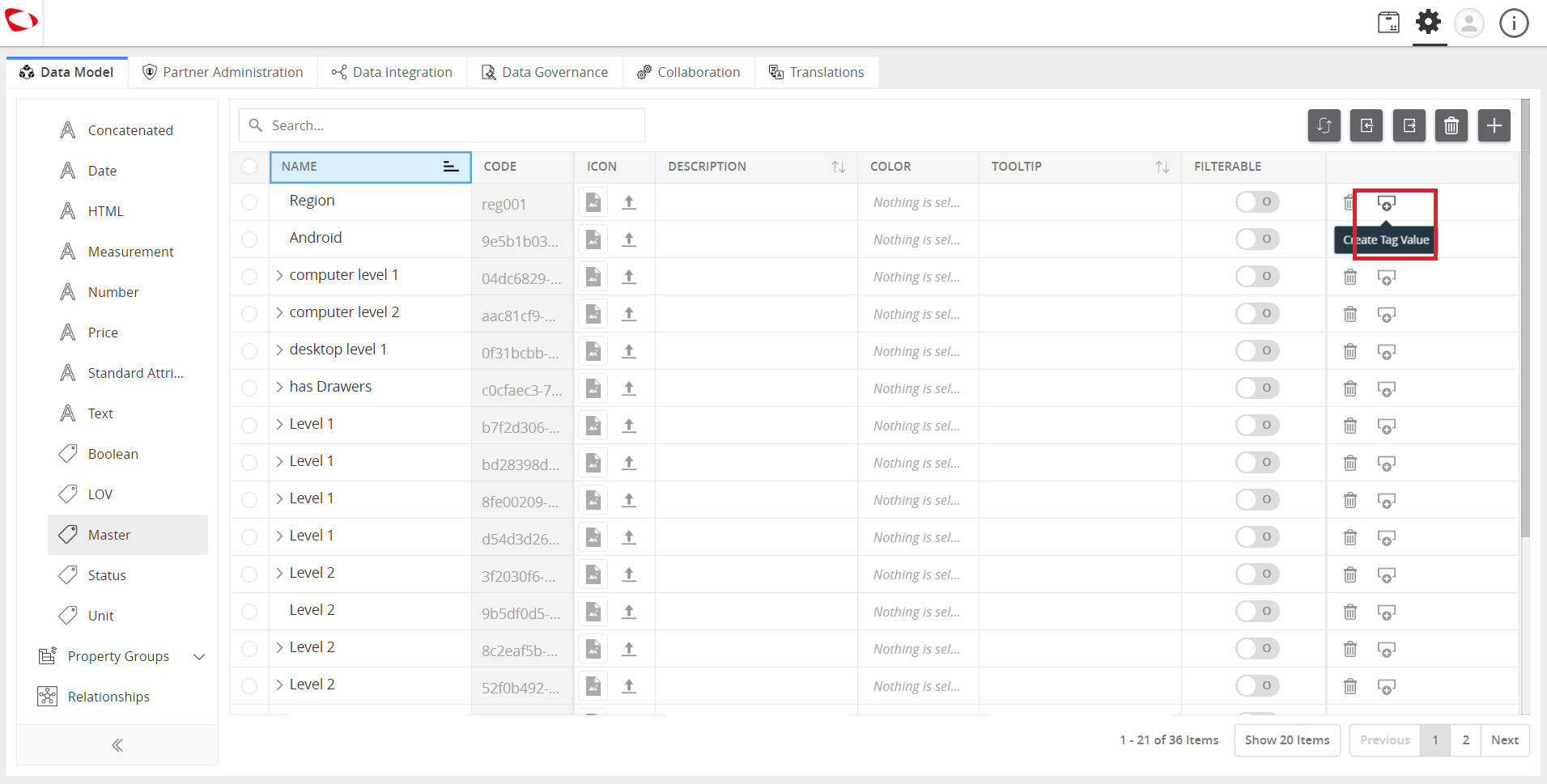
  1. Once the KPI is created, it will appear in the list of KPI, click on the ‘Edit’ icon at the extreme right in the list of KPI.
../../../../../_images/cs_managemasters_createsub.PNG


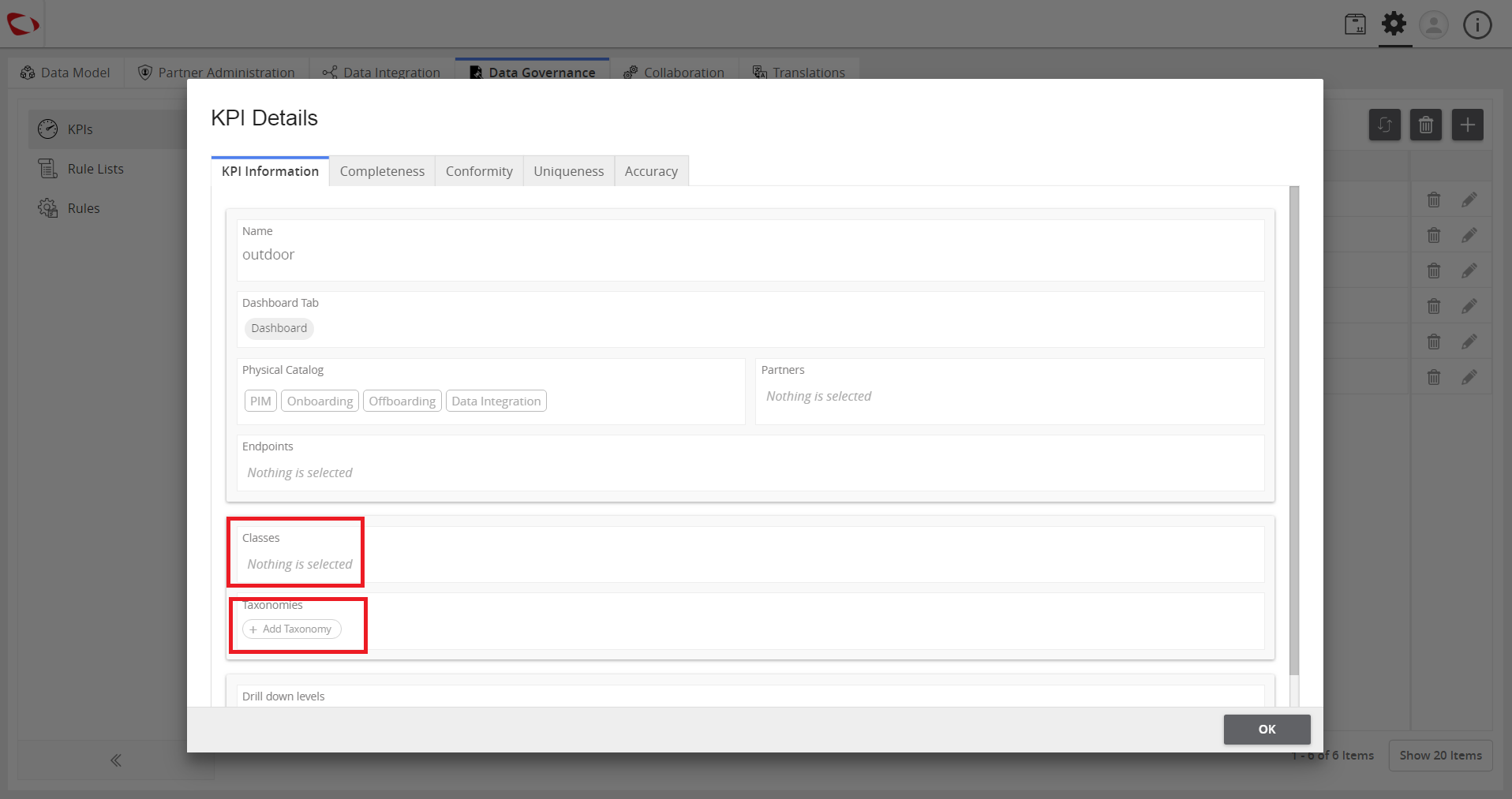
  1. Select the Class and Taxonomy for which KPI is designed.
../../../../../_images/cs_kpibaseddqreports_selclass.PNG


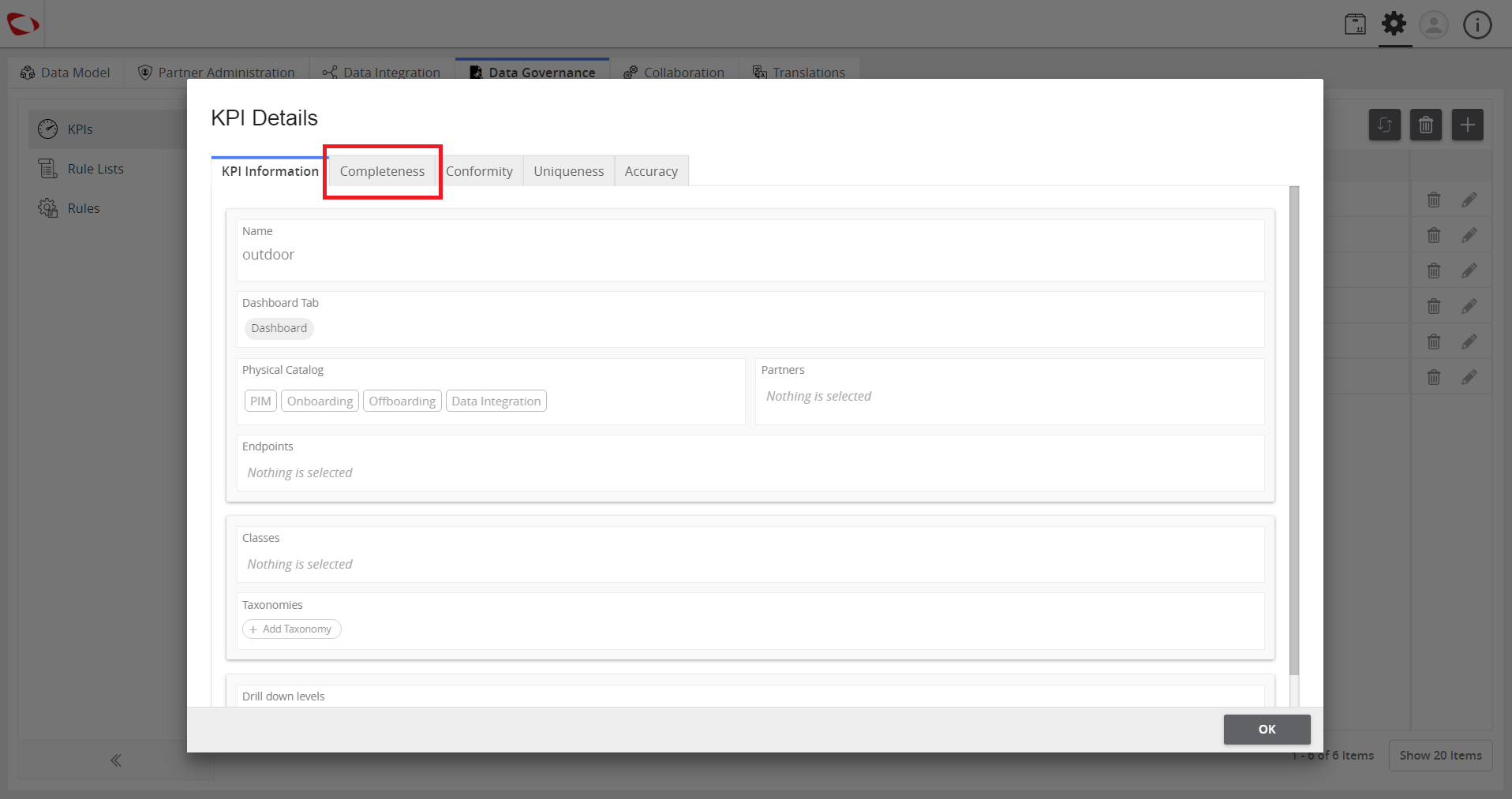
  1. Select the ‘Completeness’ tab on the top and add rule for completeness. Select the attributes and Tags that are to be said to be complete.
../../../../../_images/cs_kpibaseddqreports_selcomp.PNG


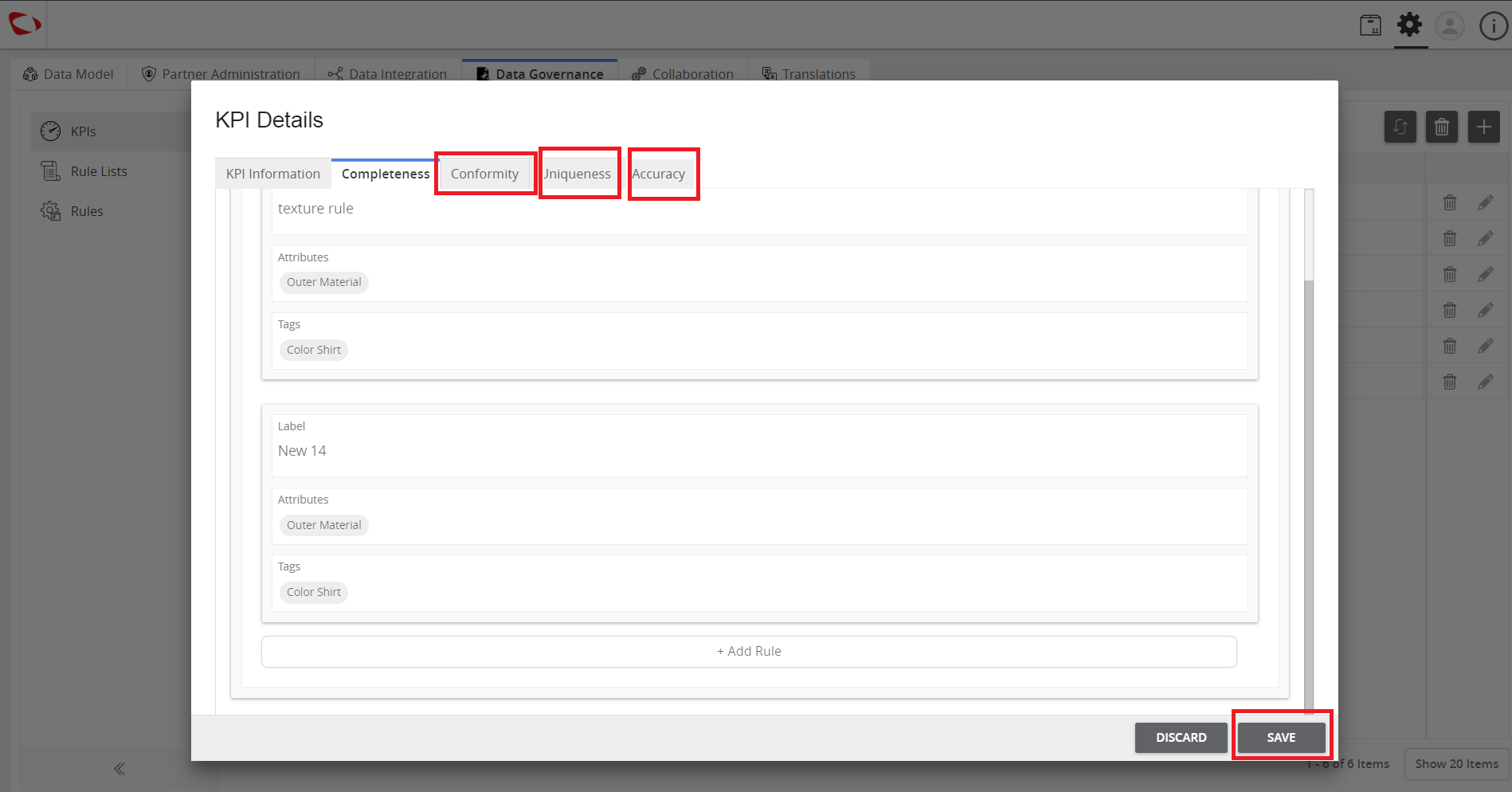
  1. Click on the ‘Conformity’ tab on the top and add a rule for conformity. Select the attributes/tags and select the operation and condition for conformity.
../../../../../_images/cs_kpibaseddqreports_selconform.PNG


  1. Follow similar steps for Accuracy and Uniqueness. Click on the ‘Save’ button to save the KPI.
../../../../../_images/cs_kpibaseddqreports_selconform.PNG


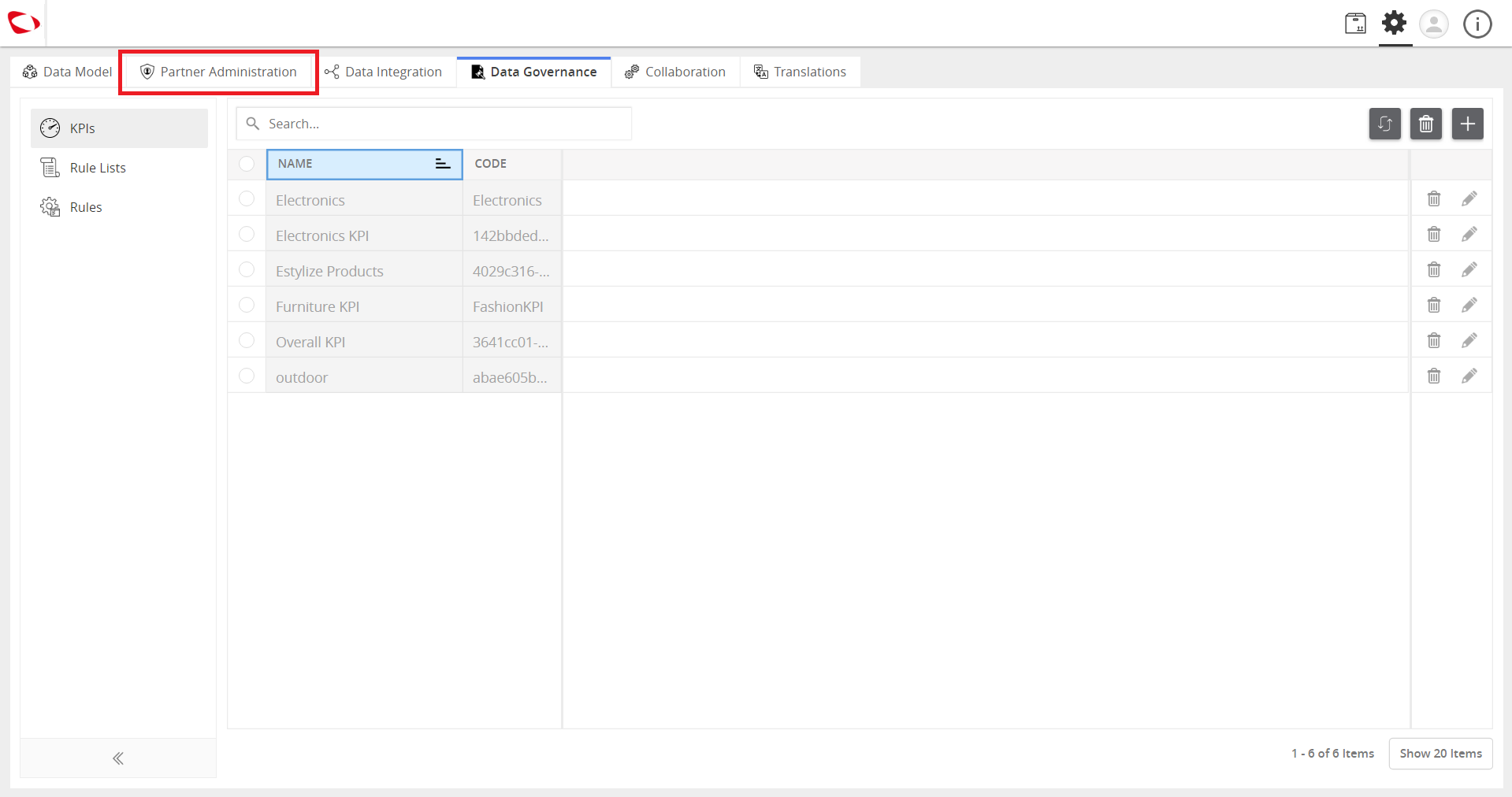
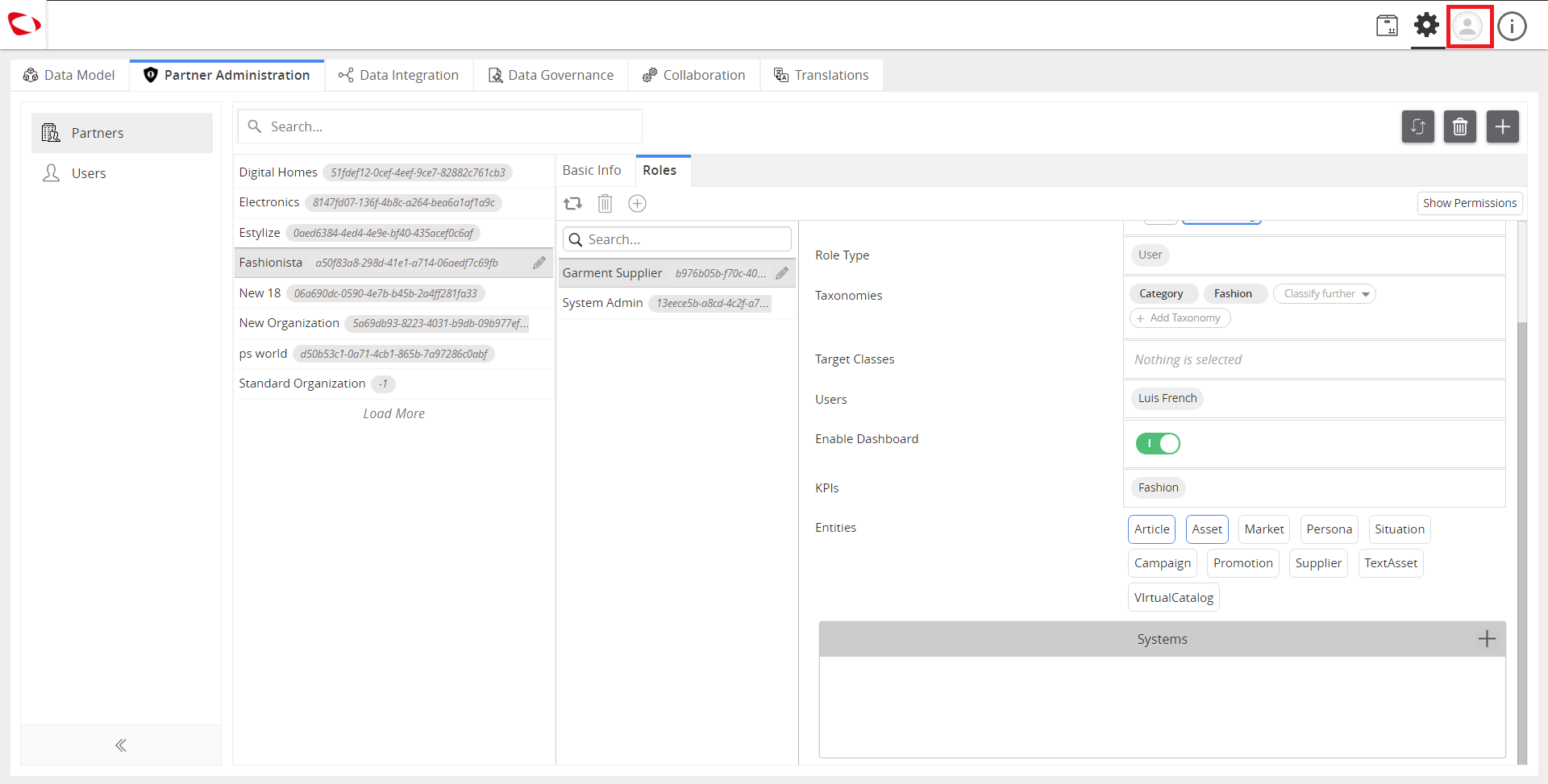
  1. To assign the KPI to a role: Select the Partner Admin tab and then select the Organization to which the role is present.
../../../../../_images/cs_kpibaseddqreports_selpartad.PNG


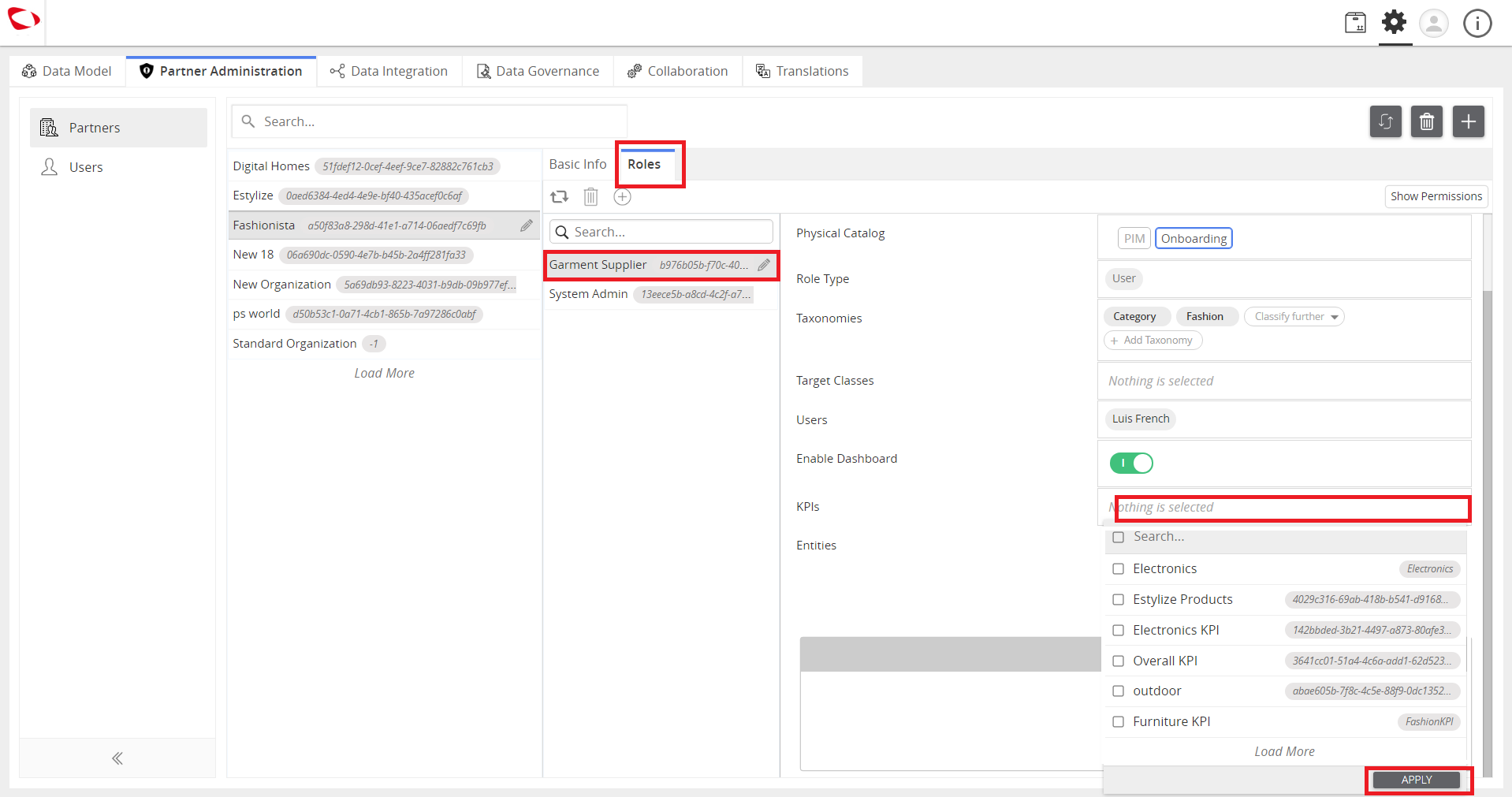
  1. In the role assign the KPI which was created. ( If no KPI is selected the role will have permission to all the KPI present).
../../../../../_images/cs_kpibaseddqreports_asskpi.PNG


  1. Log out from the system then login with the user belonging to the role, to view the KPI for that role.
../../../../../_images/cs_kpibaseddqreports_logout.PNG


../../../../../_images/cs_kpibaseddqreports_viewkpi.PNG


Contentserv line

Last updated: Jul 27, 2018