Help Center

Rollback

The Rollback feature allows a user to switch (or to revert) to a previous version of a product in the system.

Key Term:
  • Rollback: a feature that enables the user to switch back to a desired version of a product.
Description:
  • This is an enhancement to the basic Rollback feature, where when the user adds or remove any relationship/context to a product, it can be rolled back to the previous version.
  • This feature allows the user (retailer/supplier) to compare various versions of the product, before deciding which version to rollback to.
  • This feature allows the user (retailer/supplier) to preview the changes in the product versions.
Related topics:
Application:
  • The Rollback feature is used to switch back to the desired version of a product.

  • This is an enhancement to the basic Rollback feature. It allows the user add or remove any product relationship/context and return it back to the previous version.

  • This feature allows the user (retailer/supplier) to compare various versions of the product, before deciding which version to rollback to.

  • This feature allows the user (retailer/supplier) to preview the changes in the product versions.

  • Example:

    Retailer ‘A’ has made several changes in the product namely: deleted an image, changed the language preference, removed an attribute, etc. The Zoom in/out and compare feature will help him examine those details across the product versions and compare these versions, before he decides to roll back to the desired one.

How-to: Rollback

To do this, follow these steps:


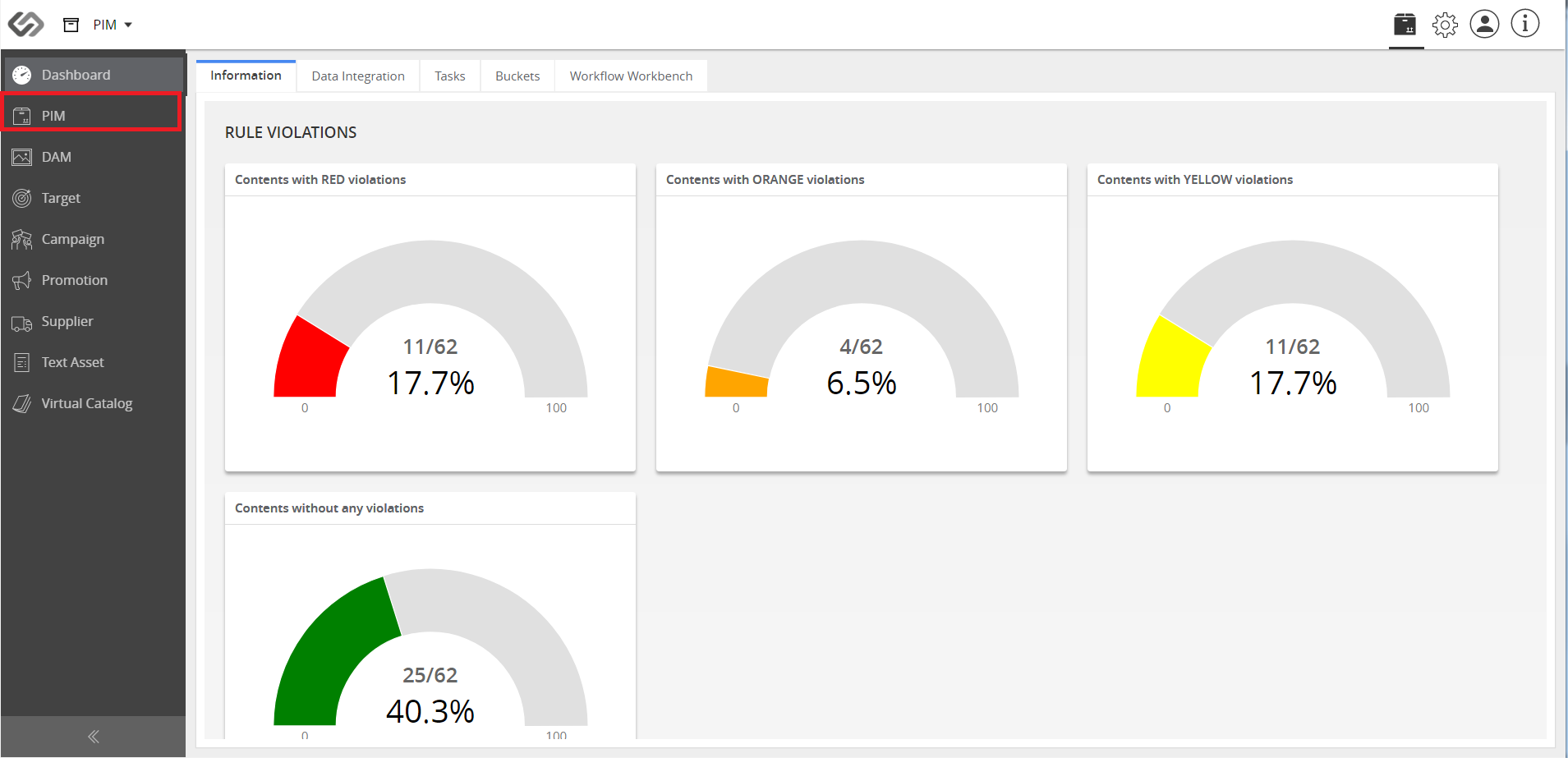
  1. Go to PIM.
../../../../../_images/cs_rollback_gotopim2.PNG


  1. Click to select the desired product for which you want to perform rollback operation.
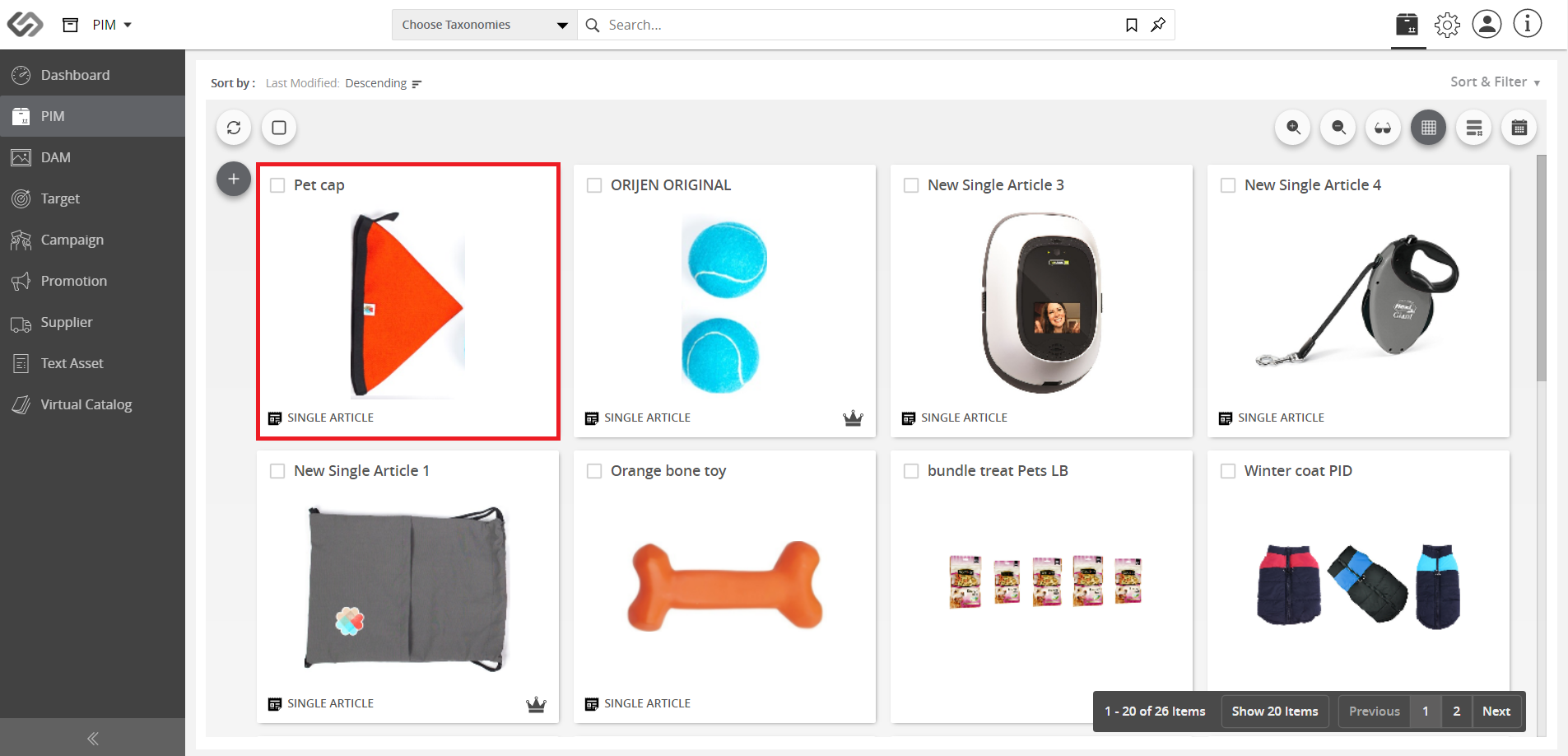
../../../../../_images/cs_rollback_selectproduct.PNG


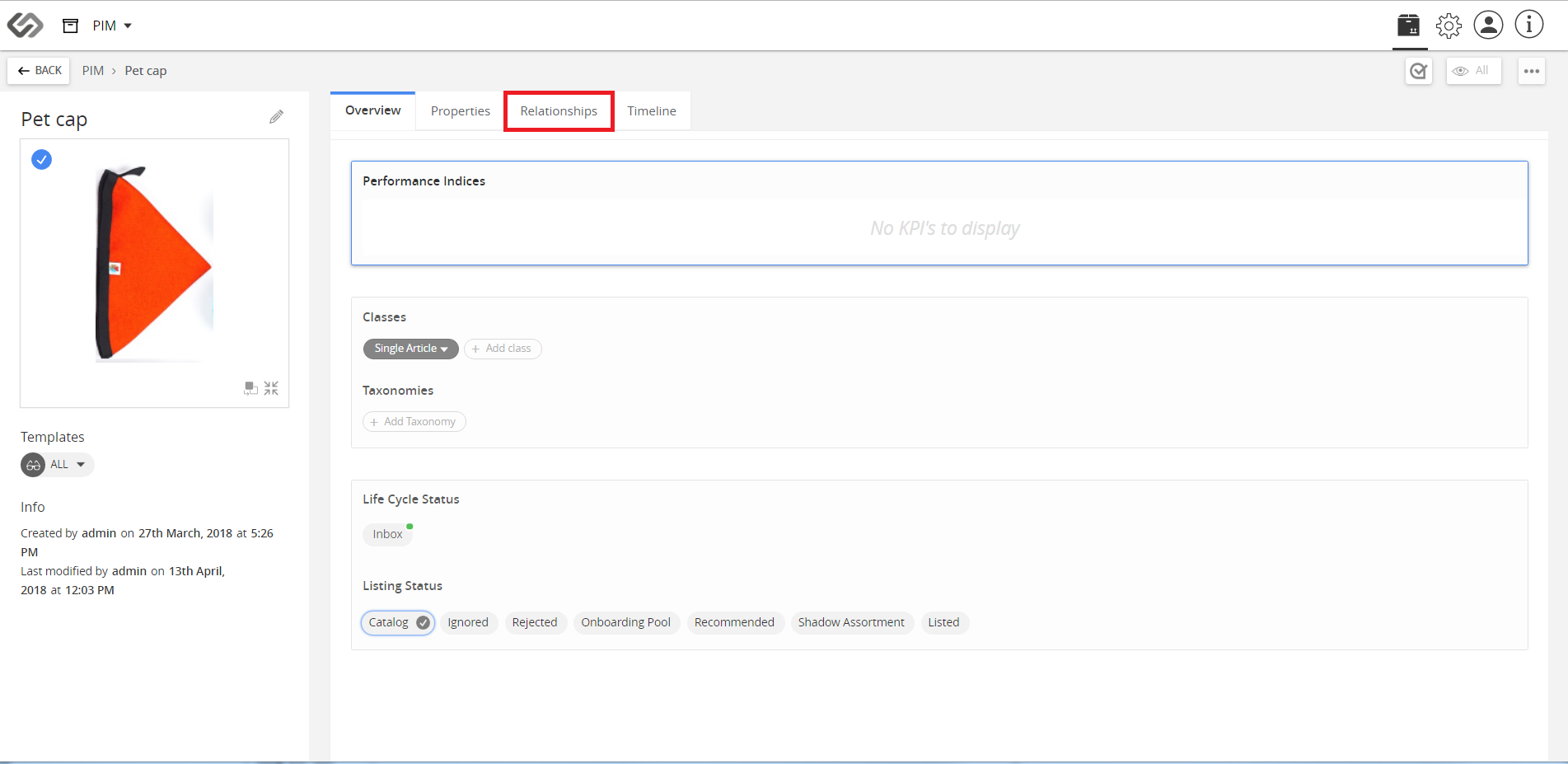
  1. Click on the Relationships tab.
../../../../../_images/cs_rollback_clickrelationship.PNG


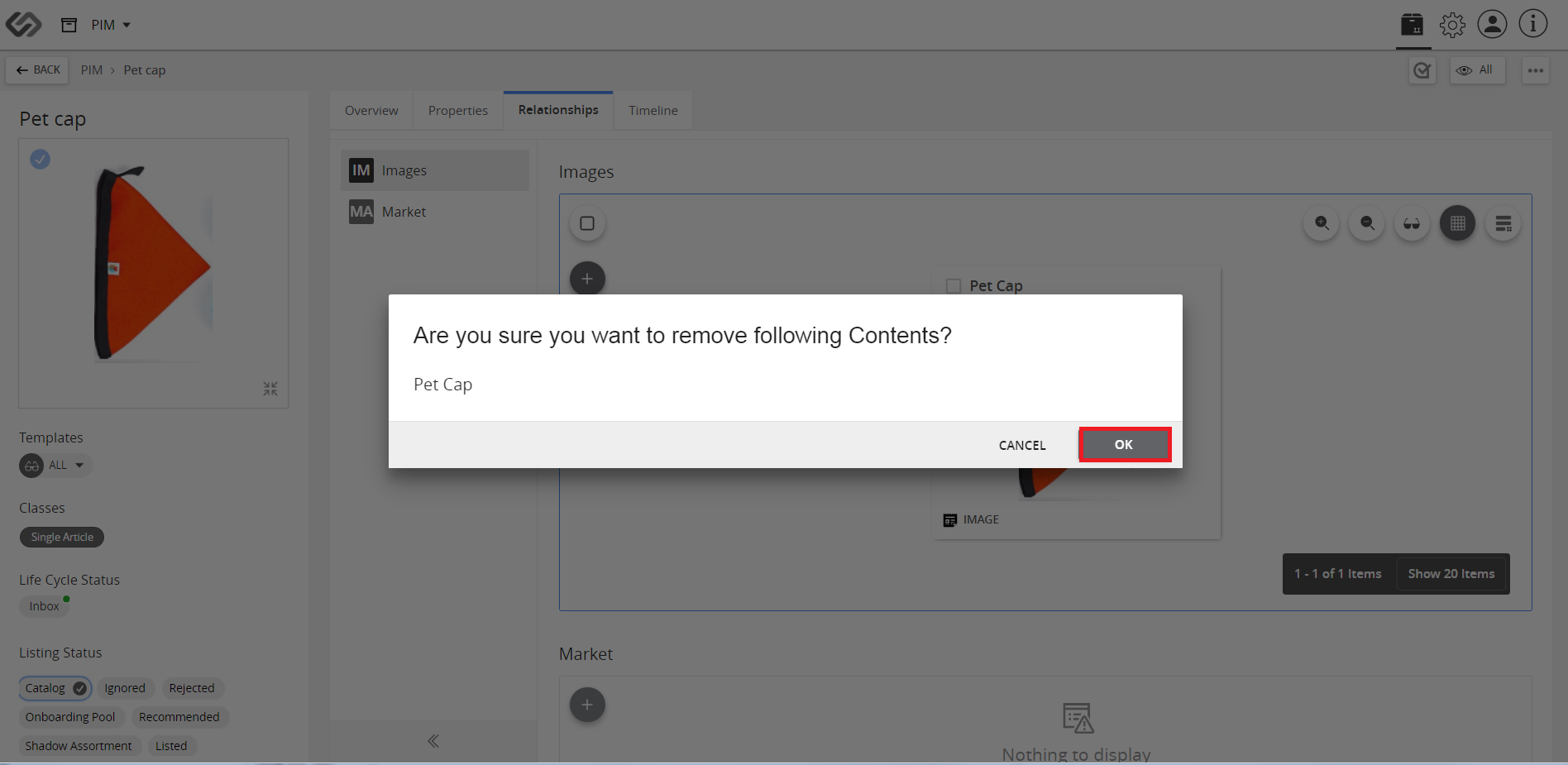
  1. In this demo, we will remove the image and change an attribute.
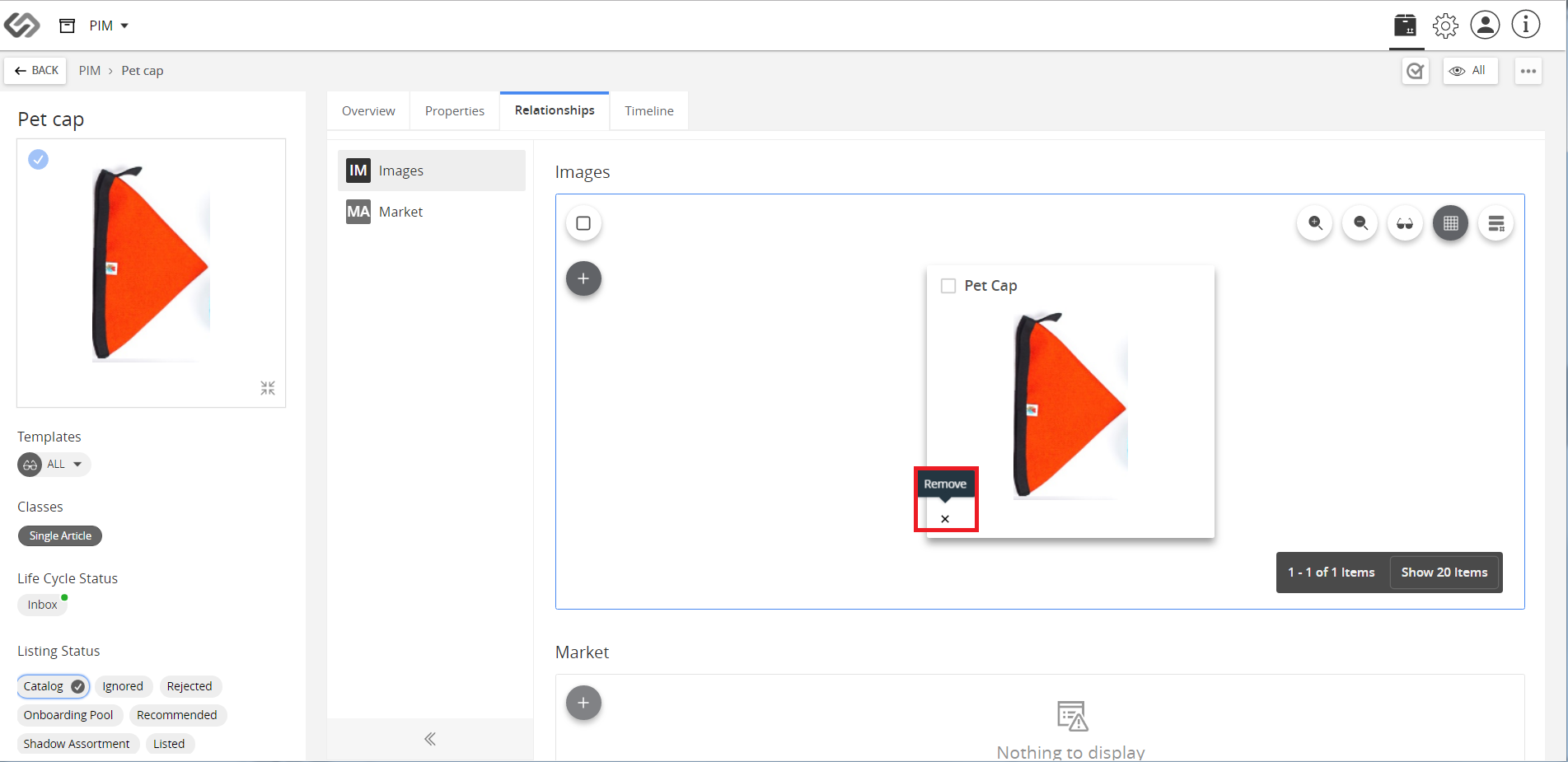
../../../../../_images/cs_rollback_removeimage.PNG


  1. Click OK to save the changes.
../../../../../_images/cs_rollback_clickoksave.PNG


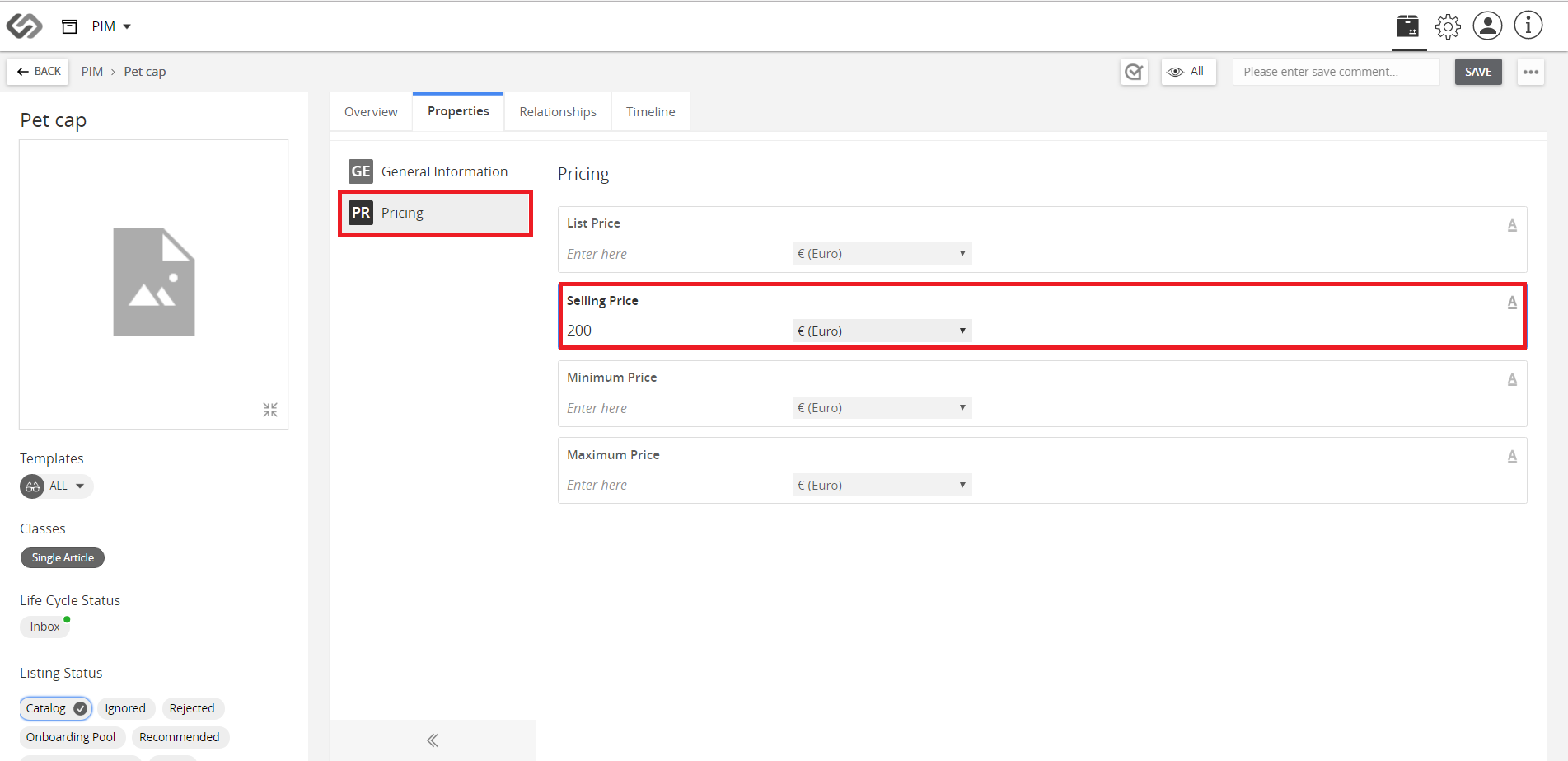
  1. In the Properties Tab, change the price of the product (or any other attribute).
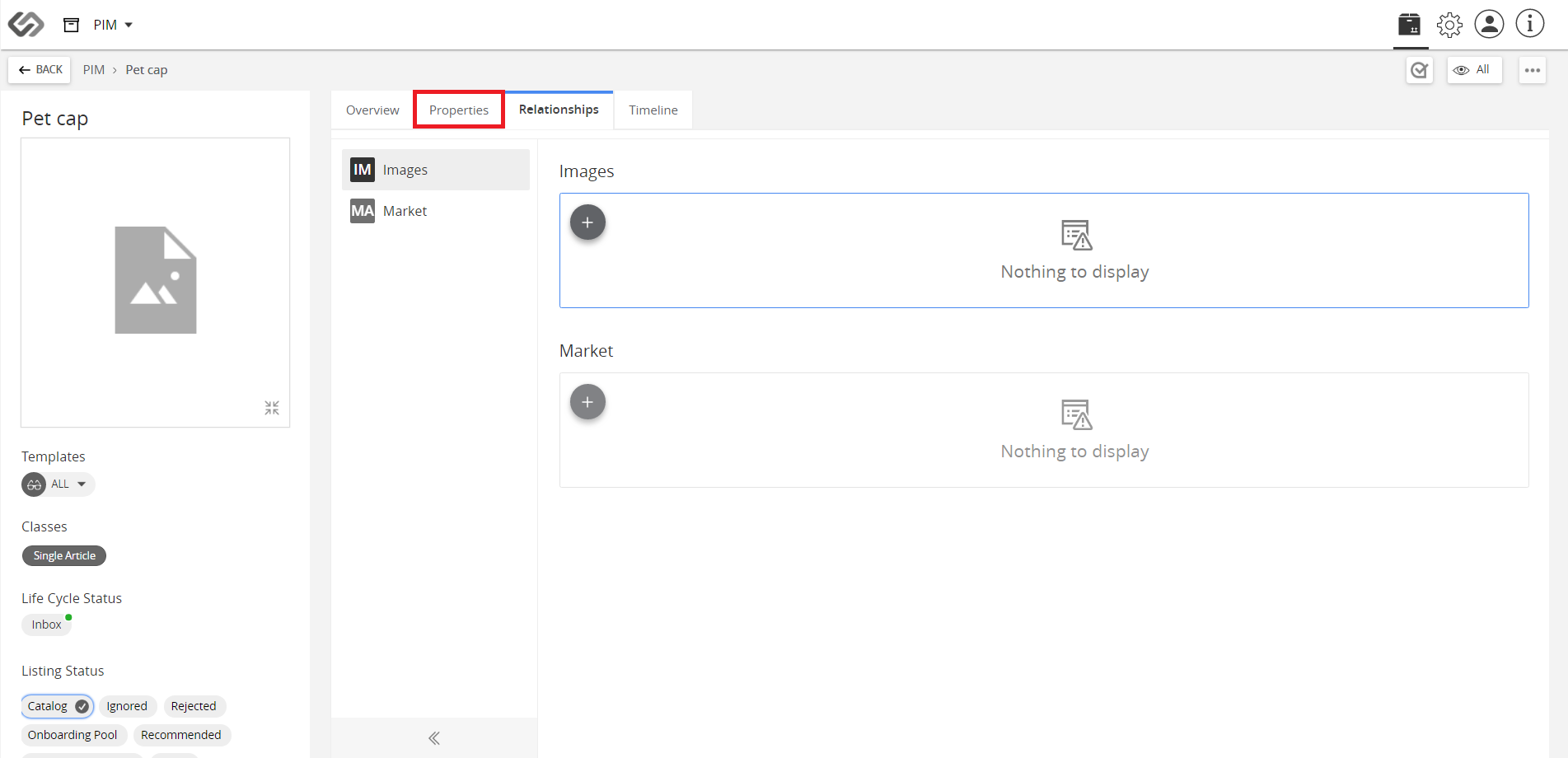
../../../../../_images/cs_rollback_clickproperties.PNG


../../../../../_images/cs_rollback_changepricing.PNG


  1. Click on Save to save to save the changes on the product.
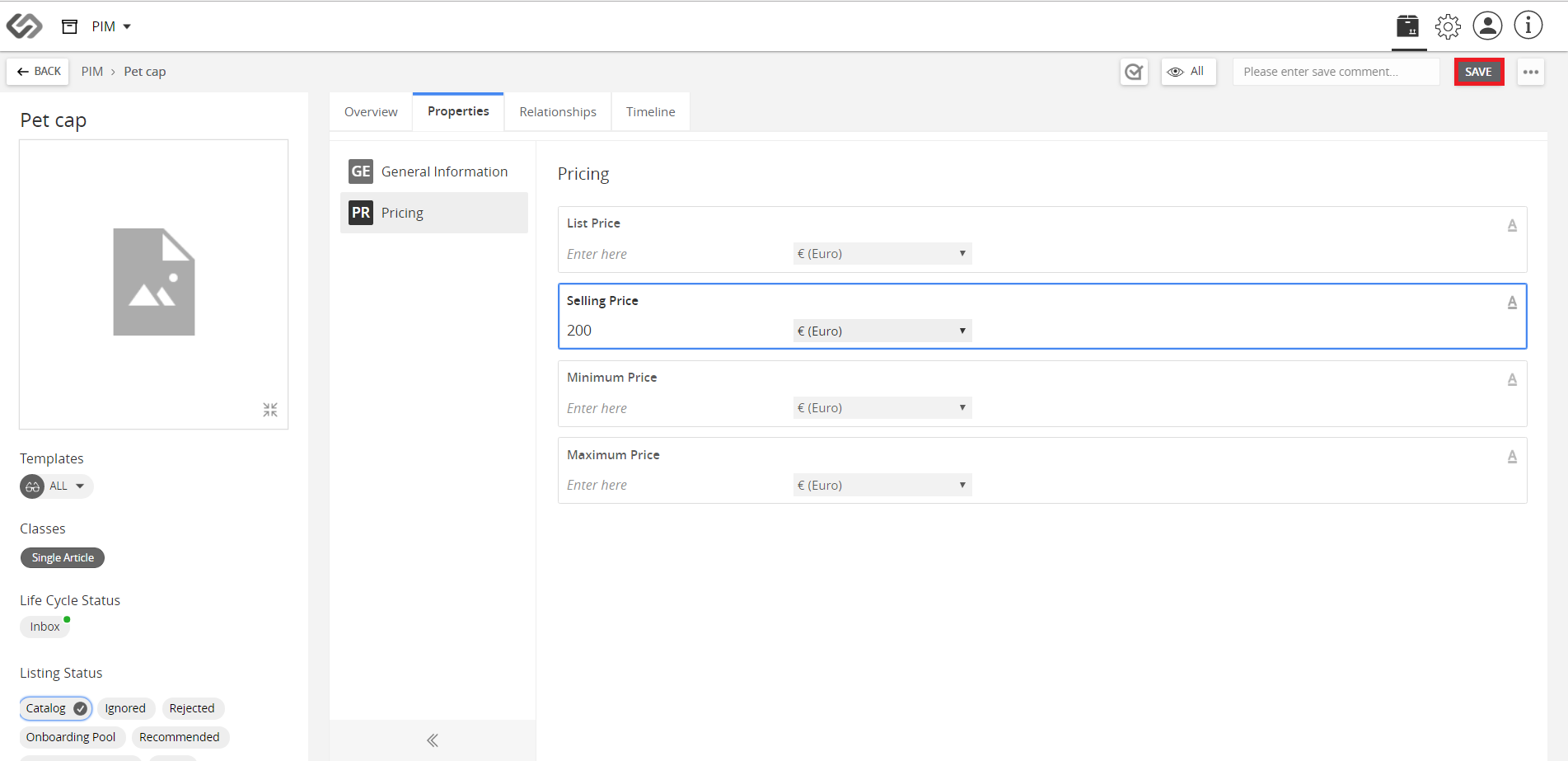
../../../../../_images/cs_rollback_clicksave.PNG


  1. Click Timeline. The current version of the product would be with the latest version number on the top.
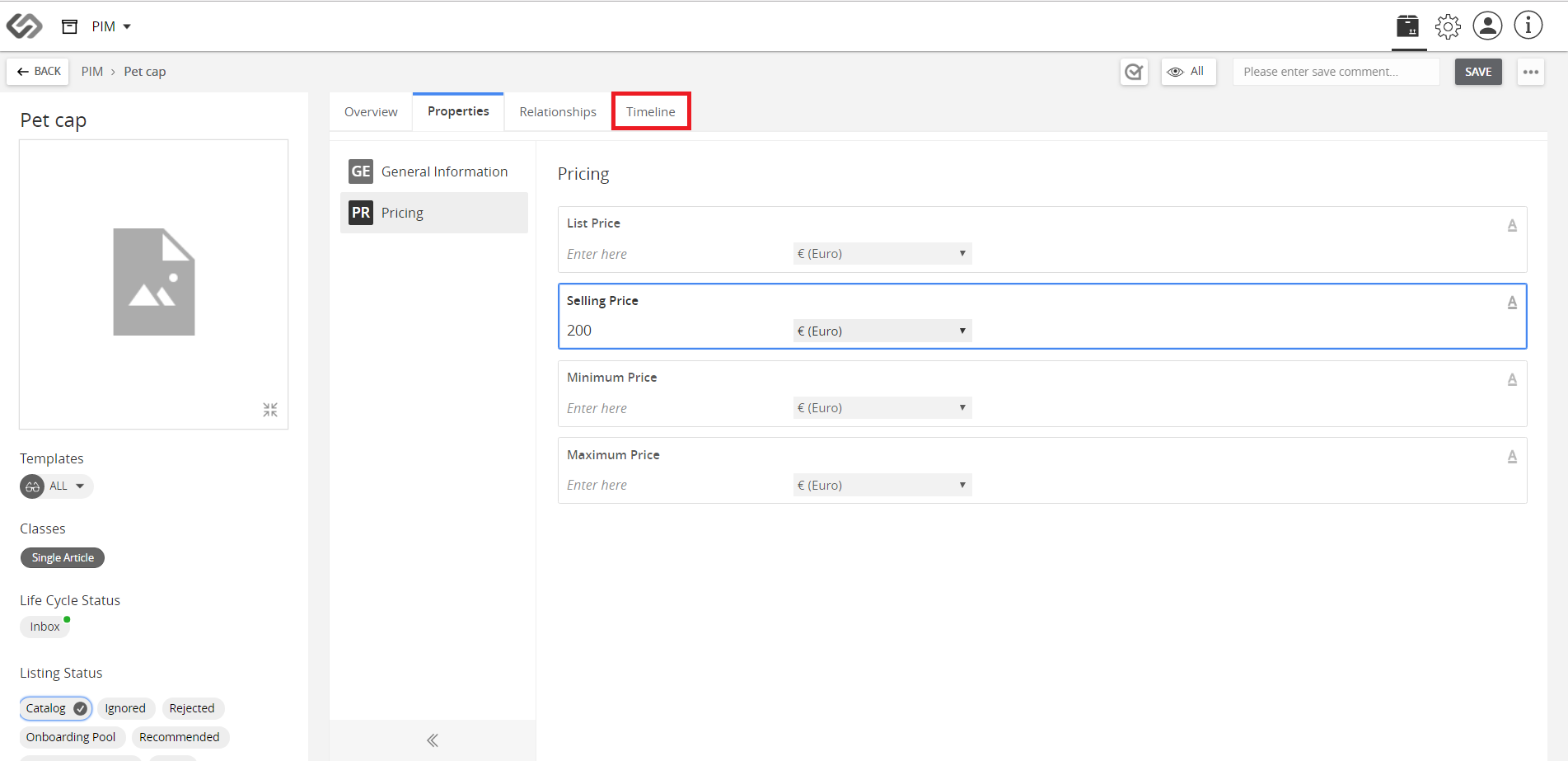
../../../../../_images/cs_rollback_clicktimeline.PNG


  1. Click on Zoom in icon to preview the changes in the product versions.
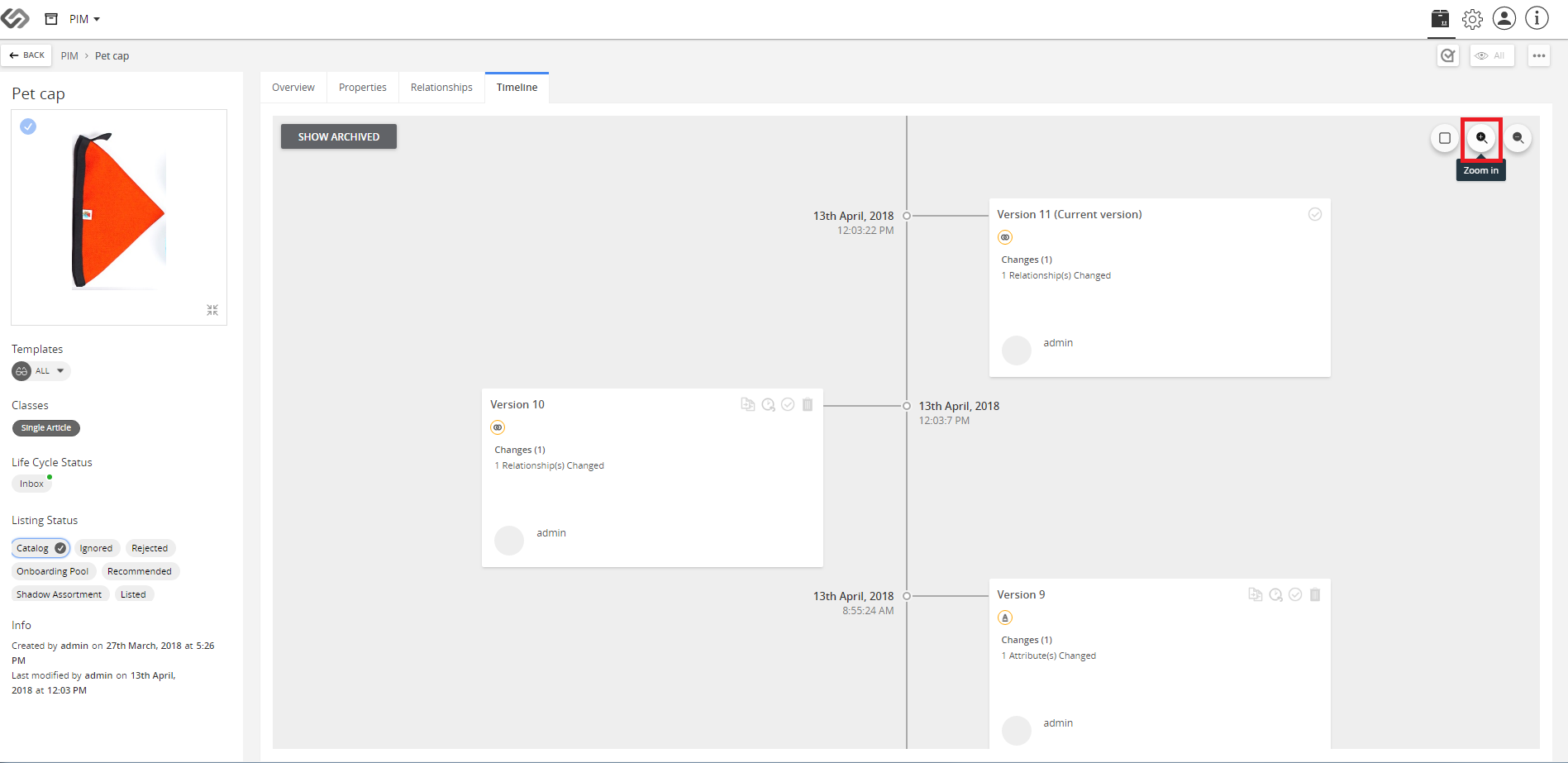
../../../../../_images/cs_rollback_clickzoomin.PNG


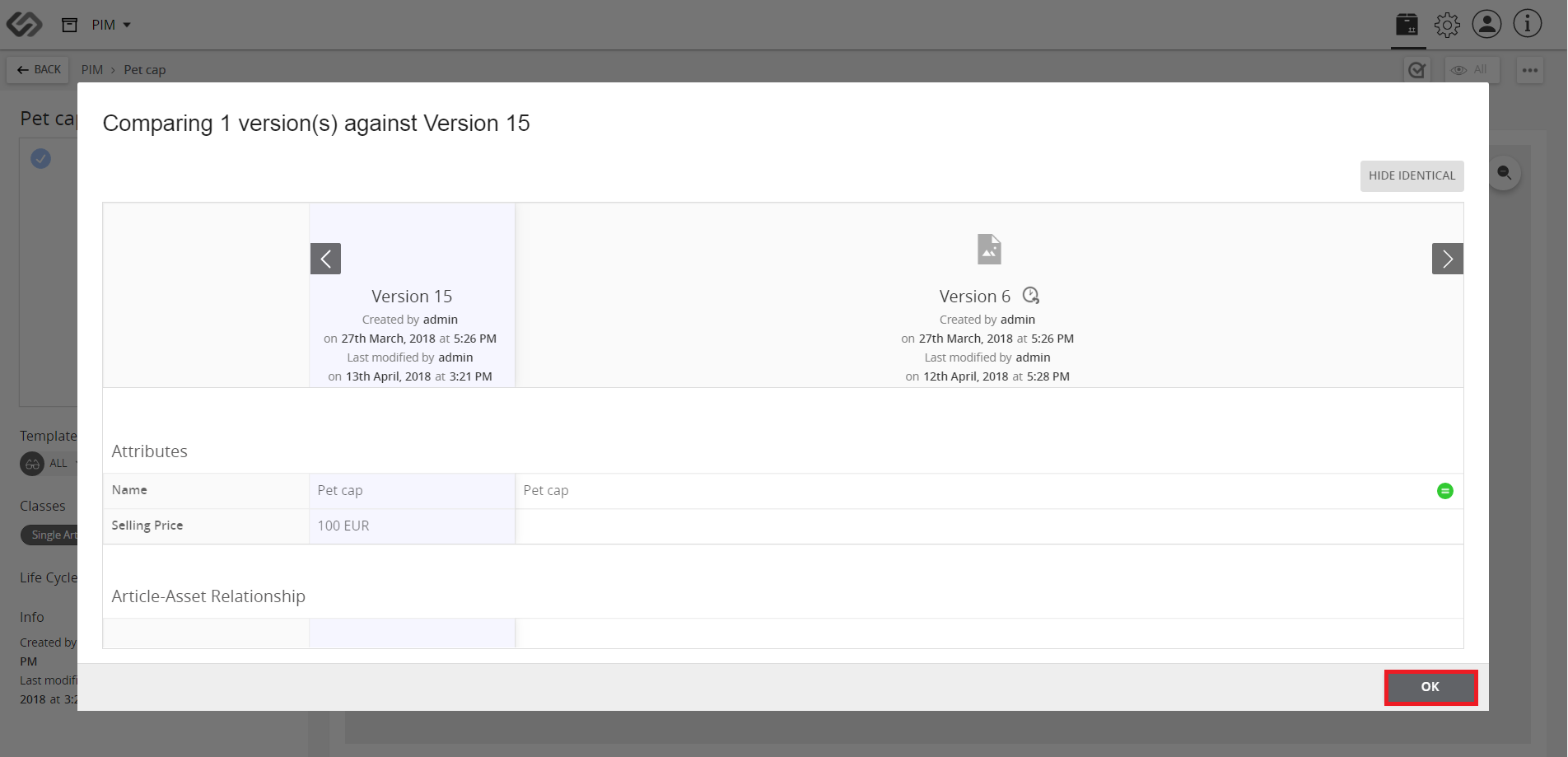
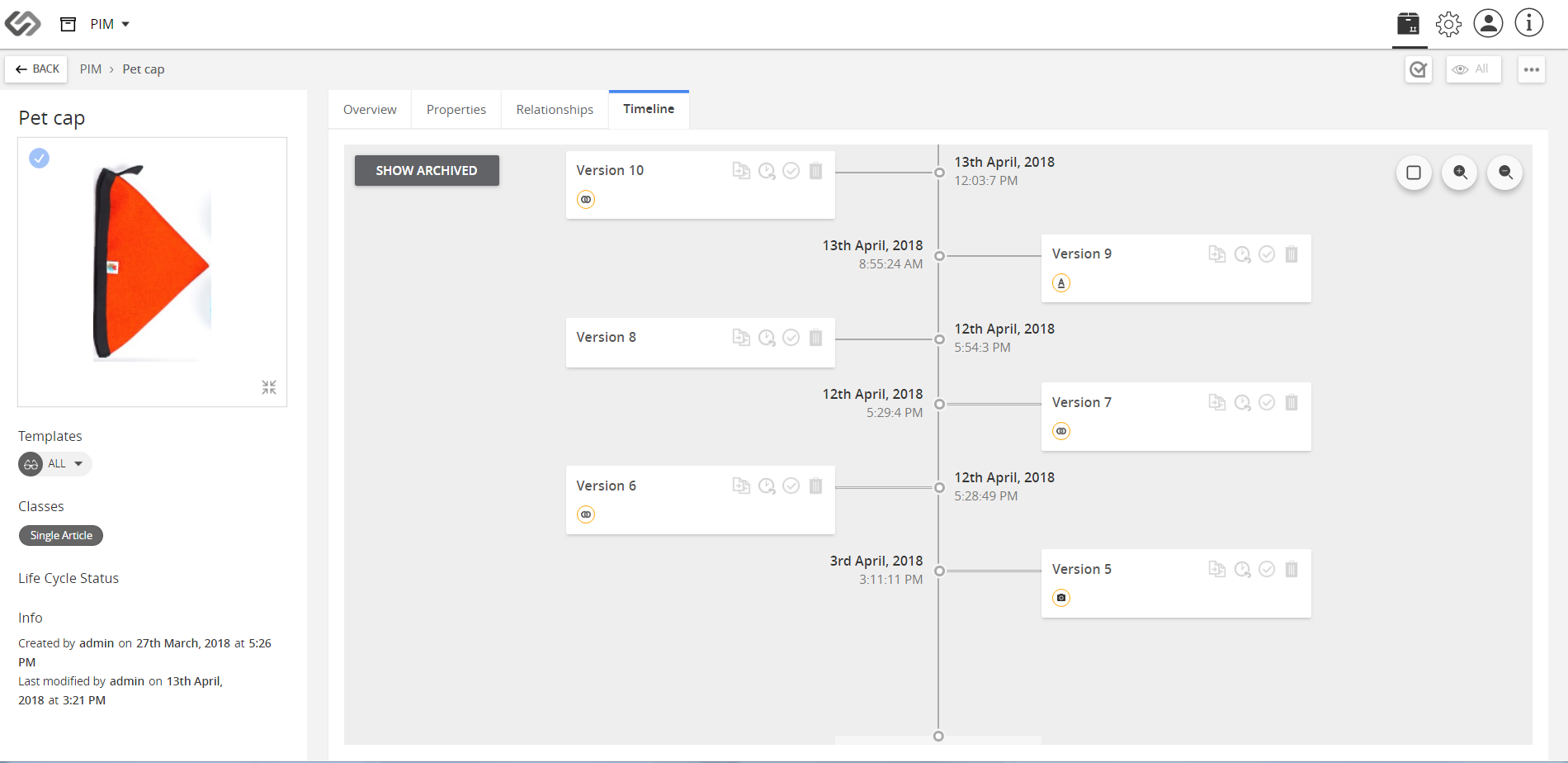
Select the versions (one or more) that you would like to compare the current version to (in this demo, we selected ‘Version 6’).
../../../../../_images/cs_rollback_selectversion.PNG


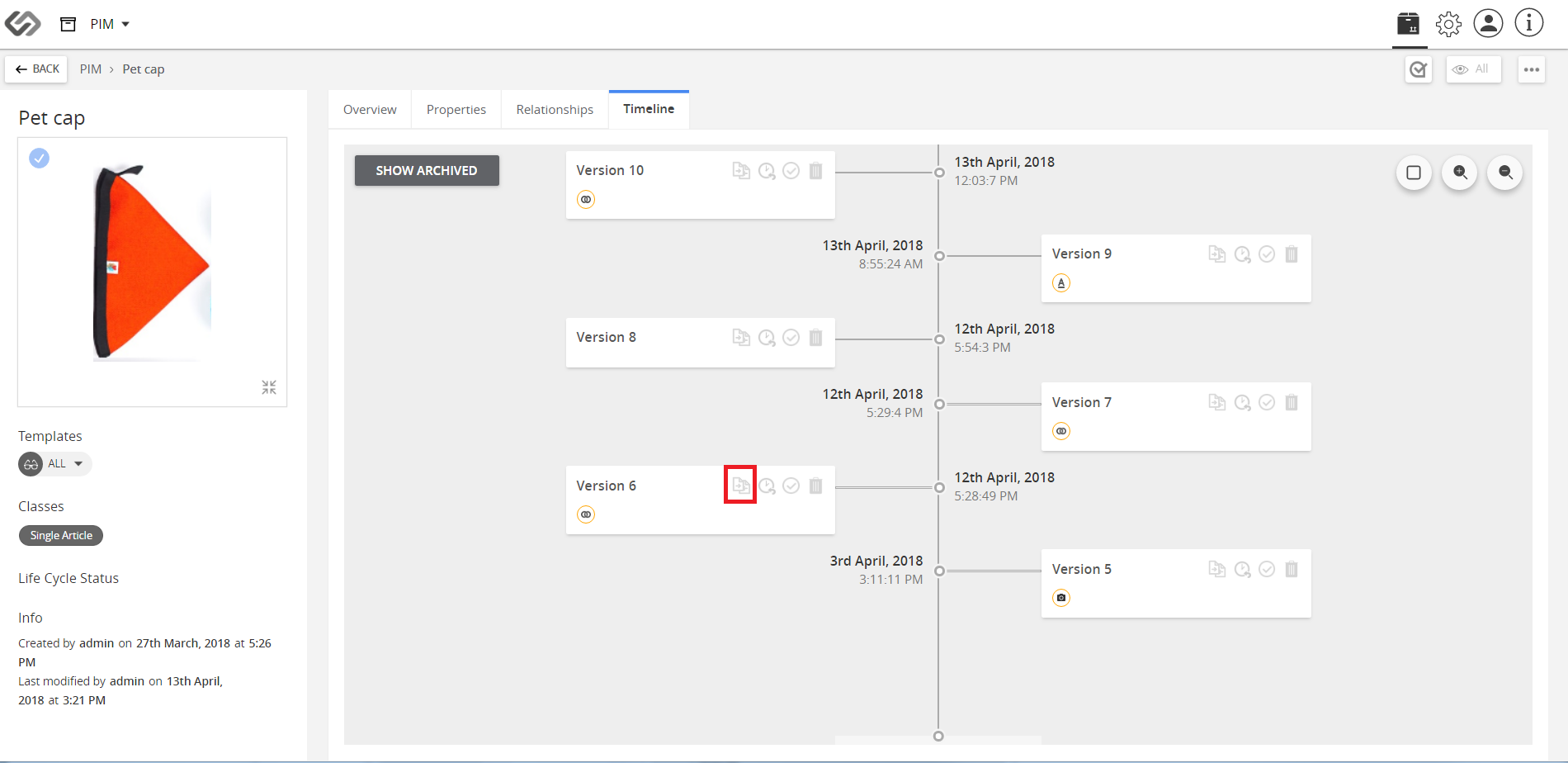
  1. Click on Compare icon.Then, and click OK to close the window.
../../../../../_images/cs_rollback_clickcompare.PNG


../../../../../_images/cs_rollback_clickcompareb.PNG


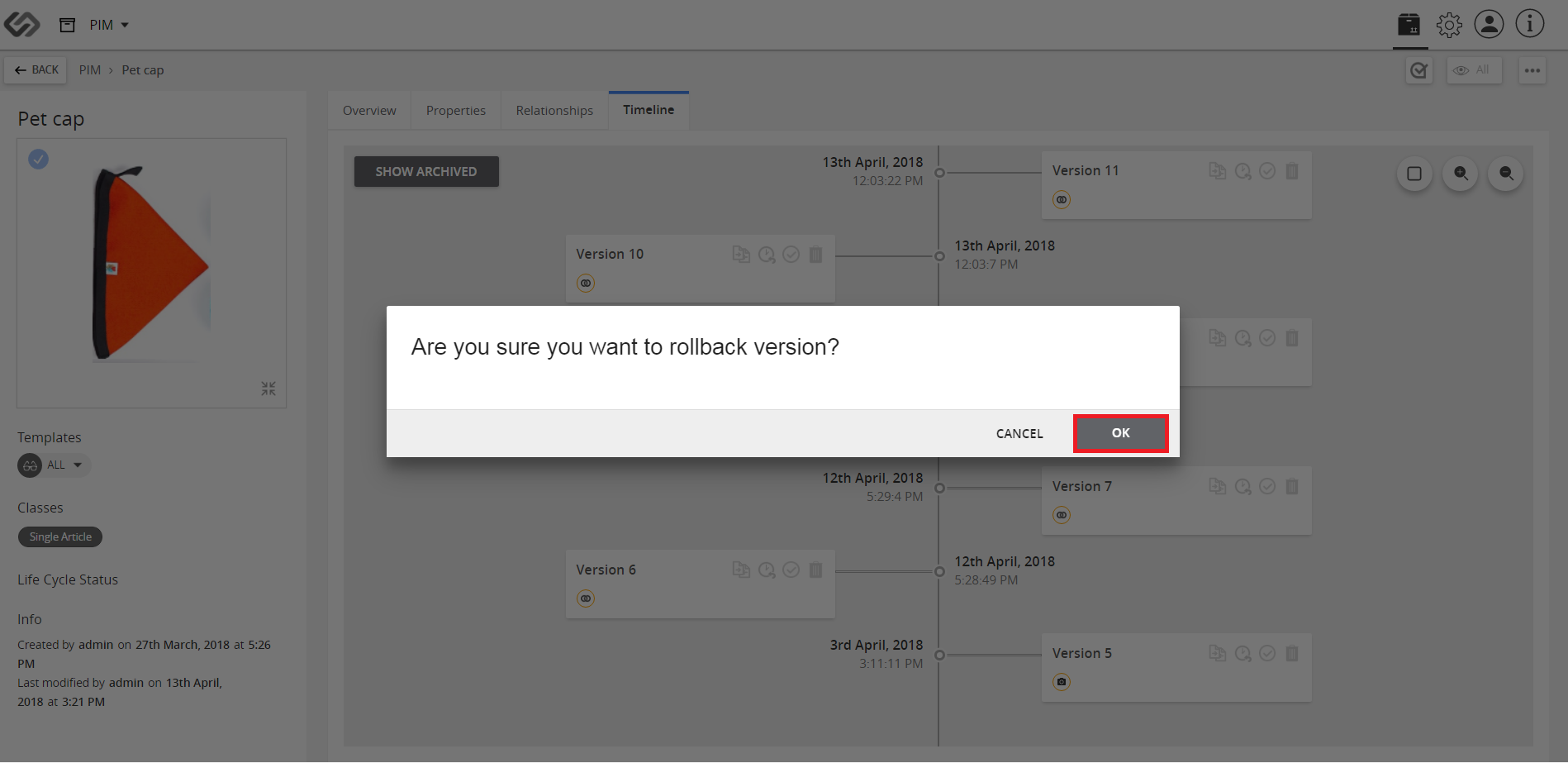
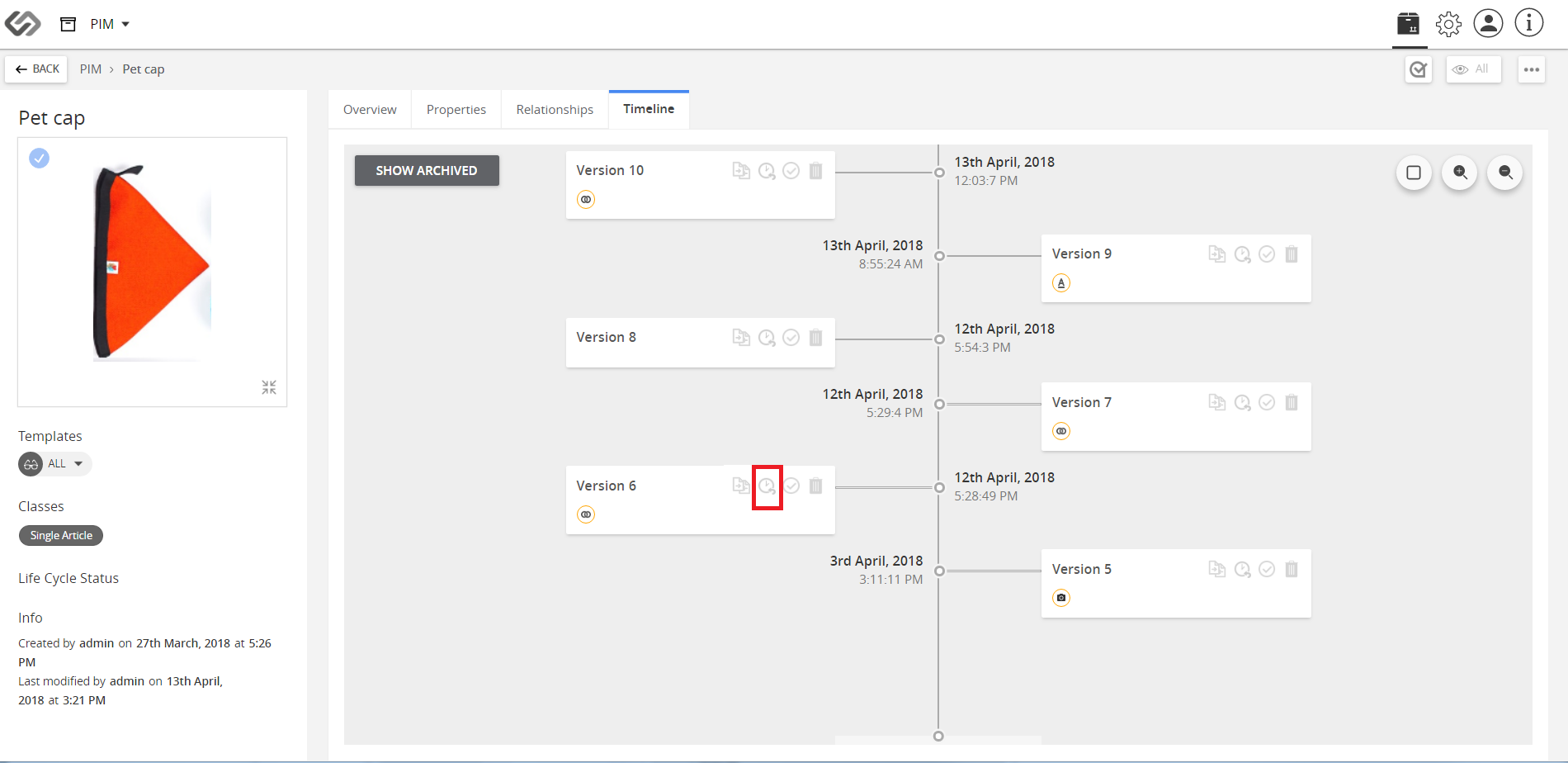
  1. Click Rollback icon of the selected version.
../../../../../_images/cs_rollback_clickrollback.PNG


../../../../../_images/cs_rollback_clickrollbackconfirm.PNG


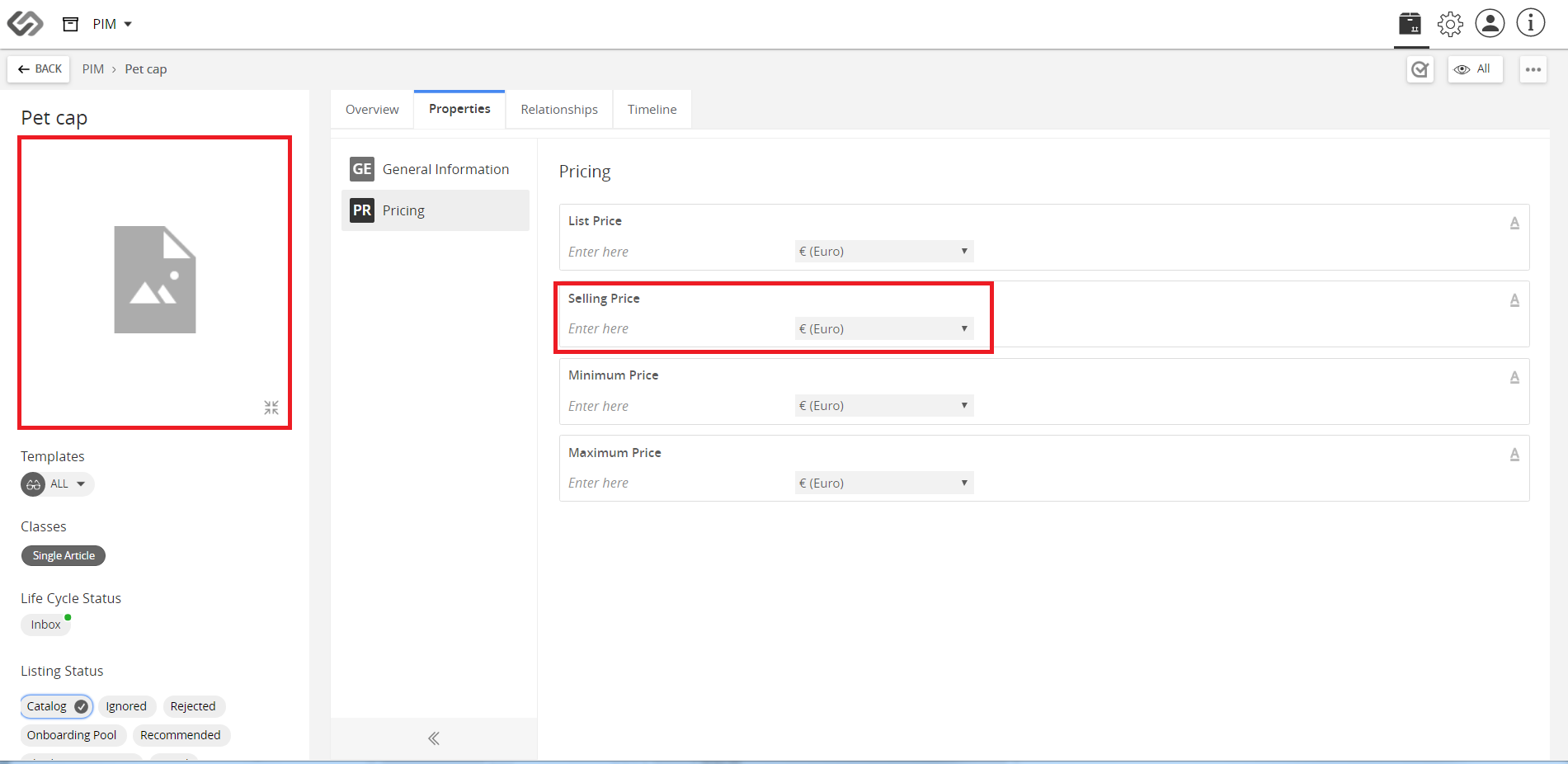
  1. Once the rollback has been confirmed, go to the Properties Tab, and the changes is restored. View the image (now rereverted to the old version).
../../../../../_images/cs_rollback_viewimage.PNG


Contentserv line

Last updated: Jul 27, 2018