Help Center

Target and Channel Contextualization

Target and Channel Contextualization is a feature that allows users to have attributes that can have multiple values which vary based on context.

Key Term:
  • Taxonomy: a taxonomy is a scheme of classification used for an organization’s products.
Description:
  • Target and channel contextualization enables the user to setup values which are based on a context.
  • This feature is particularly useful for values that are dependent on a context or tag.
  • The value can be based on two or more contexts.
Related topics:
Application:
  • Set up multi-value attributes based on a context or tag.

  • Example:

    A product has different prices depending on the regions it is being sold to. In this example, “Region” is the context that drives the price attribute.

How-to: Target and Channel Contextualization

This How-to guide provides instructions on how to have attributes that can have multiple values which vary based on context. To do this, follow these steps:


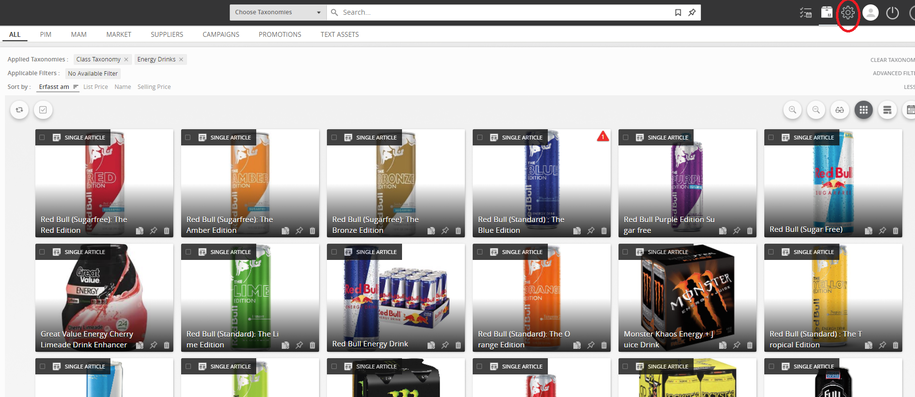
  1. Go to Settings tab.
../../../../../_images/targetandchannel_gotosettings.PNG


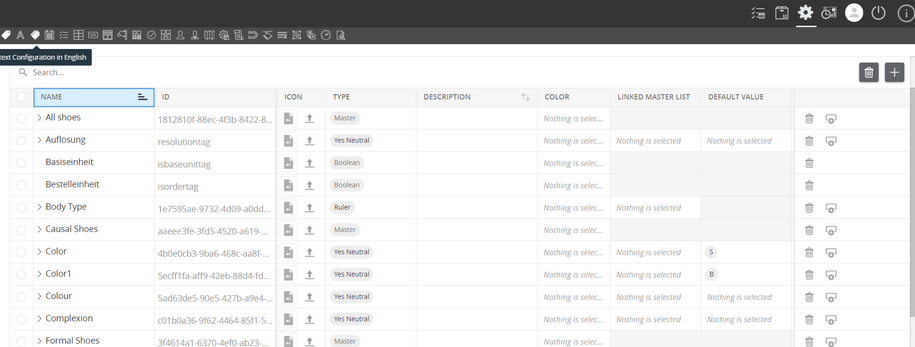
  1. Select Context Configuration.
../../../../../_images/targetandchannel_selectcontextconfiguration.PNG


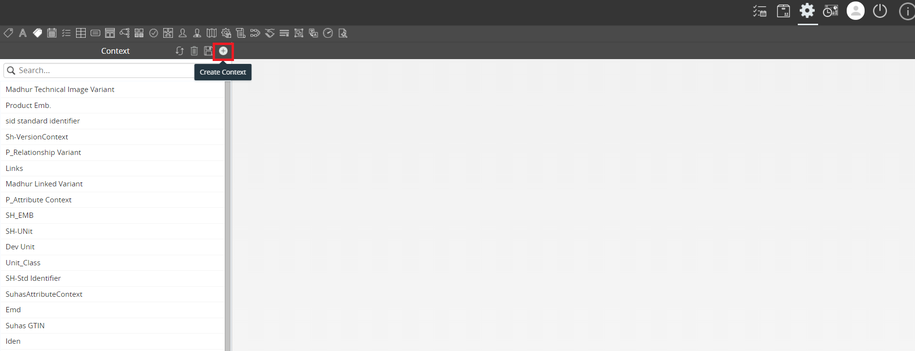
  1. Create new context.
../../../../../_images/targetandchannel_createnewcontext.PNG


  1. Fill in the name and select Attribute Context as the feature type.
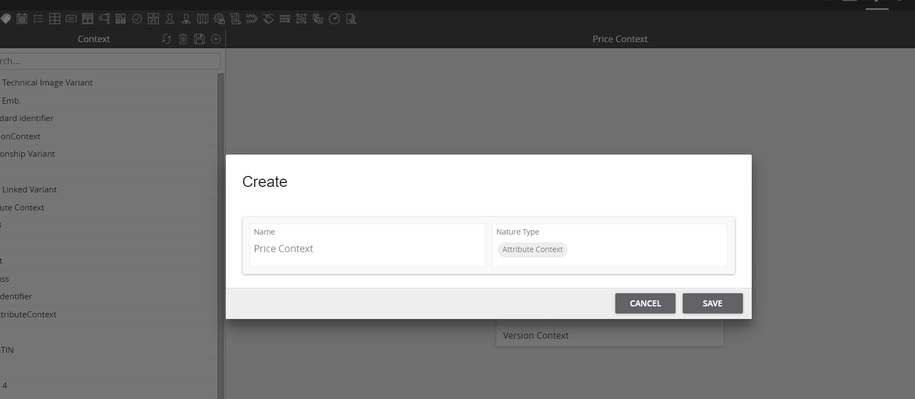
../../../../../_images/targetandchannel_fillname.PNG


  1. Select tag group to be added in the context and click Save.
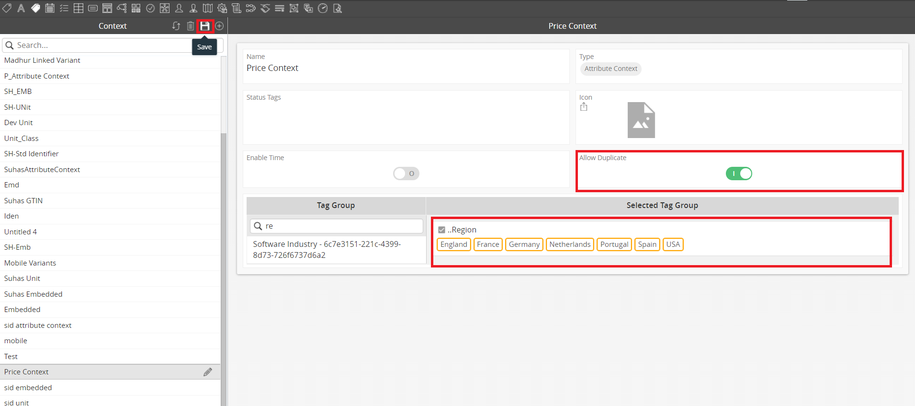
../../../../../_images/targetandchannel_selecttaggroup.PNG


  1. In the class configuration, select the class.
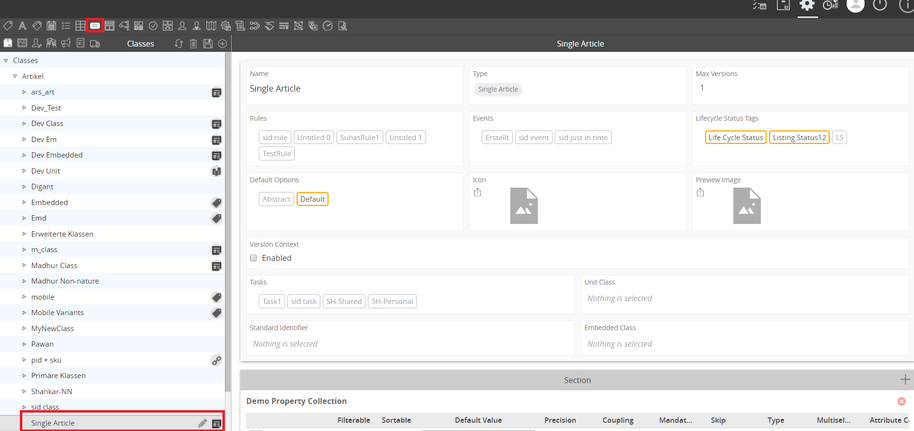
../../../../../_images/targetandchannel_selectclass.PNG


  1. Select the desired attribute then select the context from the drop-down list.
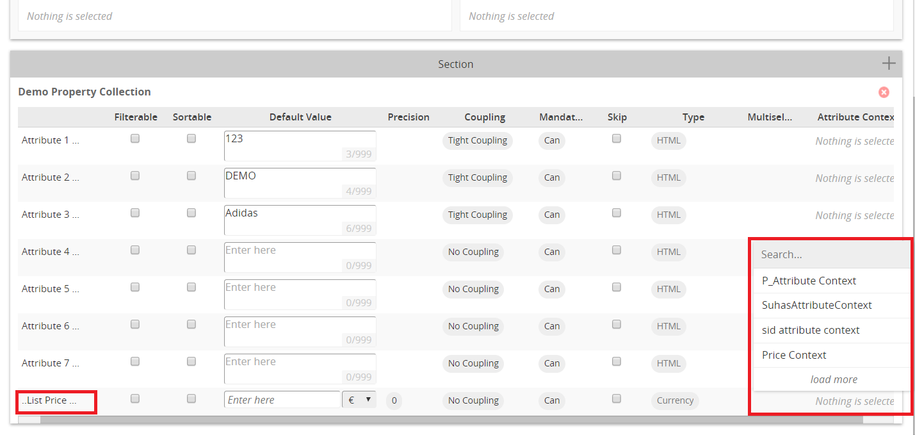
../../../../../_images/targetandchannel_selectdesiredattribute.PNG


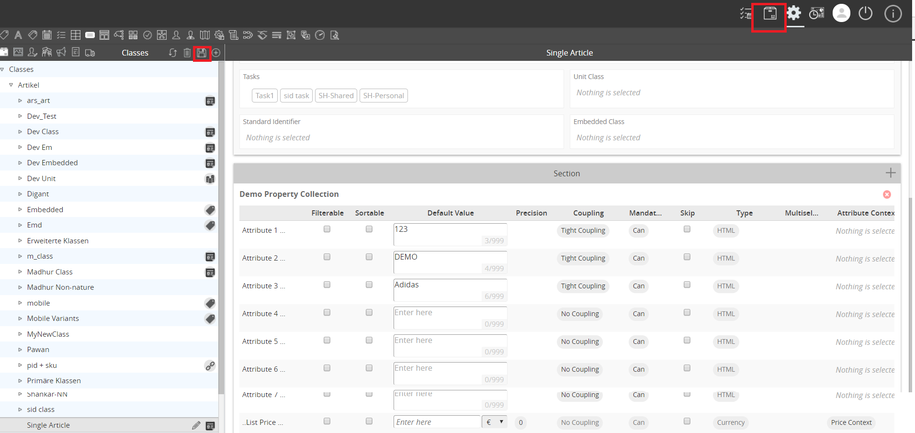
  1. Click Save and try the changes in runtime.
../../../../../_images/targetandchannel_clicksave.PNG


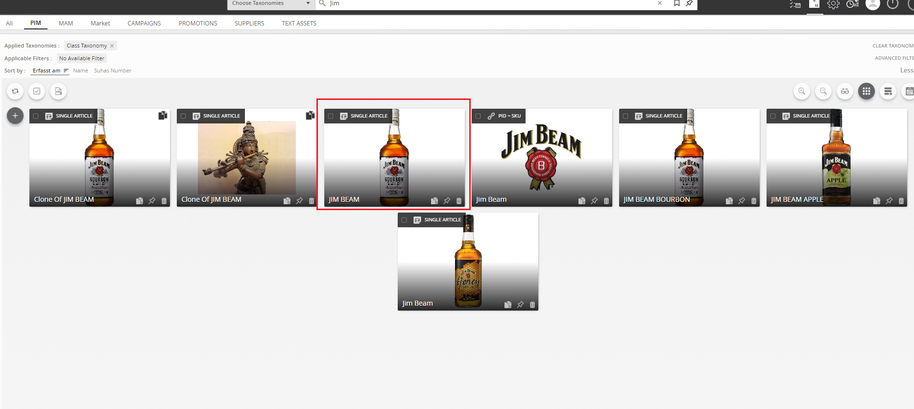
  1. Select the product.
../../../../../_images/targetandchannel_selectproduct.PNG


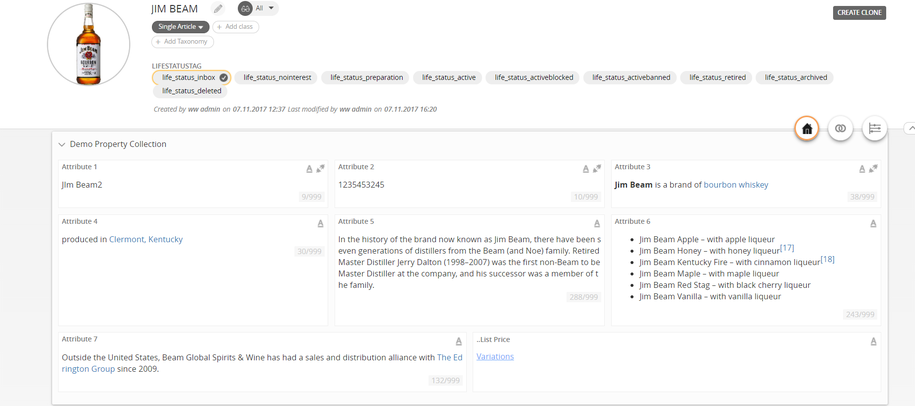
  1. Click on the attribute with variations.
../../../../../_images/targetandchannel_clickattribute.PNG


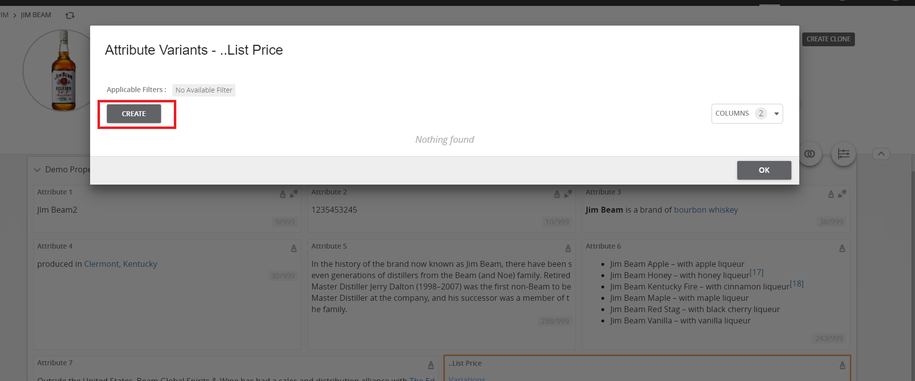
  1. Create Attribute Variant for list price.
../../../../../_images/targetandchannel_createattributevariant.PNG


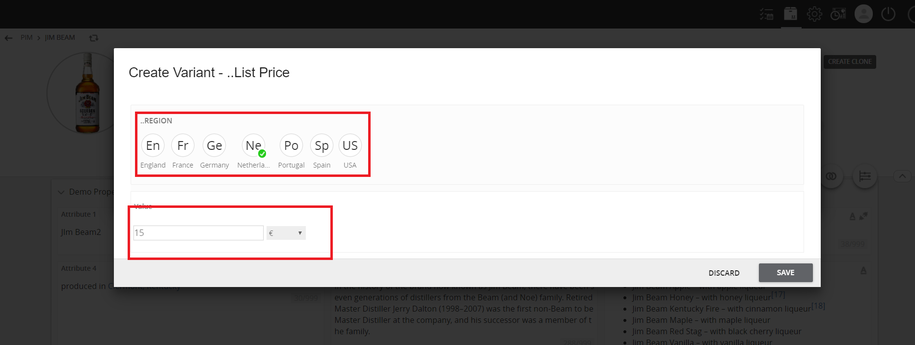
  1. Select the tag group, enter the value for the attribute, and click Save.
../../../../../_images/targetandchannel_selecttagandentervalue.PNG


  1. The screen should display something like the image below.
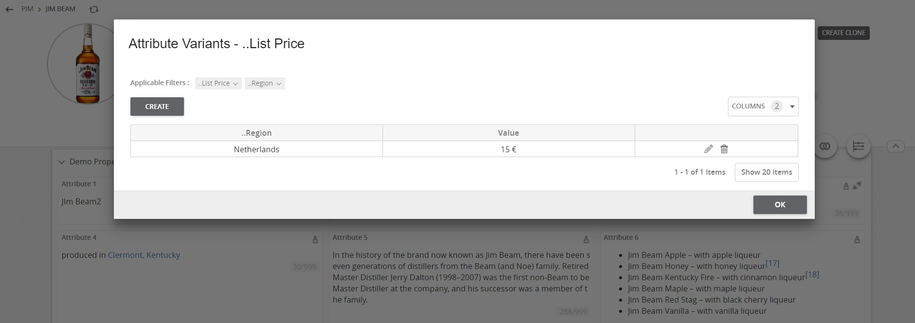
../../../../../_images/targetandchannel_checkoutput.PNG

Contentserv line

Last updated: Jul 27, 2018