Help Center

Embedded Variants within Contexts

Embedded Variants within Context is a feature that allows users to create a variant embedded within a product. The variant is only applicable within the context of that product.

Key Term:
  • Linked Variant: a variant which belongs to a Product.
Description:
  • Embedded Variants enable the user to create variants for a product in terms of a context.
  • A product can have several variants, and these variants can be distinguished based on a context.
Related topics:
Application:
  • A product can have a number of variants with the master product representing the group of products.

  • Example:

    A fruit juice can be available in various packaging variants such as single, pack of 4 or pack of 6. In this example, the packaging is a context of the type tag based on which the product is having its variants.

How-to: Embedded Variants within Contexts

This How-to guide provides instructions on how to create embedded variants for a product within a context. To do this, follow these steps:


  1. Click on the “+” icon and select Single Article.
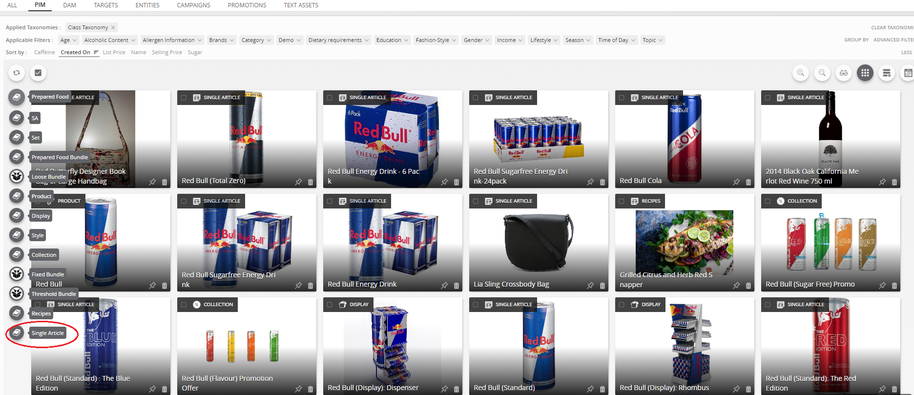
../../../../../_images/embeddedvariants_clickplusicon.PNG


  1. Fill in the appropriate data and add images for the product and its variants.
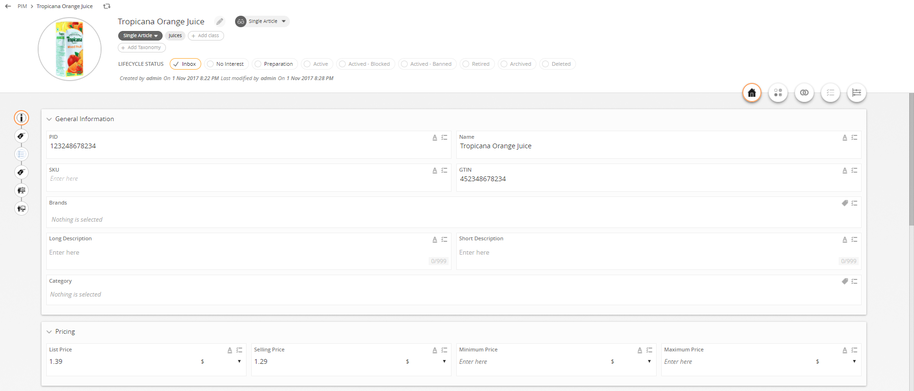
../../../../../_images/embeddedvariants_filldata.PNG


  1. Click on the context icon found next to the home icon.
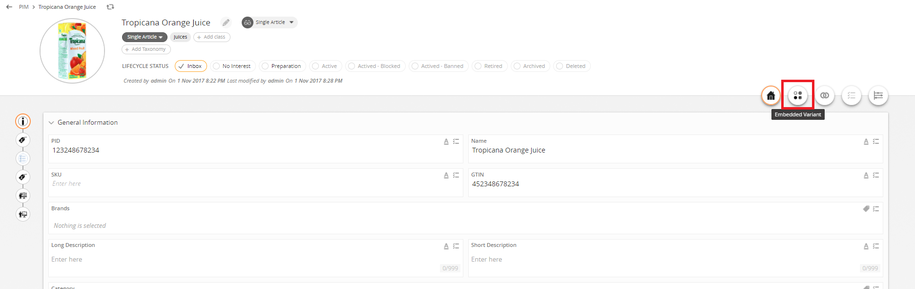
../../../../../_images/embeddedvariants_clickcontexticon.PNG


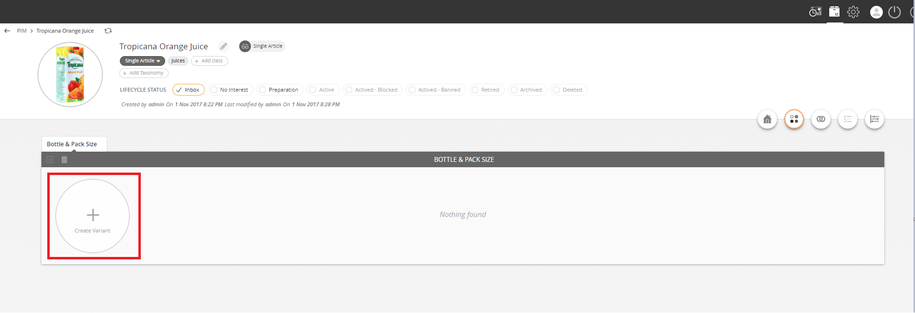
  1. Click on the Create Variant button.
../../../../../_images/embeddedvariants_clickplusiconcreatevariant.PNG


  1. Select the appropriate tags, select the name of the variant, and click Save.
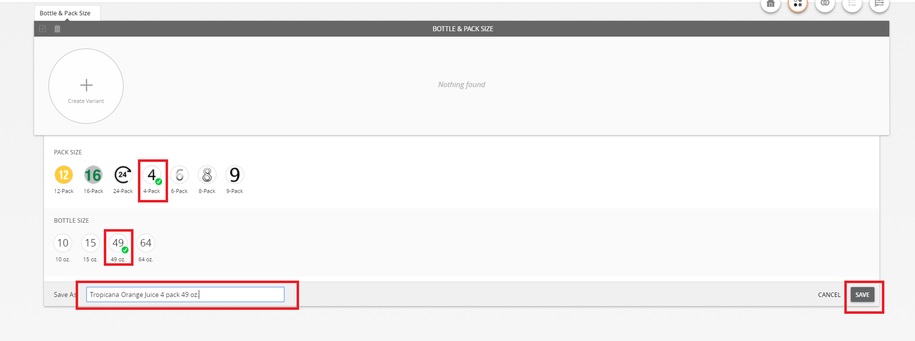
../../../../../_images/embeddedvariants_selecttag.PNG


  1. Fill in the data for the variant.
../../../../../_images/embeddedvariants_filldataforvariant.PNG


  1. Click on the Camera icon to add the image.
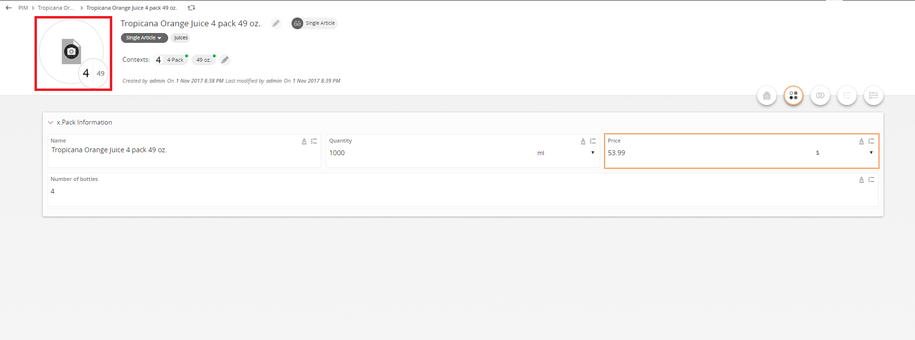
../../../../../_images/embeddedvariants_clickcamera.PNG


  1. Select the image from the asset selection of the parent products and click OK.
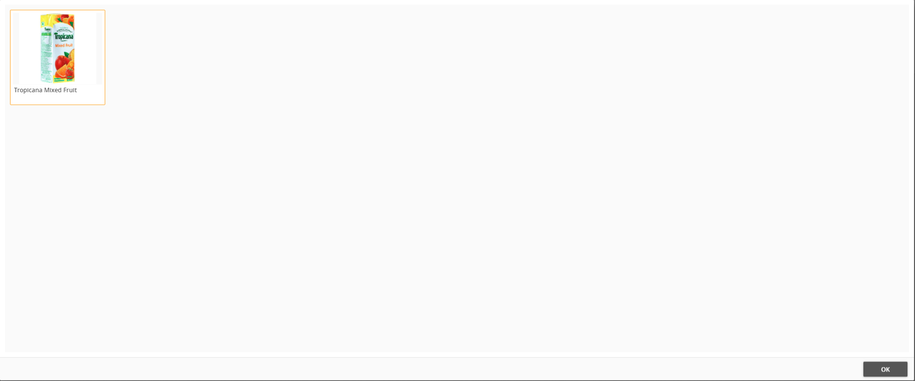
../../../../../_images/embeddedvariants_selectimage.PNG


  1. Click Save.

  1. Click on the Back button at the top left corner.
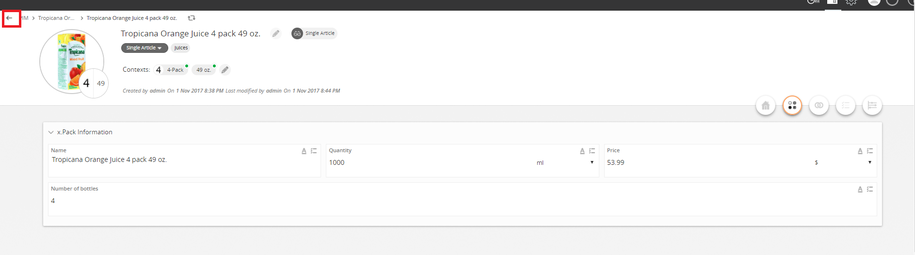
../../../../../_images/embeddedvariants_clickbackicon.PNG


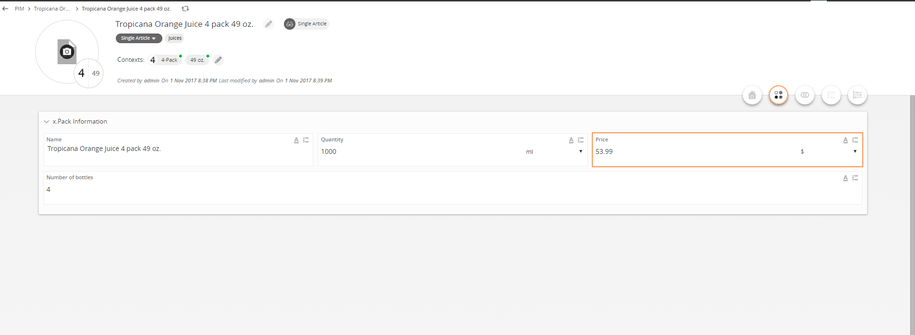
  1. The variant looks similar to the image below. Take note that users can create several embedded variants.
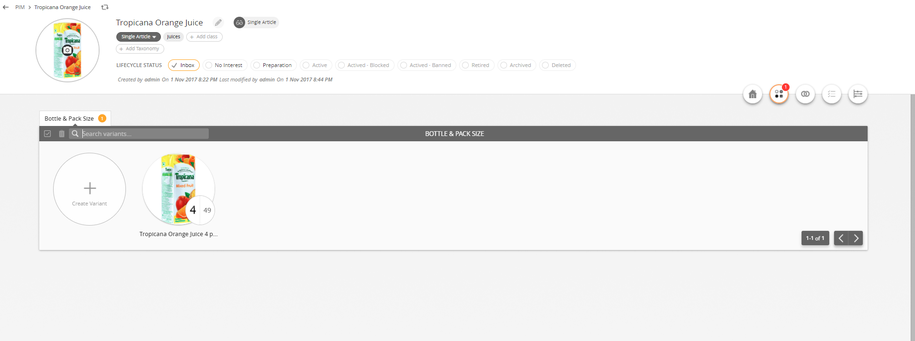
../../../../../_images/embeddedvariants_checkoutput.PNG


Contentserv line

Last updated: Jul 27, 2018