Help Center

Manage Products across Collections

Manage Products across Collections lets you copy or move products between collections.

Key Term:
  • Product Information Management (PIM): facilitates the central management and maintenance of an enterprise’s product data, content or any related information.
Description:
  • Collections are created to store a group of products based on their relevance to a user.
  • Collections can have their own hierarchy and the products in the collection can belong to these hierarchies.
  • With the use of collections, a group of products can be classified easily.
Related topics:
Application:
  • Collections make it easy to group relevant products and place them in hierarchies.

  • Example:

    A collection can be made for a few furniture products and in the collection, hierarchies can be made based on the class type.

How-to: Manage Products across Collections

To copy or move products across collections, follow these steps:


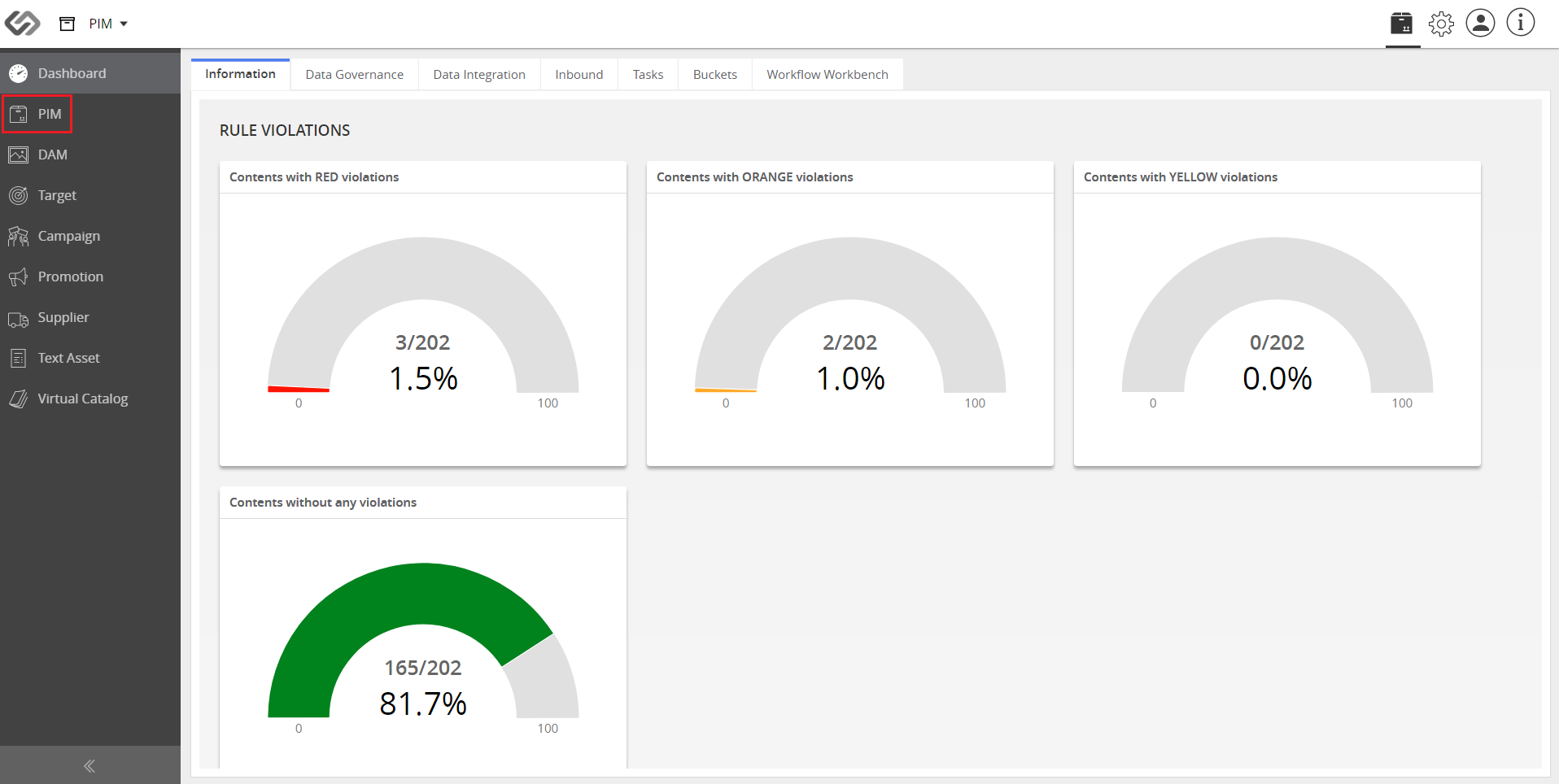
  1. Log in and go to PIM.
../../../../../_images/cs_manageproducts_login.PNG


  1. Click the Collections icon and select the desired collection.
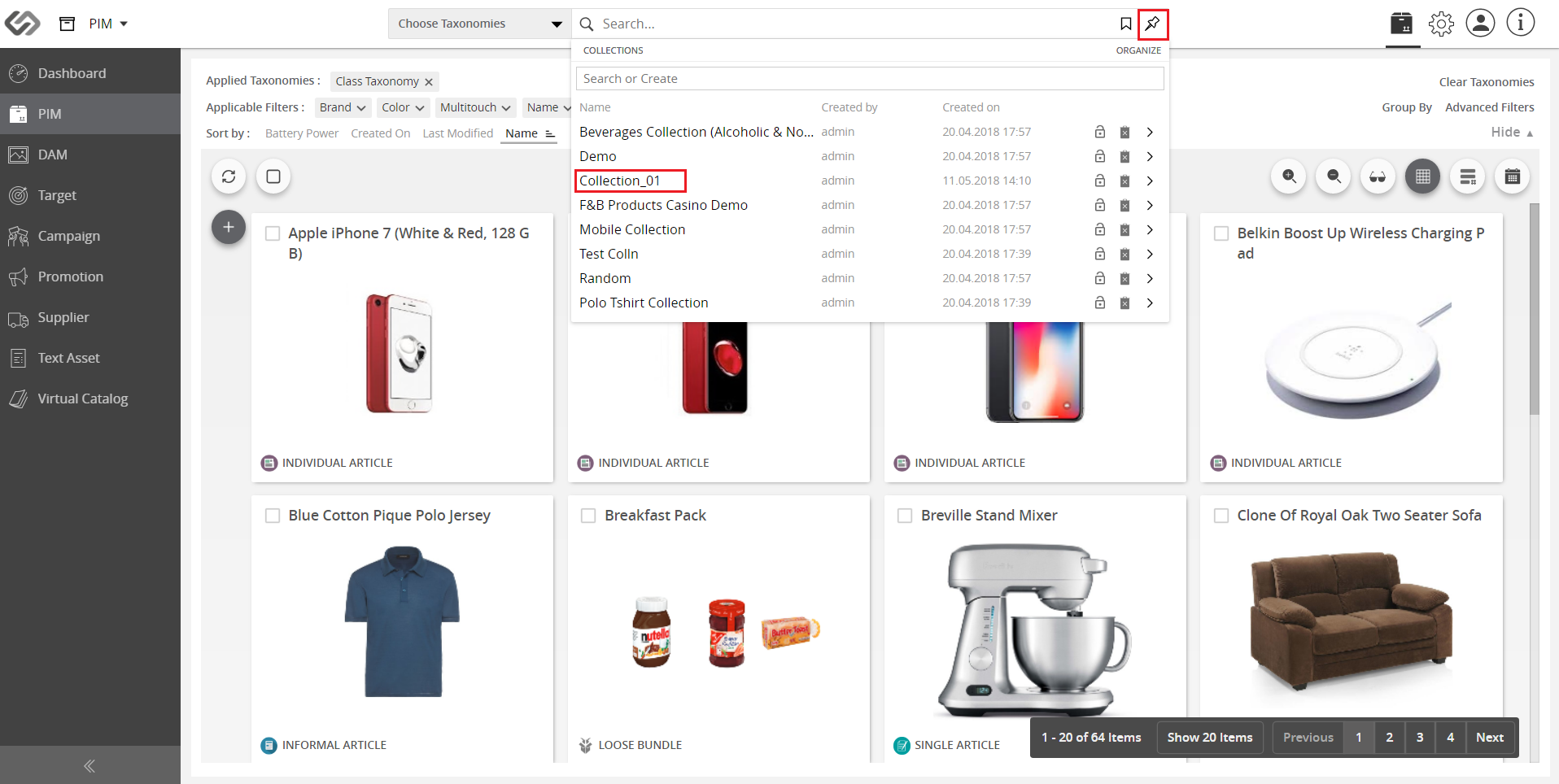
../../../../../_images/cs_manageproducts_collectionsicon.PNG


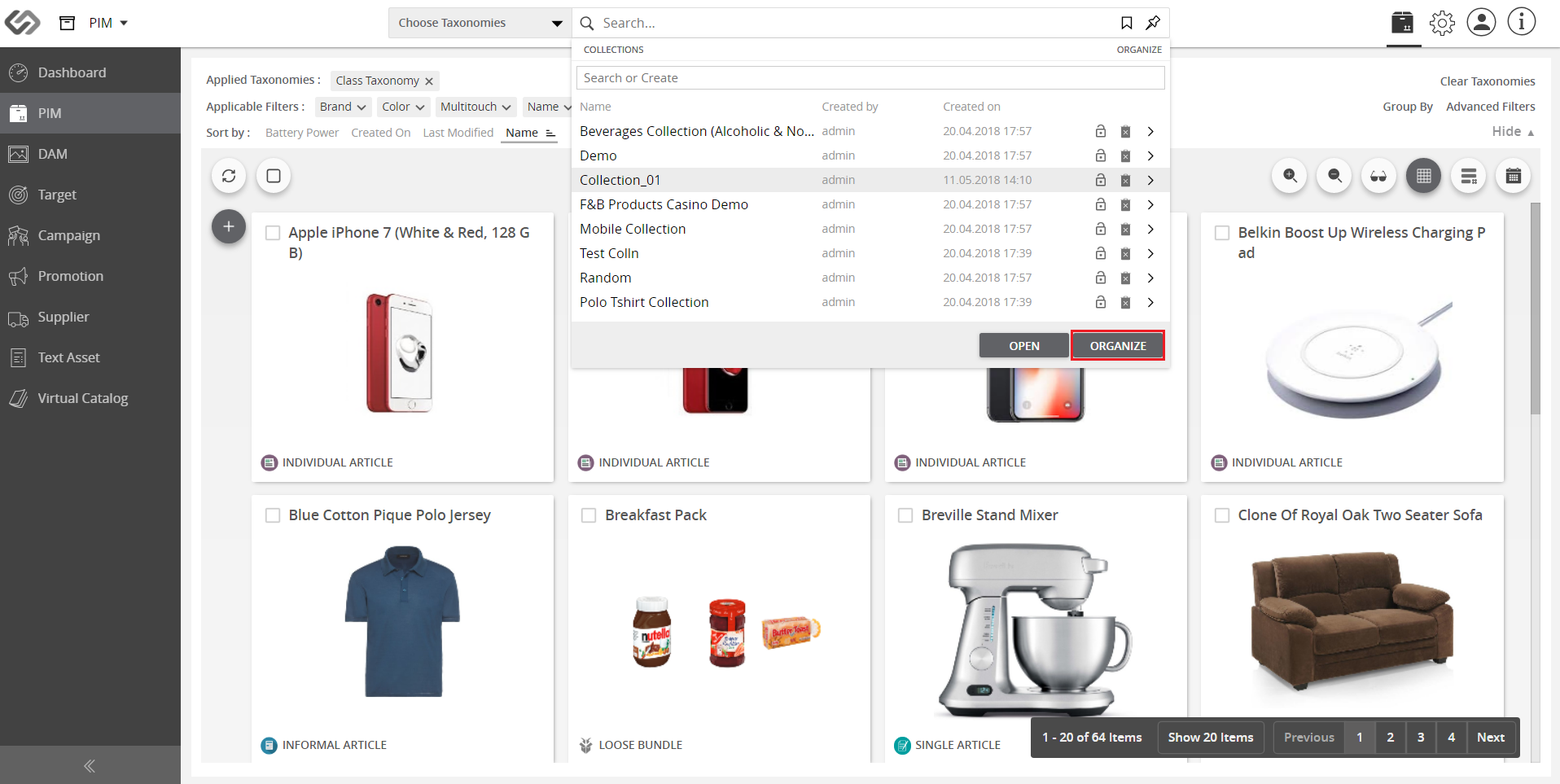
  1. Click on the Organize button.
../../../../../_images/cs_manageproducts_organize.PNG


  1. Click on the Add New Collection button.
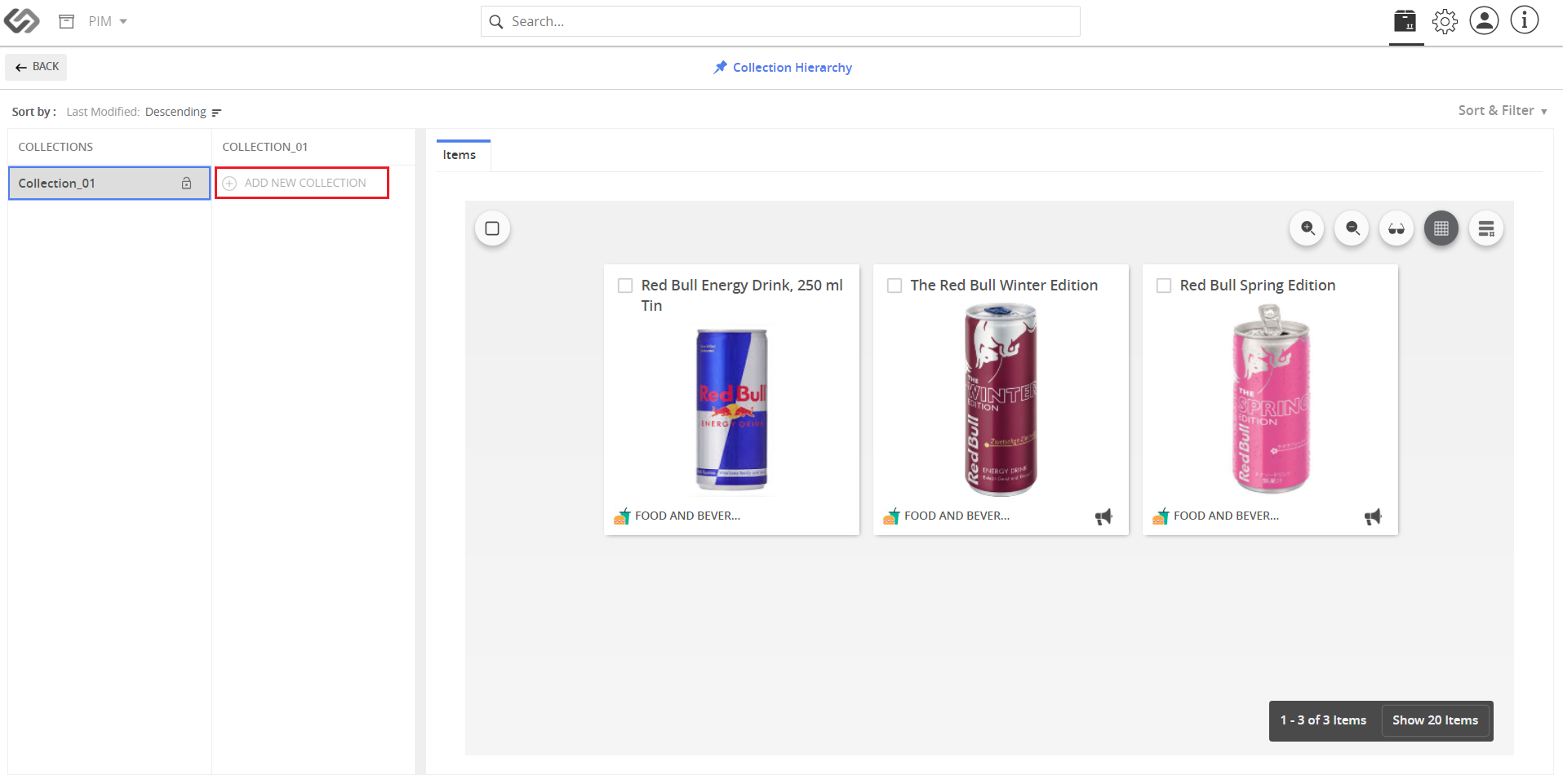
../../../../../_images/cs_manageproducts_addnewcollection.PNG


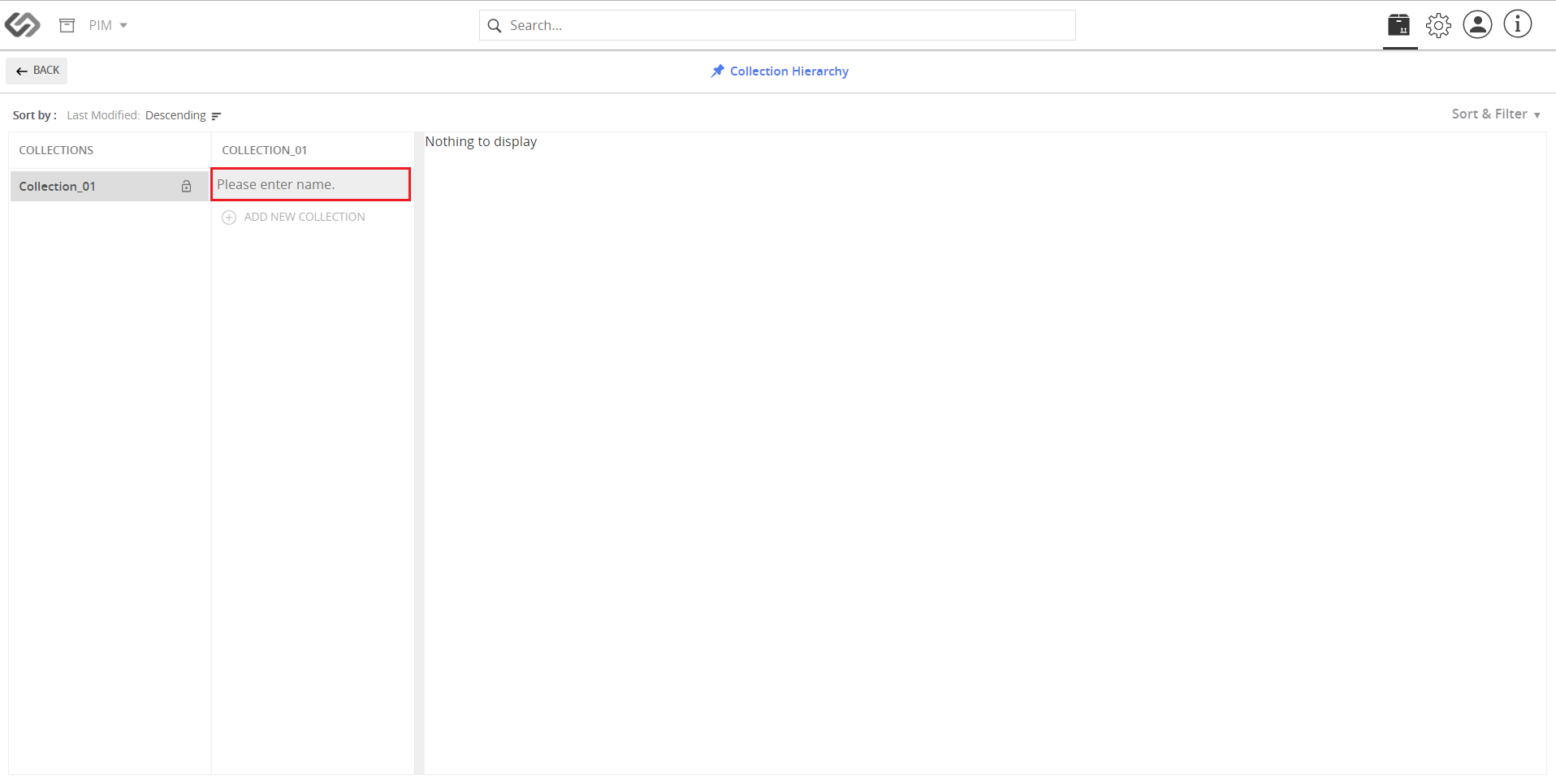
  1. Enter the name for the collection.
../../../../../_images/cs_manageproducts_entername.PNG


  1. Select the product from the source collection and click on the Copy icon.
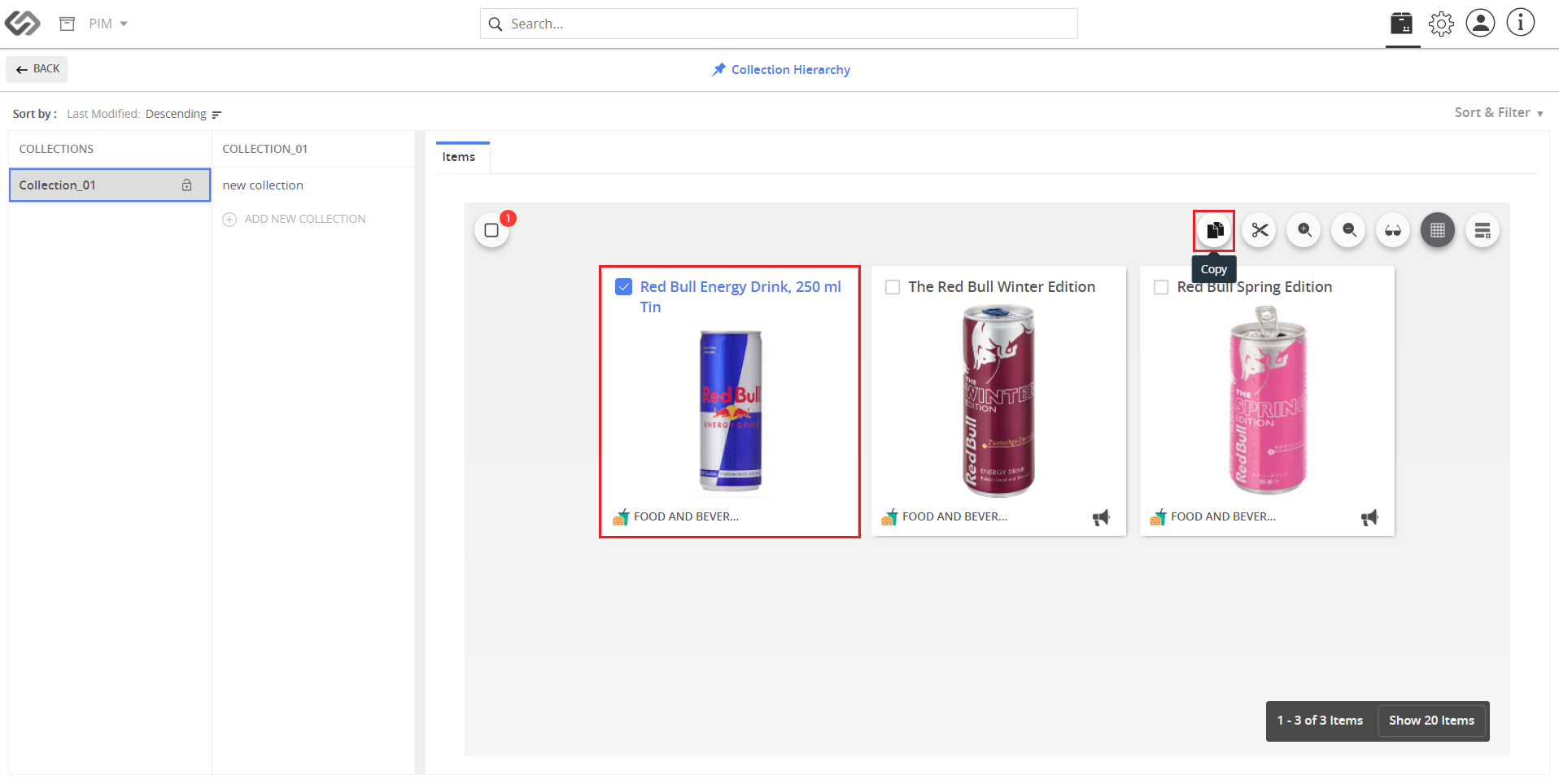
../../../../../_images/cs_manageproducts_copy.PNG


  1. Go to the destination collection and click on the Paste icon.
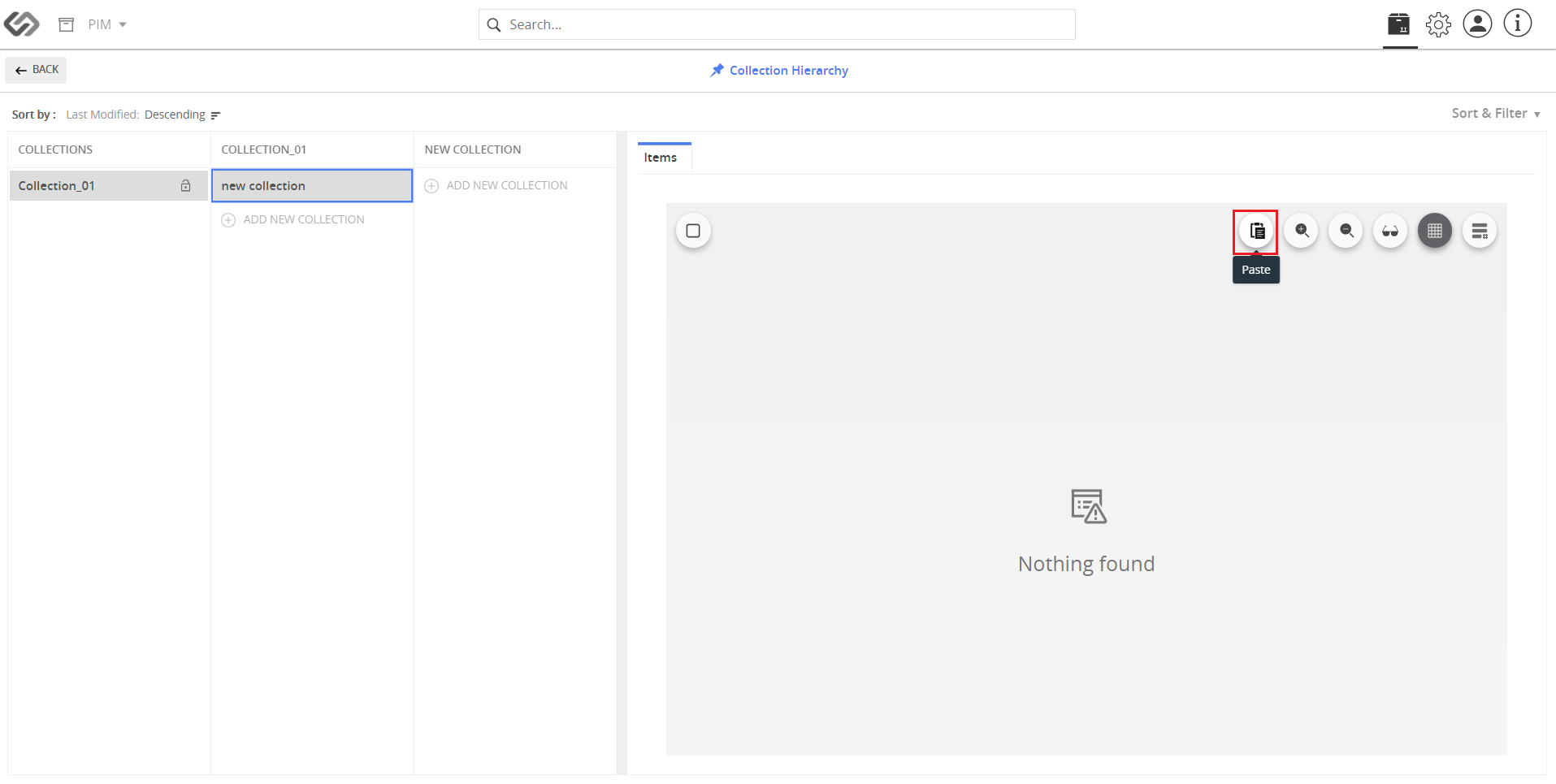
../../../../../_images/cs_manageproducts_paste.PNG


  1. View the added product.
../../../../../_images/cs_manageproducts_viewaddedproduct.PNG

Contentserv line

Last updated: Jul 27, 2018