Help Center

Collection Hierarchy

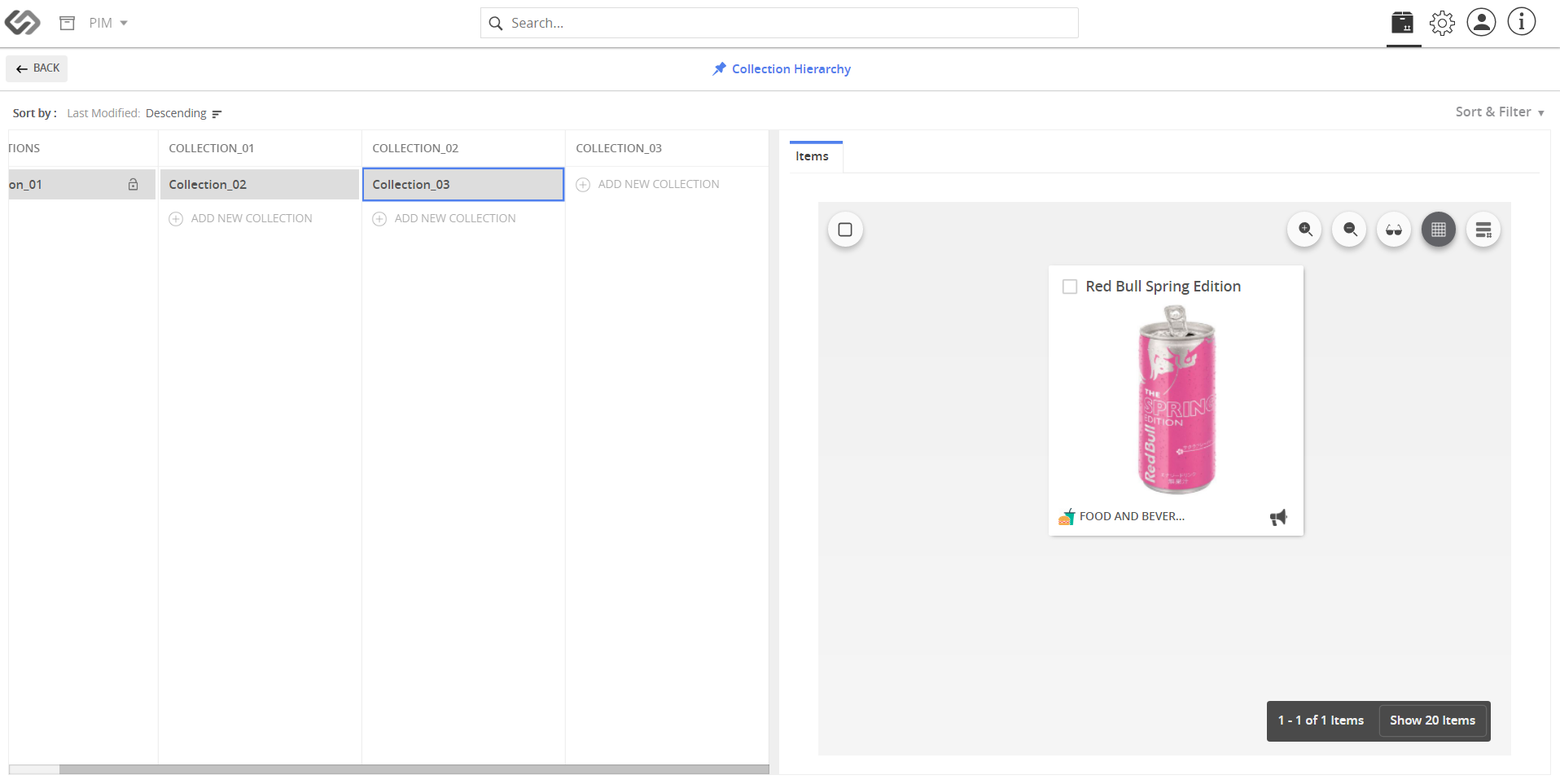
Collection Hierarchy lets you organize and view your collections within a structured hierarchy.

Key Term:
  • Bookmark: a self-updating bookmark that saves the results of a search.
Description:
  • Collection Hierarchy creates levels in the hierarchy for the products.
  • Products can be copied or moved between these levels.
Related topics:
Application:
  • Categorically structure the products in a product group.

  • A collection can contain any number of products, and these products can be copied or moved between the levels of hierarchies.

  • Example:

    A collection of furniture products can have hierarchy levels based on product types such as Office and Home furniture, Chairs, Tables and others.

How-to: Collection Hierarchy

To organize and view the collections within a structured hierarchy, follow these steps:


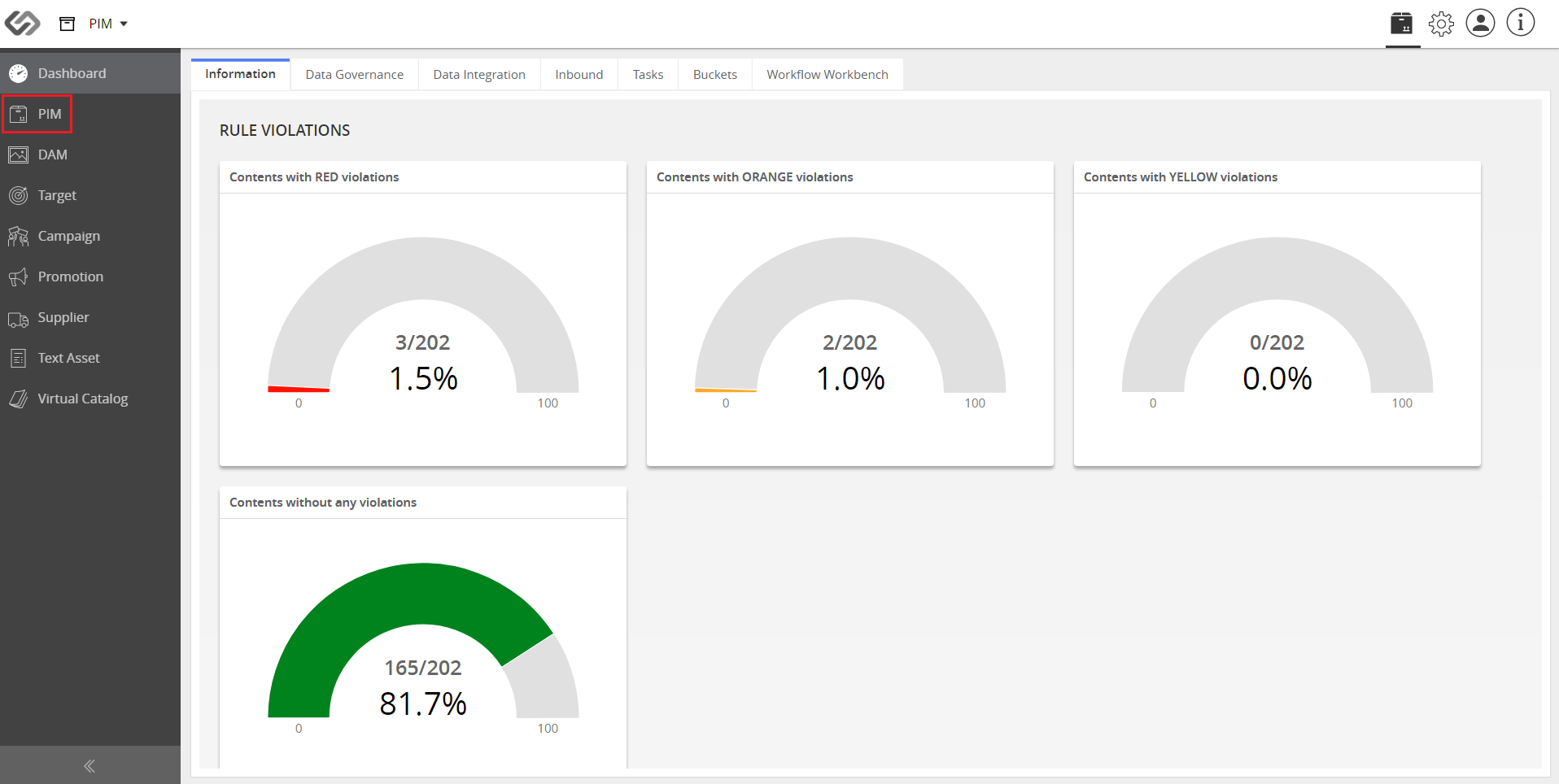
  1. Log in and go to PIM.
../../../../../_images/cs_collectionhierarchy_login.PNG


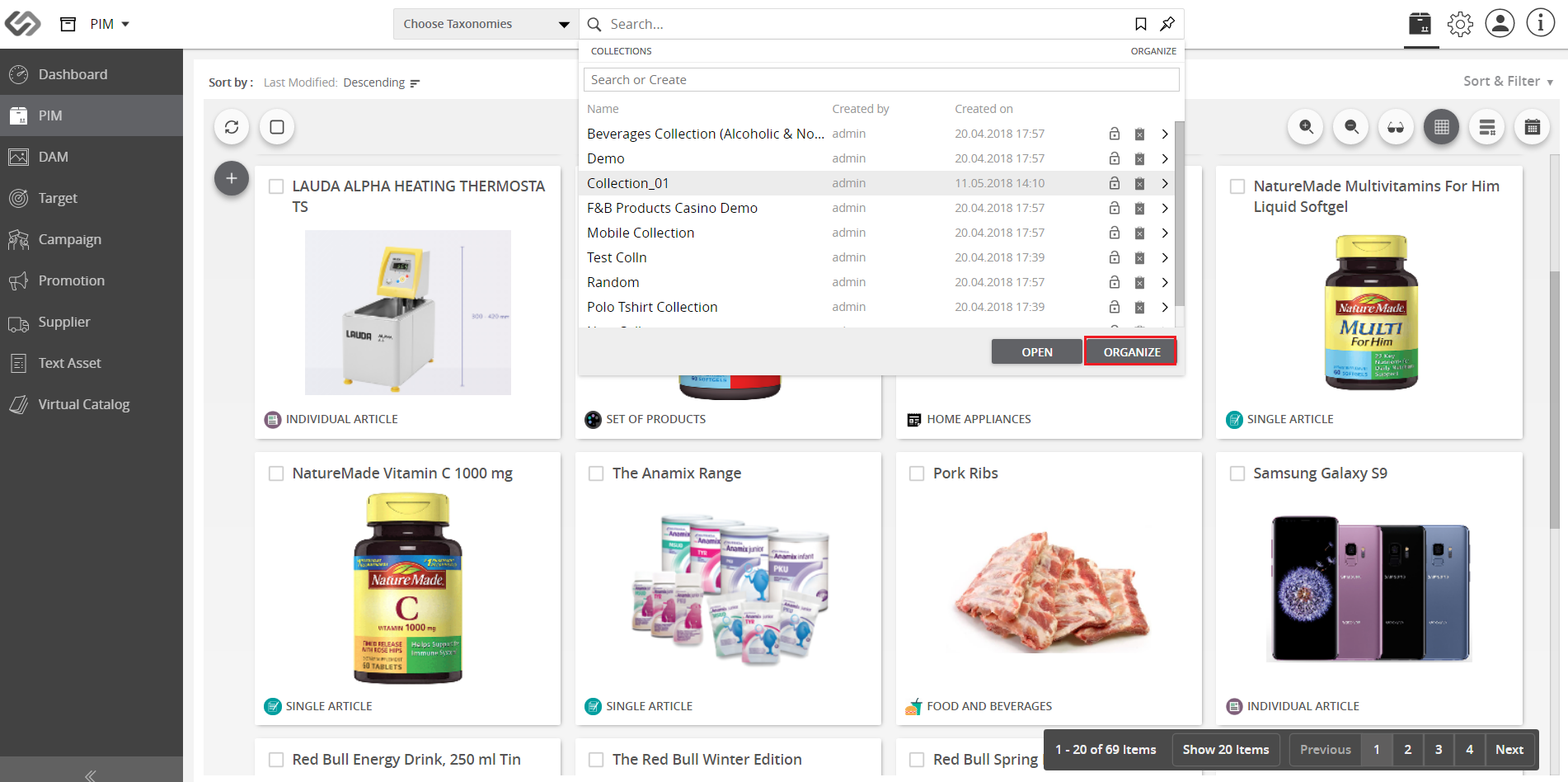
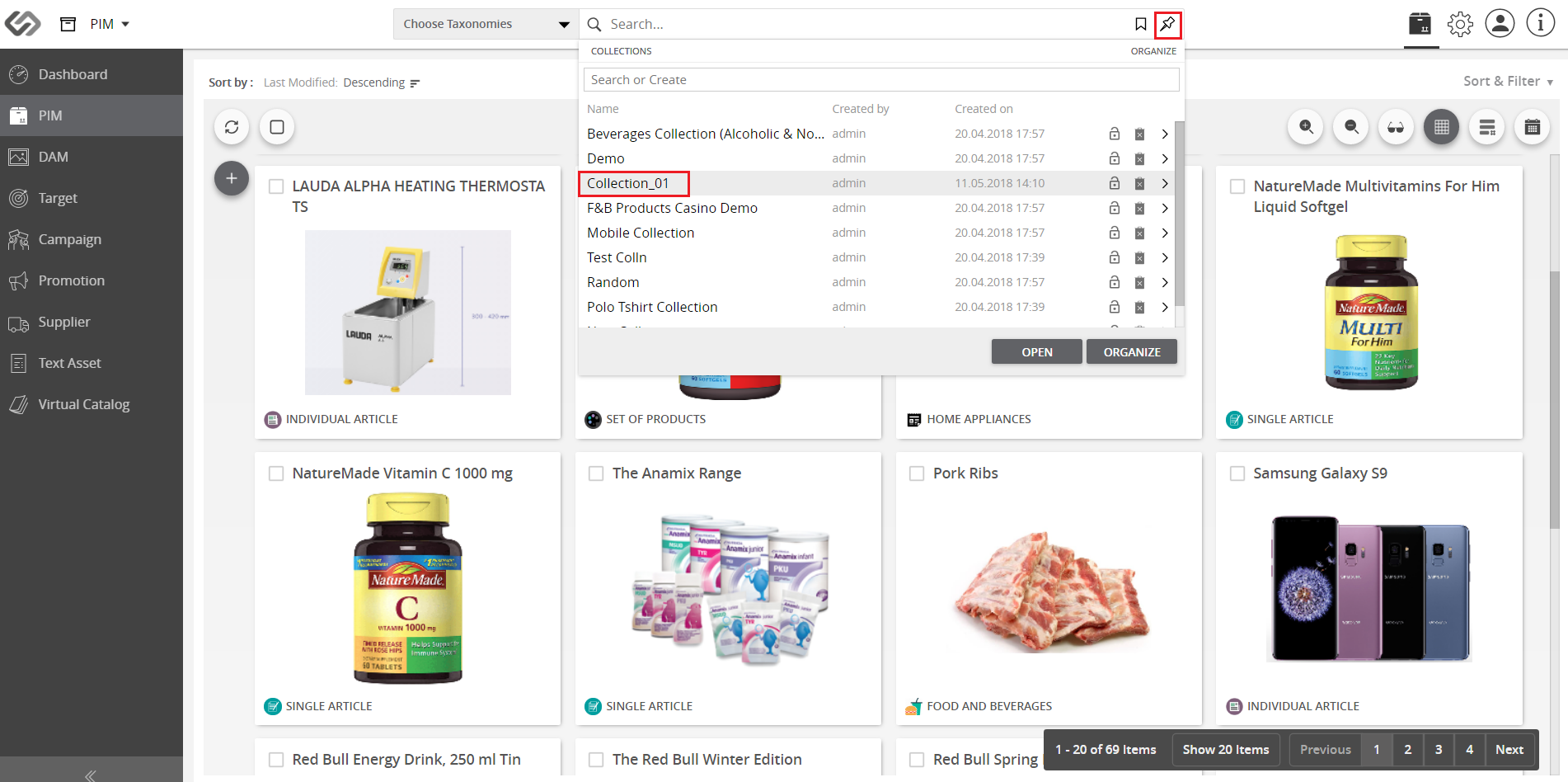
  1. Click on the Collections icon and select the desired collection.
../../../../../_images/cs_collectionhierarchy_clickcollectionsicon.PNG


  1. Click on the Organize button.
../../../../../_images/cs_collectionhierarchy_organize.PNG


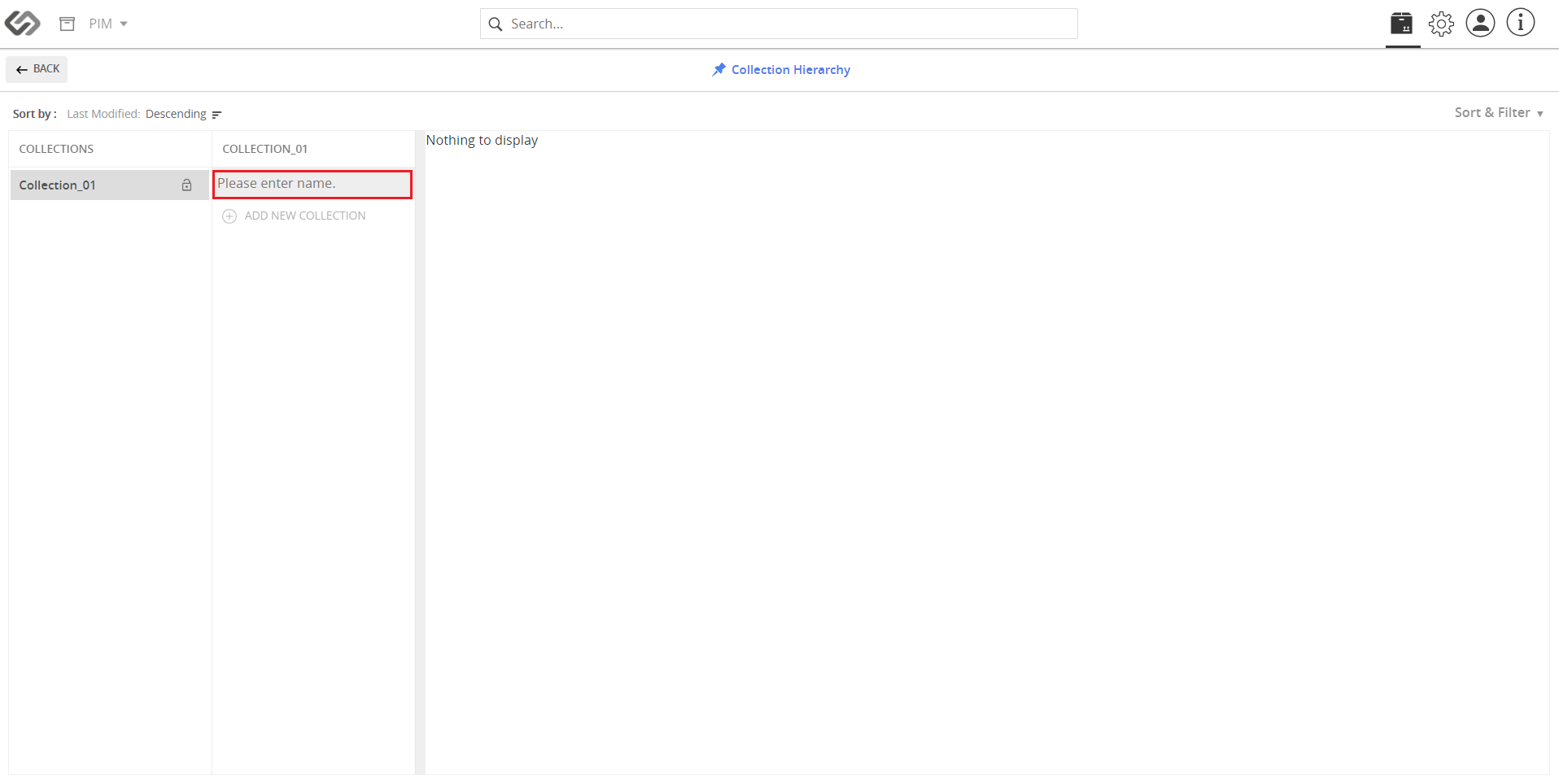
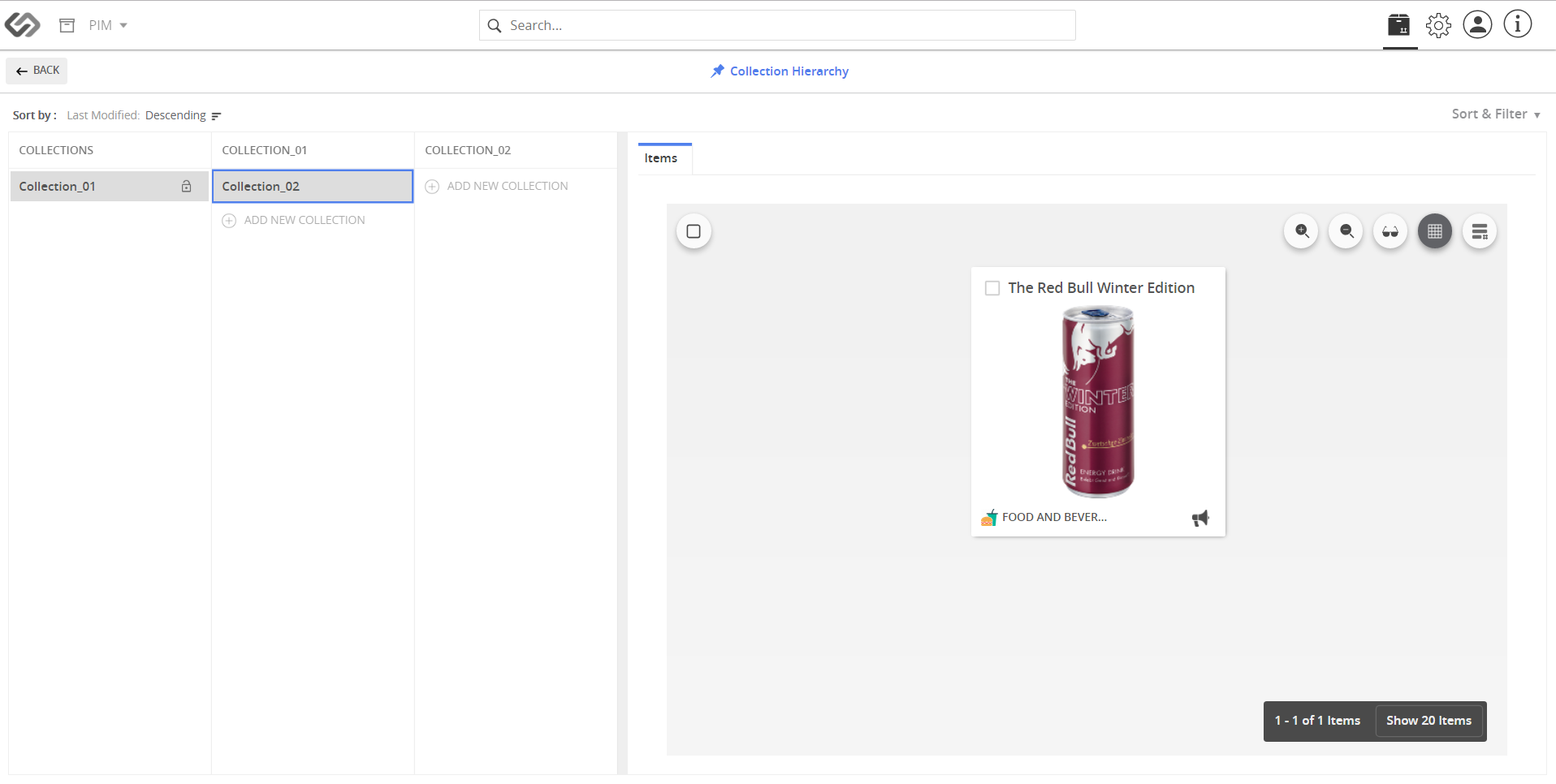
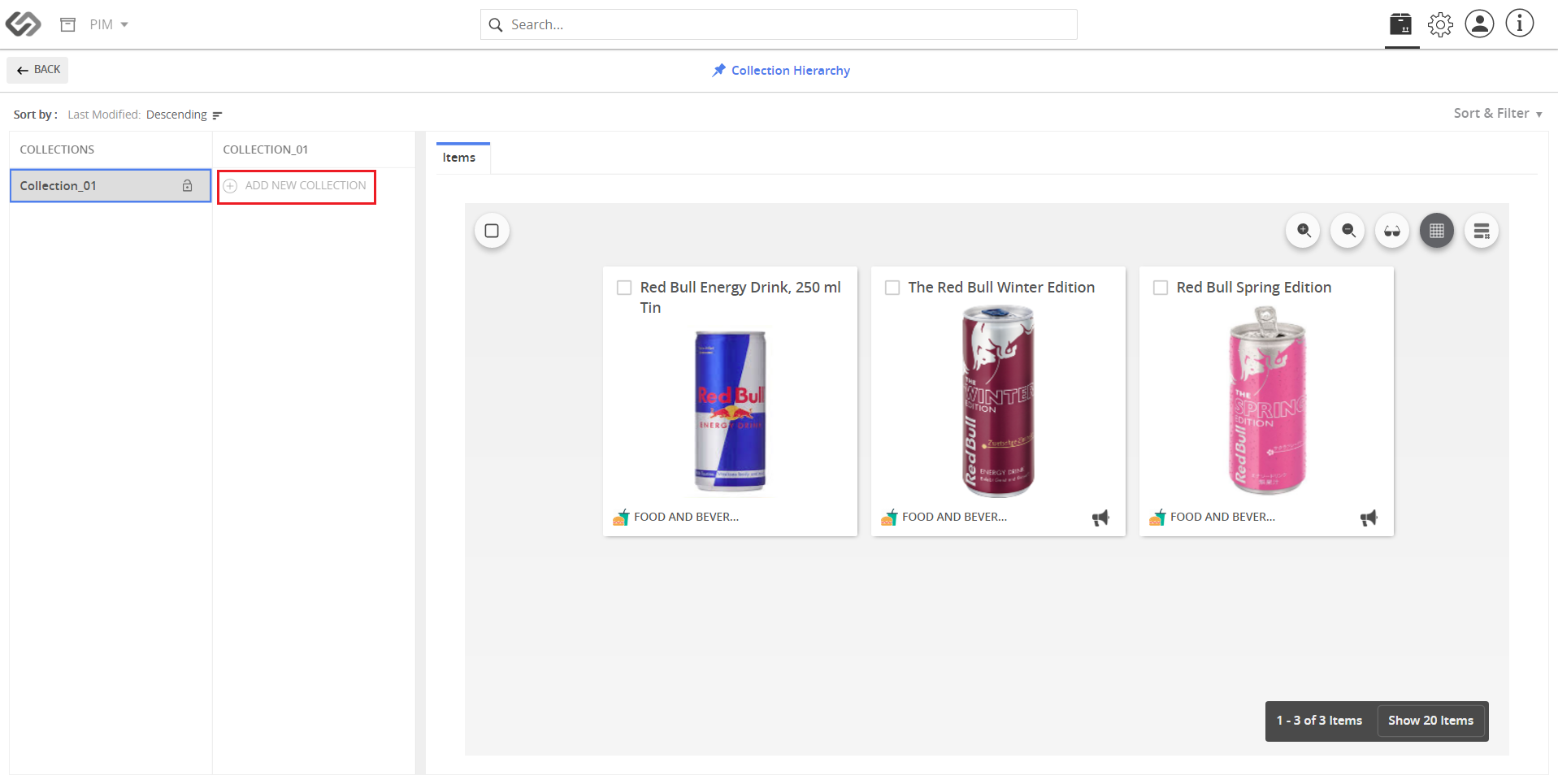
  1. Click on the Add New Collection button, enter the name for the collection, and copy products into the collection.
../../../../../_images/cs_collectionhierarchy_addnewcollection.PNG

../../../../../_images/cs_collectionhierarchy_entername.PNG

../../../../../_images/cs_collectionhierarchy_copyproducts.PNG


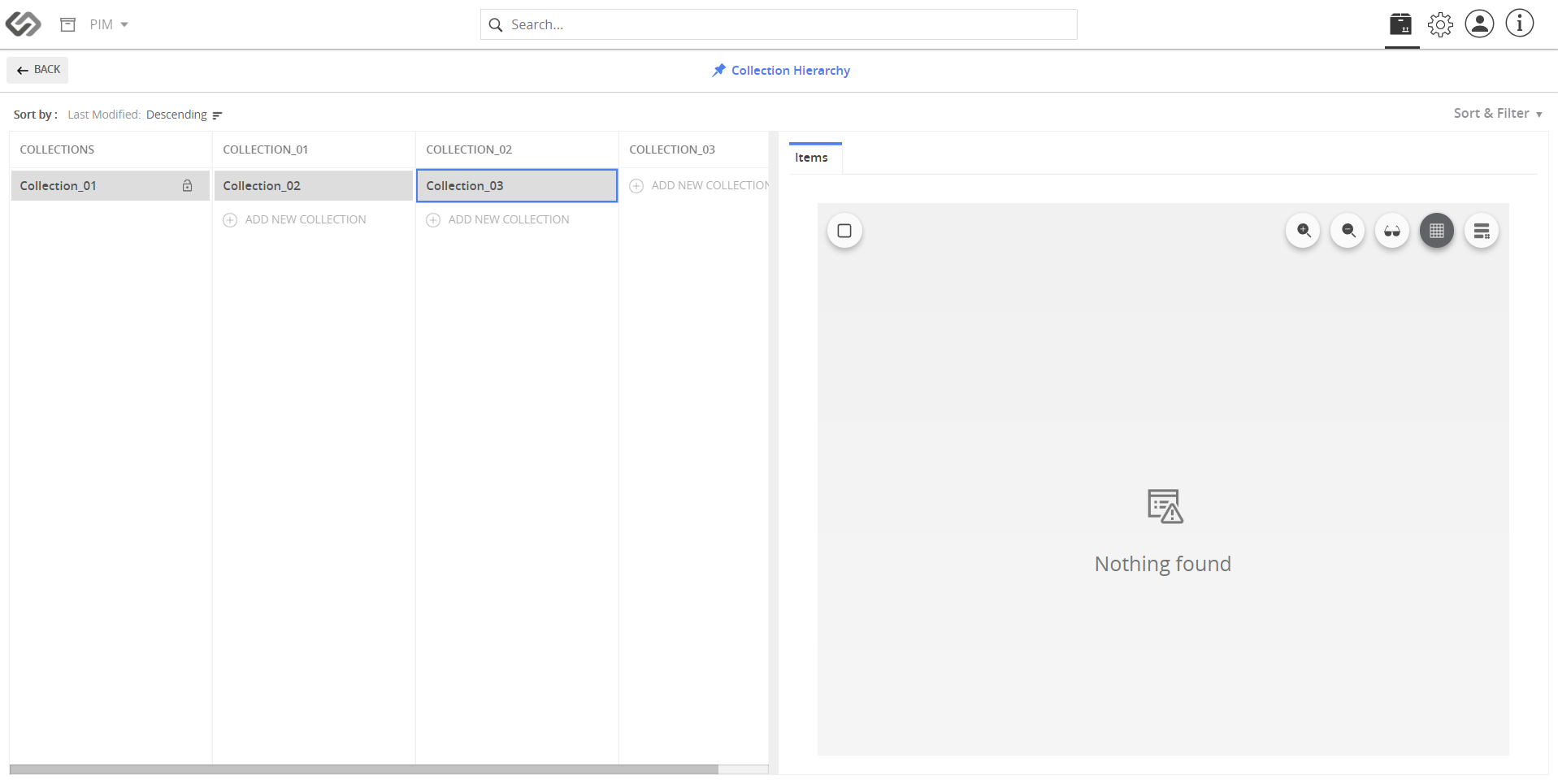
  1. Repeat the previous step to create a hierarchy of the collection.
../../../../../_images/cs_collectionhierarchy_entername2.PNG

../../../../../_images/cs_collectionhierarchy_copyproducts2.PNG


Contentserv line

Last updated: Jul 27, 2018