
Step-By-Step Guide for Uploading Onboarding File
To upload an onboarding file, follow the steps below:
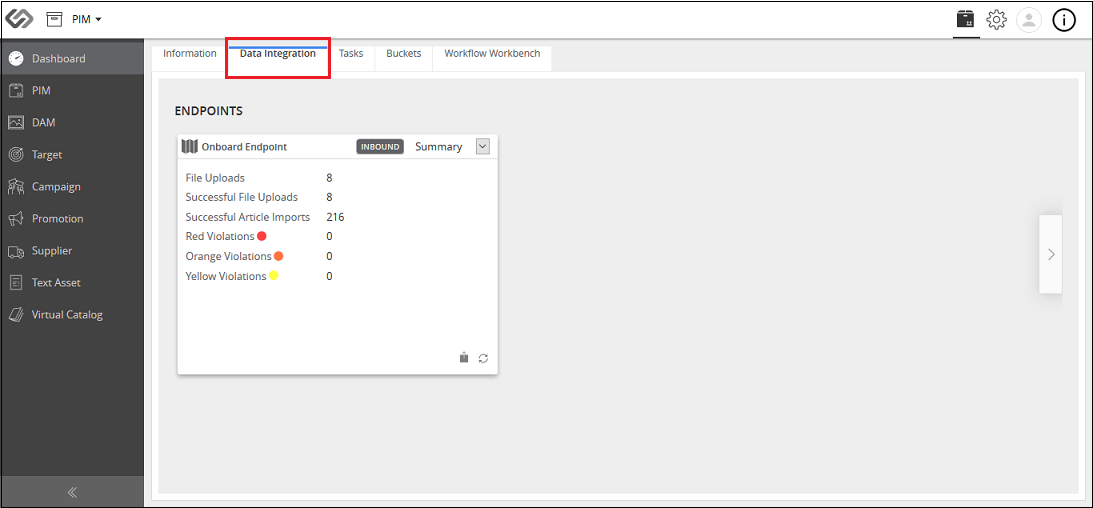
- Log in to the application and click on the Data Integration tab.
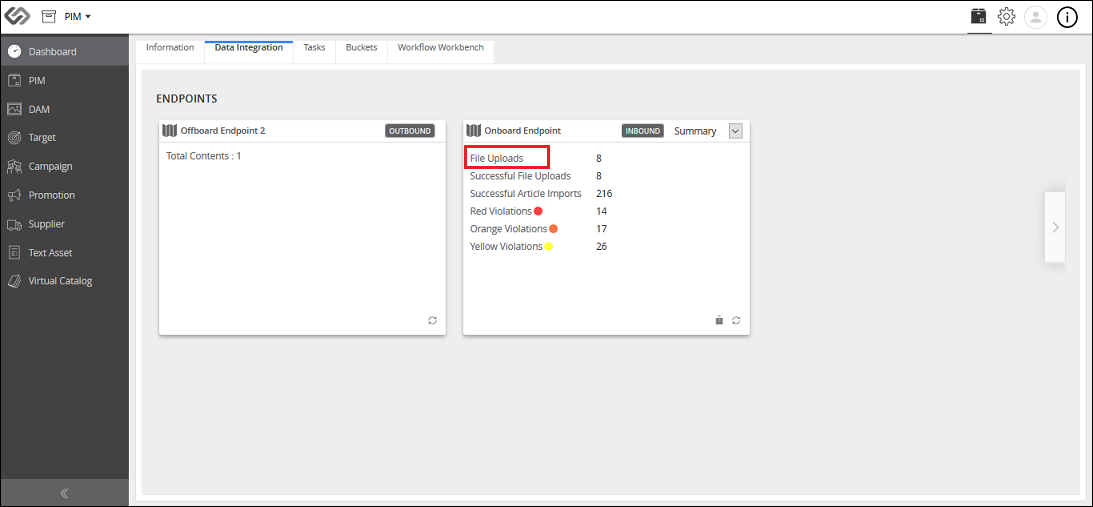
- Click on the File Uploads link of the endpoint.
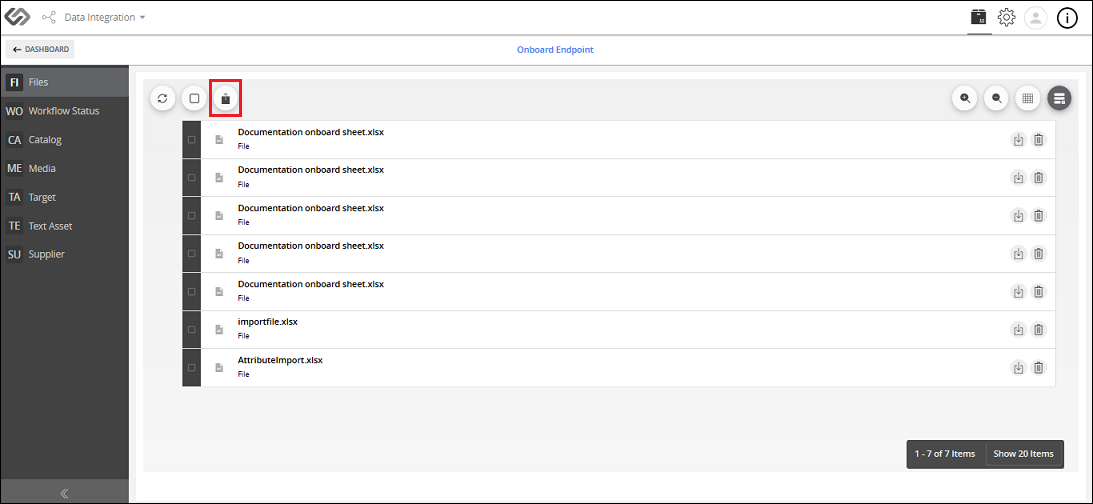
- Click on the Import File icon and upload the onboarding file.
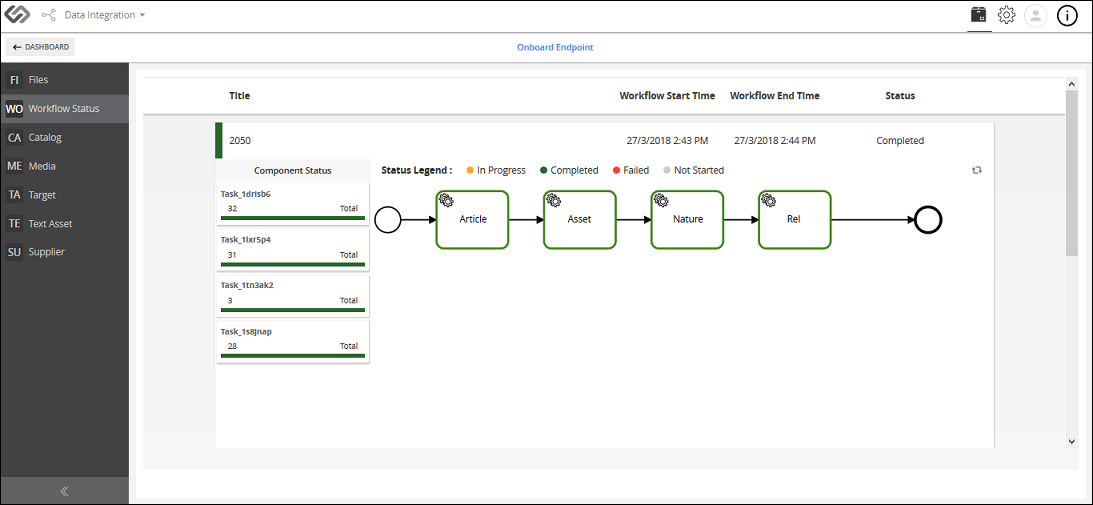
- Click on the Workflow Status tab to check the progress of the uploaded file.
Status
| Sr No | Status | Description |
|---|---|---|
| 1 | In Progress | This status indicates that the onboarding process is in progress. The component will be marked with orange border to show this status. |
| 2 | Completed | This status indicates that the onboarding file is uploaded, data is validated, and data is pushed to the supplier’s PIM/Onboarding portal. The component will be marked with green border to show this status. |
| 3 | Failed | This status indicates that the onboarding process has failed, and it cannot proceed further. The component will be marked with red border to show this status. |
| 4 | Not Started | This status indicates that the onboarding process has not yet started. The component will be marked with gray border to show this status. |
- Click on the Catalog tab for any data violation. The total number of violations are shown against each product. Place the cursor over the total number of violations to show the violations. The violations are shown in red, orange, and yellow color.
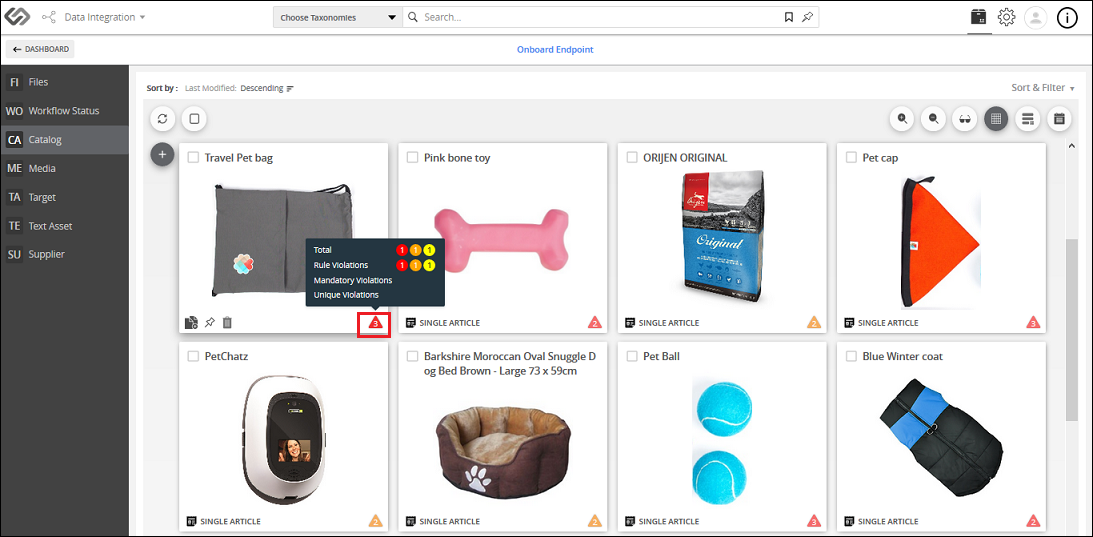
Violations
| Sr No | Status | Description |
|---|---|---|
| 1 | Red Violation | This is the violation with the highest priority. It cannot be ignored. The products with red violation will not be pushed to the PIM/Onboarding portal. |
| 2 | Orange Violation | This is the violation with medium priority. It can be ignored. The system will allow you to proceed with the onboarding of a product with orange violations. |
| 3 | Yellow Violation | This is the violation with the lowest priority. It can be ignored. The system will allow you to proceed with the onboarding of a product with yellow violations. It is the least significant violation. |
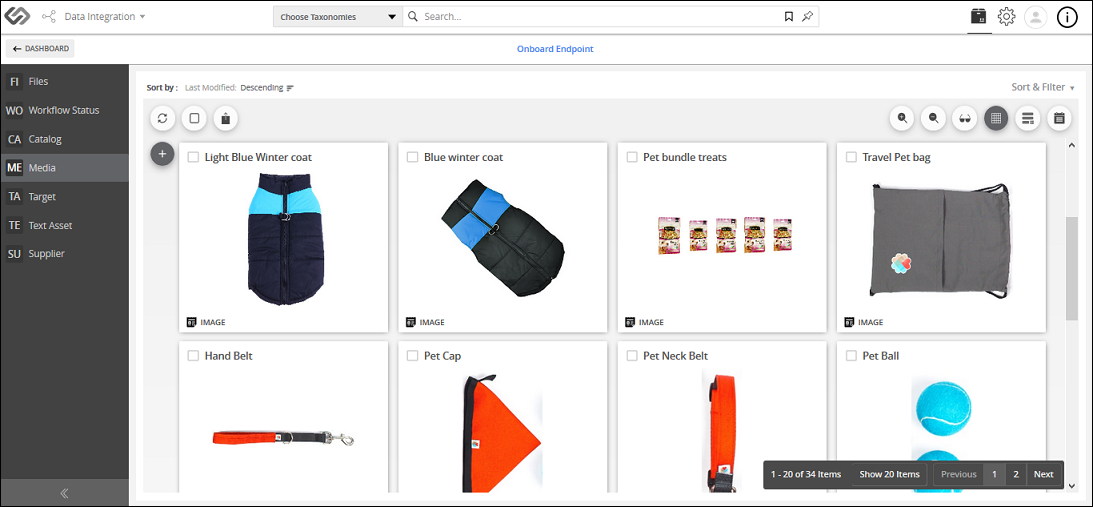
- Click on the Media tab to see all the media files. These media files are mapped with their respective articles.
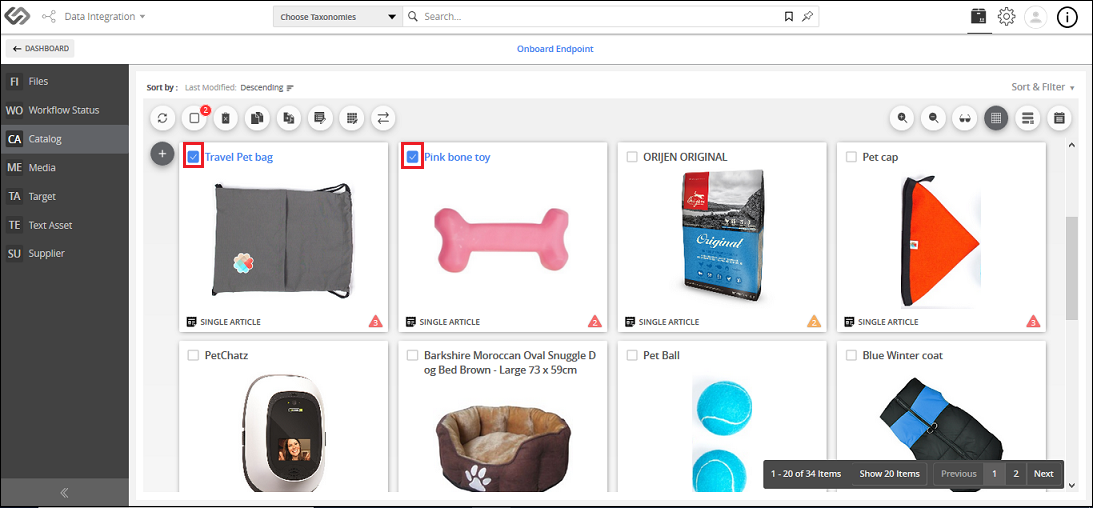
- Click on the Catalog tab and select all the products that are needed to be transferred to the Onboarding or PIM portal (Self).
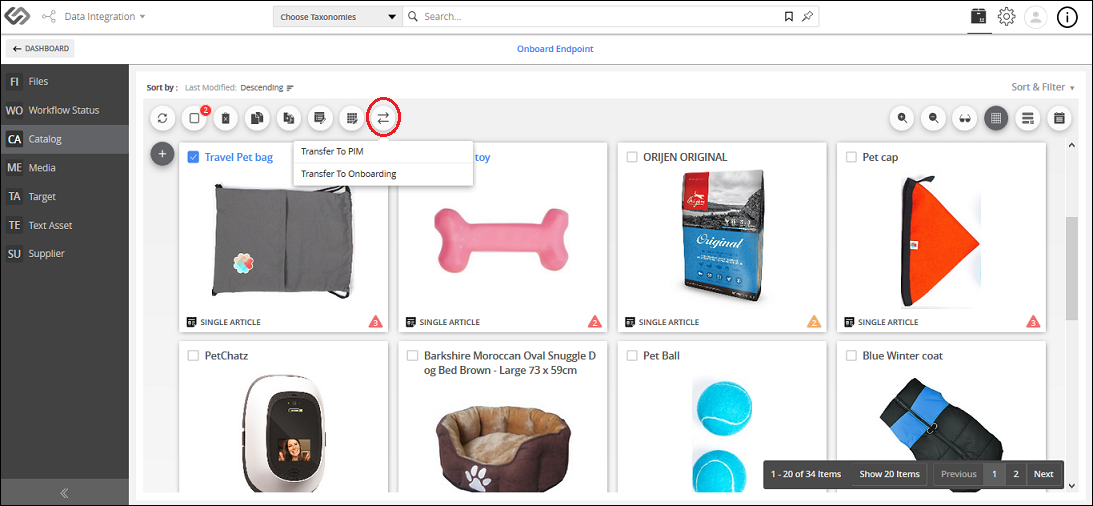
- Click on the Transfer icon and select Transfer To PIM or Transfer To Onboarding option.

Last updated: Jul 27, 2018