
Version Context
The Version Context feature allows a user to create a special version of a product that contains specific information intended for certain targets or channels.
| Description: |
|
| Related topics: | |
| Application: |
|
How-to: Version Context
To do this feature, follow these steps:
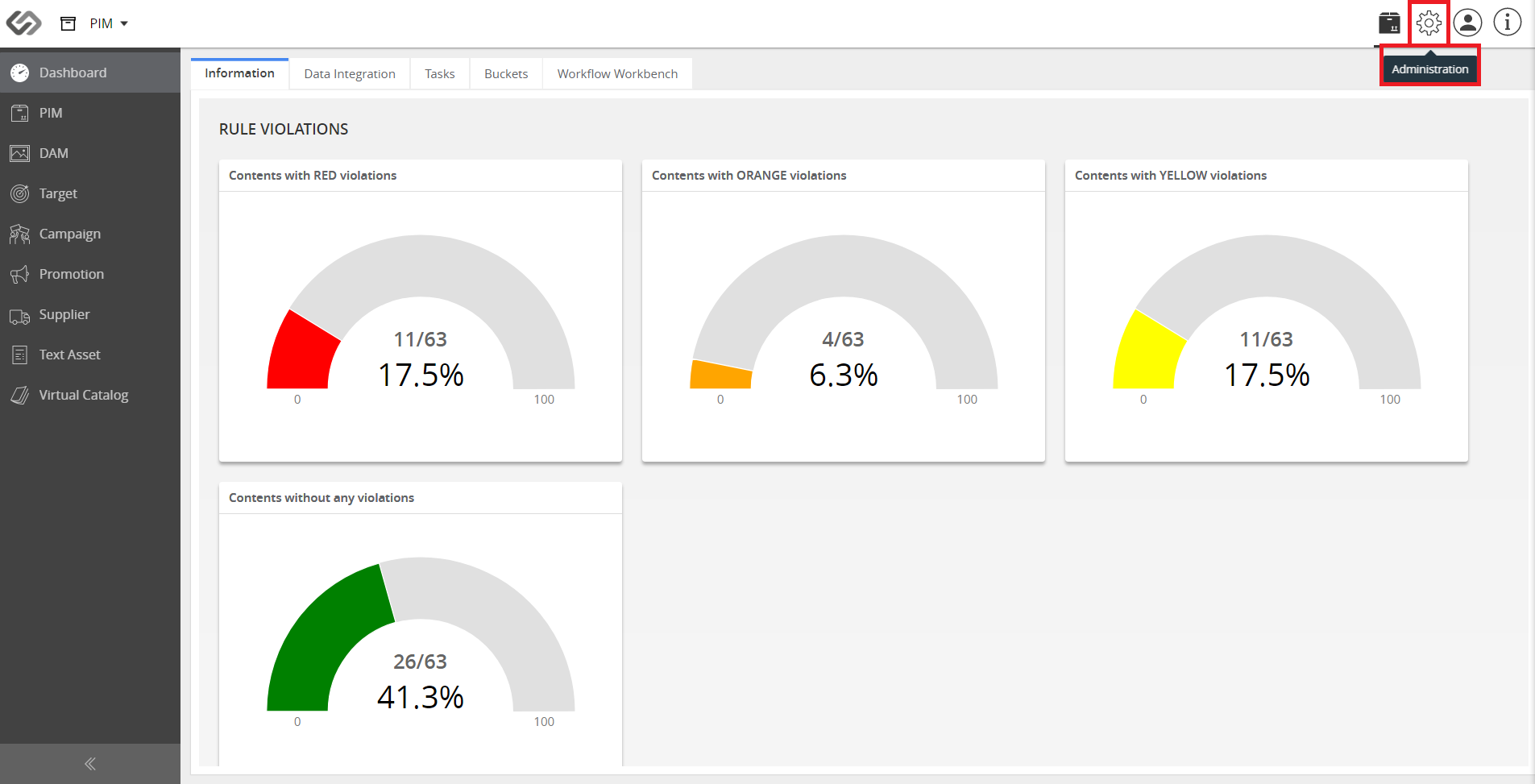
- Log in and go to Administration.
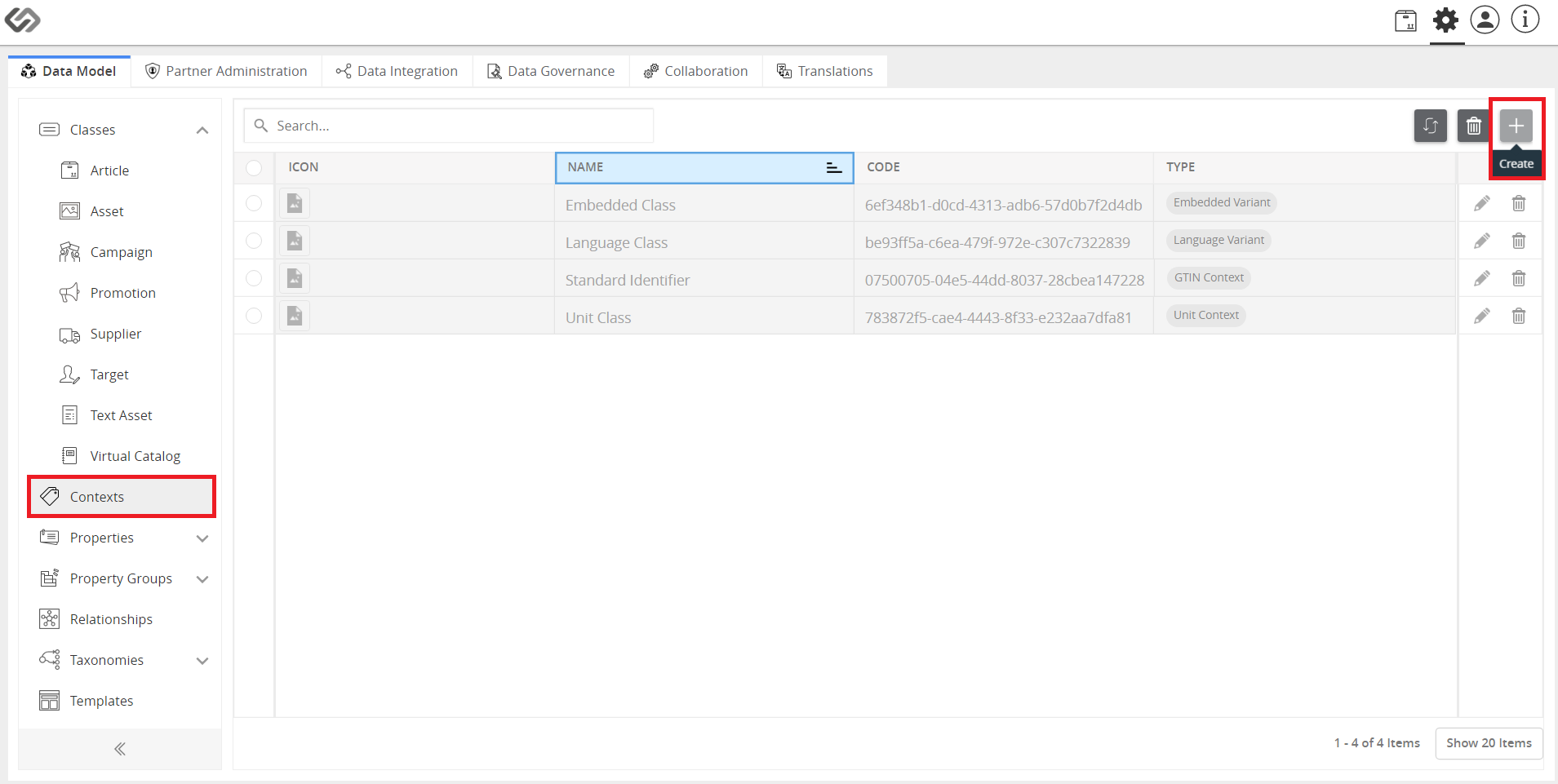
- Click on Contexts and then, click on “+” icon to create a context.
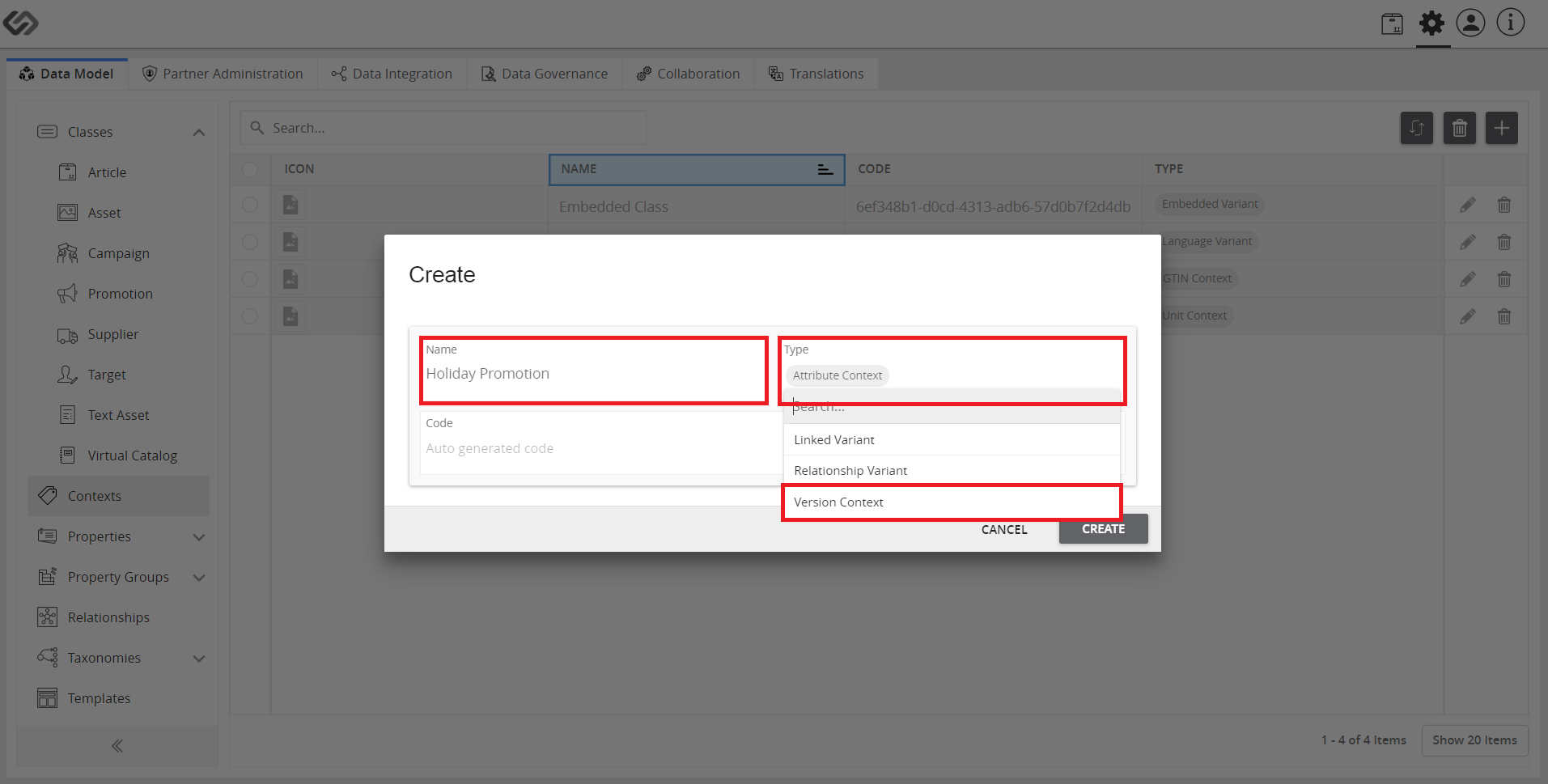
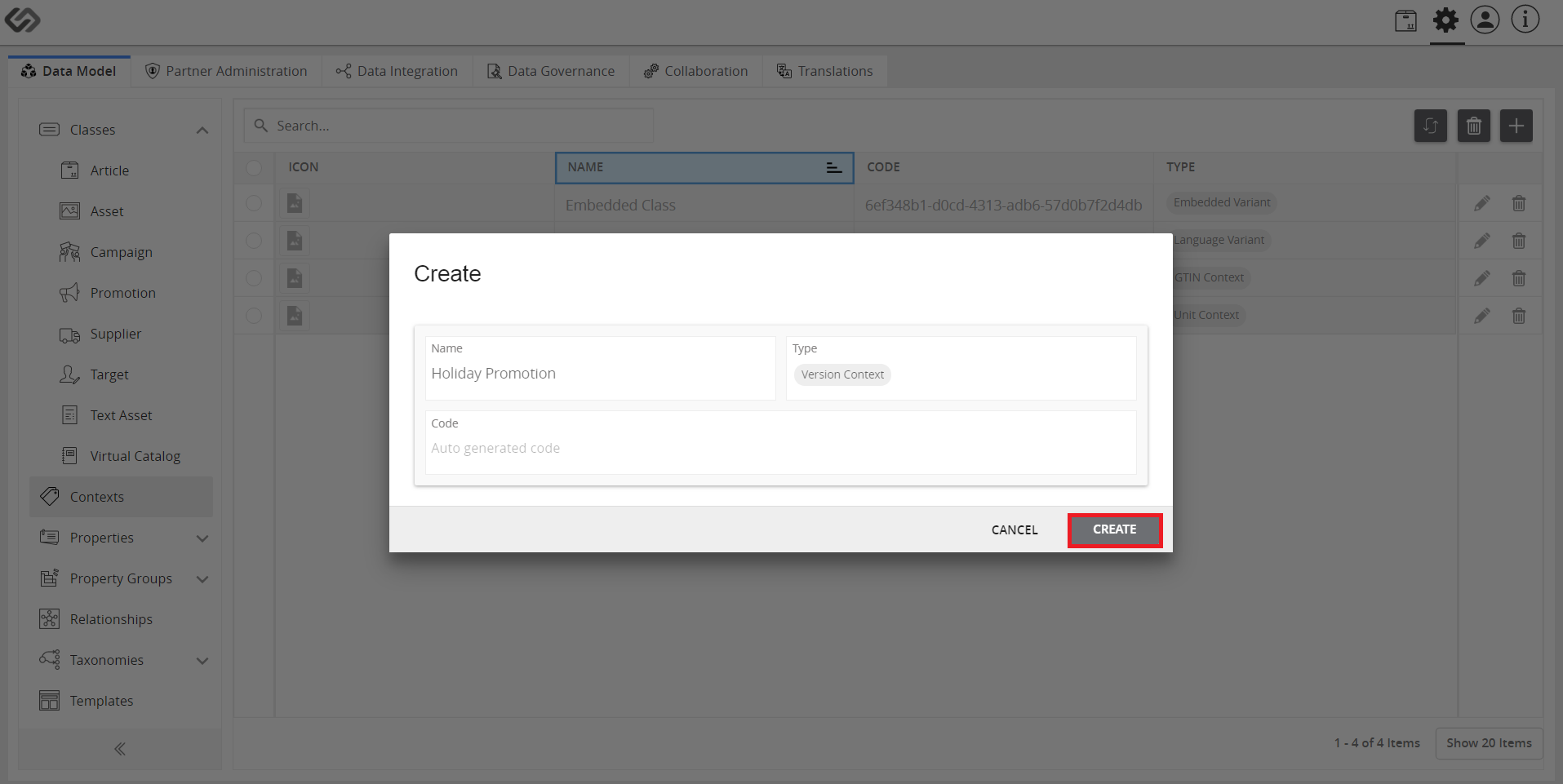
- Provide the following details: Name and Type. Select the Version Context option for the Type field. Click on the Create button.
- A new window will pop up; set the details and options: Icon, Enable Time (Campaign Period), Allow Duplicate, and the relevant Tags.
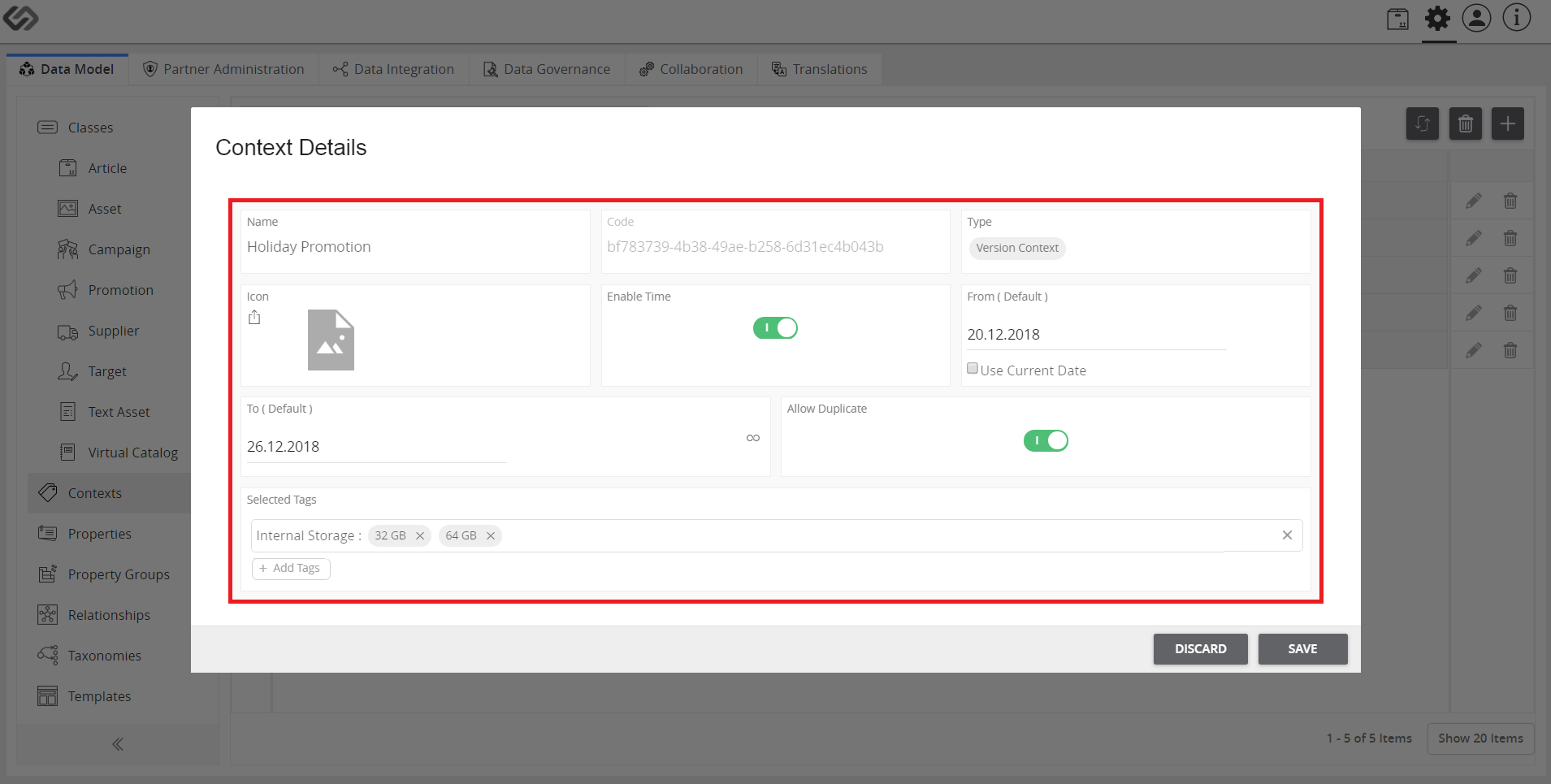
- Click the Save button once done. And then, click Ok.
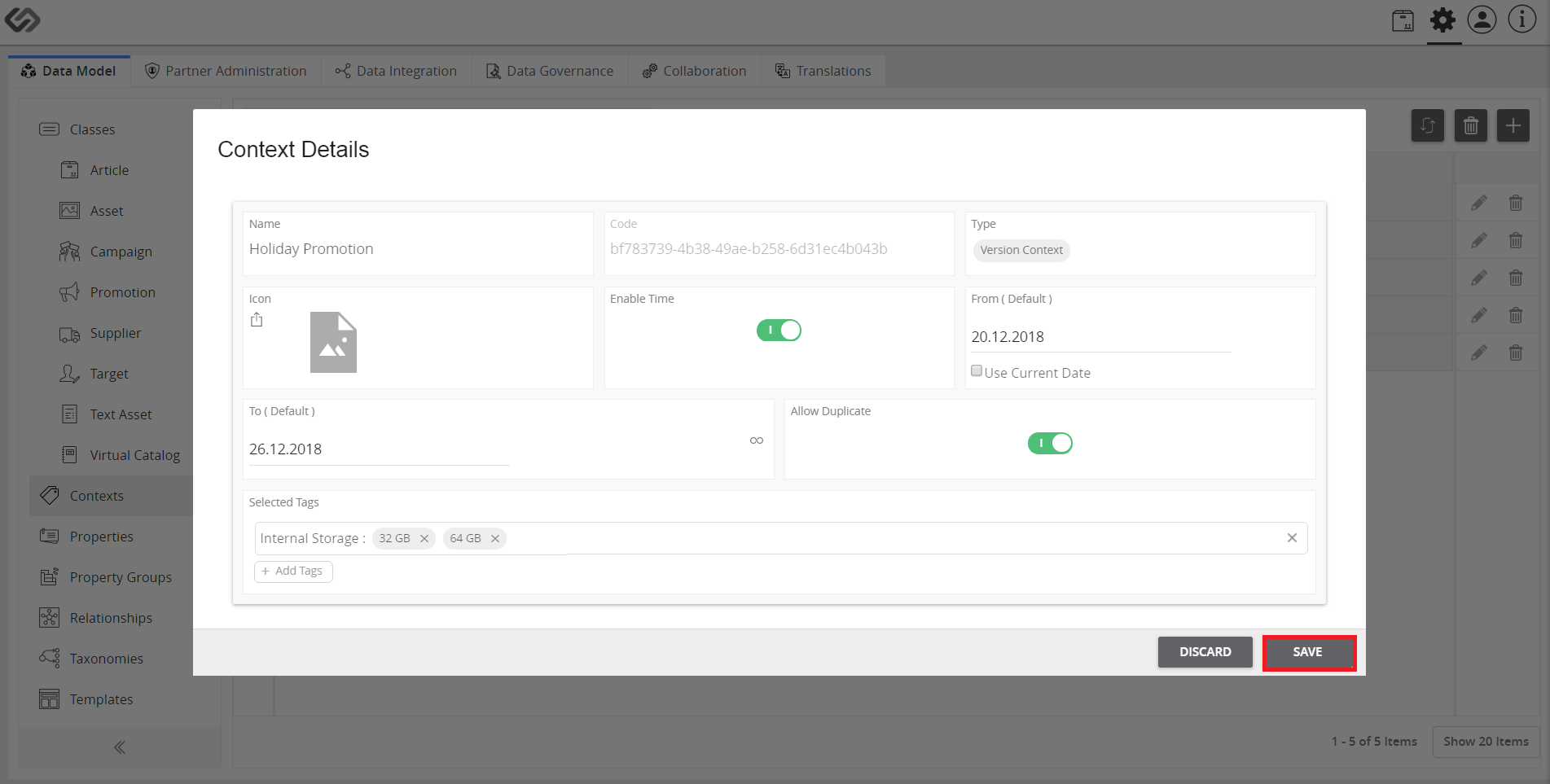
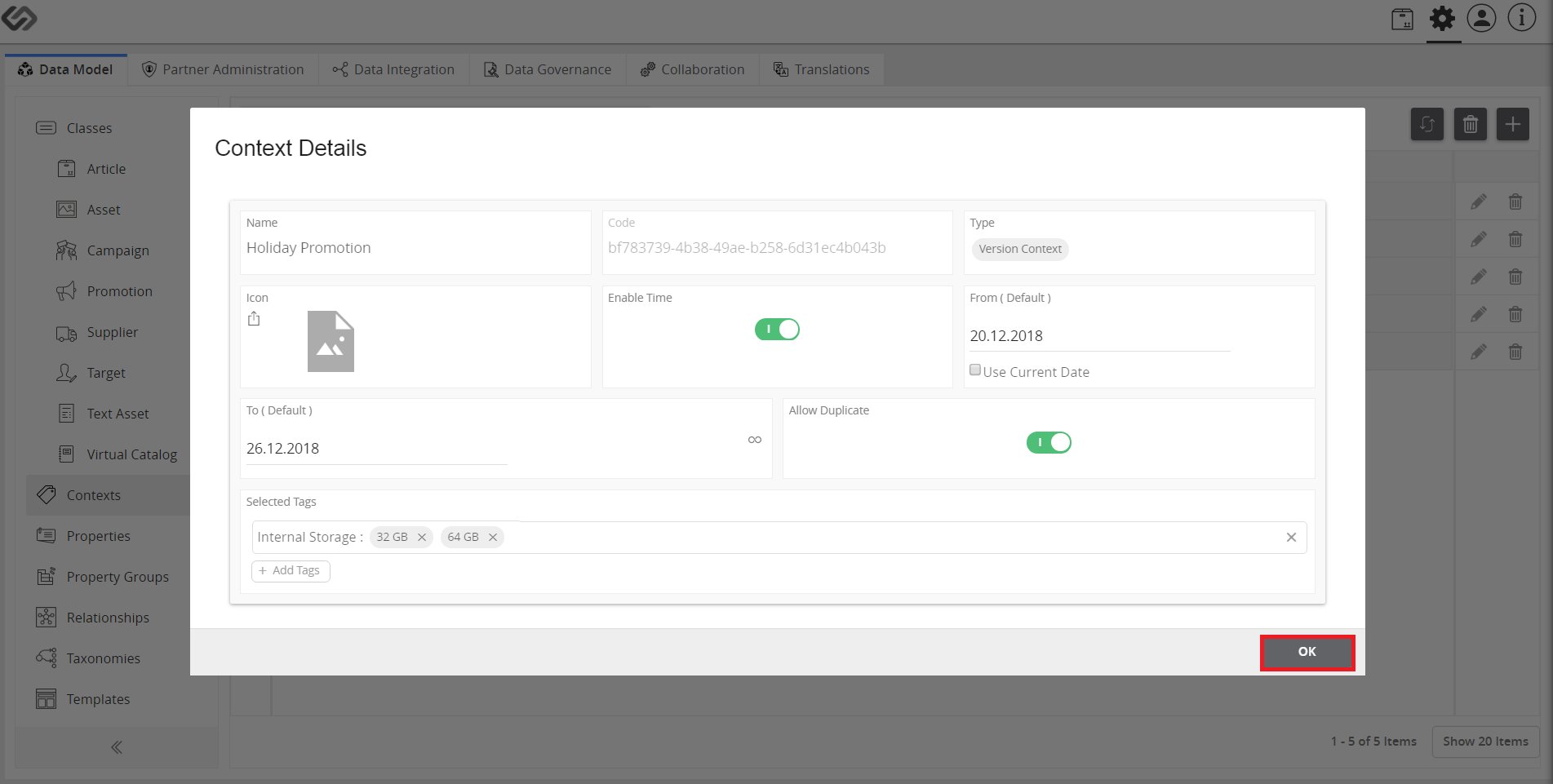
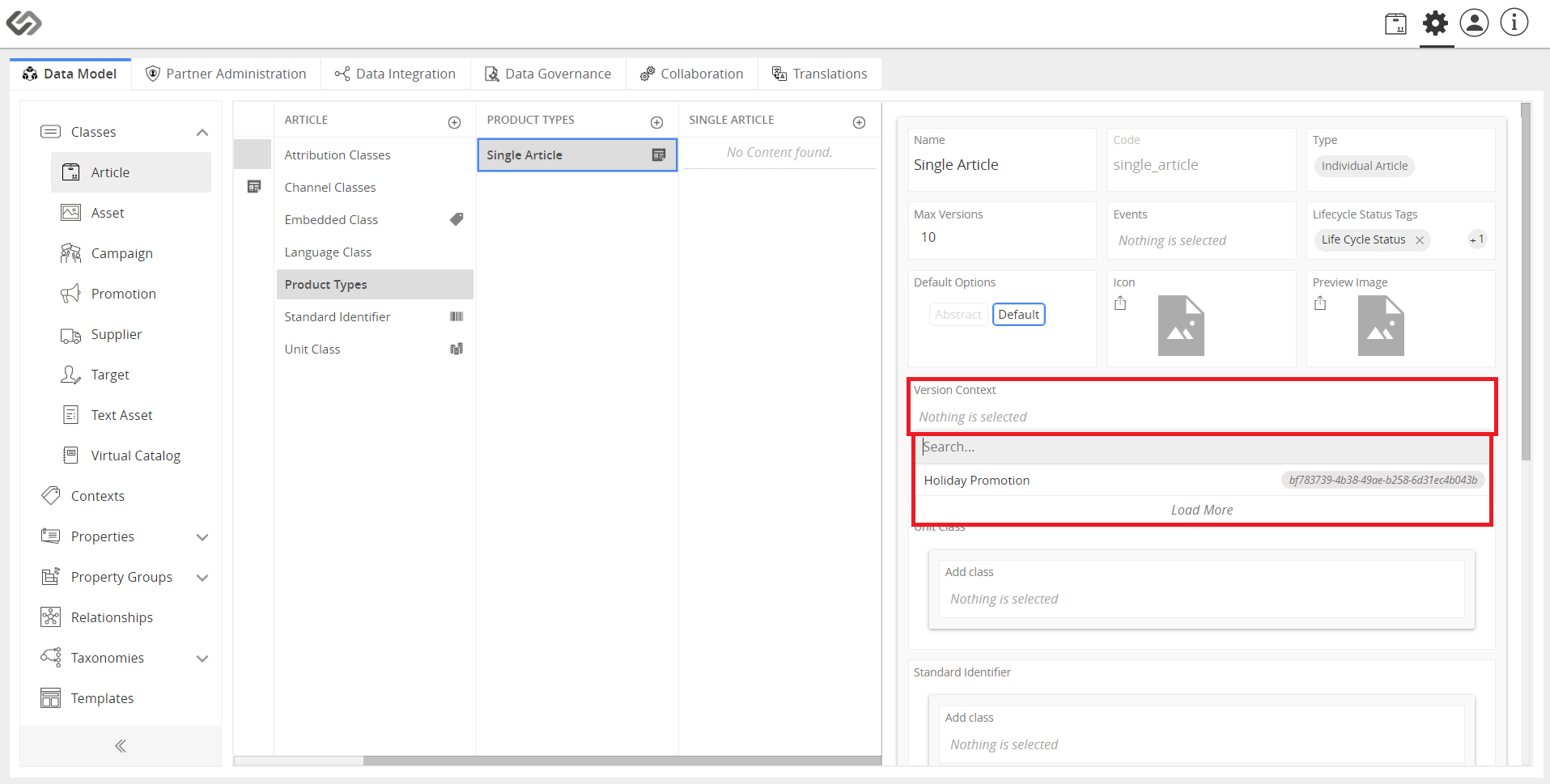
- Click on Article under the Classes section. Create a new article or select an existing one from the list.
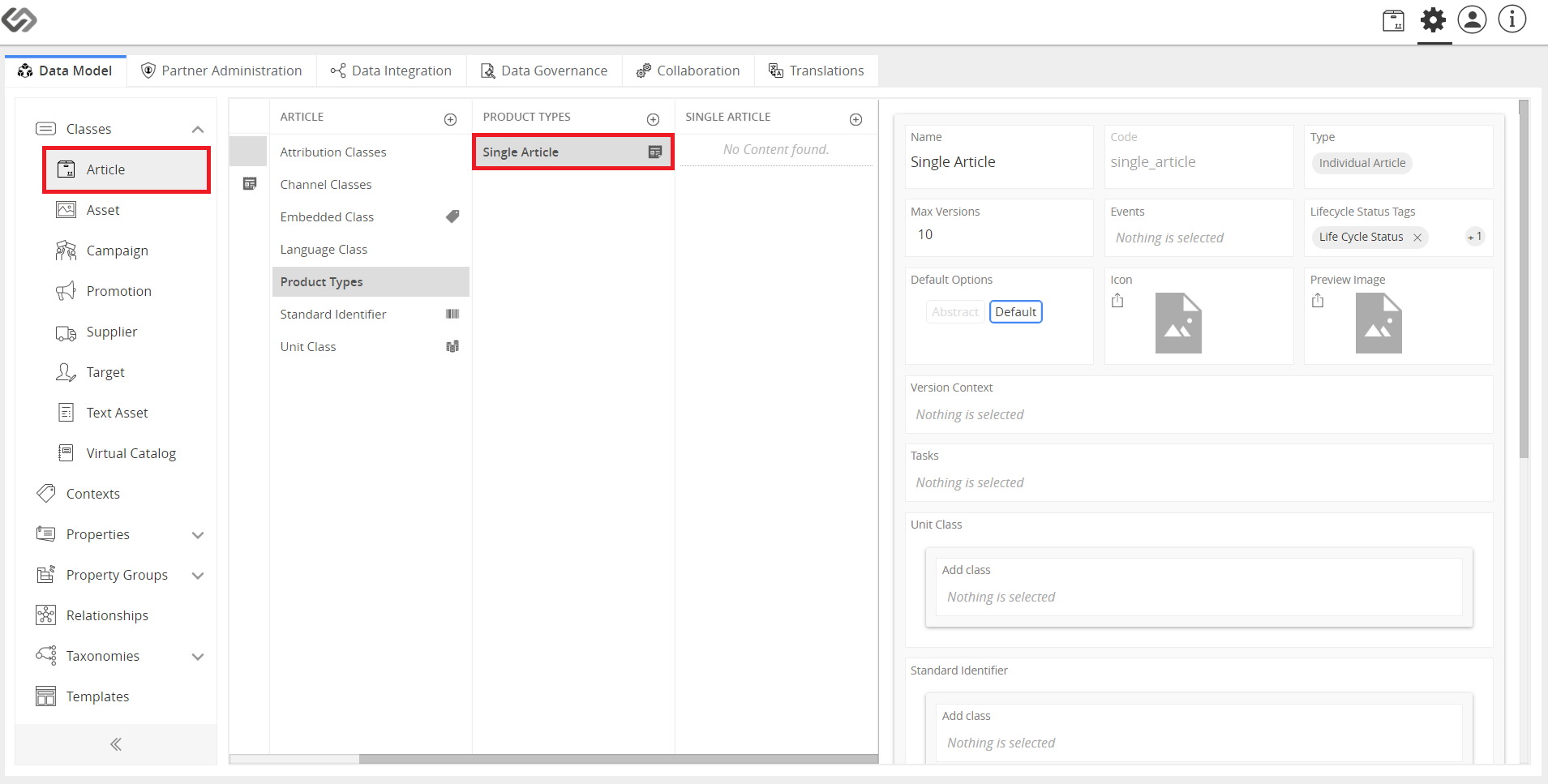
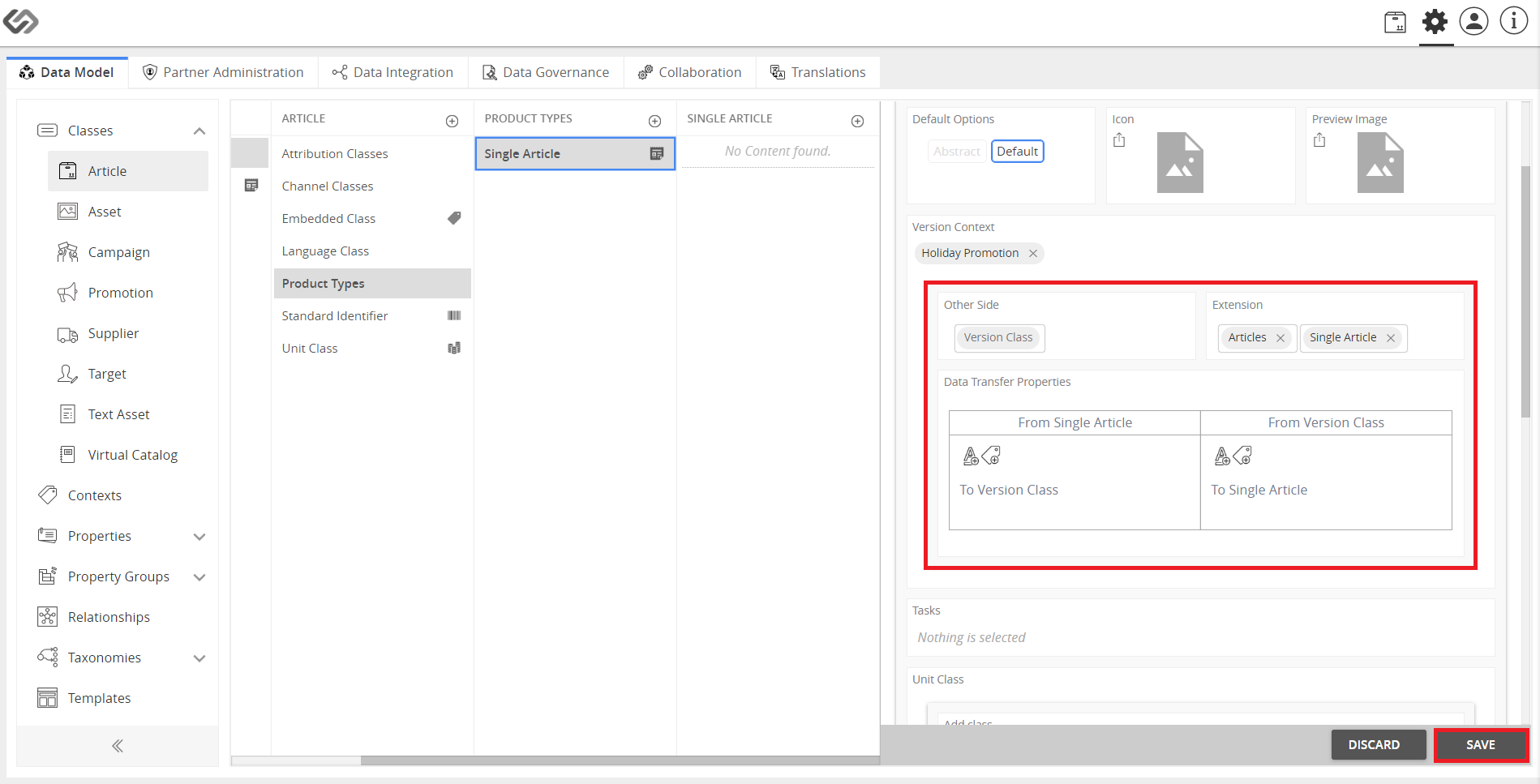
- Once selected, update the Version Context field that can be seen on the right. Select the newly created version context from the options and save the changes.
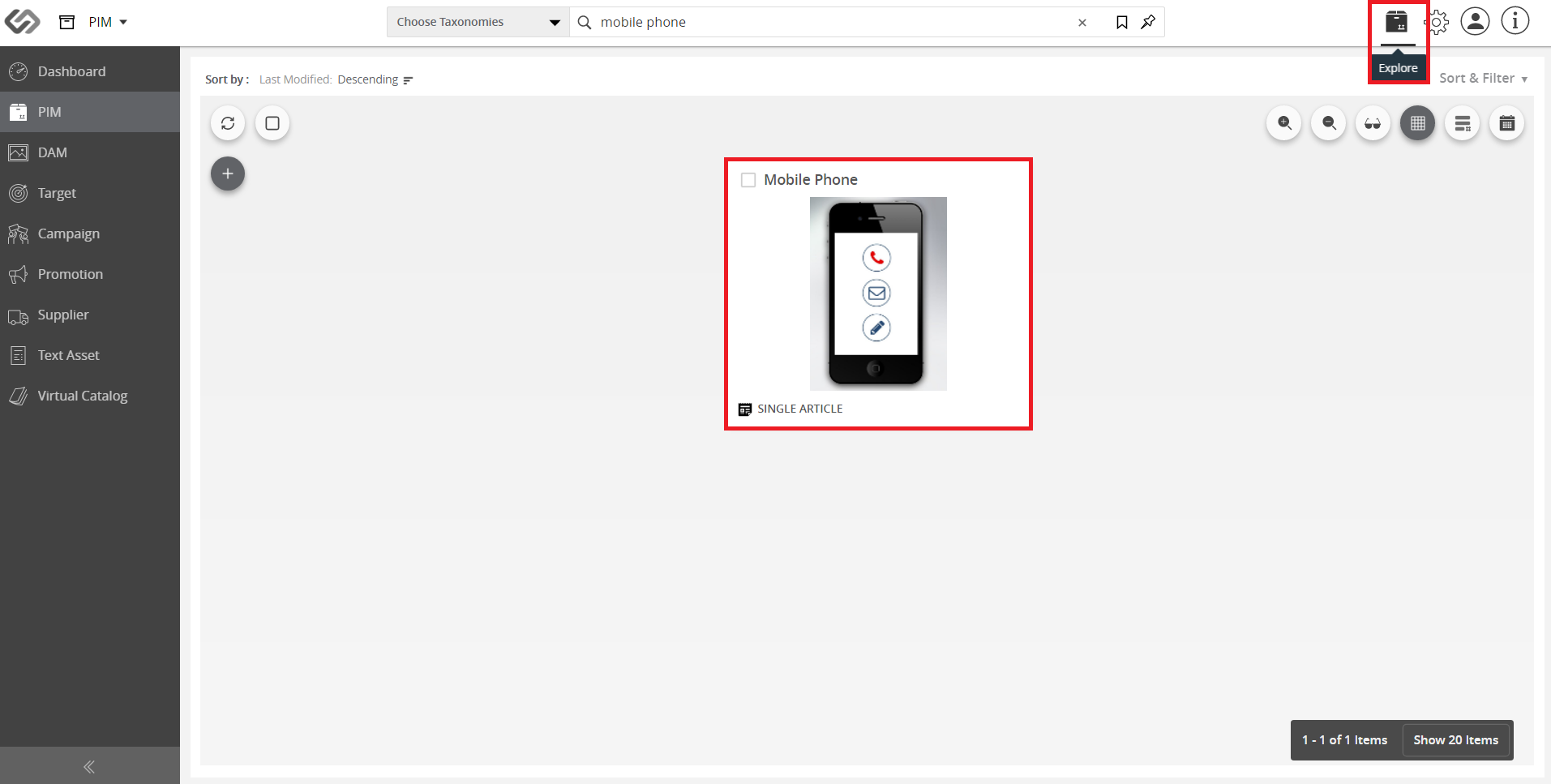
- Click on the Explore icon and go to the product.
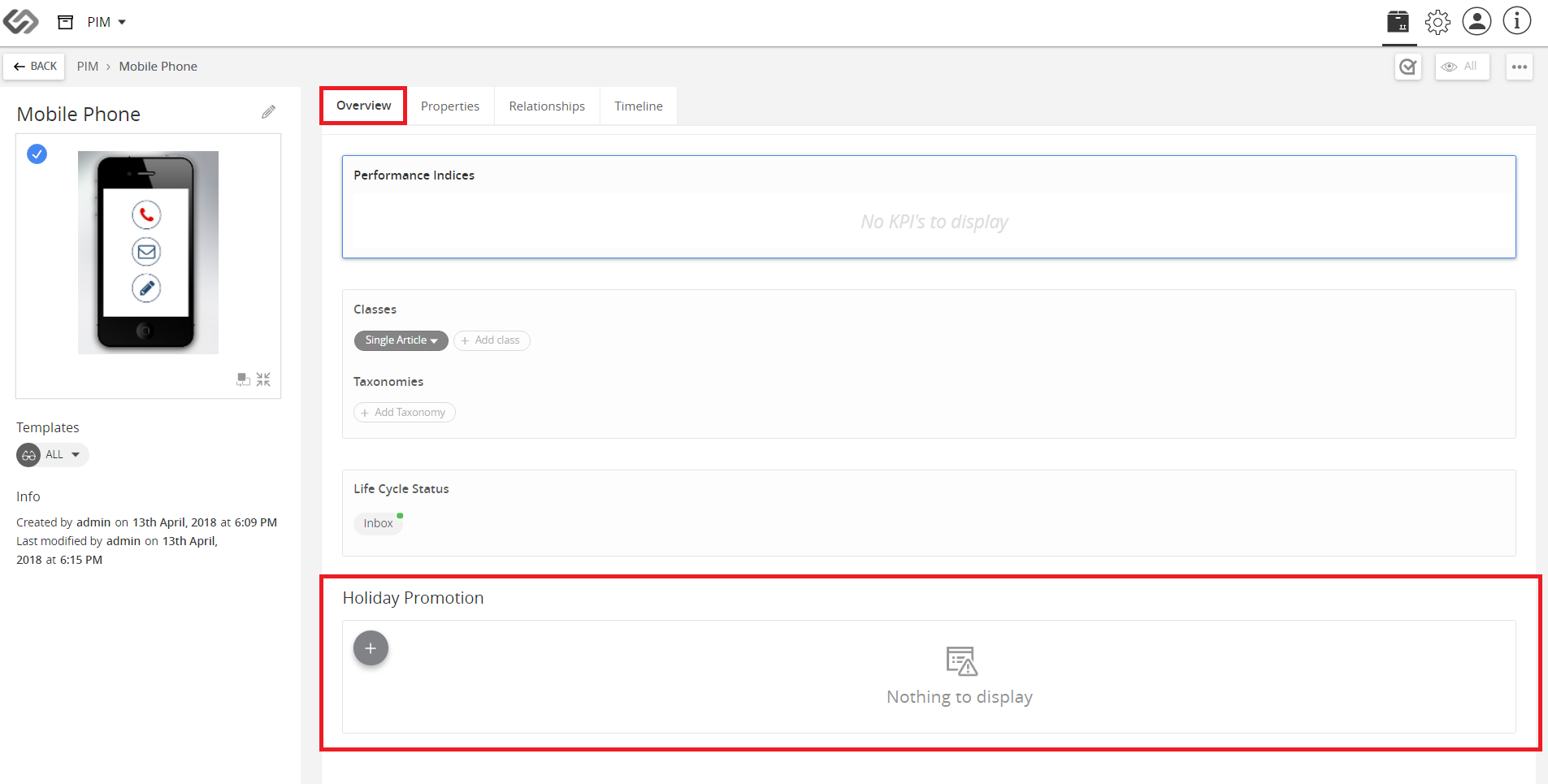
- In the Overview tab, go to the section of the Version Context and click on the “+” icon to create a version of the product.
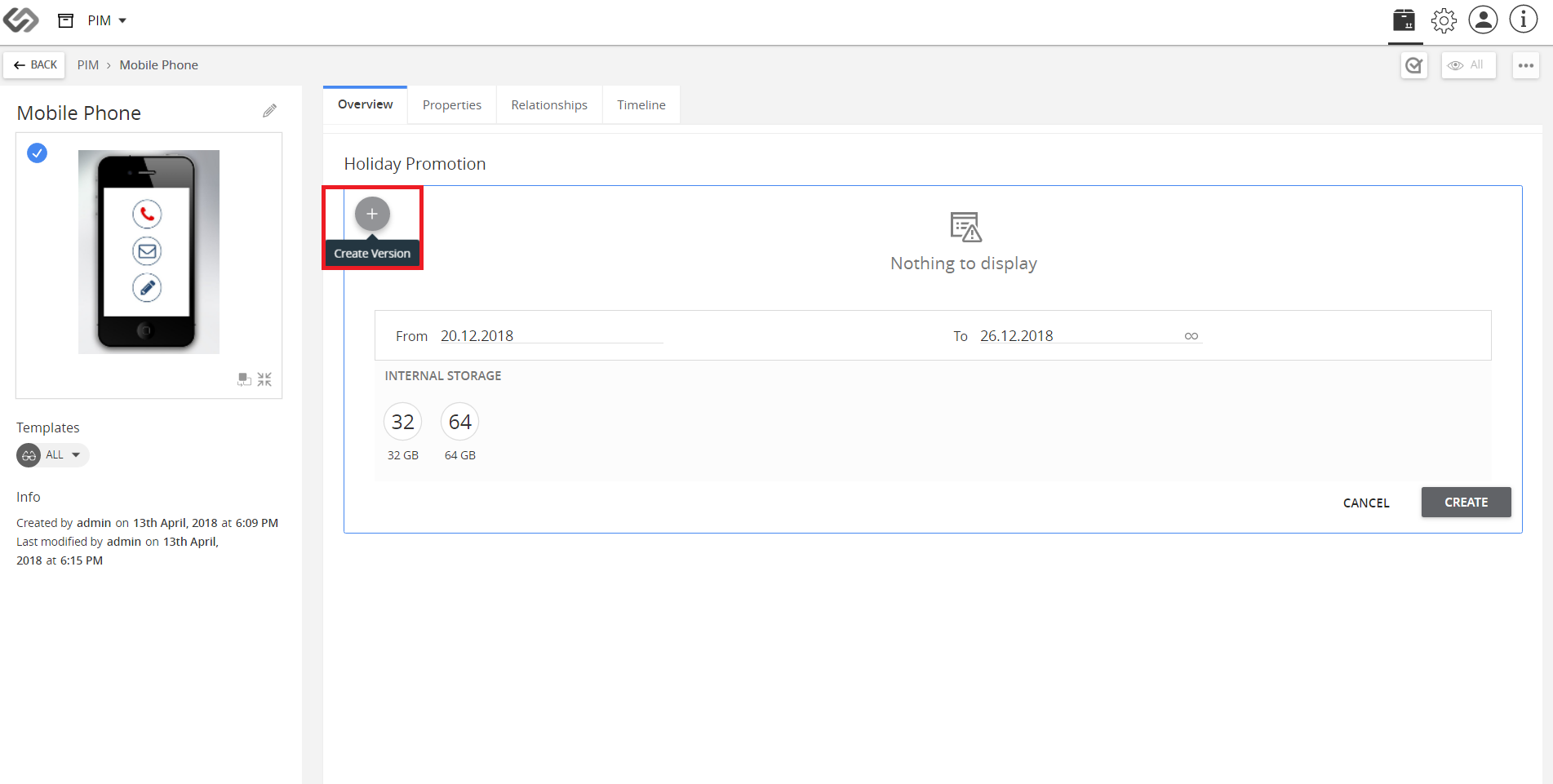
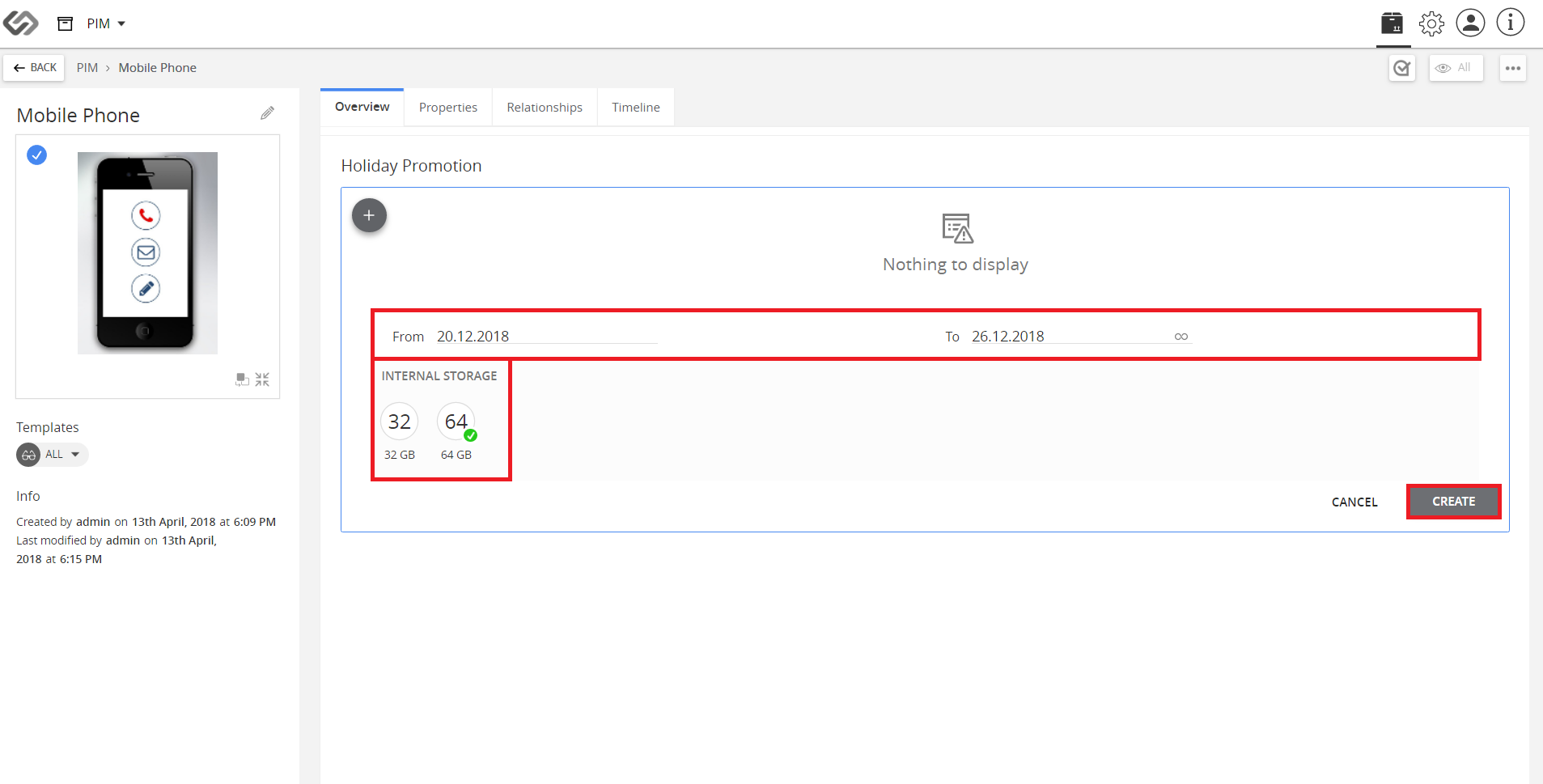
- Provide the necessary details and then click on the Create button.
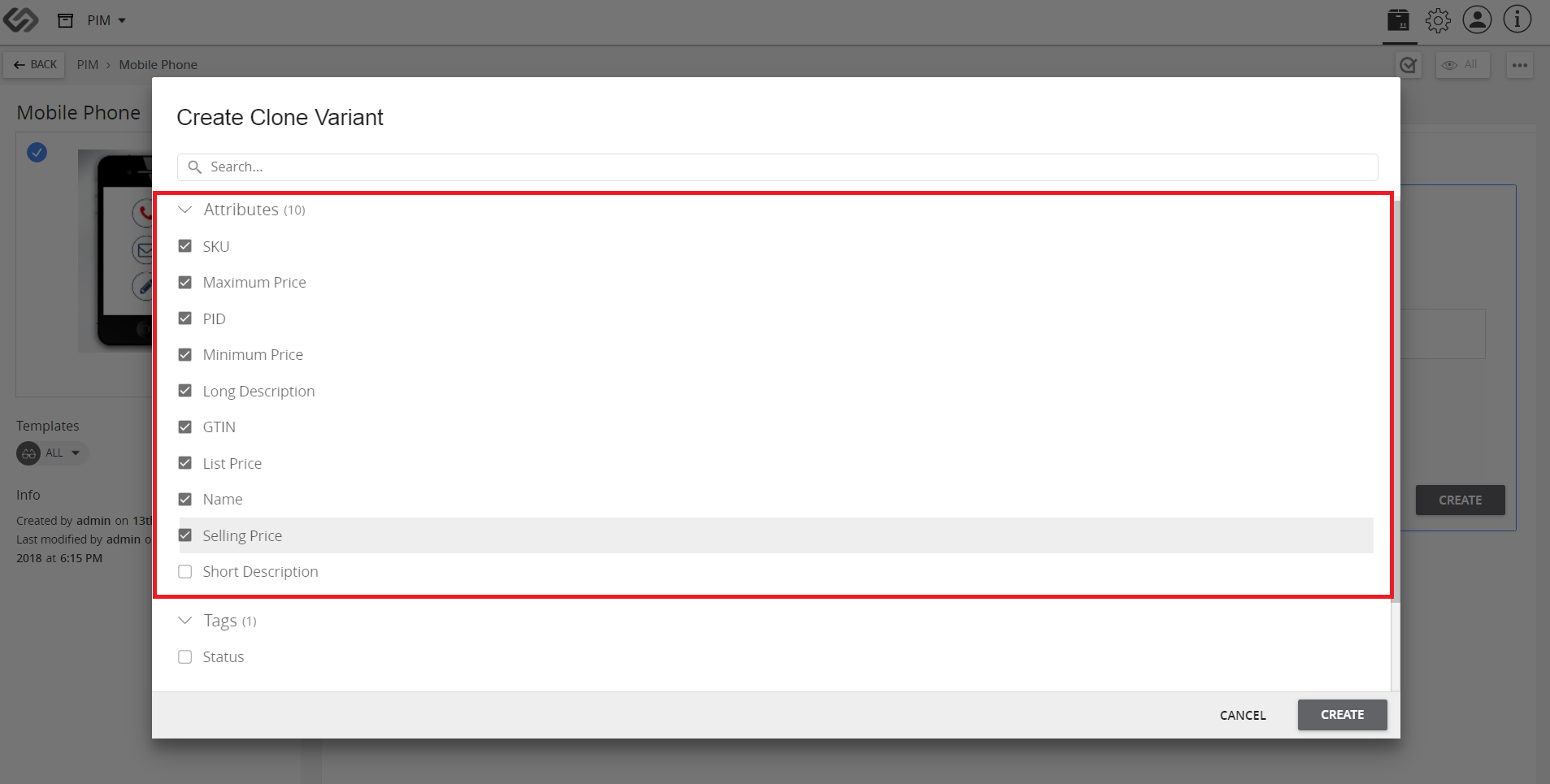
- Wait for the new window, Create Clone Variant to load. Select all the Tags and Attributes that apply to that variant.
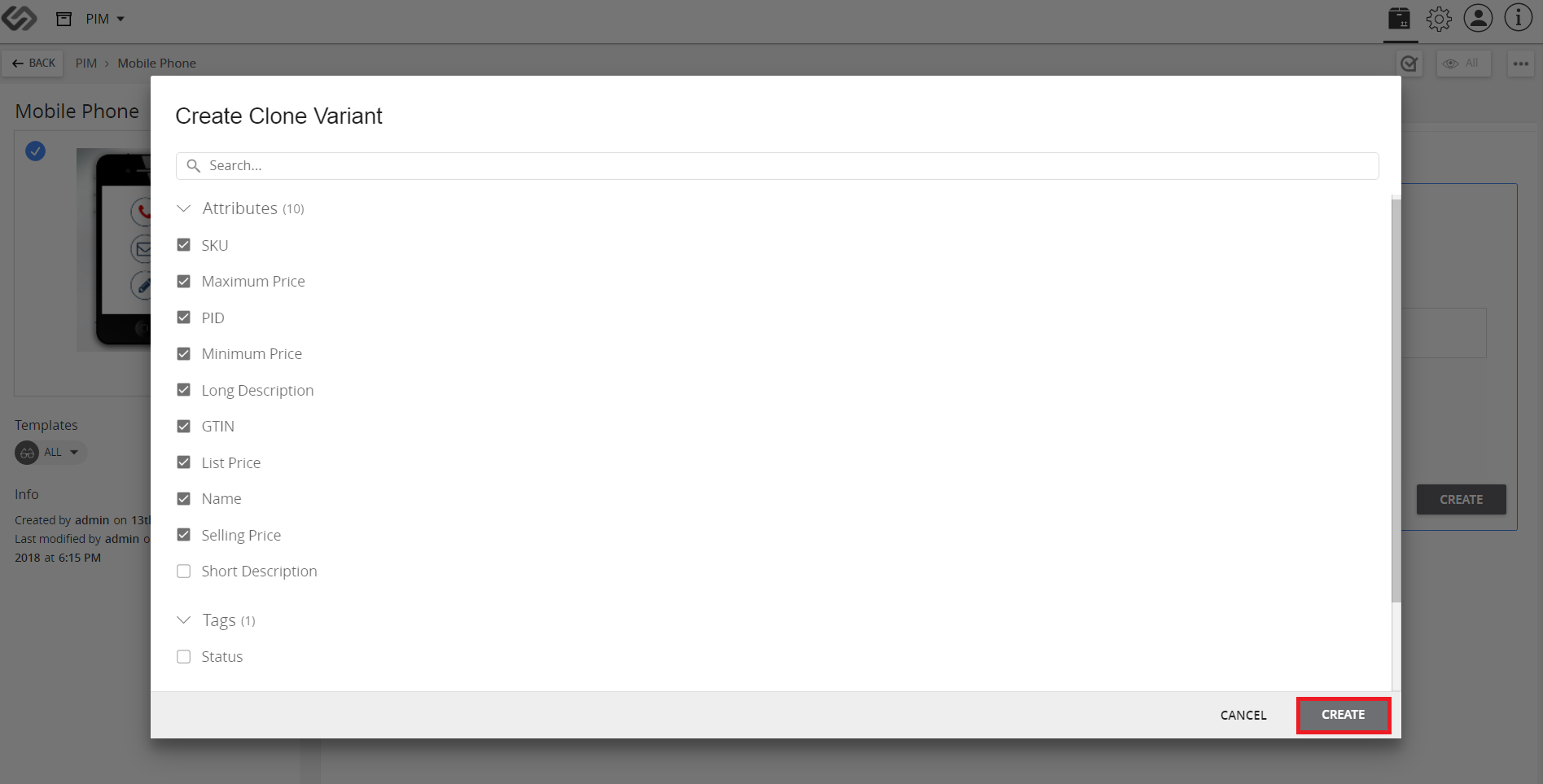
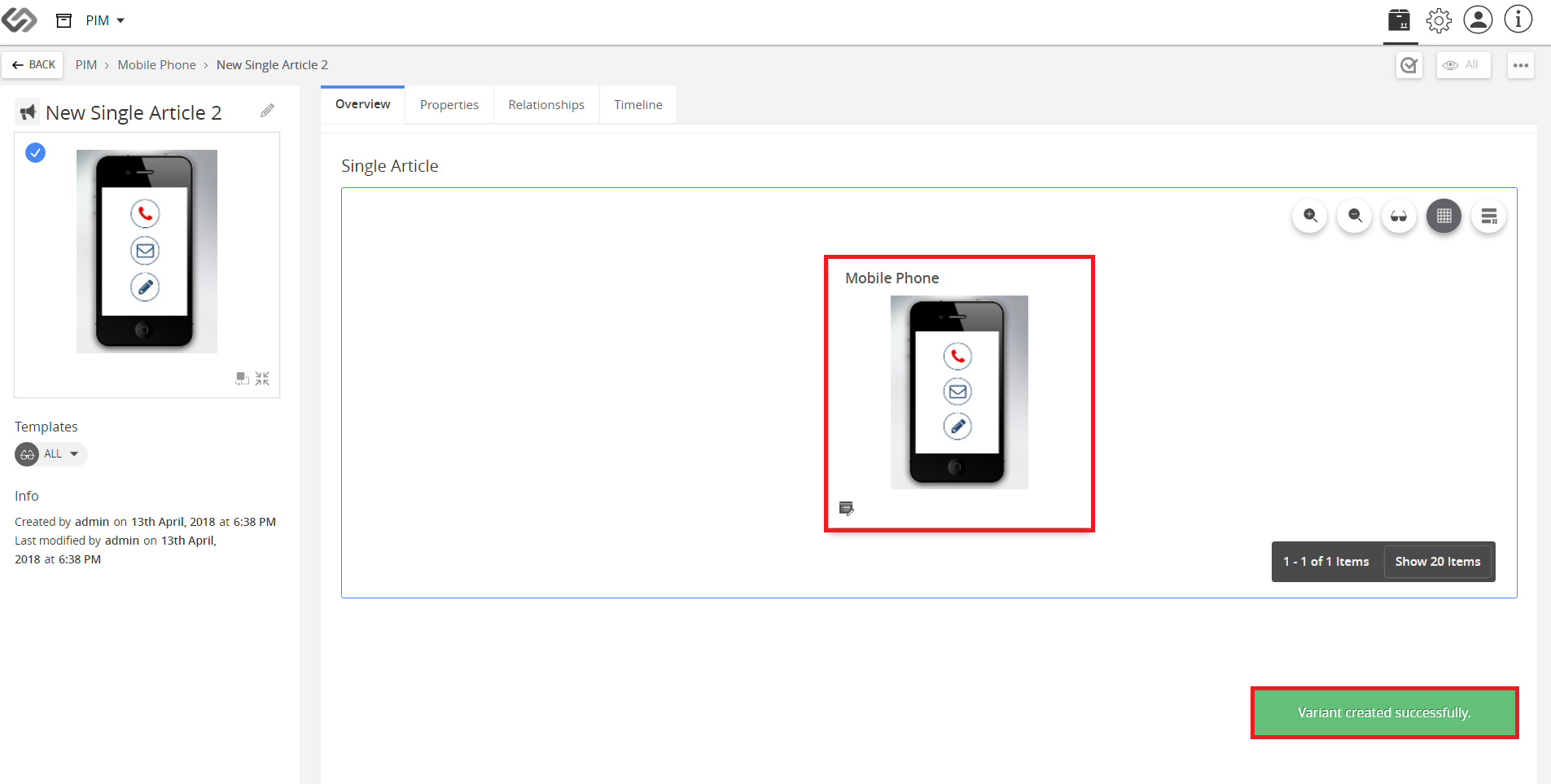
- Click the Create button and then, view the created variant.

Last updated: Jul 27, 2018