Help Center

Manage Masters

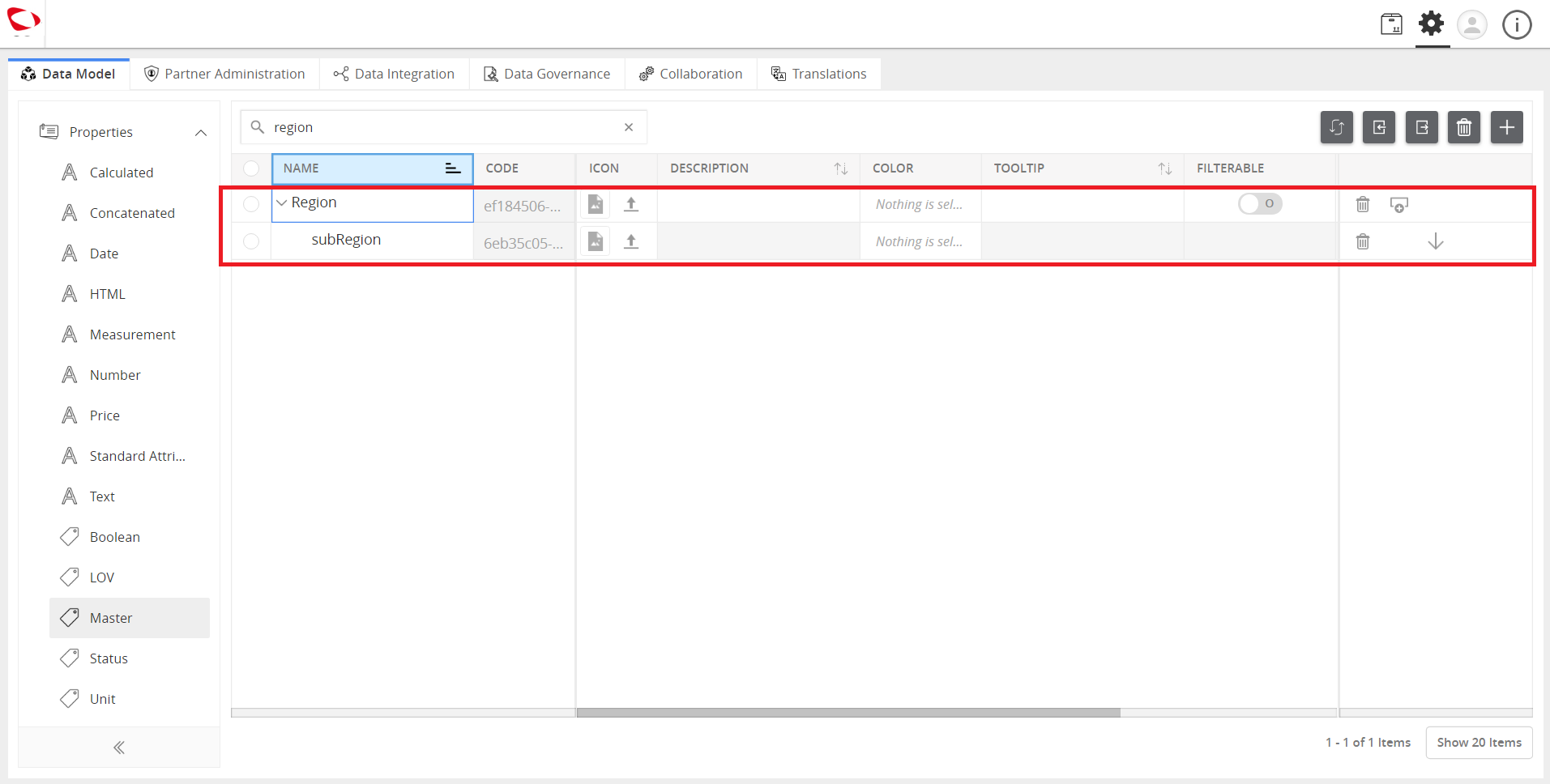
Manage Masters feature sets up Master Tags in the system like: Region, Color, Material, Brands.

Key Term:
  • Tags: properties that describe the products.
Description:
  • Master Tags allow users to make master tags and subtags in taxonomies which help in categorizing products.
  • The primary function of Manage Masters is that the tags can be reused in various sub-level taxonomies.
Related topics:
Application:
  • Once a Master Tag is created, it can be repeatedly used in multiple hierarchical levels, making it convenient for users.

  • Example:

    An organization sells multiple categories of product (i.e. Furniture, Electronics, and Fashion & Clothing). The user creates a Color Master Tag, which can be used in all the categories mentioned.

How-to: Manage Masters

To do this, follow these steps:


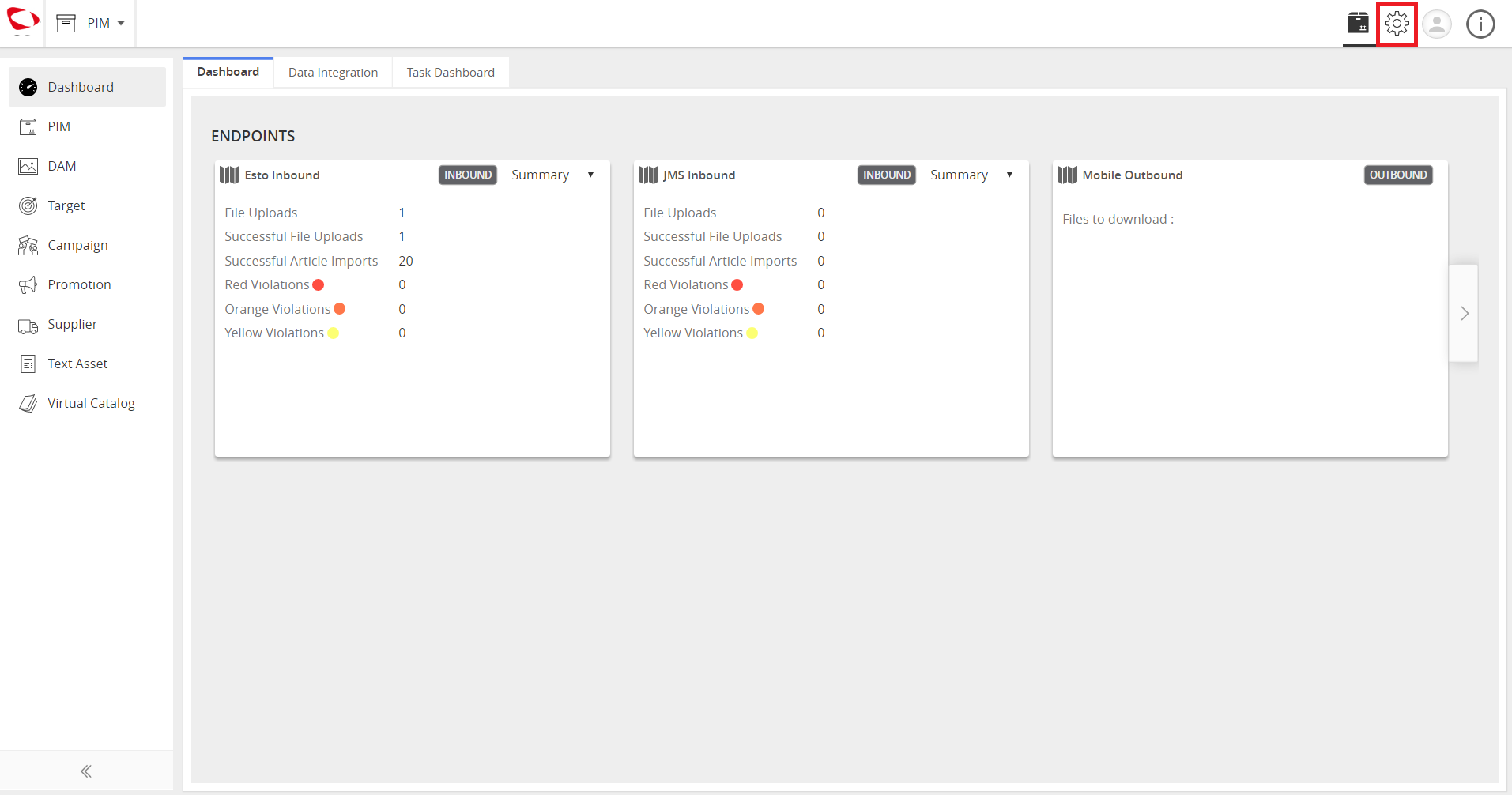
  1. Click Administration icon.
../../../../../_images/cs_managemasters_gotoadmin.PNG


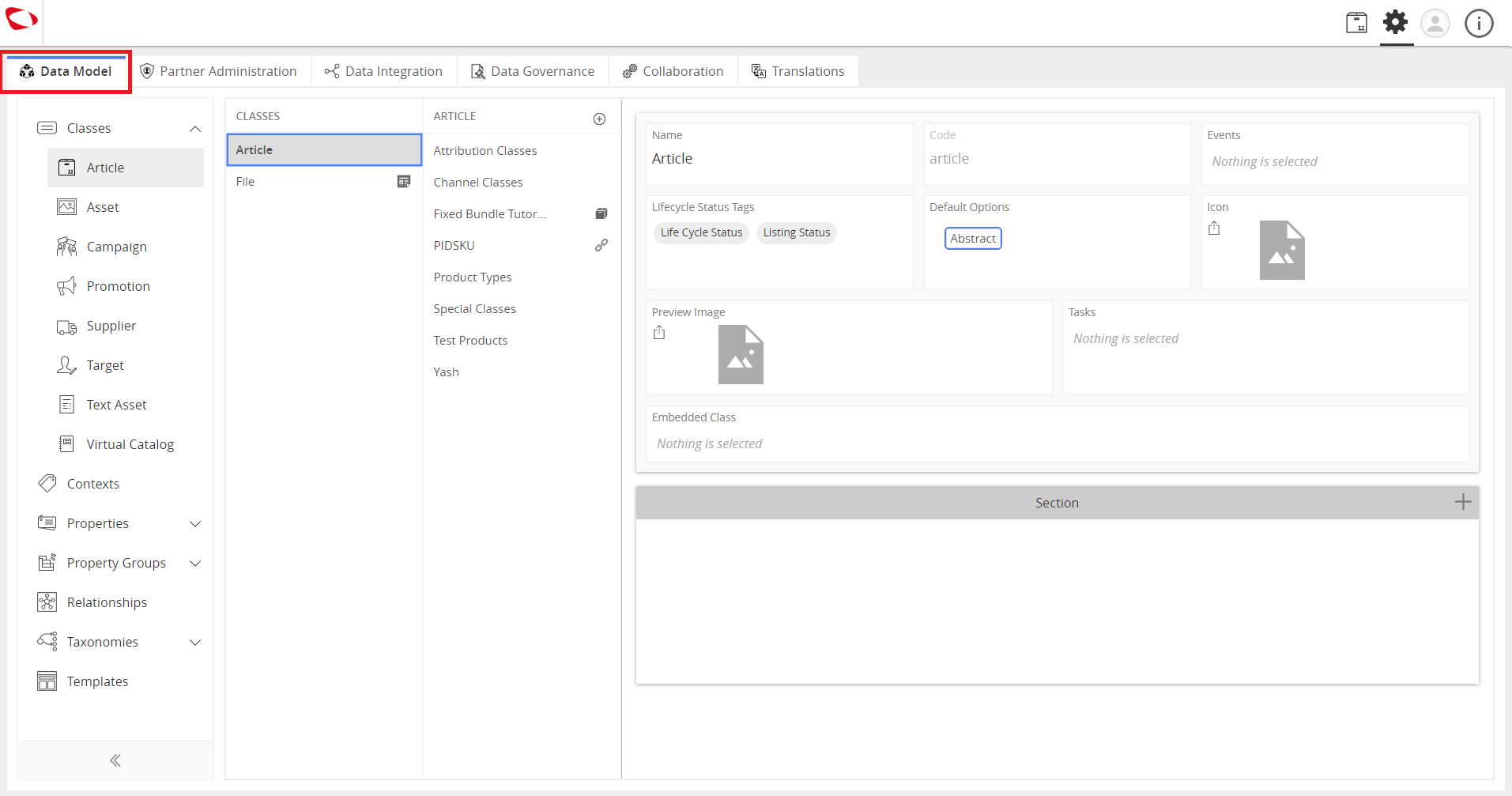
  1. Click Data Model tab.
../../../../../_images/cs_managemasters_clickdatam.PNG


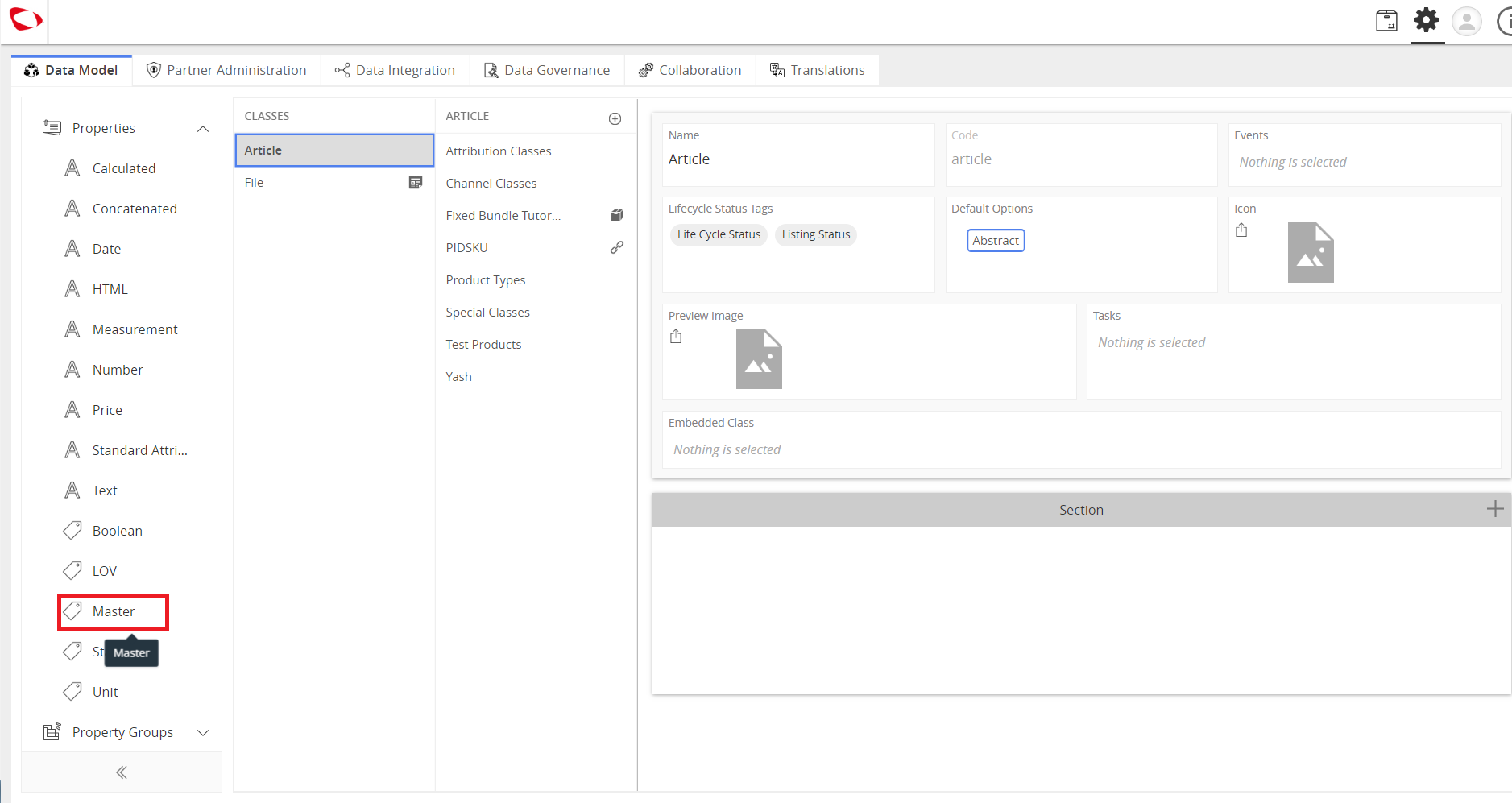
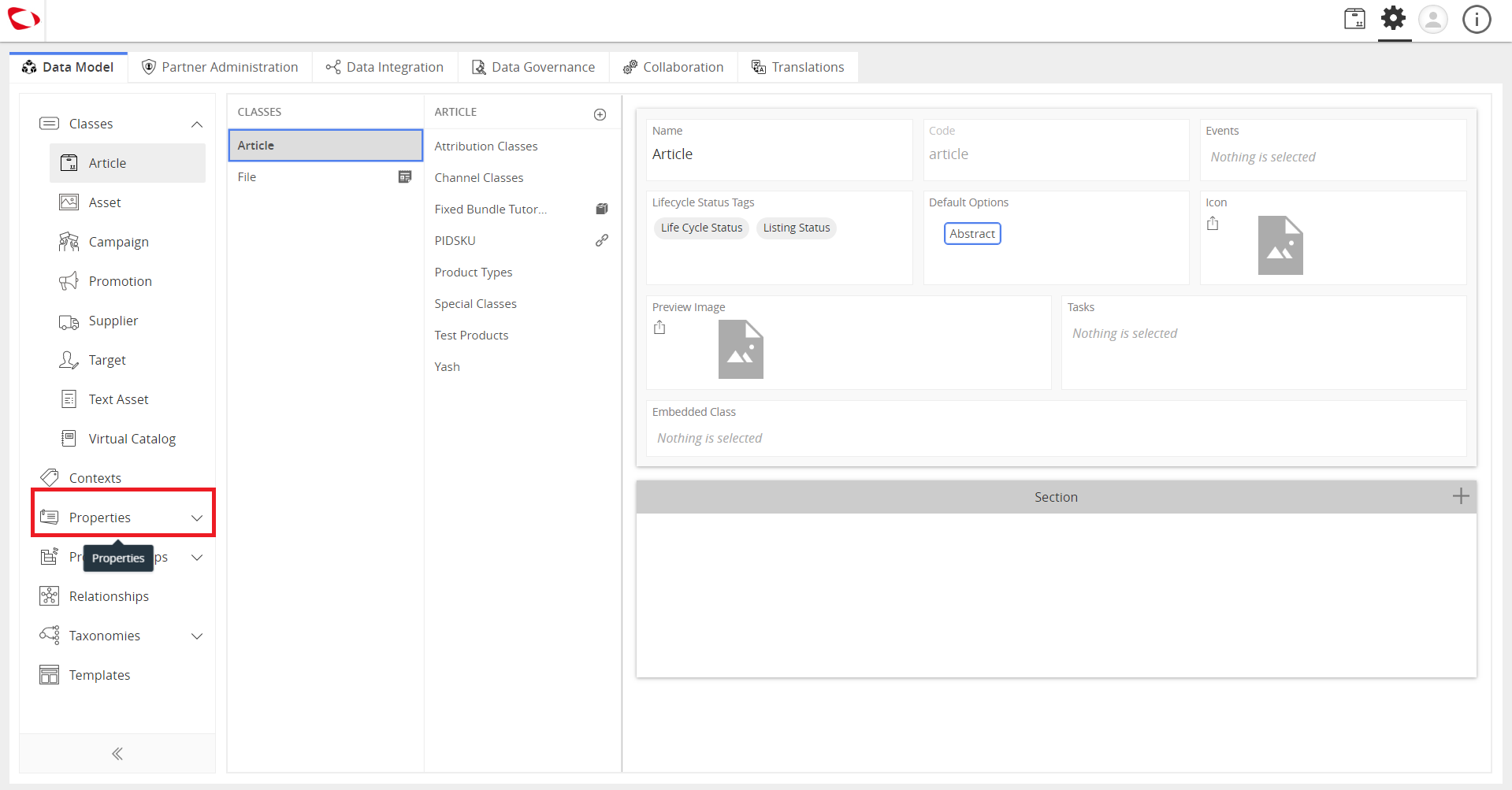
  1. Click Properties to view the dropdown menu.
../../../../../_images/cs_managemasters_clickprop.PNG


  1. Click Master on the dropdown menu.
../../../../../_images/cs_managemasters_clickmas.PNG


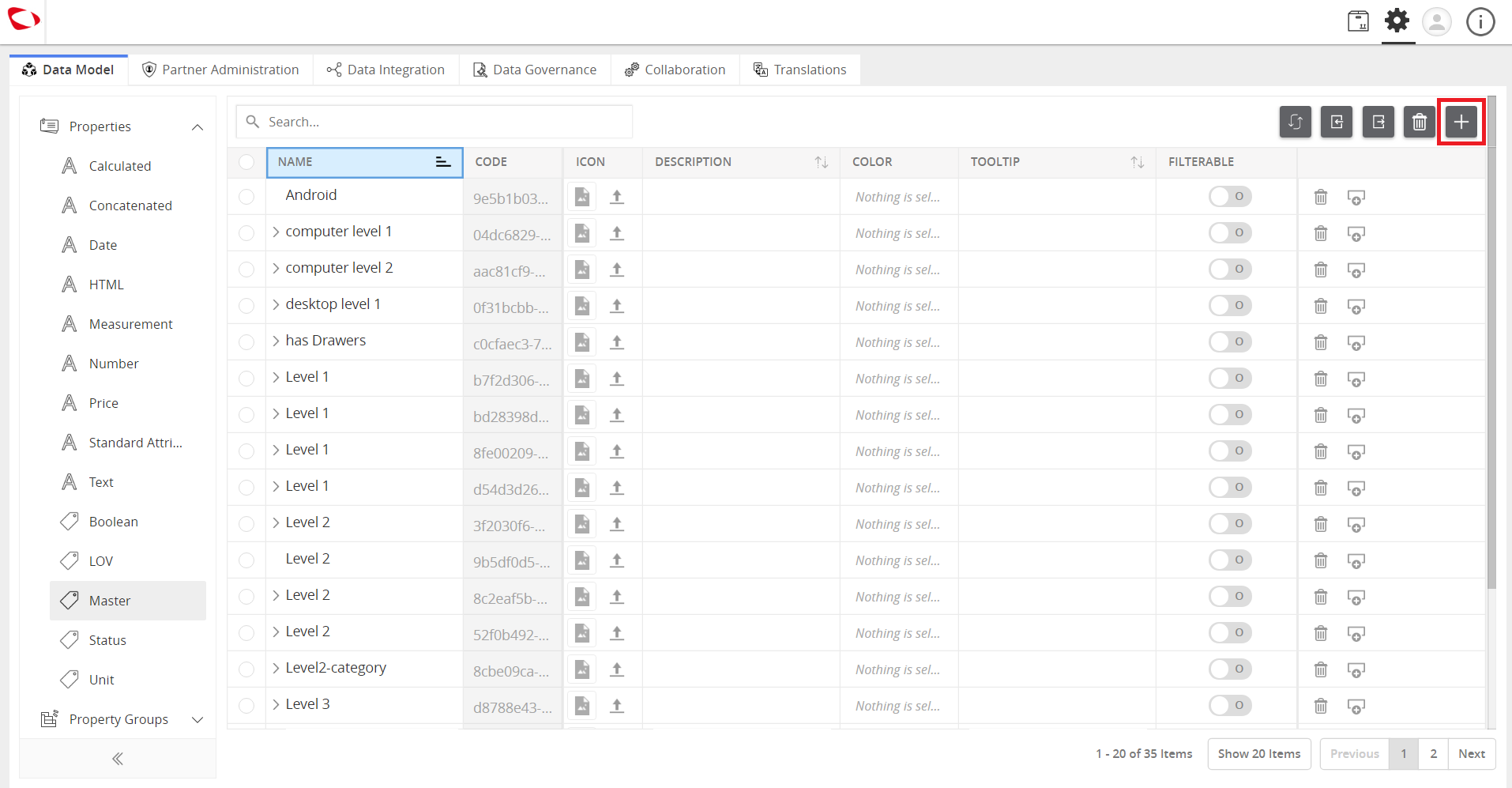
  1. Click the “+” icon on the right of the window. A small details window appears.
../../../../../_images/cs_managemasters_clickplus.PNG


../../../../../_images/cs_managemasters_enterdetails.PNG


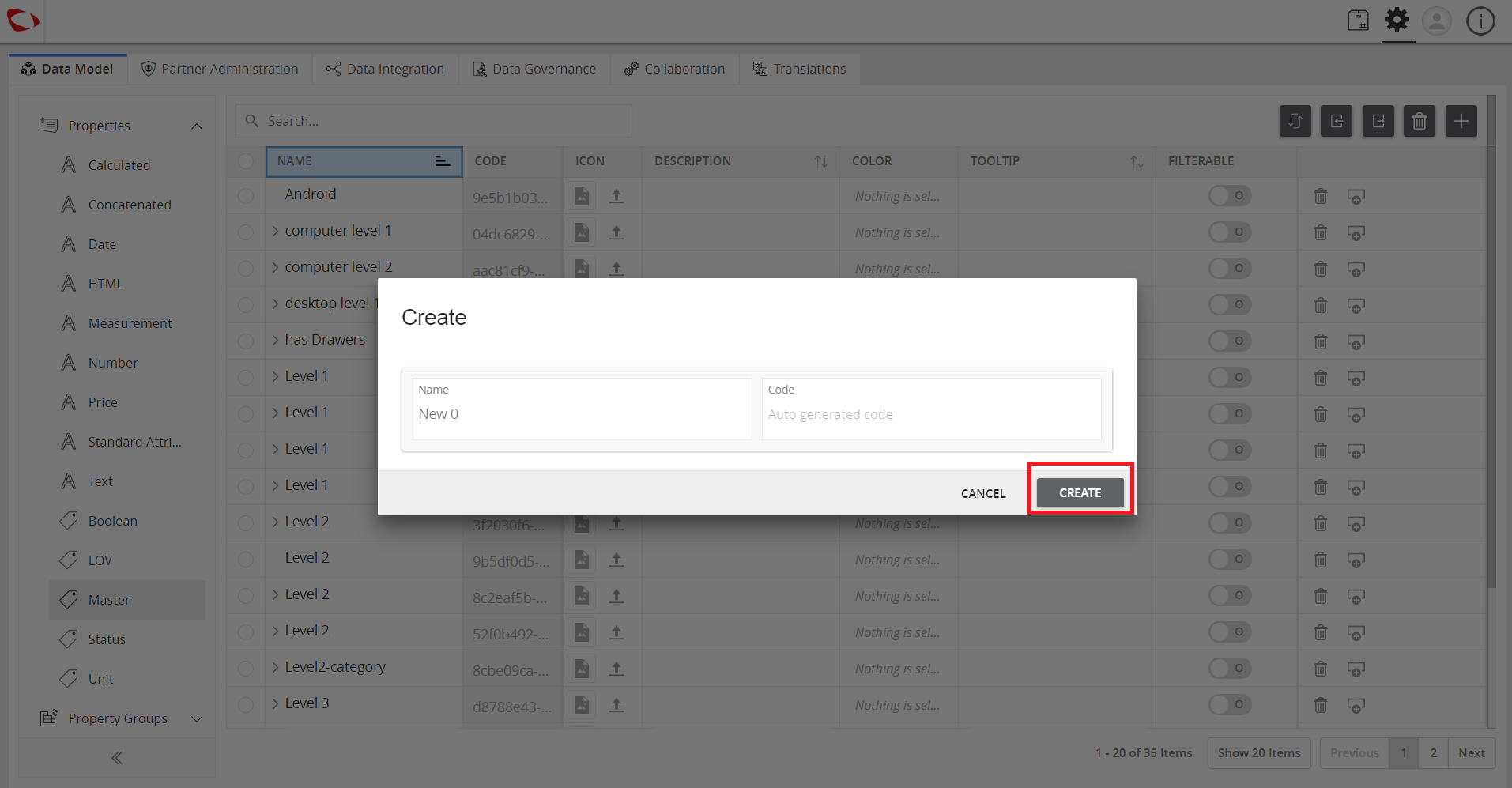
  1. Enter a tag name i.e “Region” and click CREATE. Repeat the process to create other tags such as Color, Material, and Brands to create Master tags.


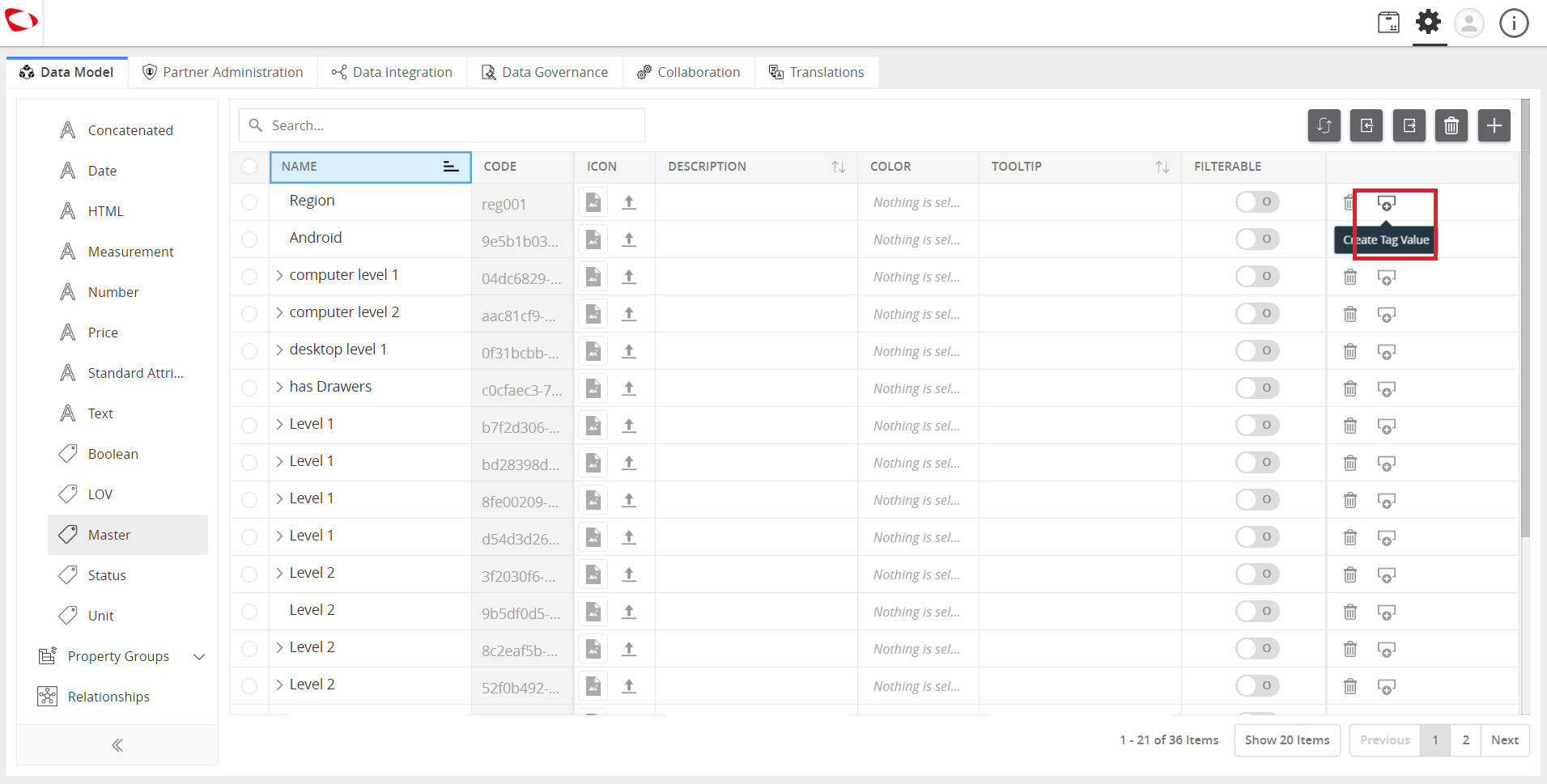
  1. Click Create tag value to create subtag value.
../../../../../_images/cs_managemasters_createsub.PNG


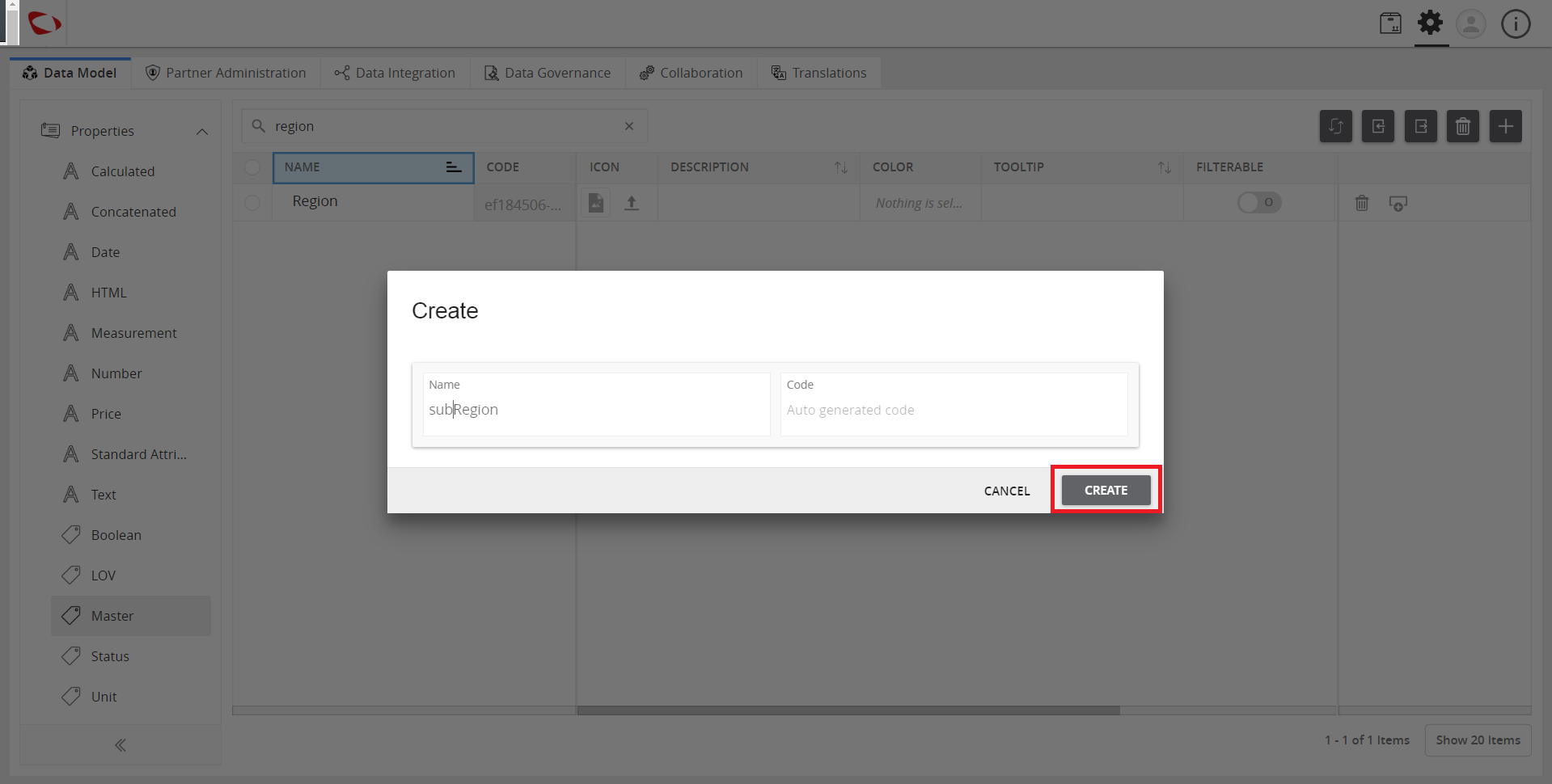
  1. Enter a name for the subtag and click CREATE.
../../../../../_images/cs_managemasters_clickcreatesub.PNG


  1. View the created tags.
../../../../../_images/cs_managemasters_viewtags.PNG


Contentserv line

Last updated: Jul 27, 2018